The Carousel widget displays your reviews as a horizontal sliding sequence, showing one or a few cards at a time as they loop continuously across the screen. Each review appears inside its own card, and the Card Background Color option lets you set the fill color of every one of those cards at once.
Because the Carousel draws attention through motion, the card color is one of the first visual elements a visitor notices. Choosing a color that complements your site’s palette keeps the widget looking intentional rather than out of place, and enough contrast between the card fill and the text on top makes each sliding review easy to read as it passes by. Some Carousel configurations also surface a Card on Hover Color picker, which lets you apply a separate fill when a visitor’s cursor rests on a card, adding a subtle interactive cue that encourages engagement.
How to change the card background color for your Carousel widget
Step 1: Open the Widgets section
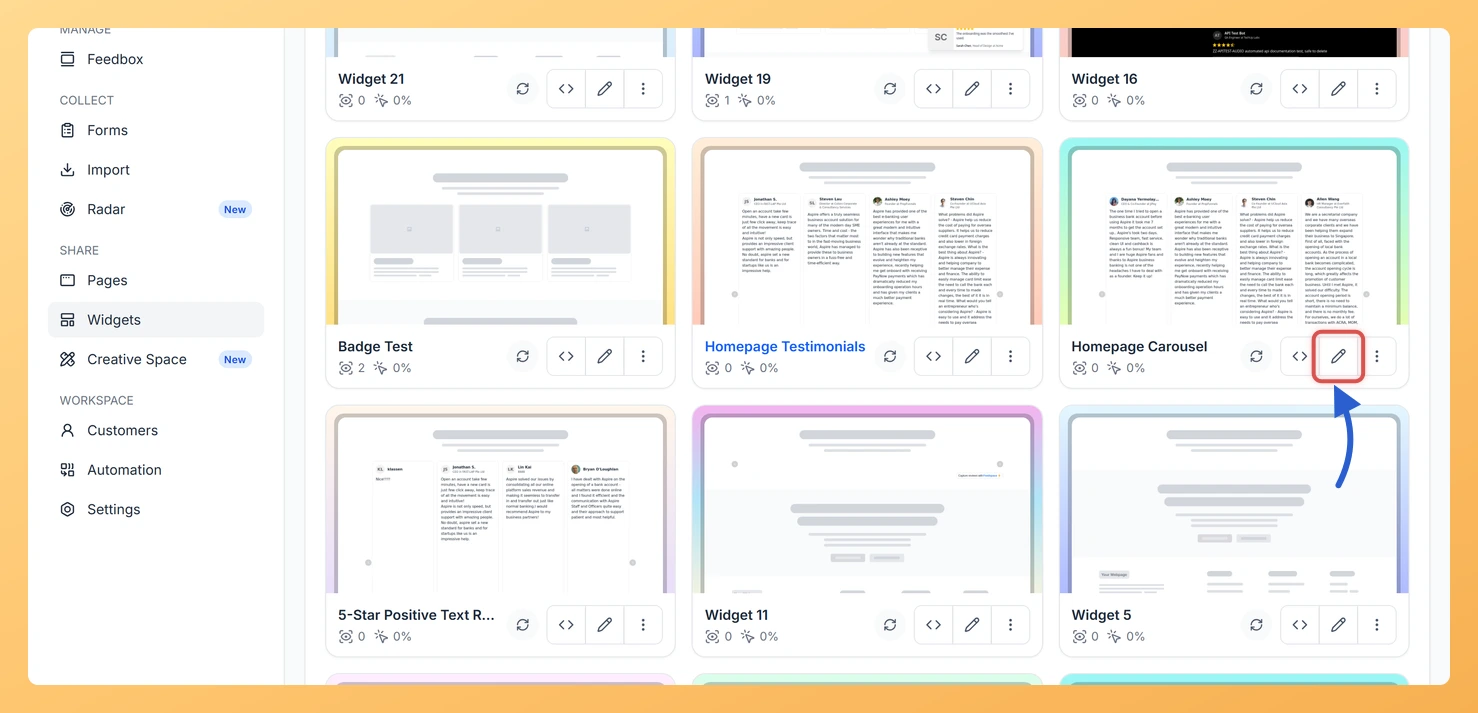
Log in to your Feedspace account and navigate to the Widgets section from the left sidebar. You will see a list of all the widgets you have created.
Step 2: Open your Carousel widget
Locate the Carousel widget you want to update and click the Edit (pencil) icon on the widget card. This opens the widget editor.
Step 3: Go to the Design tab
Inside the widget editor, click the Design tab at the top of the panel. This tab contains all visual customization options for your Carousel widget.
Step 4: Find Widget Color Customization
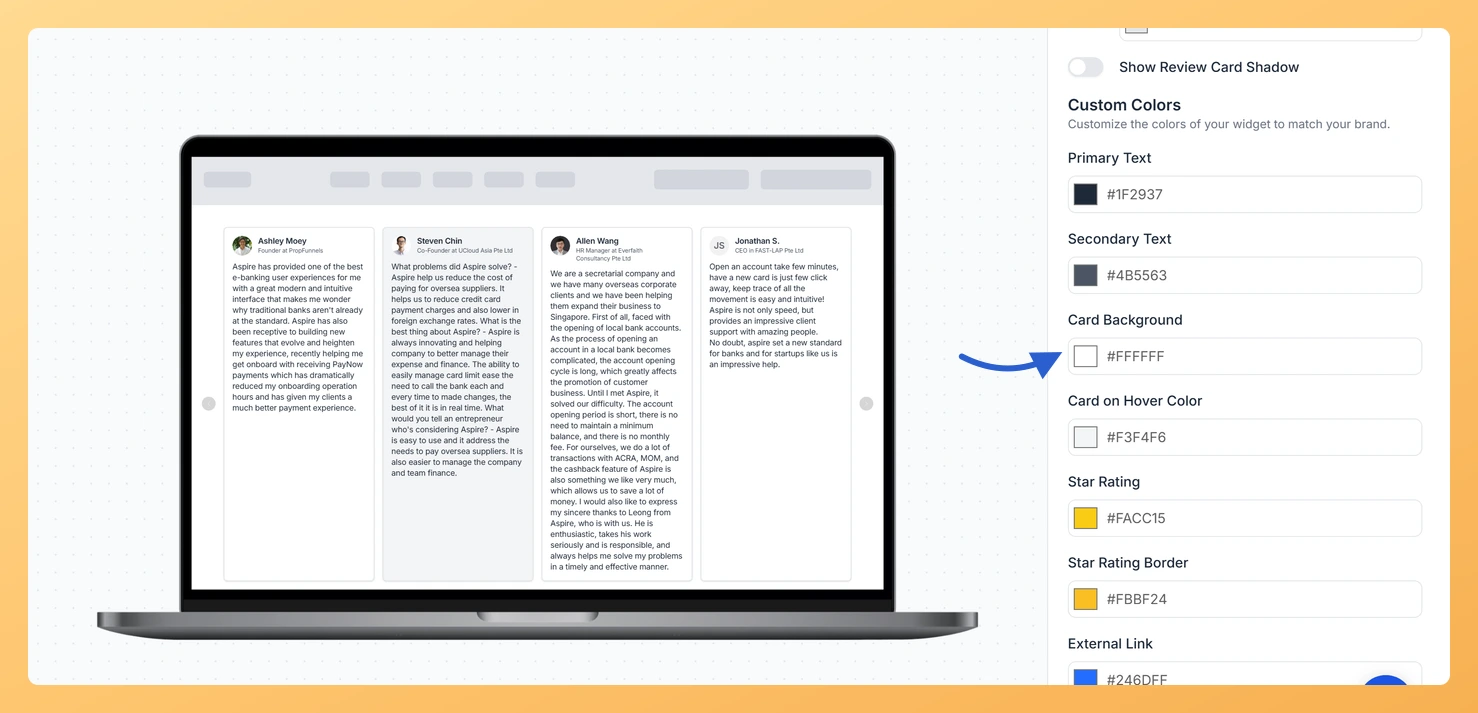
Scroll down within the Design tab until you reach the Widget Color Customization section. This section groups together all color controls for the widget, including the card color pickers.
Step 5: Set Card Background
Click the Card Background Color picker. A color palette and hex input field will appear. Choose a color by clicking a swatch, entering a hex code directly, or using the hue and opacity sliders. The preview updates in real time so you can see exactly how your sliding review cards will look. If a Card on Hover Color picker is also visible, repeat the same process to set the color that appears when a visitor hovers over a card.
Step 6: Save your changes
Once you are happy with the color selection, click Save & Next to apply the changes. Your Carousel widget will now display every review card with the new background color wherever the widget is embedded.
What’s next
Update the text color on your Carousel widget to ensure strong contrast against the new card background color.
Set a Card on Hover Color to add a subtle interactive highlight when visitors pause on a sliding review card.
Preview your Carousel widget on your live page to confirm the card color looks consistent across all the reviews in the loop.
Explore the other options in the Widget Color Customization section, such as the rating star color and button color, to complete a cohesive design for your Carousel widget.
Common questions
Where did the colour pickers go?
Turning on Enable Dark Mode hides the whole border, shadow and Custom Colors block, because dark mode sets those colours for you. Switch it back off and every picker returns with your previous choices intact.
You might also find helpful
How Do I Change the Text Color on My Carousel Widget in Feedspace?
Overview The Carousel widget displays your reviews as horizontally sliding cards, cycling continuously so visitors always see fresh social proof. Because each card is compact and the text is the focal point as cards scroll into view, text legibility and visual consistency matter more here than in static layouts. Under...
How to Create a Carousel Widget in Feedspace
Overview The Carousel widget in Feedspace lets you display multiple reviews in a continuously sliding format. You can enable autoplay, customize speed, and fine-tune design elements such as border, background color, and text colors. It’s a great way to keep your testimonials engaging and visually dynamic. How to Access Step...
How Do I Customize the Design of My Widget in Feedspace?
Overview Feedspace widgets come with a powerful Design tab that lets you tailor every visual aspect of your widget. From card colors and fonts to dark mode and call-to-action buttons, you can fully customize the look to match your website’s brand without writing any code. How to Customize the Widget...