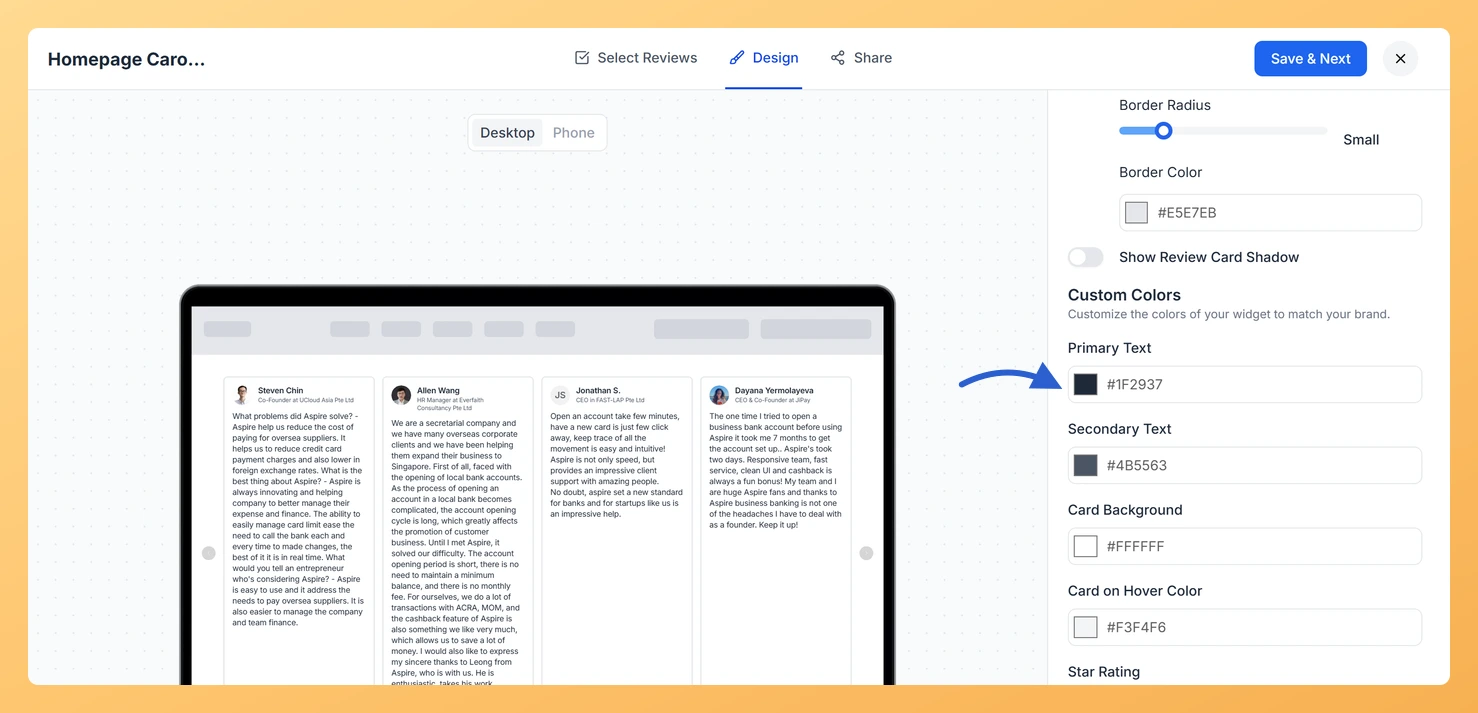
The Carousel widget displays your reviews as horizontally sliding cards, cycling continuously so visitors always see fresh social proof. Because each card is compact and the text is the focal point as cards scroll into view, text legibility and visual consistency matter more here than in static layouts.
Under Custom Colors, in the Widget Color Customization section, two pickers set the text on every card:
Primary Text: the review text itself, the part a visitor reads first.
Secondary Text: the supporting details around it, such as the reviewer name and the date.
Using two separate colors lets you create a clear visual hierarchy on each card: a bold, high-contrast primary color draws the eye to the review content first, while a softer secondary color recedes to provide context without competing. Both colors apply to every card in the loop, so the carousel stays visually consistent as it cycles.
How to change the text colour on your Carousel widget
Step 1: Open the Widgets section
Log in to your Feedspace account. In the left-hand navigation, click Widgets to open the list of all widgets you have created.
Step 2: Open your Carousel widget
Find the Carousel widget you want to update. Click the Edit (pencil) icon on the widget card to open the widget editor.
Step 3: Go to the Design tab
Inside the widget editor, click the Design tab at the top of the panel. This tab contains all visual customization options for the Carousel, including layout, colors, and card styling.
Step 4: Find Widget Color Customization
Scroll down the Design tab until you reach the Widget Color Customization section. The two pickers you need sit under Custom Colors: Primary Text and Secondary Text.
Step 5: Set Primary Text
Click the Primary Text picker. Use the color palette or type a hex code to choose the colour you want for the review text on each carousel card. This color should be your highest-contrast choice so the review content is easy to read as cards slide by.
Step 6: Set Secondary Text
Click the Secondary Text picker and choose the colour for the reviewer name and the date. A slightly lighter or more muted tone than the primary color works well here, keeping those details visible without pulling attention from the review itself.
Step 7: Save your changes
Once you are happy with both colors, click Save & Next to apply the changes. The widget picks the change up wherever it is already embedded, so there is no need to paste the embed code again.
What’s next
Adjust the card background color to pair with your new text colors and complete the card’s visual design by following the guide on changing the card background color on your Carousel widget.
Explore the full range of design settings available for the Carousel widget, such as card size, spacing, and animation speed, by visiting the widget customization overview.
Refresh the page where the widget is embedded to confirm both colours read well against your own background.
Preview the Carousel widget on both light and dark page backgrounds to confirm that your chosen colours remain legible across every context where the widget appears.
Common questions
My text is unreadable now that my site uses a dark background.
Rather than hand-picking every colour, turn on Enable Dark Mode. It sets a dark palette across the whole widget and keeps the text legible for you.
You might also find helpful
How Do I Change the Card Background Color on My Carousel Widget in Feedspace?
Overview The Carousel widget displays your reviews as a horizontal sliding sequence, showing one or a few cards at a time as they loop continuously across the screen. Each review appears inside its own card, and the Card Background Color option lets you set the fill color of every one...
How to Create a Carousel Widget in Feedspace
Overview The Carousel widget in Feedspace lets you display multiple reviews in a continuously sliding format. You can enable autoplay, customize speed, and fine-tune design elements such as border, background color, and text colors. It’s a great way to keep your testimonials engaging and visually dynamic. How to Access Step...
How Do I Customize the Design of My Widget in Feedspace?
Overview Feedspace widgets come with a powerful Design tab that lets you tailor every visual aspect of your widget. From card colors and fonts to dark mode and call-to-action buttons, you can fully customize the look to match your website’s brand without writing any code. How to Customize the Widget...