The Carousel widget in Feedspace displays your reviews as a continuously looping horizontal slide show, showing one or a few review cards at a time as visitors scroll through. Because the Carousel draws the eye with motion and keeps review text front and center, the font you choose has a direct impact on how readable and on-brand each card feels as it slides into view.
The Font Family selector in the Advanced Customization section lets you pick from a range of fonts to apply across all text in your Carousel, including reviewer names, star ratings labels, and review body text. If you would rather the widget blend with the rest of your page, leave the font unset: a note under the field explains that Auto Capture picks up your website’s own font when the widget is embedded, so the sliding cards read as part of your site rather than an inserted element.
How to change the font for your Carousel widget
Step 1: Open the Widgets section
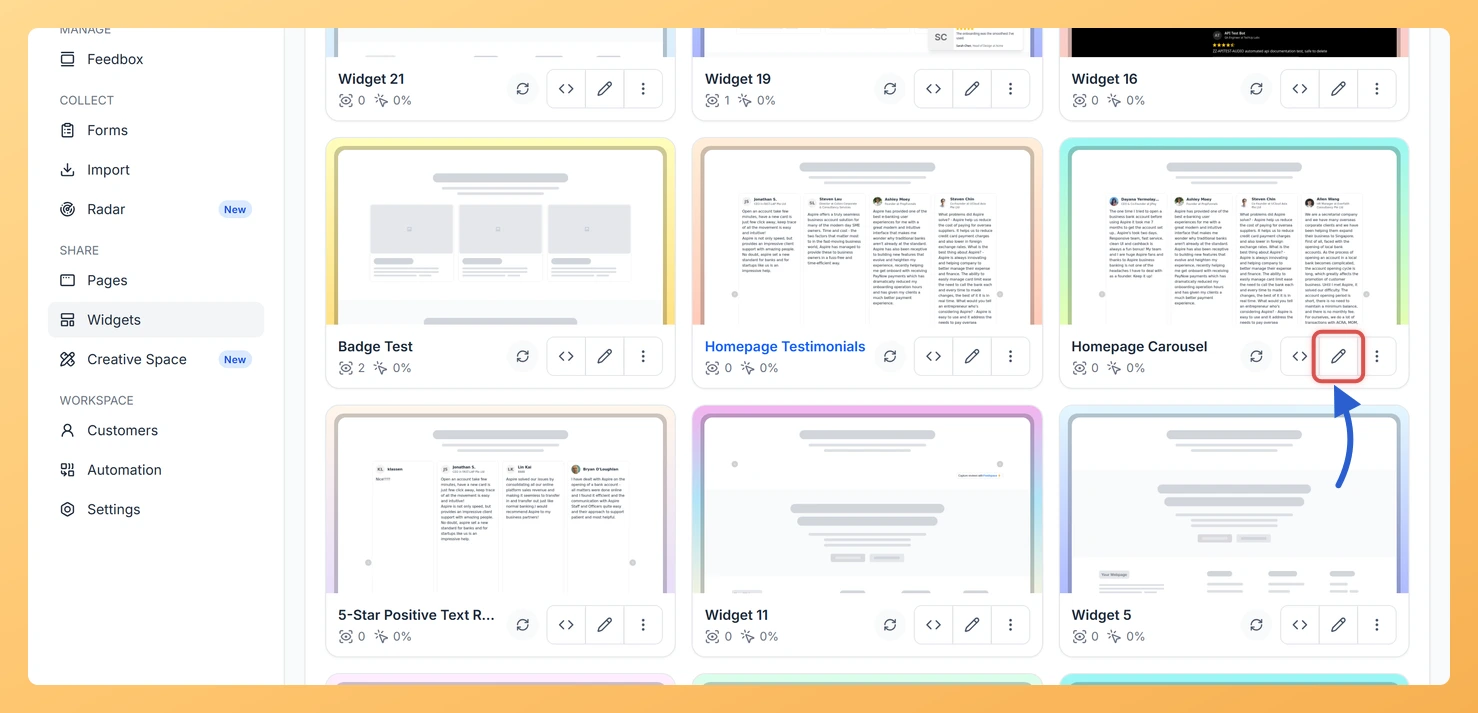
Log in to your Feedspace account. In the left sidebar, click Widgets to open the list of all widgets you have created.
Step 2: Open your Carousel widget
Find your Carousel widget in the list. Click the Edit button (pencil icon) next to it to open the widget editor.
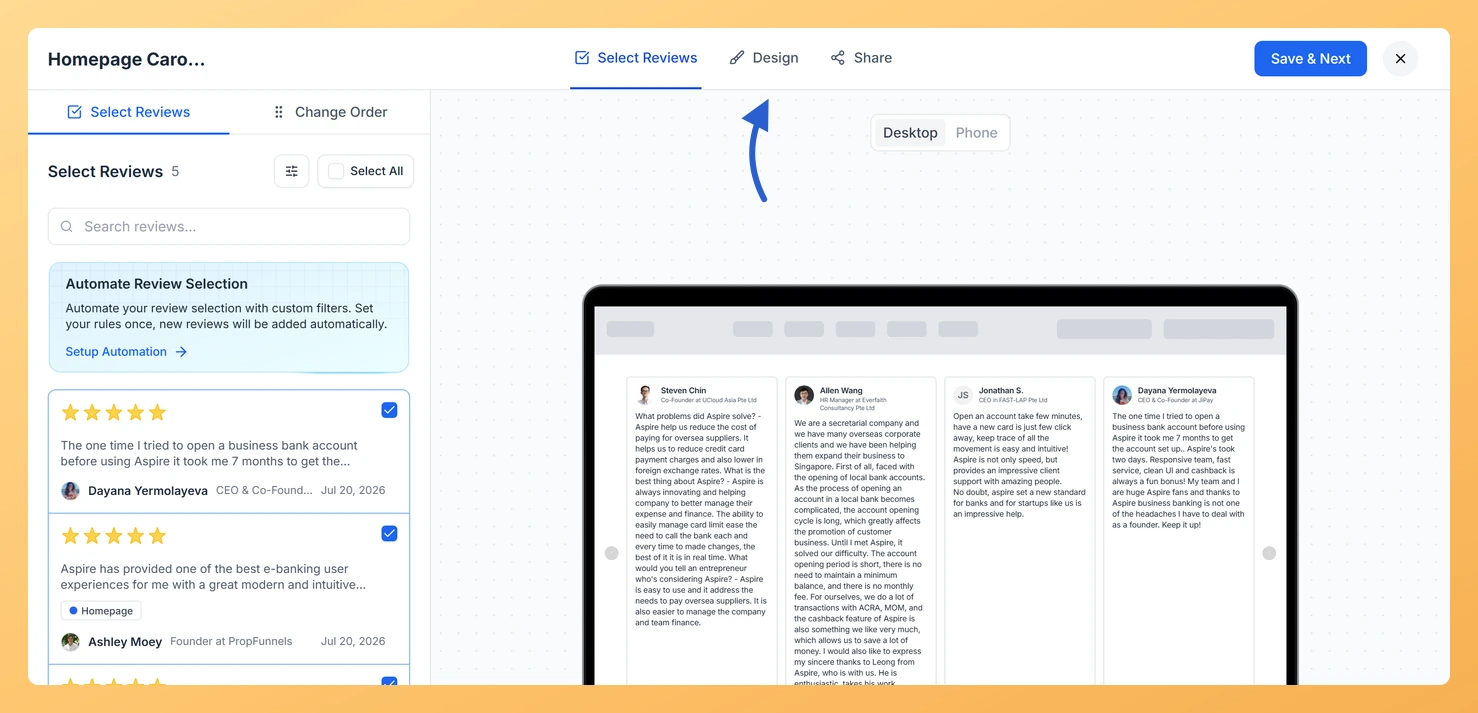
Step 3: Go to the Design tab
Inside the widget editor, click the Design tab at the top of the settings panel. This tab contains all visual customization options for your Carousel widget.
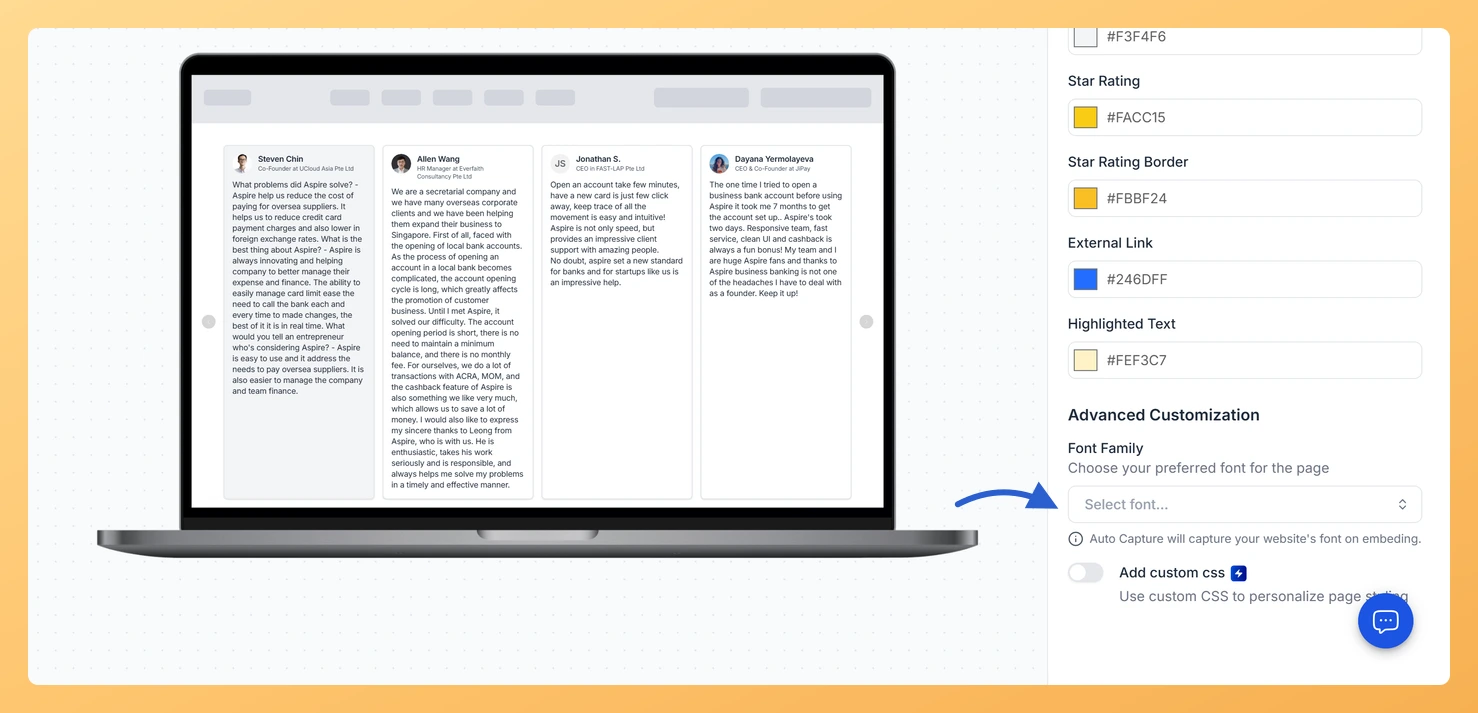
Step 4: Find Advanced Customization
Scroll down within the Design tab until you reach the Advanced Customization section. This section contains additional styling controls, including the Font Family selector.
Step 5: Choose a font
Click Select font… under Font Family to open the list, then pick a font to apply it to every piece of text on your Carousel cards. The list is long and alphabetical, so type the first few letters to jump to the one you want. Leaving the field unset is a deliberate choice too: the note under it reads Auto Capture will capture your website’s font on embeding, which means the widget takes your site’s own font when it is embedded.
Step 6: Save and preview
After selecting your font, click Save & Next to apply the change. Use the live preview panel to see how the font looks across the sliding review cards before publishing or embedding the widget.
What’s next
Adjust the text color of your Carousel widget to complement your new font choice and keep the cards easy to read.
Explore other Advanced Customization options in the Design tab to fine-tune card spacing, border radius, and background color for your Carousel.
Preview the Carousel at both desktop and phone width before you finish, so the new font reads well on a narrow screen.
Create a second Carousel widget with a different font to A/B test which typography drives more engagement on your reviews page.
Common questions
Do I need to paste the embed code again after changing the font?
No. The widget is loaded from Feedspace wherever it is embedded, so it picks up the new font on the next page load without you touching your site.
You might also find helpful
How Do I Change the Text Color on My Carousel Widget in Feedspace?
Overview The Carousel widget displays your reviews as horizontally sliding cards, cycling continuously so visitors always see fresh social proof. Because each card is compact and the text is the focal point as cards scroll into view, text legibility and visual consistency matter more here than in static layouts. Under...
How to Create a Carousel Widget in Feedspace
Overview The Carousel widget in Feedspace lets you display multiple reviews in a continuously sliding format. You can enable autoplay, customize speed, and fine-tune design elements such as border, background color, and text colors. It’s a great way to keep your testimonials engaging and visually dynamic. How to Access Step...
How Do I Customize the Design of My Widget in Feedspace?
Overview Feedspace widgets come with a powerful Design tab that lets you tailor every visual aspect of your widget. From card colors and fonts to dark mode and call-to-action buttons, you can fully customize the look to match your website’s brand without writing any code. How to Customize the Widget...