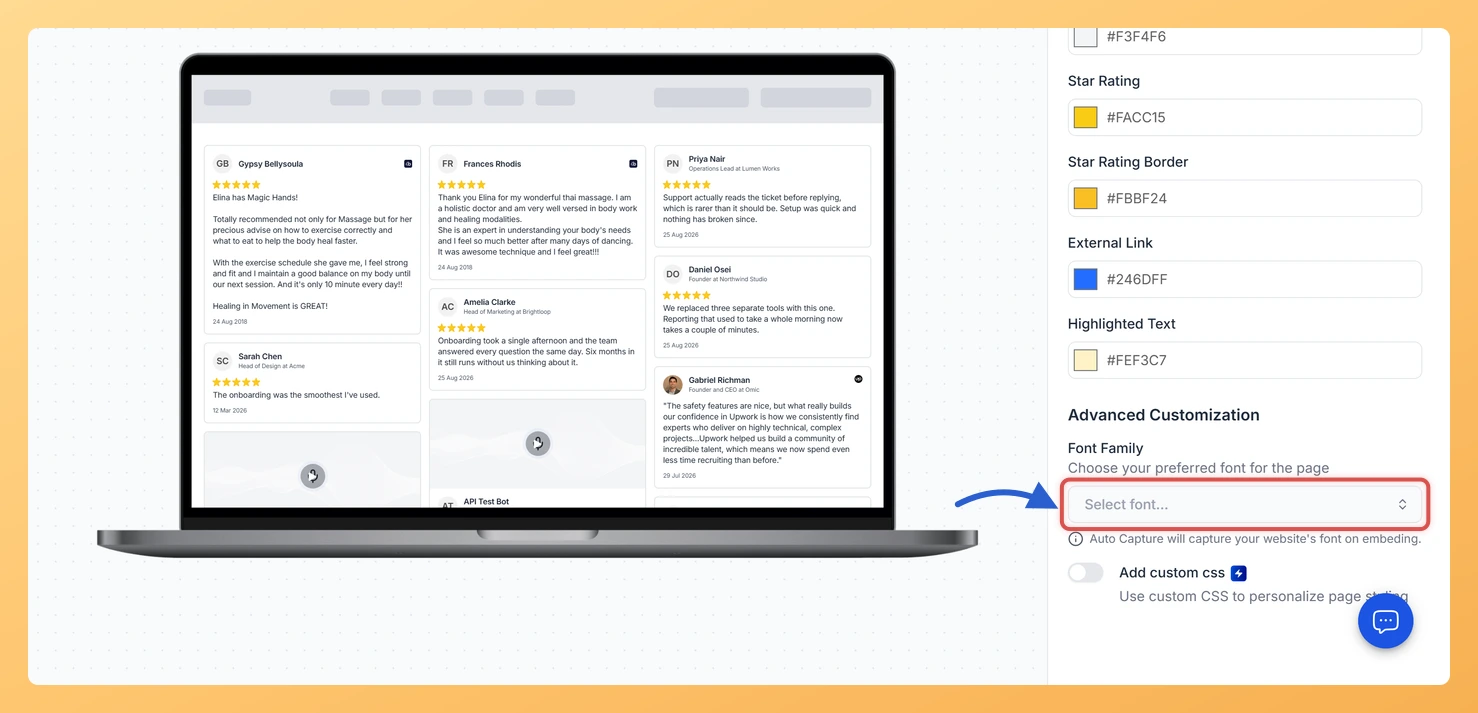
The Masonry widget displays your reviews in a Pinterest-style staggered grid, arranging cards across multiple columns of varying heights so visitors can scan a large volume of testimonials at a glance. Because the widget fills the screen with text-heavy cards side by side, the font you choose directly shapes how readable and trustworthy that wall of reviews feels. A font that clashes with your site’s branding can make the grid look out of place, while one that matches your existing typography creates a professional experience.
The Font Family selector in the Advanced Customization section lets you pick from a curated range of fonts to style all text across your Masonry widget, including reviewer names, star labels, and review body text. The special Auto Capture option goes one step further: it detects the primary font your website already uses and applies it automatically to the widget, so the Masonry grid blends in without any manual matching.
How to change the font for your Masonry widget
Step 1: Open the Widgets section
Log in to your Feedspace account and navigate to the Widgets section from the main sidebar. You will see a list of all the widgets you have created.
Step 2: Edit your Masonry widget
Spot the Masonry widget whose type you want to change and click the pencil Edit icon on its card. That opens the widget editor.
Step 3: Go to the Design tab
Inside the widget editor, click the Design tab at the top of the panel. This tab contains all visual customization options for your Masonry widget.
Step 4: Find the Advanced Customization section
Scroll down within the Design tab until you reach the Advanced Customization section. This section contains controls for fine-grained typography and layout settings.
Step 5: Select a Font Family
Click the Font Family dropdown to open the list of available fonts. Browse through the options and click any font name to preview how it looks across the Masonry cards. If you would rather the widget take on the font your website already uses, leave Font Family unset. The note under the field explains that Auto Capture does exactly that when no font is chosen. Once you are happy with the selection, click Save & Next to apply the change.
What’s next
Adjust the text color on your Masonry widget to complement the new font and keep your review cards visually consistent.
Explore other Advanced Customization options, such as card background color and border radius, to fully align the Masonry grid with your brand.
Copy the updated embed code and replace the existing snippet on your website to make sure visitors see the new font immediately.
Preview the Masonry widget on a mobile screen to confirm that the chosen font remains legible across all column widths and card heights.
Common questions
Do I have to choose a font at all?
No, and leaving it alone is a real option rather than an oversight. The note under Font Family explains that when no font is set, Auto Capture picks up the font of the site the widget is embedded on, so the reviews match the page around them.
You might also find helpful
How Do I Change the Text Color on My Masonry Widget in Feedspace?
Overview The Masonry widget displays your reviews in a Pinterest-style staggered grid, arranging cards across multiple columns of varying heights so visitors can scan many testimonials at once. Because cards differ in height and density, the text inside each card must stand out clearly against whatever background color is set,...
How to Create a Masonry Widget in Feedspace
Overview The Masonry widget in Feedspace arranges your reviews in an elegant grid layout of varying card sizes, similar to Pinterest-style walls. It’s perfect for showcasing multiple reviews together while maintaining a modern, responsive design that automatically adjusts across devices. How to Access Step 1 – Log in to Feedspace...
How Do I Customize the Design of My Widget in Feedspace?
Overview Feedspace widgets come with a powerful Design tab that lets you tailor every visual aspect of your widget. From card colors and fonts to dark mode and call-to-action buttons, you can fully customize the look to match your website’s brand without writing any code. How to Customize the Widget...