
Overview
The Avatar Card Carousel widget slides through reviewer identity cards, placing each reviewer’s photo and name front and centre alongside their testimonial. Because the carousel begins playing from the very first card, the review that appears first is the one visitors encounter before they interact with the widget at all. Placing your most compelling reviewer and testimonial in that opening position shapes the impression the entire widget makes.
Feedspace gives you two ways to control that sequence inside the Avatar Card Carousel widget. The Sort By dropdown lets you instantly arrange all selected reviews in chronological order, newest or oldest first. The Change Order sub-tab lets you drag individual reviews into any custom sequence you choose, giving you precise control over which card visitors see first and which ones follow.
How to Change the Order of Reviews for Your Avatar Card Carousel Widget
Step 1: Open Your Avatar Card Carousel Widget
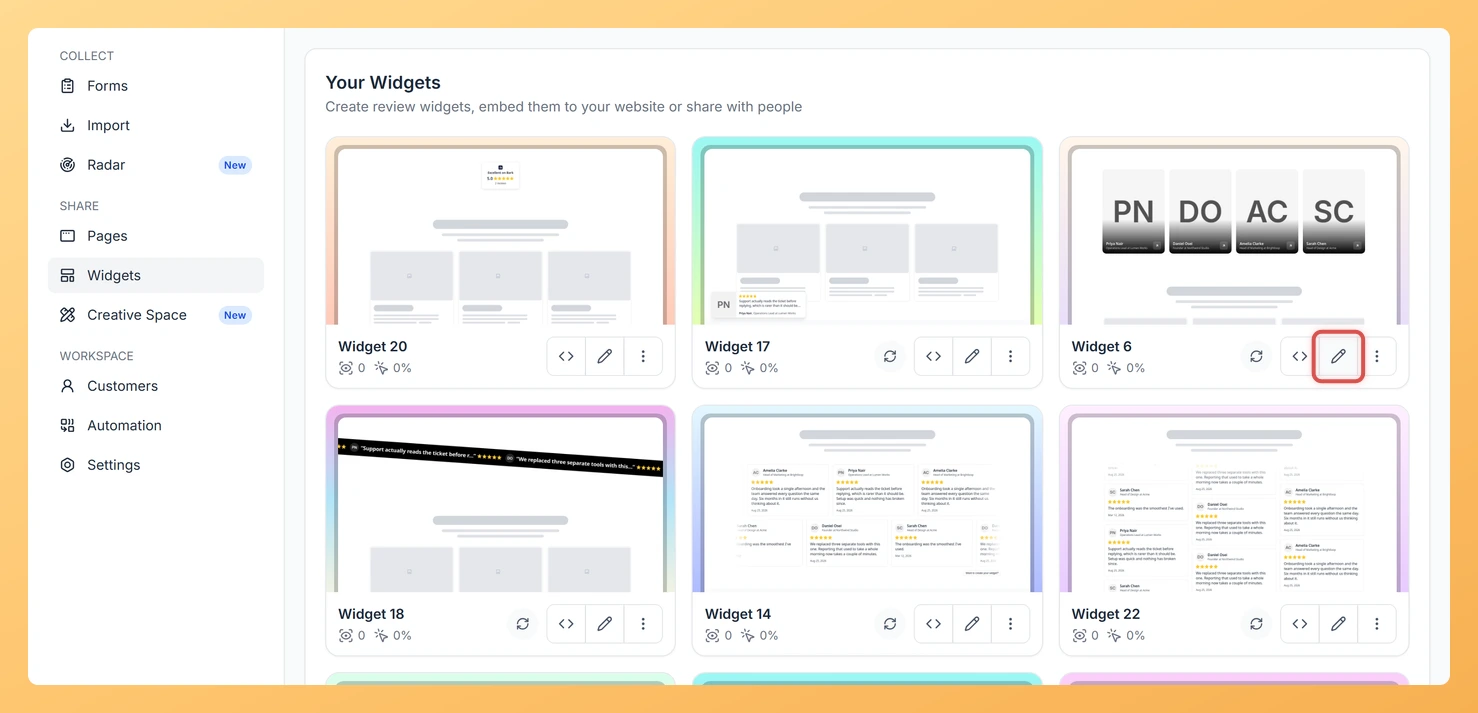
Log in to Feedspace and navigate to the Widgets section from the left sidebar. Locate the Avatar Card Carousel widget you want to edit and click on it to open the widget editor.
Step 2: Go to the Reviews Tab
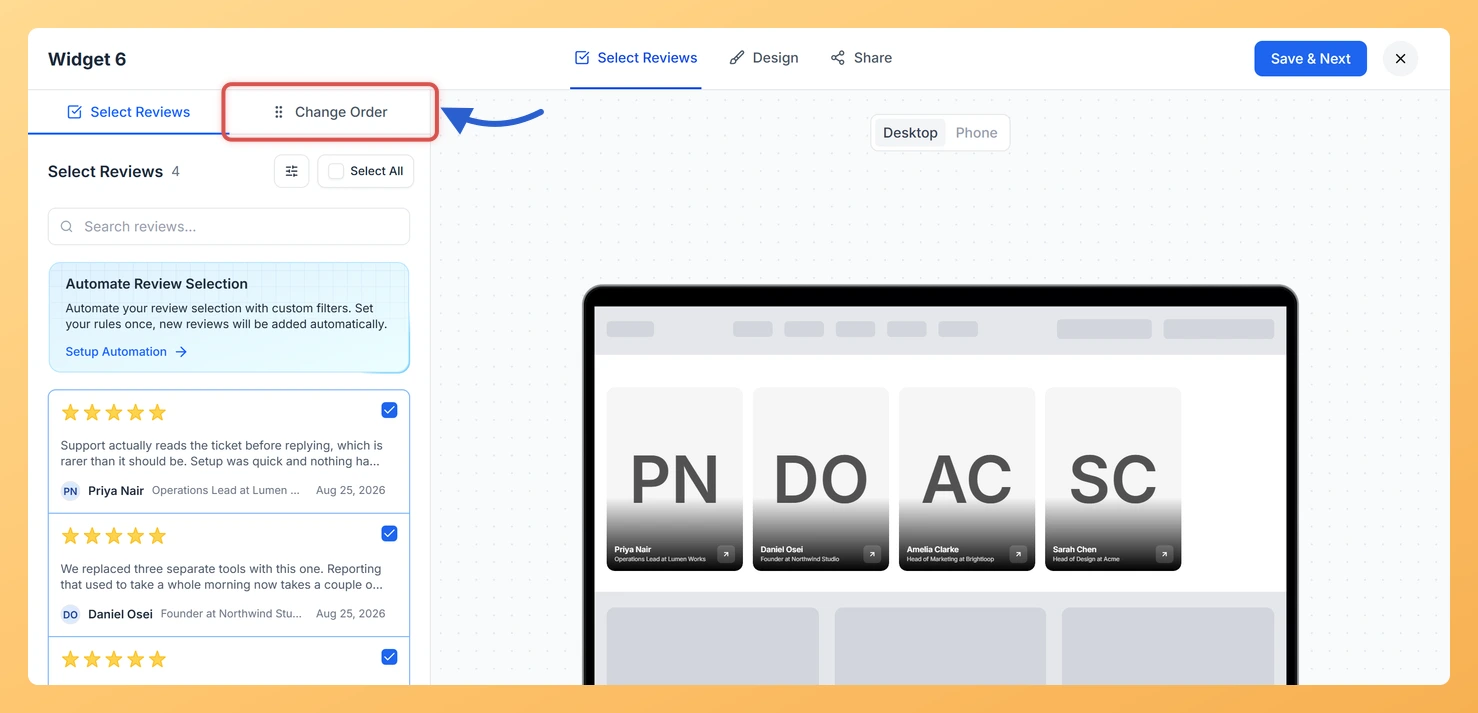
Inside the widget editor, click the Reviews tab. This tab controls which reviews appear in your carousel and in what order they are displayed to visitors.
Step 3: Choose How to Set the Order
You have two methods available to control review order. Choose the one that fits your goal:
- Sort By dropdown: Automatically sorts all reviews in the widget. Use this when you want a consistent chronological order without manually positioning each card.
- Change Order sub-tab: Lets you drag each review card into any position. Use this when you want a hand-curated sequence, such as placing a specific reviewer first in the carousel.
Step 4: Sort Reviews Using the Sort By Dropdown
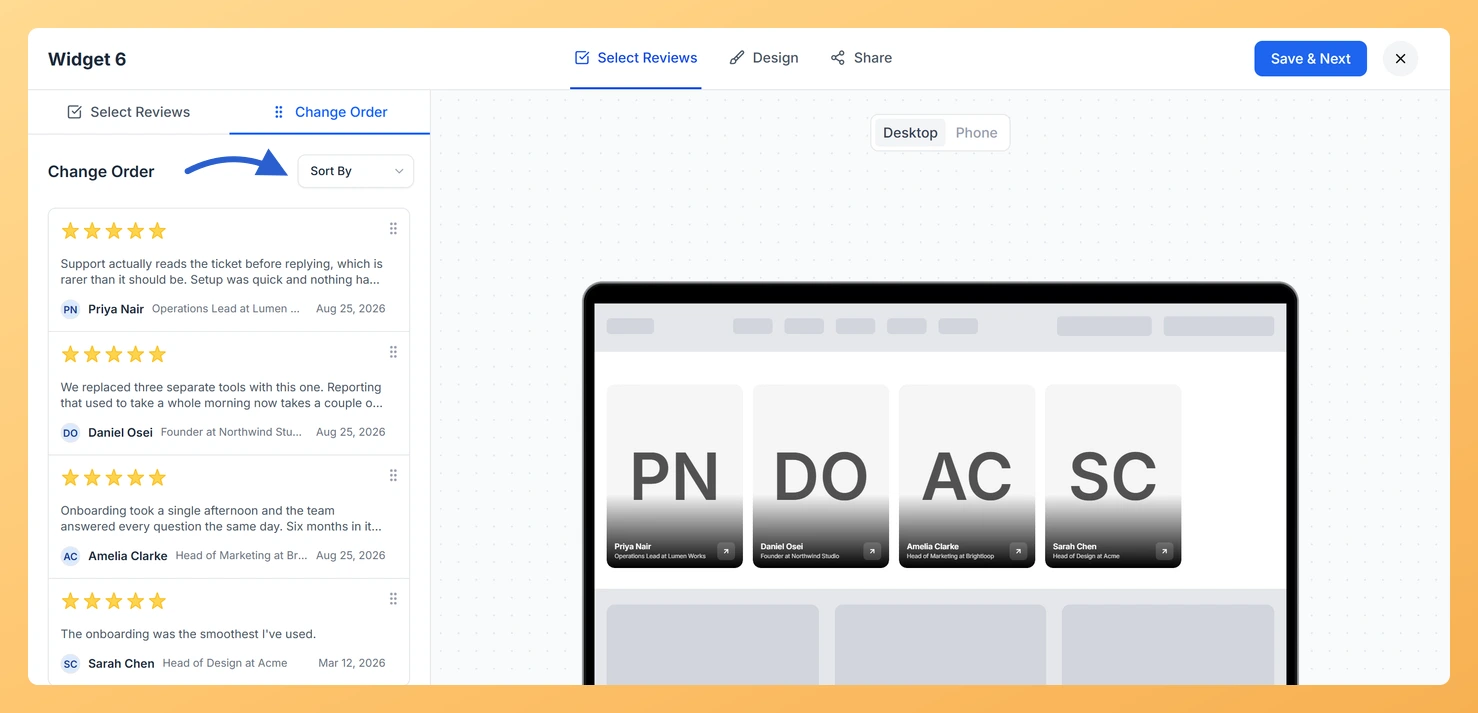
If you want to sort reviews automatically, locate the Sort By dropdown within the Reviews tab. Click it and select one of the available options:
- Newest First: Places the most recently collected reviews at the start of the carousel, keeping the widget fresh as new testimonials arrive.
- Oldest First: Places the earliest reviews at the start of the carousel, useful if you want to show your longest-standing testimonials leading the sequence.
The carousel preview updates immediately so you can confirm the new order before saving.
Step 5: Reorder Reviews Manually Using the Change Order Sub-Tab
To set a fully custom sequence, click the Change Order sub-tab inside the Reviews tab. You will see a list of all the reviews currently selected for this Avatar Card Carousel widget.
Click and hold the drag handle next to any review card, then drag it up or down to reposition it in the list. The review at the top of this list becomes the first card visitors see when the carousel loads. Place your most compelling reviewer and testimonial in that first position to make the strongest immediate impression.
Step 6: Save Your Changes
Once you are satisfied with the review order, click the Save button to apply your changes. The Avatar Card Carousel widget embedded on your site will immediately reflect the new sequence, with your chosen review appearing first in the carousel.
What You Can Do Next
- Add or remove reviews shown in your Avatar Card Carousel widget by visiting the Select Reviews sub-tab to curate the exact cards displayed in the sequence.
- Customise the visual appearance of your Avatar Card Carousel widget, including card layout, avatar size, and colour scheme, using the Design tab in the widget editor.
- Copy the embed code for your Avatar Card Carousel widget and place it on a landing page, homepage, or product page to display your curated review sequence to visitors.
- Create additional widget types in Feedspace to display the same reviews in different formats, such as a grid or list layout, alongside your Avatar Card Carousel widget.
You might also find helpful
How Do I Select Reviews for My Avatar Card Carousel Widget in Feedspace?
Overview The Avatar Card Carousel widget in Feedspace combines a sliding carousel format with avatar-focused cards that place the reviewer identity directly alongside their testimonial. Because each card displays the reviewer’s name, photo, and message as a unit, the reviews you choose matter more here than in any generic grid...
How to Create an Avatar Card Carousel Widget in Feedspace
Overview Feedspace’s Avatar Card Carousel widget combines the sliding motion of a carousel with prominent reviewer profile pictures. Each card highlights the reviewer’s avatar alongside their testimonial, making your social proof feel more personal and trustworthy. Step 1: Log in to Feedspace Go to your Feedspace Dashboard and log in...
What is a Widget in Feedspace?
Overview In Feedspace, a widget is a customizable display tool that allows you to showcase your collected reviews, testimonials, or feedback directly on your website. With widgets, you can turn customer voices into social proof, helping you build trust and credibility with visitors. Instead of just collecting reviews, widgets let...