The Carousel widget in Feedspace displays your reviews as a smooth horizontally sliding sequence, showing one or a few cards at a time as it loops continuously through your collection. Because the Carousel presents reviews one after another in a fixed sequence, the order in which reviews appear matters more here than in a static grid. Visitors see reviews in the exact sequence the widget cycles through, so placing your strongest review first means it is the very first thing visitors see when the widget loads on your page.
The Change Order sub-tab inside the Carousel widget editor gives you two ways to control this sequence. You can drag and drop individual reviews into any custom arrangement you choose, or you can use the Sort By dropdown to instantly sort all selected reviews by Newest First or Oldest First. This article walks you through both methods.
How to change the order of reviews for your Carousel widget
Step 1: Open your Carousel widget
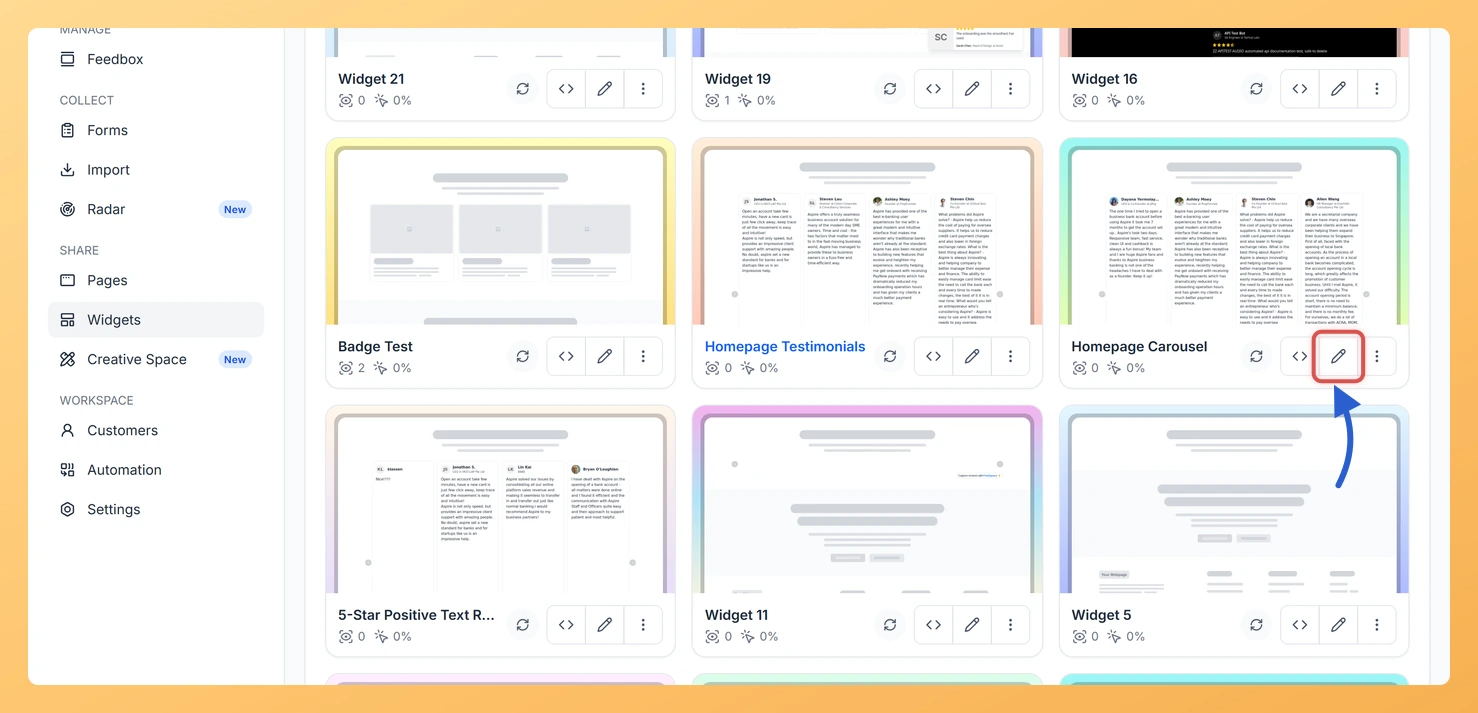
Log in to your Feedspace account. In the left-hand navigation, click Widgets. Find the Carousel widget you want to edit and click the Edit (pencil) icon on the widget card to open the widget editor.
Step 2: Go to the Change Order sub-tab
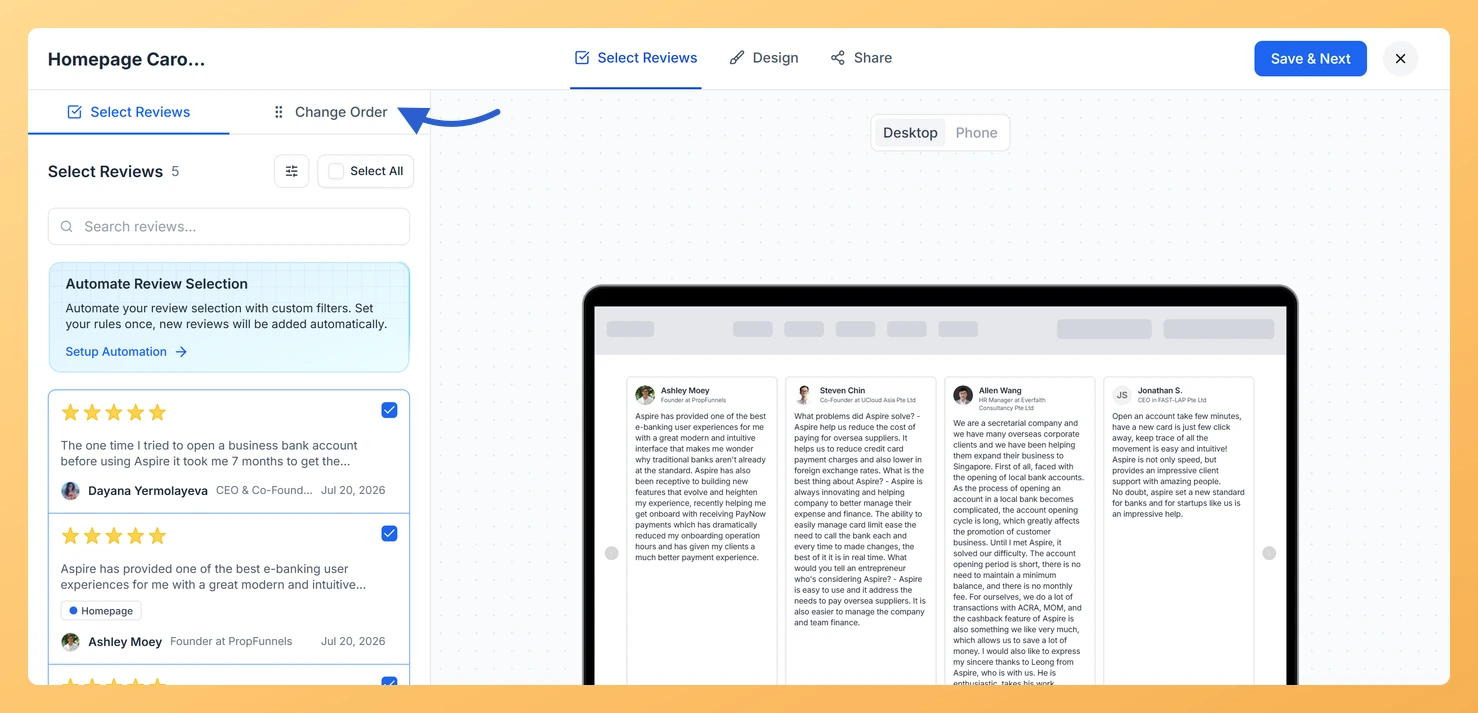
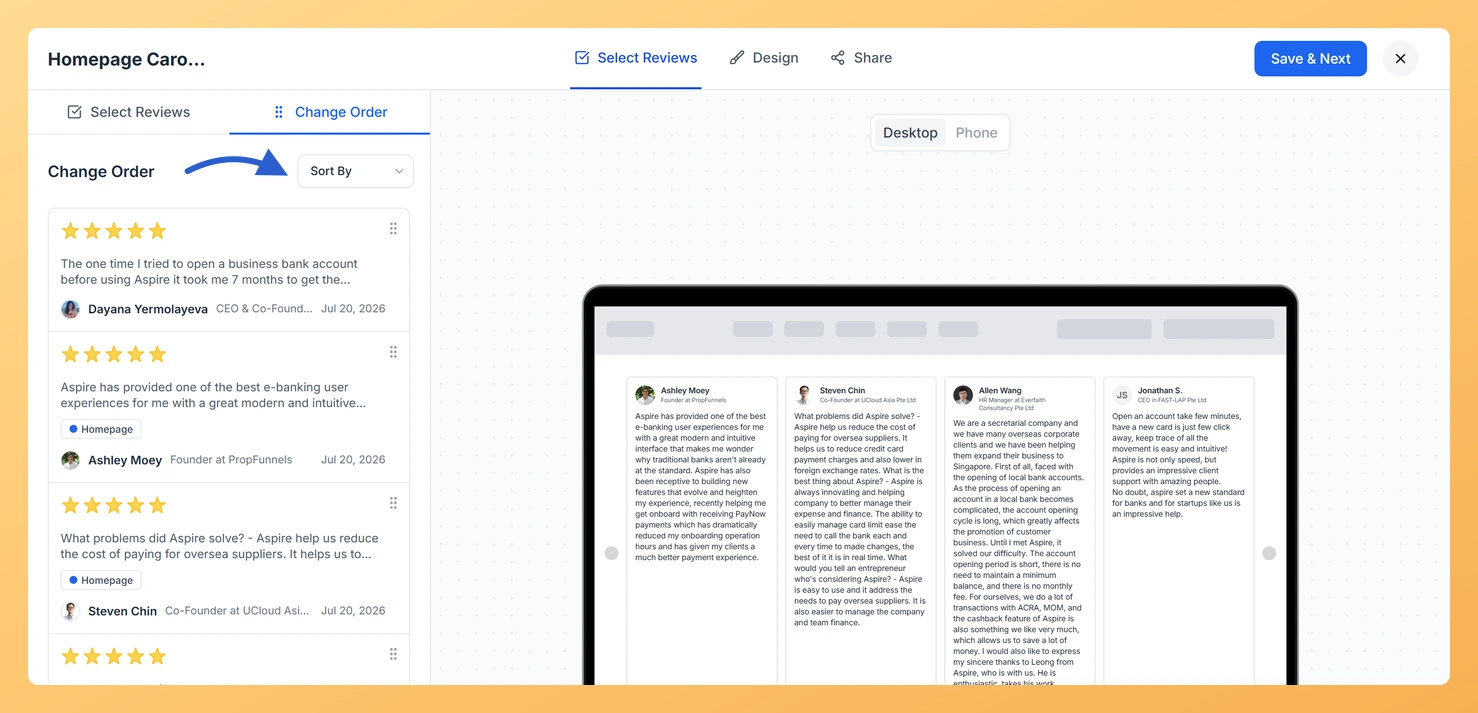
Inside the widget editor, locate the tab bar near the top of the panel. Click the Change Order sub-tab. This tab displays all the reviews you have already selected for this Carousel widget, arranged in their current display sequence.
Step 3: Choose how to order the reviews
You have two options for controlling the sequence of reviews in your Carousel widget:
Drag and drop for a custom order: Click and hold the drag handle next to any review card, then drag it up or down to reposition it in the list. Release to drop it into its new position. Repeat for each review you want to move until you have your preferred sequence. Place your most persuasive or highest-impact review at the top so it appears first when the Carousel loads.
Sort By dropdown for date-based order: Click the Sort By dropdown at the top of the Change Order tab. Select Newest First to show your most recently collected reviews at the start of the Carousel, or select Oldest First to begin with your earliest reviews. The list reorders instantly when you make your selection.
Step 4: Check the new order in the preview
There is nothing to save here. Dragging a review into place, and changing the Sort By option, are both stored as soon as you do them. Watch the preview panel to confirm the Carousel now cycles in the order you wanted, wherever the widget is already embedded.
What’s next
Add or remove reviews from your Carousel by visiting the Select Reviews sub-tab, then return to Change Order to re-sequence the updated set.
Adjust the autoplay speed and the number of cards displayed at once in the Carousel widget settings to complement your chosen review sequence.
Embed your updated Carousel widget on a landing page or homepage so your strongest review appears immediately when the page loads.
Create a second Carousel widget with a different review selection and order for use on a specific product or campaign page.
Common questions
Change Order is empty. Where are my reviews?
Change Order only lists reviews that are already selected for the widget. If it shows nothing, go to the Select Reviews tab and tick some reviews first, then come back.
You might also find helpful
How Do I Select Reviews for My Carousel Widget in Feedspace?
Overview The Carousel widget in Feedspace displays your reviews as a smooth, horizontally sliding loop, showing one or a few cards at a time and cycling through them continuously. Because the Carousel plays through reviews in sequence, the specific reviews you include have a direct impact on how engaging and...
How to Create a Carousel Widget in Feedspace
Overview The Carousel widget in Feedspace lets you display multiple reviews in a continuously sliding format. You can enable autoplay, customize speed, and fine-tune design elements such as border, background color, and text colors. It’s a great way to keep your testimonials engaging and visually dynamic. How to Access Step...
What is a Widget in Feedspace?
Overview In Feedspace, a widget is a customizable display tool that allows you to showcase your collected reviews, testimonials, or feedback directly on your website. With widgets, you can turn customer voices into social proof, helping you build trust and credibility with visitors. Instead of just collecting reviews, widgets let...