The Carousel widget in Feedspace displays your reviews as a smooth, horizontally sliding loop, showing one or a few cards at a time and cycling through them continuously. Because the Carousel plays through reviews in sequence, the specific reviews you include have a direct impact on how engaging and cohesive the experience feels for visitors.
The Select Reviews tab inside the Carousel widget editor lets you hand-pick exactly which reviews appear in the loop. You can tick individual checkboxes to include specific reviews, or use the Select All button to include every available review at once. Selecting 6 to 10 strong, concise reviews creates a smooth loop that keeps visitors engaged without feeling repetitive, so it is worth taking a moment to curate your list before publishing.
How to select reviews for your Carousel widget
Step 1: Open your Carousel widget
Log in to your Feedspace account and navigate to the Widgets section from the main sidebar. Locate the Carousel widget you want to configure and click the Edit (pencil) icon on the widget card to open the widget editor.
Step 2: Go to the Select Reviews tab
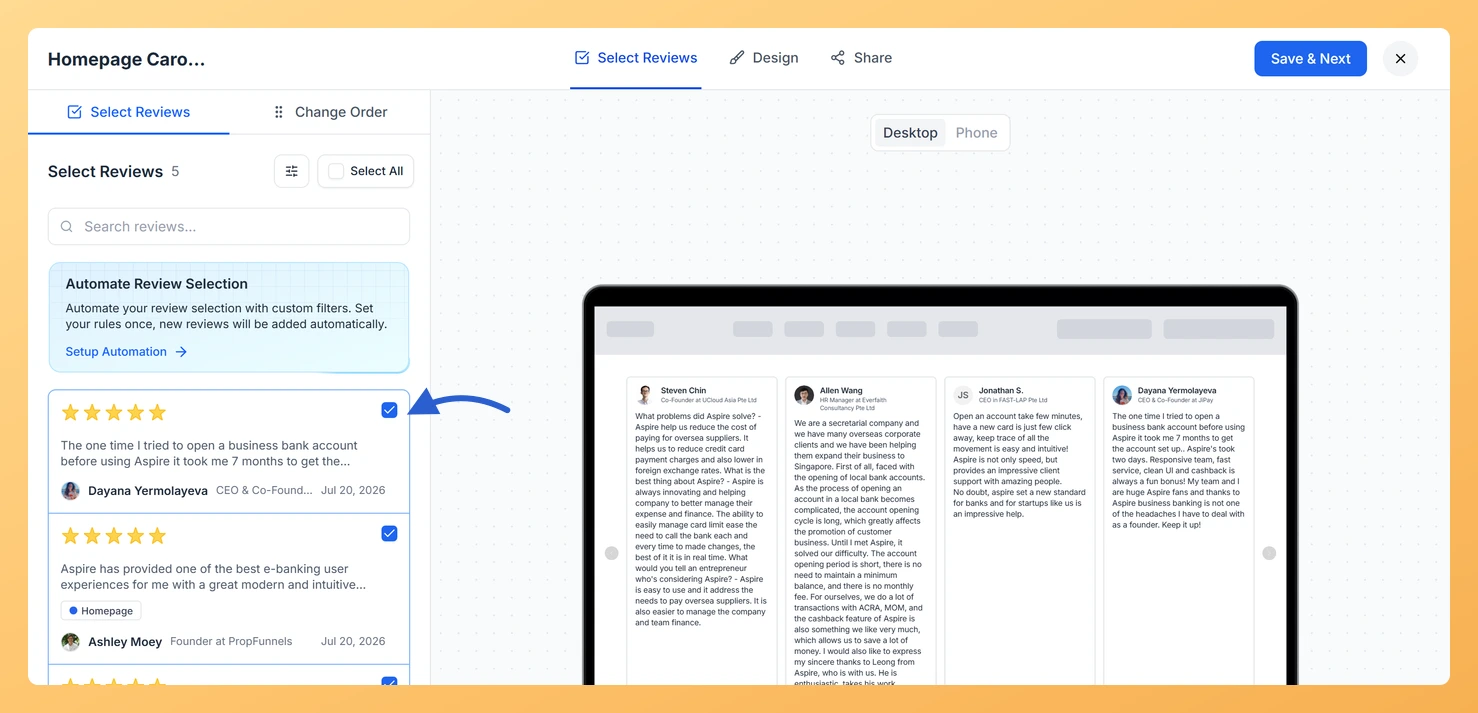
Inside the widget editor, click the Select Reviews tab. This tab displays a list of all reviews available in your connected space, each with a checkbox to the left of the review card.
Step 3: Tick the reviews you want
Scroll through the list and click the checkbox next to each review you want to include in the Carousel. A checkmark appears on each selected review to confirm it has been added. You can click a checked review again to deselect it and remove it from the loop.
For the best Carousel experience, aim to select 6 to 10 reviews that are concise and clearly written. A focused set of strong reviews keeps the sliding loop feeling fresh rather than overwhelming visitors with too many cards.
Step 4: Use Select All to include every review
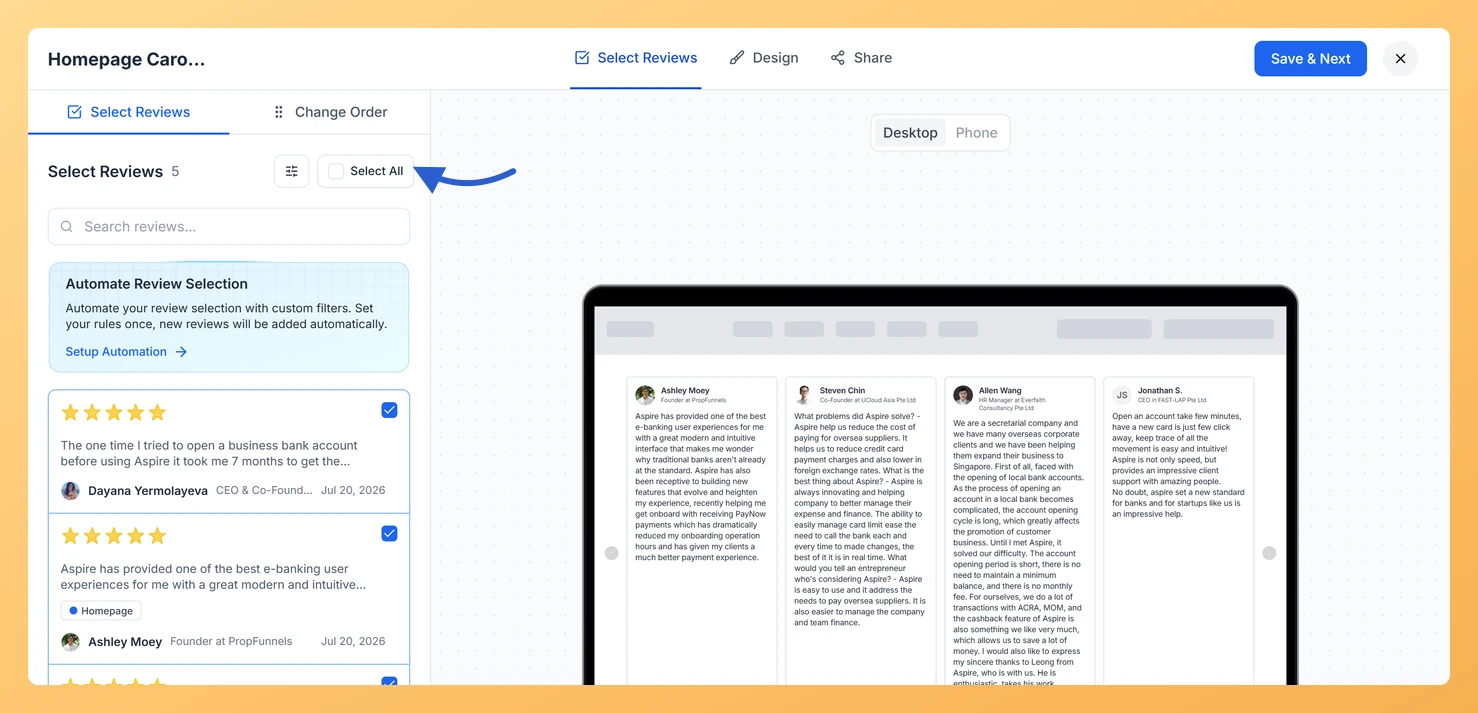
If you want to include all available reviews in one click, click the Select All button at the top of the Select Reviews tab. All checkboxes will immediately become checked. You can then deselect individual reviews by clicking their checkboxes to fine-tune the final list.
Step 5: Save and preview
Once you are happy with your selection, click Save & Next to apply the changes. The Carousel widget will now cycle only through the reviews you selected. Use the preview to watch the loop in action and confirm the pacing and content feel right before you embed or share the widget.
What’s next
Use the search and filter options in the Select Reviews tab to quickly find reviews by keyword, rating, or source before making your selection.
Adjust the autoplay speed and number of visible cards in the Carousel widget settings to match the pace of the reviews you selected.
Copy the embed code from the widget editor and paste it into your website to display the curated Carousel loop on any page.
Return to the Select Reviews tab at any time to swap in newer reviews or refresh your selection as your review collection grows.
Common questions
What does Select All do when a filter is on?
It selects everything in the filtered list, not your whole review library. Filter first and then Select All is the quickest way to add one group of reviews at a time.
You might also find helpful
How to Create a Carousel Widget in Feedspace
Overview The Carousel widget in Feedspace lets you display multiple reviews in a continuously sliding format. You can enable autoplay, customize speed, and fine-tune design elements such as border, background color, and text colors. It’s a great way to keep your testimonials engaging and visually dynamic. How to Access Step...
What is a Widget in Feedspace?
Overview In Feedspace, a widget is a customizable display tool that allows you to showcase your collected reviews, testimonials, or feedback directly on your website. With widgets, you can turn customer voices into social proof, helping you build trust and credibility with visitors. Instead of just collecting reviews, widgets let...
How Do I Search and Filter Reviews for My Carousel Widget in Feedspace?
Overview The Carousel widget in Feedspace displays your reviews as a smooth, horizontally sliding loop, cycling through one or a few cards at a time. Because the Carousel presents each review as a standalone card in full view, the quality of what you include matters more here than in a...