The Cross Slider widget runs short review snippets along a slanted strip that slides across your page. The first review a visitor sees carries the most weight, so the order you put them in is worth a minute of your time.
The Change Order tab, beside Select Reviews in the editor, lists every review you picked. You can drag them into any order, or use Sort By for Newest First or Oldest First. Both save as you go.
How to change the order of reviews in your Cross Slider widget
Step 1: Open your widget list
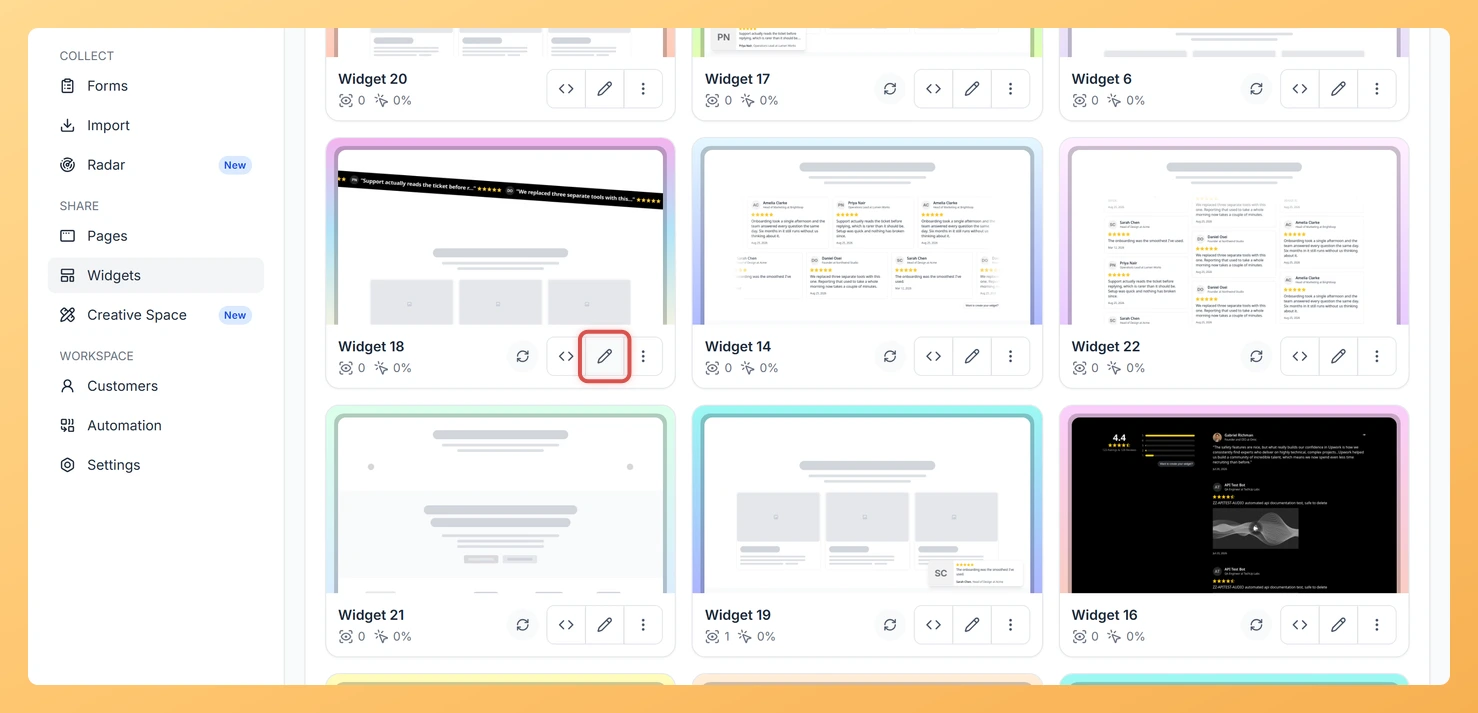
From your Feedspace dashboard, select Widgets in the sidebar on the left.
Step 2: Edit the Cross Slider widget
On the Cross Slider widget card, click the Edit (pencil) icon to load the editor.
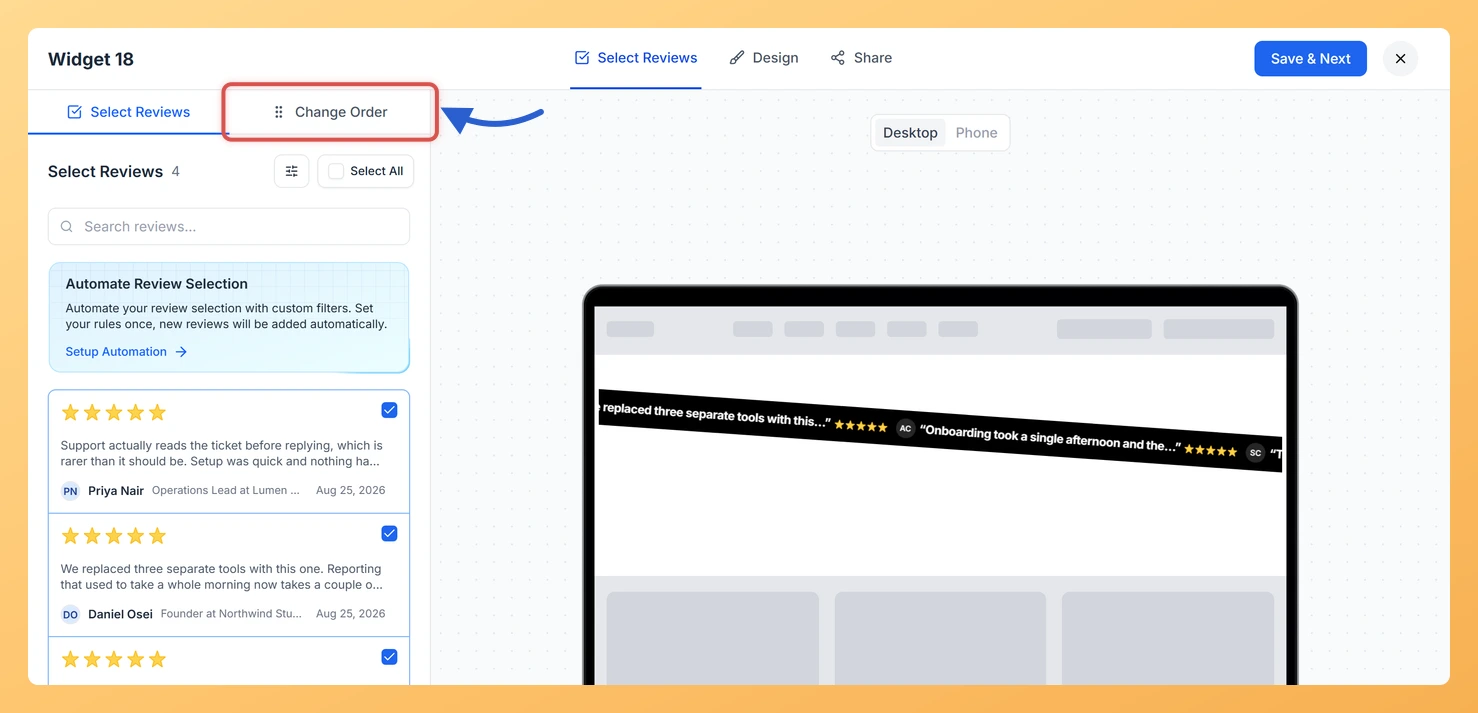
Step 3: Open the Change Order tab
In the panel on the left, click Change Order. Your selected reviews are listed in the order they appear in the widget.
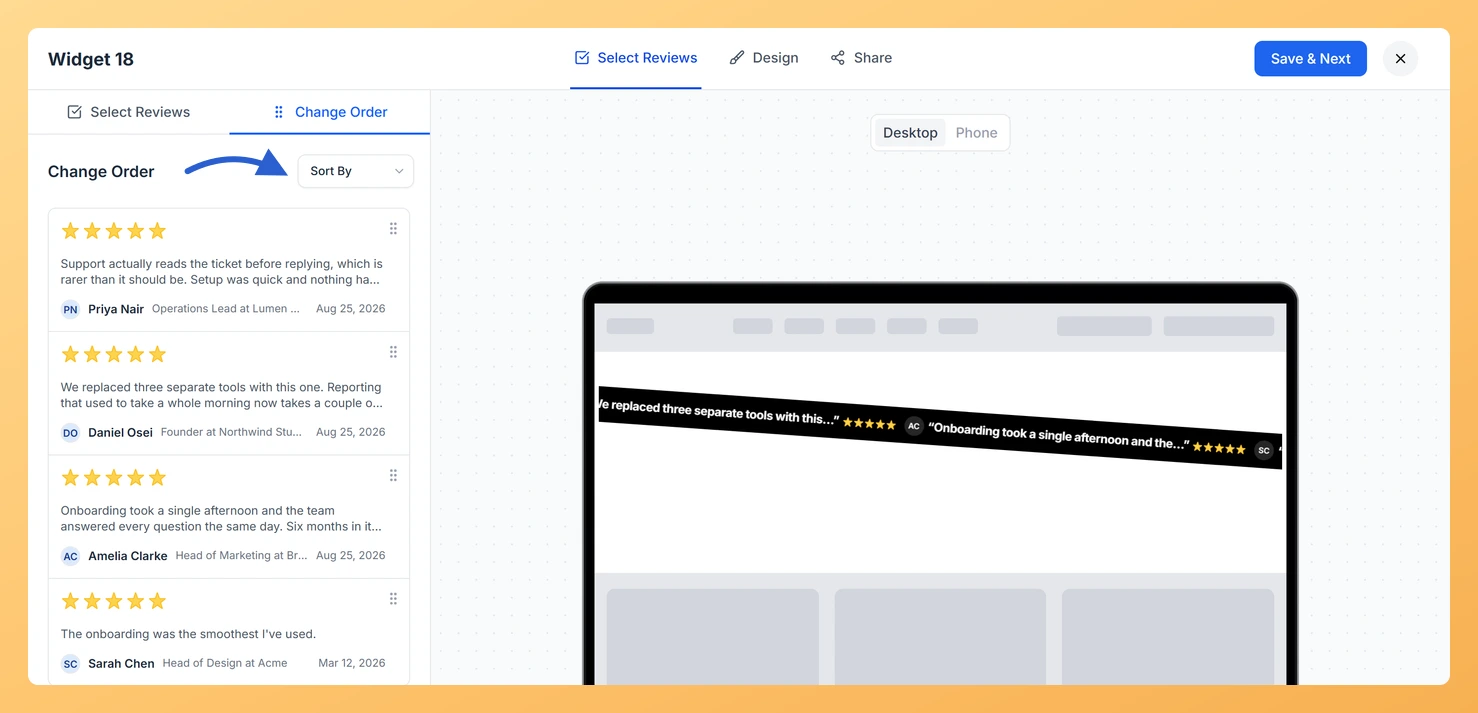
Step 4: Drag a review into place
Use the drag handle on a row to move a review up or down. The order is saved as soon as you drop it, and the preview follows.
Step 5: Or sort the whole list at once
Open Sort By and pick Newest First or Oldest First. The list reloads in that order and saves on its own.
Watch the preview to see which review a visitor meets first.
Common questions
Why is the Change Order tab empty?
It shows only the reviews you have selected. Pick some on the Select Reviews tab first, and they appear here.
You might also find helpful
How Do I Select Reviews for My Cross Slider Widget in Feedspace?
Overview The Cross Slider widget in Feedspace displays reviews using a bold cross-directional sliding transition where each review card takes full focus before the next one slides into place. Because every transition demands the visitor’s complete attention, the content of each selected review carries real weight. A weak or repetitive...
How to Create a Cross Slider Widget in Feedspace
Overview Feedspace’s Cross Slider widget displays your reviews in a dynamic cross-scrolling layout: with rows of cards moving in opposite directions simultaneously. This creates a visually striking testimonial section that immediately draws the eye. Step 1: Log in to Feedspace Go to your Feedspace Dashboard and log in using your...
What is a Widget in Feedspace?
Overview In Feedspace, a widget is a customizable display tool that allows you to showcase your collected reviews, testimonials, or feedback directly on your website. With widgets, you can turn customer voices into social proof, helping you build trust and credibility with visitors. Instead of just collecting reviews, widgets let...