
Feedspace Home Dashboard

How to Create a Cross Slider Widget in Feedspace

Last updated on May 26, 2026

Overview

Feedspace’s Cross Slider widget displays your reviews in a dynamic cross-scrolling layout — with rows of cards moving in opposite directions simultaneously. This creates a visually striking testimonial section that immediately draws the eye.

Step 1 – Log in to Feedspace

Go to your Feedspace Dashboard and log in using your credentials.

Step 2 – Navigate to Widgets

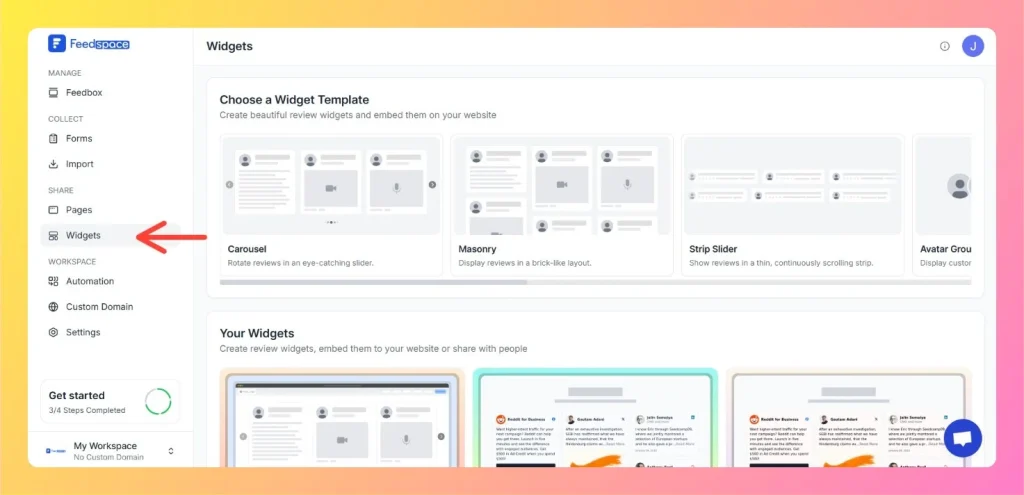
  • From the left sidebar, click on Share Reviews → Widgets.
  • Then select Cross Slider as your widget type.
Left Side Bar: Select Widgets

Step 3 – Select Reviews

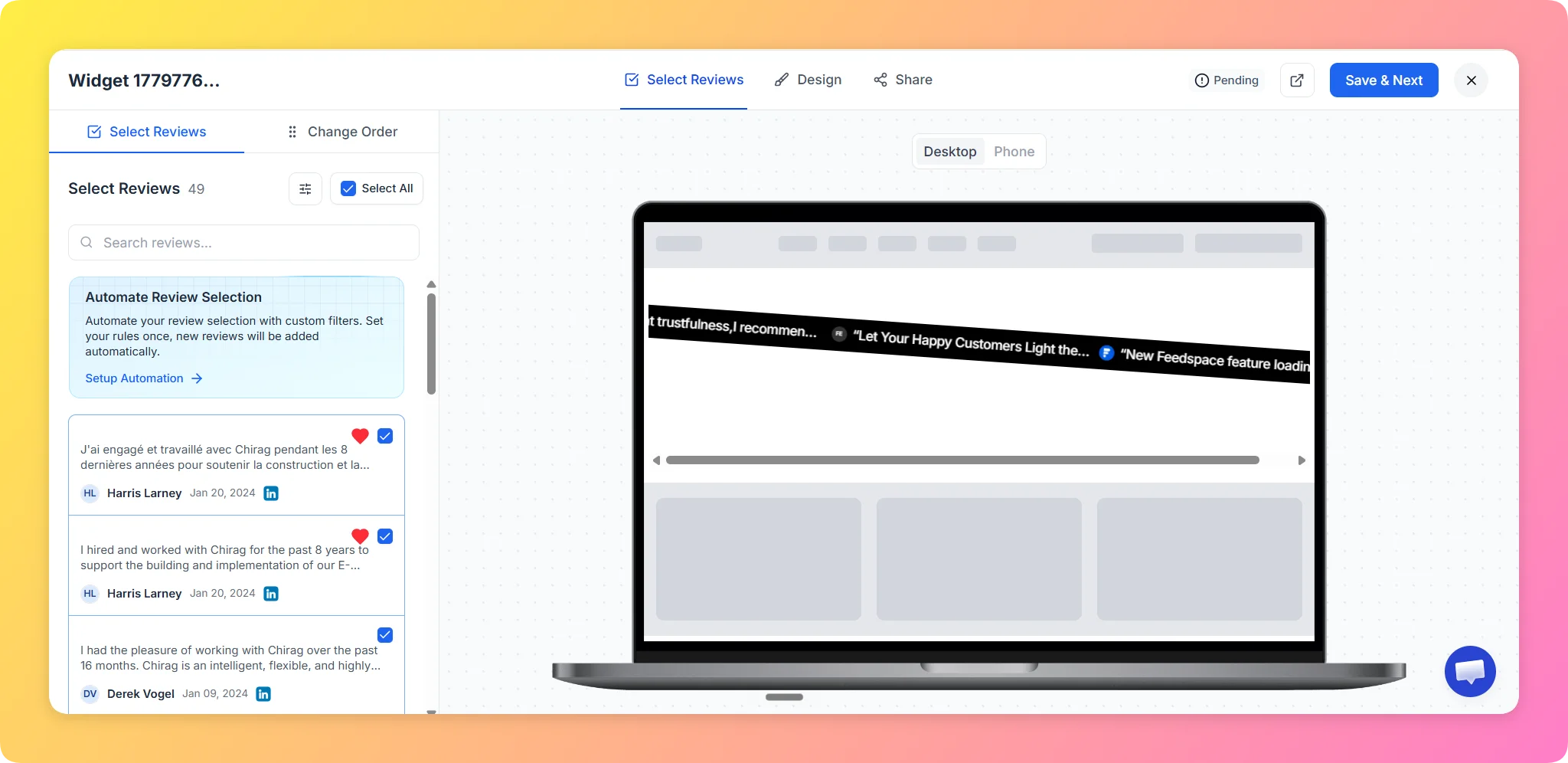
Choose the reviews you want to display in your Cross Slider. You can filter by source or manually select individual reviews.

Select Reviews Tab

Step 4 – Customize the Design

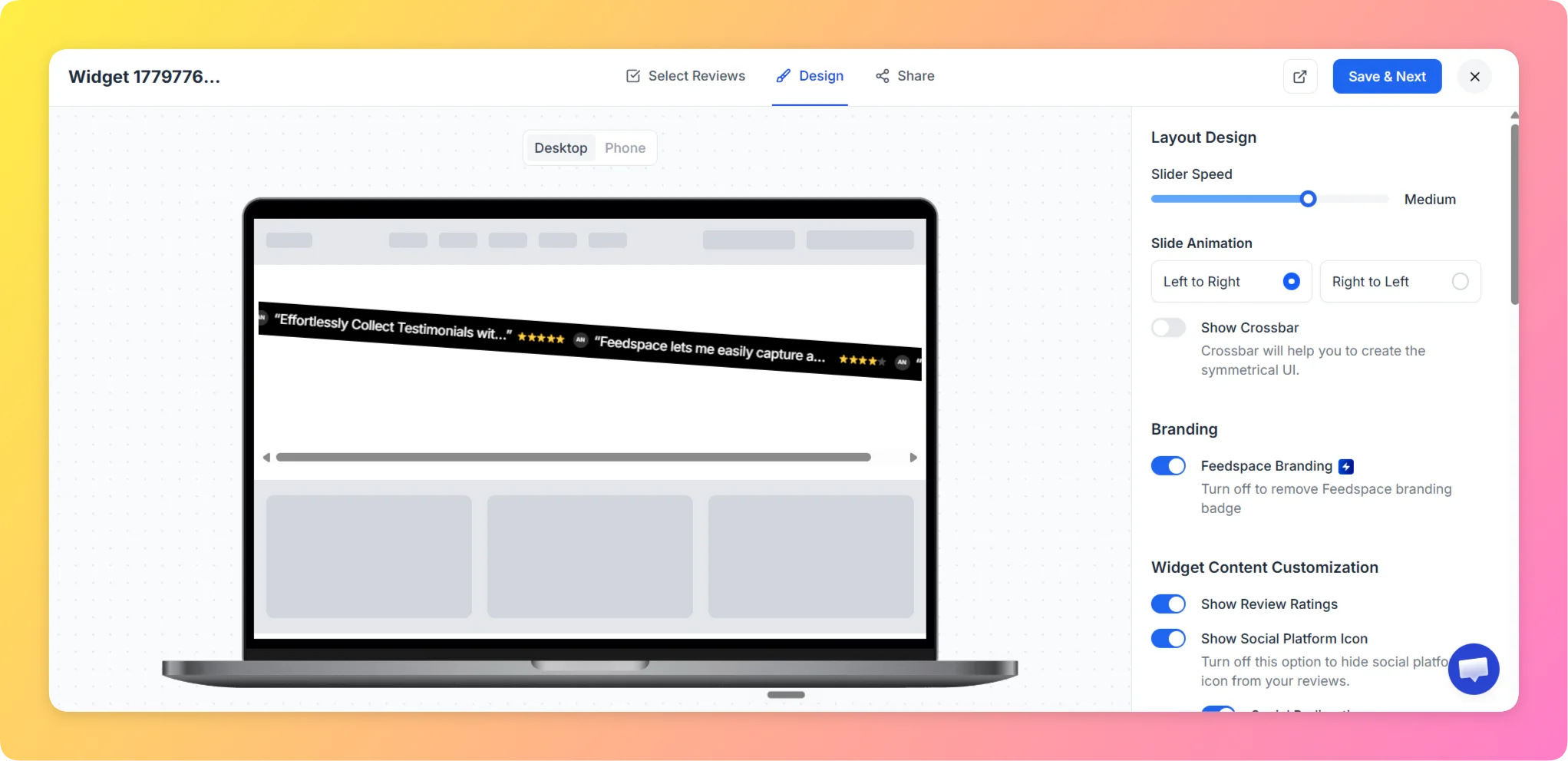
  • In the Design tab, configure scroll behaviour and card appearance:
  • Set the scroll speed for each row.
  • Adjust card colors, text colors, border, and shadow settings to match your brand.
  • Toggle Show Star Ratings, Show Review Date, and Dark Mode as needed.
  • Optionally enable Custom CSS (Pro plan) for advanced styling.

Step 5 – Preview the Widget

  • Use the live preview on the left to check how the Cross Slider looks in motion.
  • Switch between Desktop and Mobile views to ensure it displays correctly on all devices.

Step 6 – Save and Embed

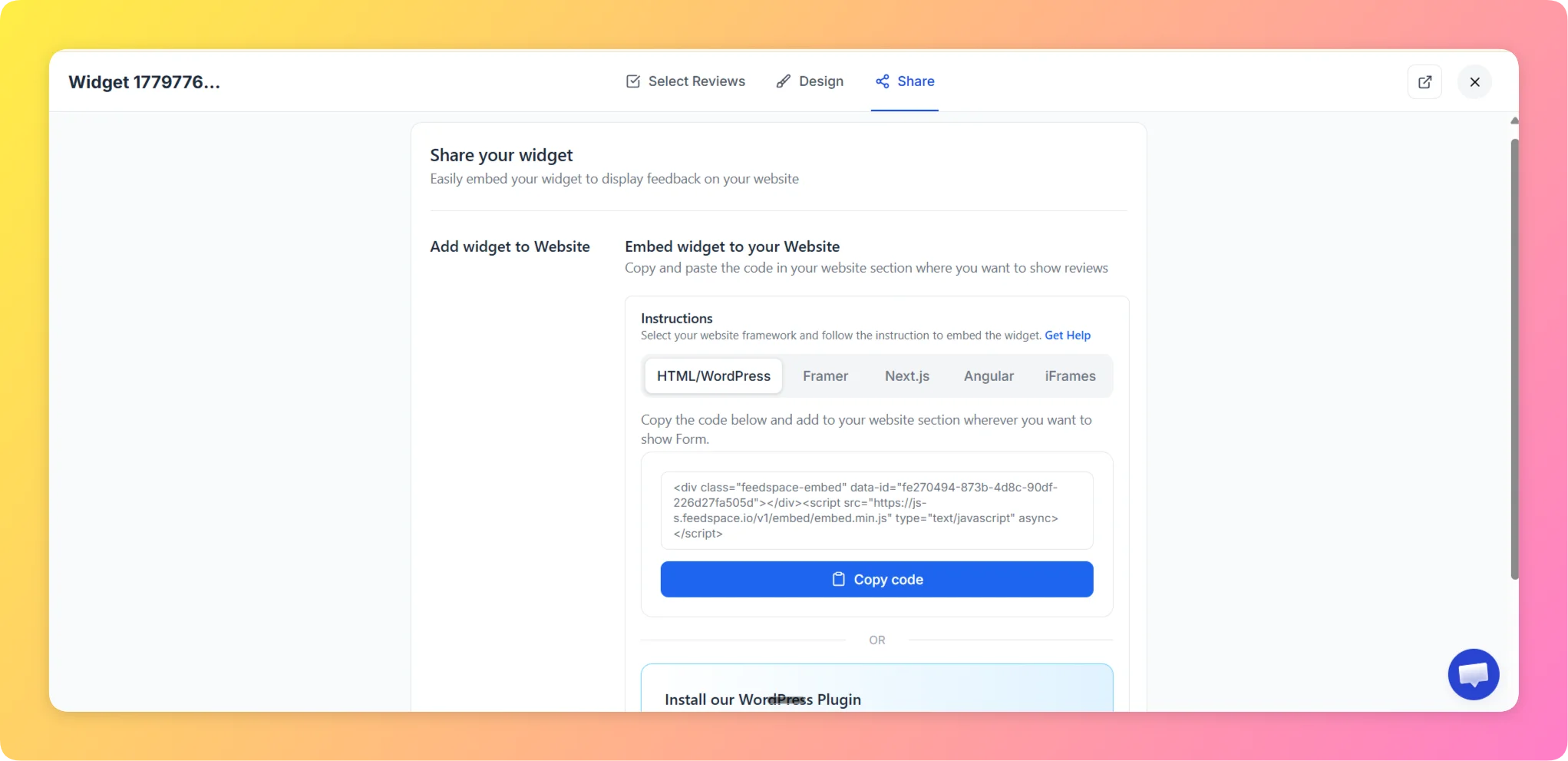
  • Click Save & Next to reach the Share tab.
  • Select your website framework (HTML/WordPress, Framer, Next.js, Angular, or iFrames).
  • Copy the embed code and paste it into your website where you want the widget to appear.

Why Use the Cross Slider Widget?

  • Instant Visual Impact: The opposing scroll directions create immediate movement that catches attention as visitors land on your page.
  • High Volume Display: Ideal for businesses with many reviews — the multi-row layout showcases more testimonials at once.
  • Modern Aesthetic: The cross-scroll design looks distinctive and contemporary on any website.

That’s it! Your Cross Slider widget is live and turning your reviews into a dynamic, eye-catching section on your website.

You might also find helpful

How to Create a Horizontal Scroll Widget in Feedspace

Overview The Horizontal Scroll widget in Feedspace showcases your reviews in a smooth side-by-side scrolling motion. It is perfect for sections where you want continuous movement and visual engagement, such as website headers, testimonial rows, or landing pages. How to Access Step 1 – Log in to Feedspace Go to...

How to Create a Vertical Scroll Widget in Feedspace

Overview The Vertical Scroll widget in Feedspace displays reviews in a continuous upward-scrolling format. It’s ideal for pages with limited horizontal space, such as sidebars, landing pages, or testimonials sections. You can enable cross-scrolling animations, customize borders, and adjust colors to match your brand. How to Access Step 1 –...

How to Create a Strip Slider Widget in Feedspace

Overview The Strip Slider widget in Feedspace allows you to showcase your reviews in a single, horizontally scrolling line — perfect for website headers, footers, or testimonial sections that need a minimalist design. You can adjust autoplay speed, borders, and colors to match your brand style. How to Access Step...