
Feedspace Home Dashboard

How Do I Change the Order of Reviews in My Floating Cards Widget in Feedspace?

Last updated on June 12, 2026

Overview

The Floating Cards widget on Feedspace displays your reviews as animated cards that gently float and drift across the screen, cycling through your selected testimonials in a continuous loop. Because the widget animates reviews in sequence, the position of each card directly determines when it appears during that cycle. A review placed first will always be seen earliest, making the order of your reviews more consequential here than in static grid layouts where all cards are visible at once.

Controlling review order in the Floating Cards widget lets you front-load your most eye-catching testimonials so visitors encounter your strongest social proof right away, before the animation cycle reaches less prominent reviews. Feedspace provides two ways to set that sequence inside the widget editor: the Change Order sub-tab for manual drag-and-drop reordering, and the Sort By dropdown for quick chronological sorting. Both options are described step by step below.

How to Change the Order of Reviews for Your Floating Cards Widget

Step 1: Open Your Floating Cards Widget in the Editor

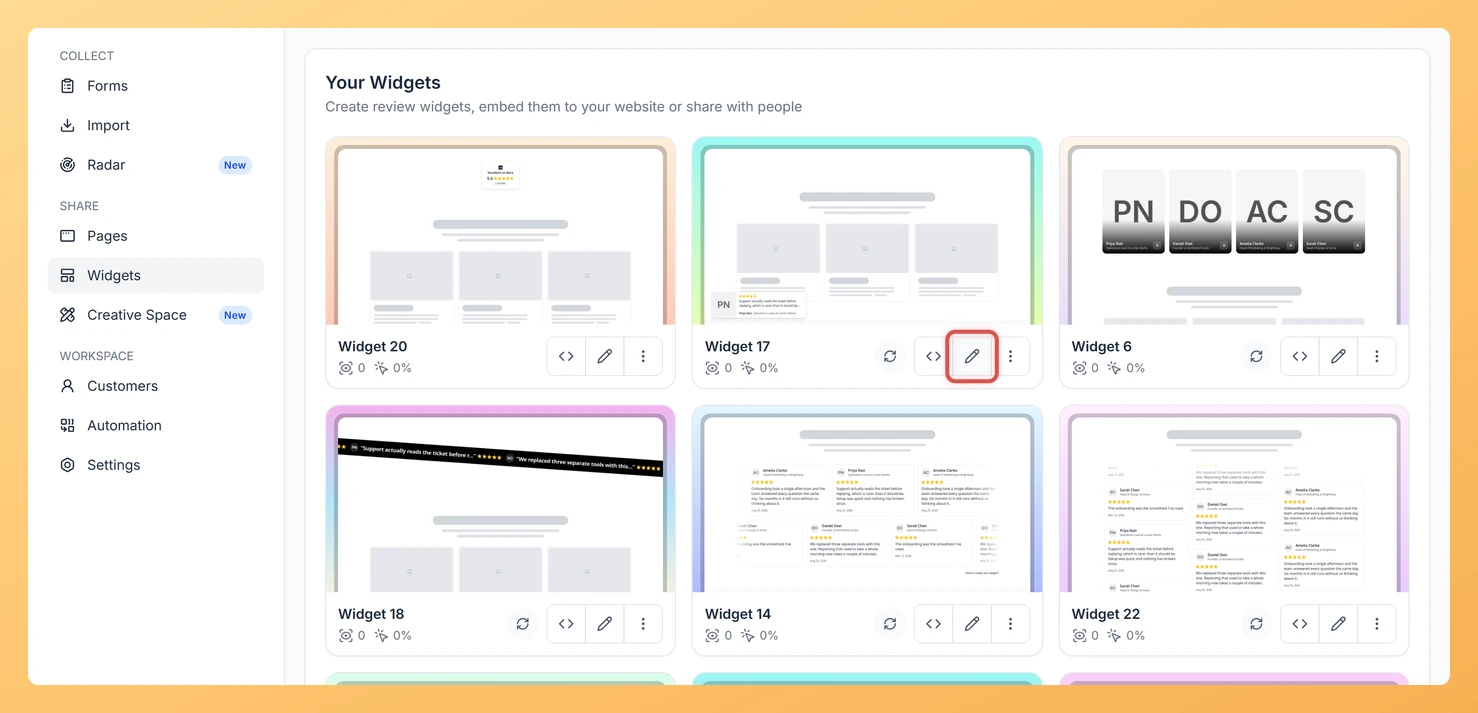
Log in to your Feedspace account and navigate to the Widgets section from the left sidebar. Locate your Floating Cards widget in the list and click Edit to open the widget editor.

Step 2: Go to the Reviews Tab

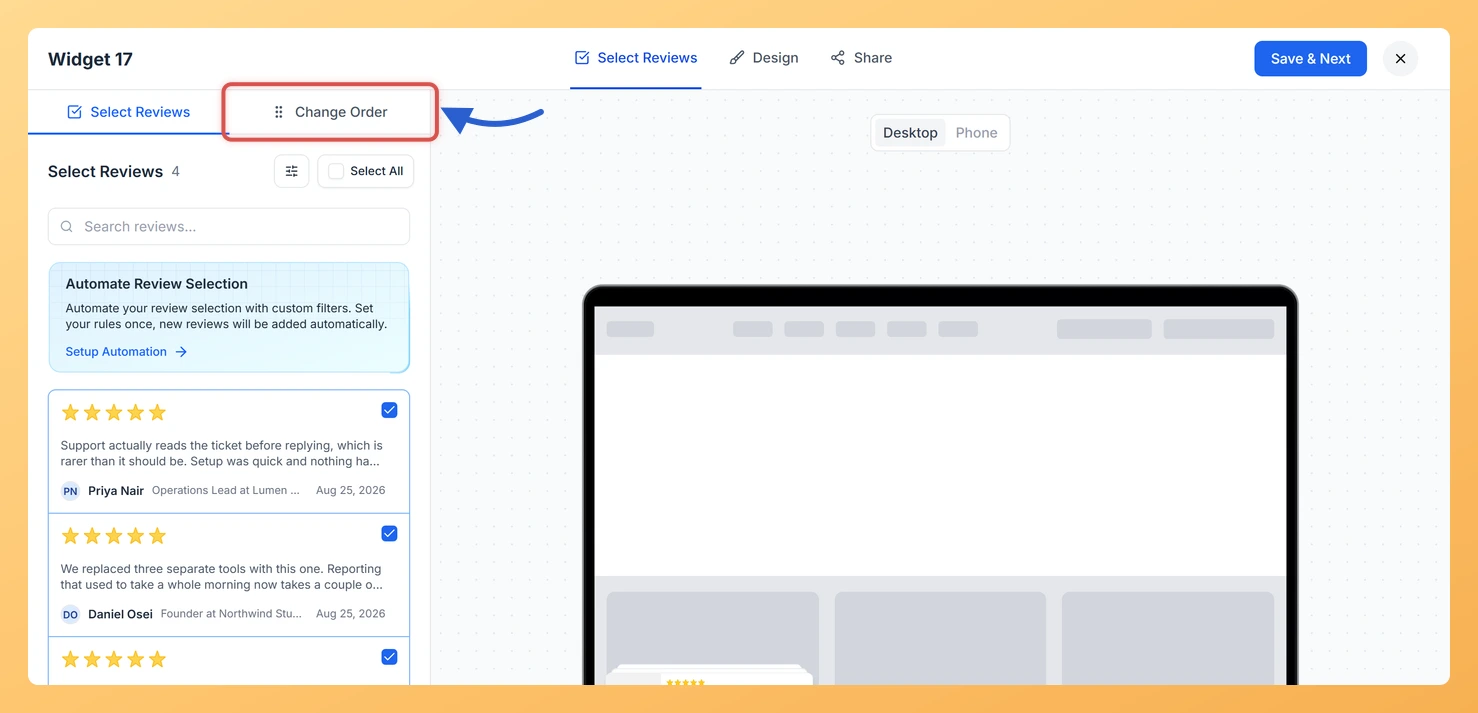
Inside the widget editor, click the Reviews tab at the top of the settings panel. This tab contains all controls for choosing and ordering the reviews that float across the screen in your widget.

Step 3: Select the Change Order Sub-Tab

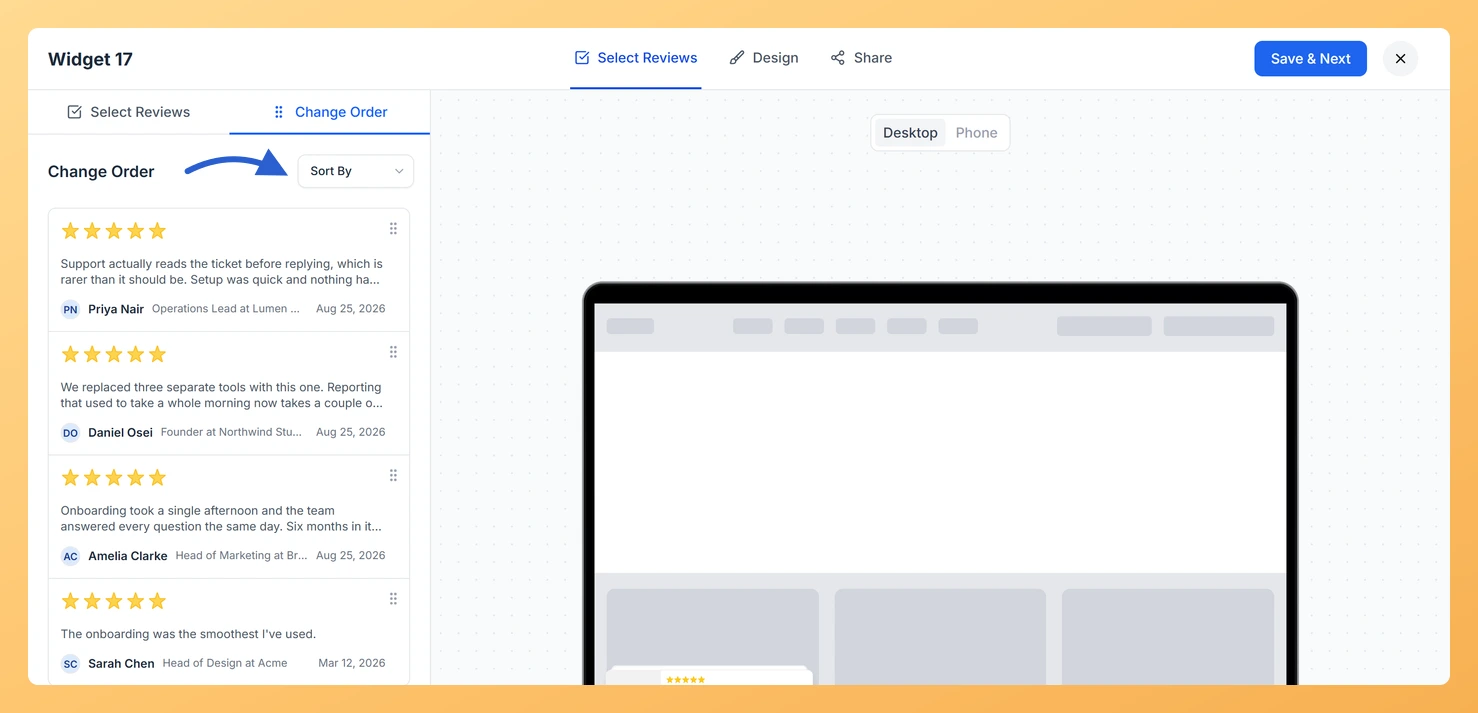
Within the Reviews tab you will see two sub-tabs: Select Reviews and Change Order. Click Change Order to switch to the manual ordering view. You will see a list of all reviews currently selected for this widget, each displayed as a draggable card.

Step 4: Drag and Drop Reviews into Your Preferred Sequence

Click and hold the drag handle on any review card, then drag it up or down to a new position in the list. Release to drop it in place. Repeat this for as many reviews as you want to reposition. Because the Floating Cards widget animates reviews in the order they appear in this list, place your most compelling and visually impactful testimonials at the top so they appear first in every animation cycle and capture visitor attention immediately.

Step 5: Use Sort By to Apply a Chronological Order (Optional)

If you prefer a date-based order instead of a manual sequence, use the Sort By dropdown at the top of the Change Order sub-tab. Select Newest First to show the most recent reviews at the start of the animation cycle, or Oldest First to show the earliest reviews first. Applying a Sort By option will reorder all cards in the list automatically.

Step 6: Save Your Changes

Once you are happy with the sequence, click Save to apply the new order. Your Floating Cards widget will immediately reflect the updated review sequence wherever it is embedded, starting the animation cycle with your newly positioned testimonials.

What You Can Do Next

  • Add or remove reviews from your Floating Cards widget using the Select Reviews sub-tab to ensure only your strongest testimonials are part of the animation cycle.
  • Adjust the position of your Floating Cards widget (left, center, or right) so the floating animation complements your page layout after finalising review order.
  • Customise the appearance of your Floating Cards widget, including card background color, border, and shadow settings, to make the animated cards stand out on your page.
  • Copy the embed code for your Floating Cards widget and place it on your website or landing page so visitors see your reordered reviews floating across the screen right away.

You might also find helpful

How Do I Select Reviews for My Floating Cards Widget in Feedspace?

Overview The Floating Cards widget in Feedspace displays your reviews as animated cards that gently float and drift across the screen, creating a dynamic and eye-catching effect. Because the cards are always in motion, the selection of reviews you include directly shapes how the animation feels. Too few reviews and...

How to Create a Floating Cards Widget in Feedspace

Overview The Floating Cards widget in Feedspace displays your reviews in stack-like cards that float over your website layout. You can position them on the left, center, or right side of the screen. This widget is perfect for showing continuous feedback without interrupting the visitorโ€™s browsing experience. How to Access...

What is a Widget in Feedspace?

Overview In Feedspace, a widget is a customizable display tool that allows you to showcase your collected reviews, testimonials, or feedback directly on your website. With widgets, you can turn customer voices into social proof, helping you build trust and credibility with visitors. Instead of just collecting reviews, widgets let...