
Overview
The Vertical Scroll widget in Feedspace continuously and smoothly scrolls your reviews in a looping, always-moving feed. Because the loop never stops, the sequence of your reviews directly affects what visitors see at any given moment. A poorly ordered loop can bury your strongest testimonials or cluster weak ones together, breaking the impression you want to make.
To control the sequence, Feedspace gives you two options inside the widget editor: the Change Order sub-tab, where you drag and drop reviews into any custom arrangement, and the Sort By dropdown, where you can sort reviews by Newest First or Oldest First automatically. Distributing your strongest testimonials evenly throughout the order keeps quality consistent across the full loop, so every part of the scroll looks equally compelling.
How to Change the Order of Reviews for Your Vertical Scroll Widget
Step 1: Open Your Vertical Scroll Widget
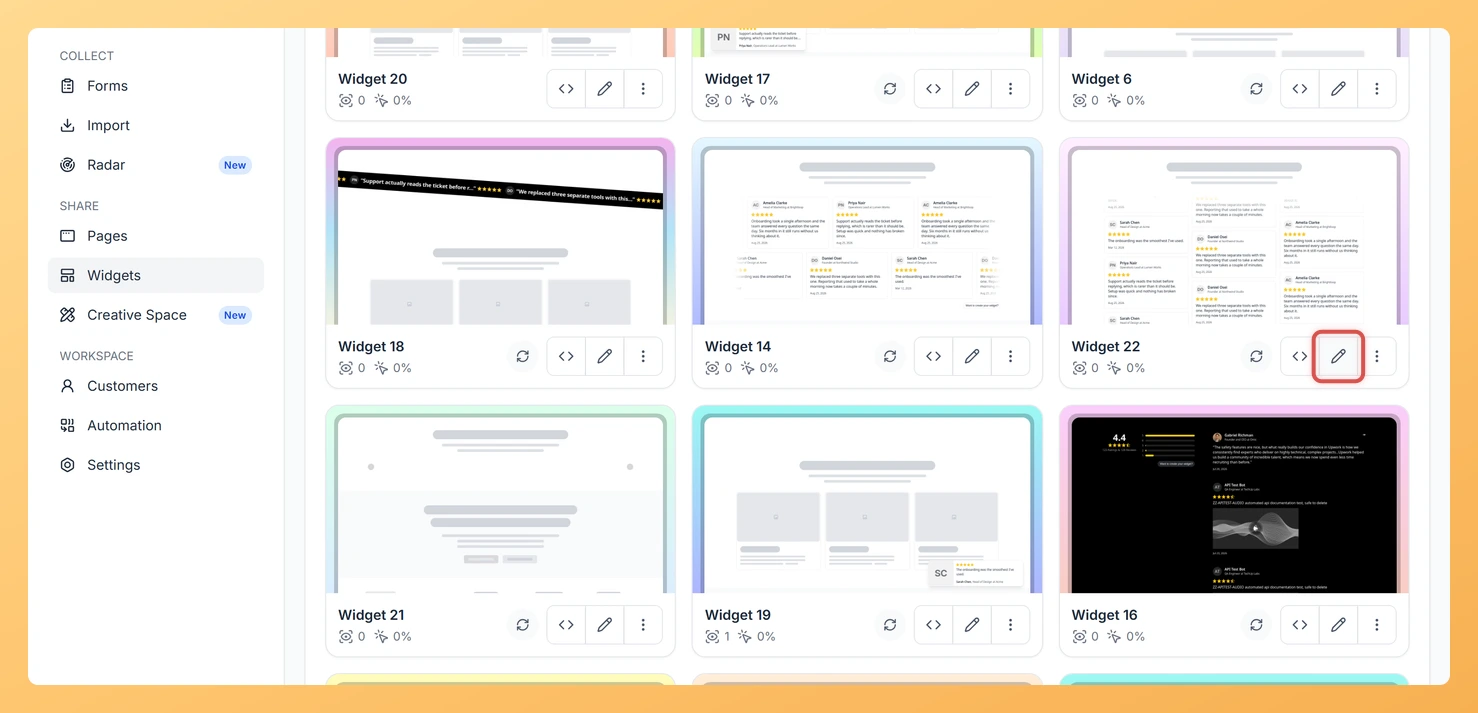
Log in to Feedspace and navigate to the Widgets section from your dashboard. Locate the Vertical Scroll widget you want to edit and click on it to open the widget editor.
Step 2: Go to the Reviews Tab
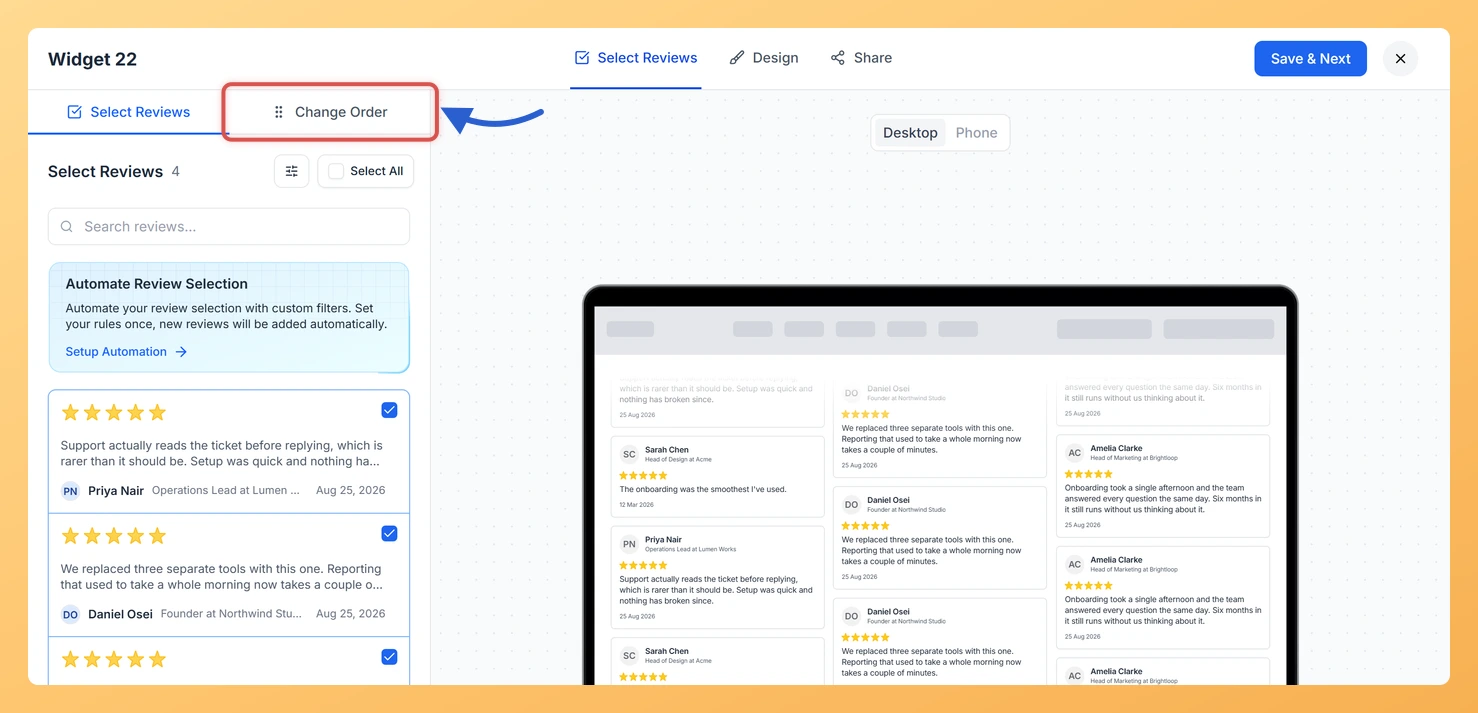
Inside the widget editor, click the Reviews tab. This tab contains all controls for managing which reviews appear in your widget and in what order.
Step 3: Open the Change Order Sub-Tab
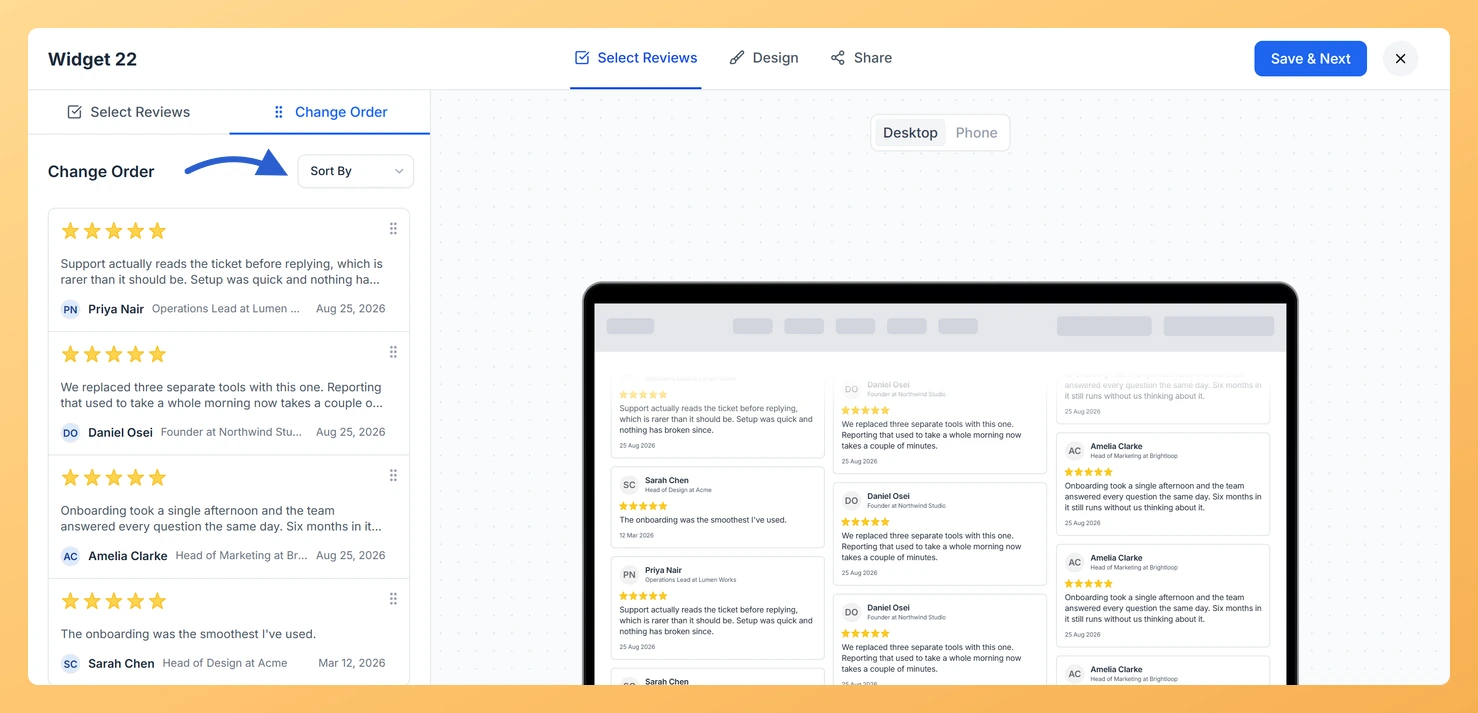
Within the Reviews tab, click the Change Order sub-tab. You will see a list of all reviews currently selected for this widget, displayed in their current sequence.
Step 4: Reorder Reviews Using Drag and Drop or Sort By
You have two ways to set the order of your reviews:
- Drag and drop: Click and hold any review card, then drag it up or down to the position you want. Release to drop it in place. Repeat for as many reviews as needed to build your ideal custom sequence. For the best result with the continuous loop, spread your highest-rated or most detailed testimonials evenly so they appear at regular intervals throughout the scroll.
- Sort By dropdown: If you prefer an automatic sort, use the Sort By dropdown at the top of the Change Order sub-tab. Select Newest First to show your most recent reviews at the start of the loop, or select Oldest First to lead with your earliest testimonials. The list will reorder instantly to reflect your selection.
Step 5: Save Your Changes
Once you are satisfied with the order, click Save to apply the new sequence to your Vertical Scroll widget. The widget will immediately begin looping reviews in the updated order wherever it is embedded.
What You Can Do Next
- Add or remove the reviews included in your Vertical Scroll widget by visiting the Select Reviews sub-tab, so your loop only shows the testimonials you want.
- Adjust the scroll speed and display settings in the widget editor to control how fast the loop moves and how many reviews are visible at once.
- Copy the embed code for your Vertical Scroll widget and paste it into your website to publish the updated looping feed immediately.
- Create additional Vertical Scroll widgets with different review selections and orders to tailor the looping feed for different pages or audiences on your site.
You might also find helpful
How Do I Select Reviews for My Vertical Scroll Widget in Feedspace?
Overview The Vertical Scroll widget in Feedspace displays your reviews in a continuously and smoothly scrolling vertical feed that loops without interruption. Because the widget never pauses, the reviews you include directly shape how engaging and varied the display feels to visitors. Selecting the right reviews is especially important for...
How to Create a Vertical Scroll Widget in Feedspace
Overview The Vertical Scroll widget in Feedspace displays reviews in a continuous upward-scrolling format. Itβs ideal for pages with limited horizontal space, such as sidebars, landing pages, or testimonials sections. You can enable cross-scrolling animations, customize borders, and adjust colors to match your brand. How to Access Step 1 –...
What is a Widget in Feedspace?
Overview In Feedspace, a widget is a customizable display tool that allows you to showcase your collected reviews, testimonials, or feedback directly on your website. With widgets, you can turn customer voices into social proof, helping you build trust and credibility with visitors. Instead of just collecting reviews, widgets let...