The Vertical Scroll widget in Feedspace displays your reviews in a continuously and smoothly scrolling vertical feed that loops without interruption. Because the widget never pauses, the reviews you include directly shape how engaging and varied the display feels to visitors.
Selecting the right reviews is especially important for the Vertical Scroll layout. The widget loops through its review pool repeatedly, so a small selection causes the same reviews to reappear quickly, making the feed feel repetitive. Feedspace recommends including 10 or more reviews so the loop stays fresh and the continuous motion keeps visitors engaged. The Select Reviews tab gives you full control: you can hand-pick individual reviews using checkboxes, or add every available review in one click with the Select All button.
How to select reviews for your Vertical Scroll widget
Step 1: Open your Vertical Scroll widget
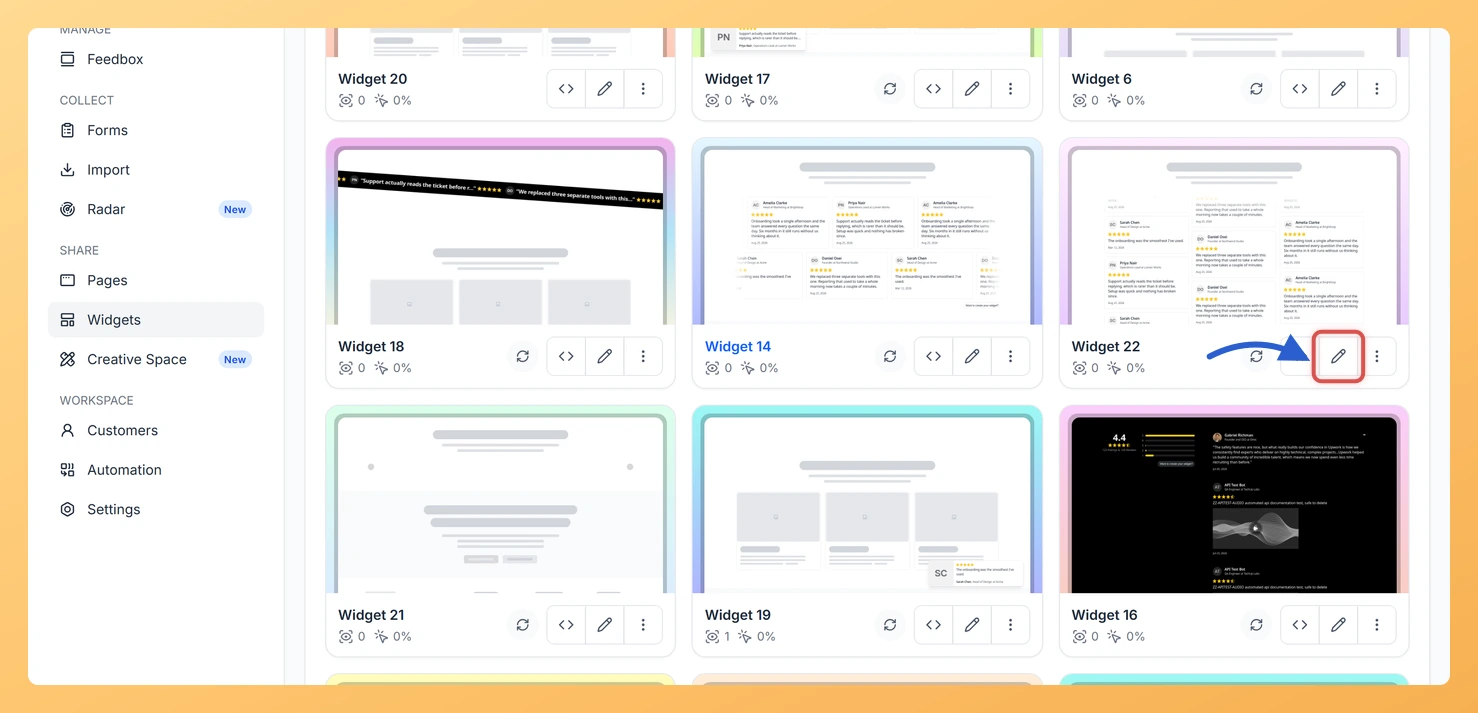
Log in to Feedspace and navigate to the Widgets section from the left sidebar. Locate your Vertical Scroll widget in the list and click the Edit (pencil) icon on the widget card to open the widget editor.
Step 2: Go to the Select Reviews tab
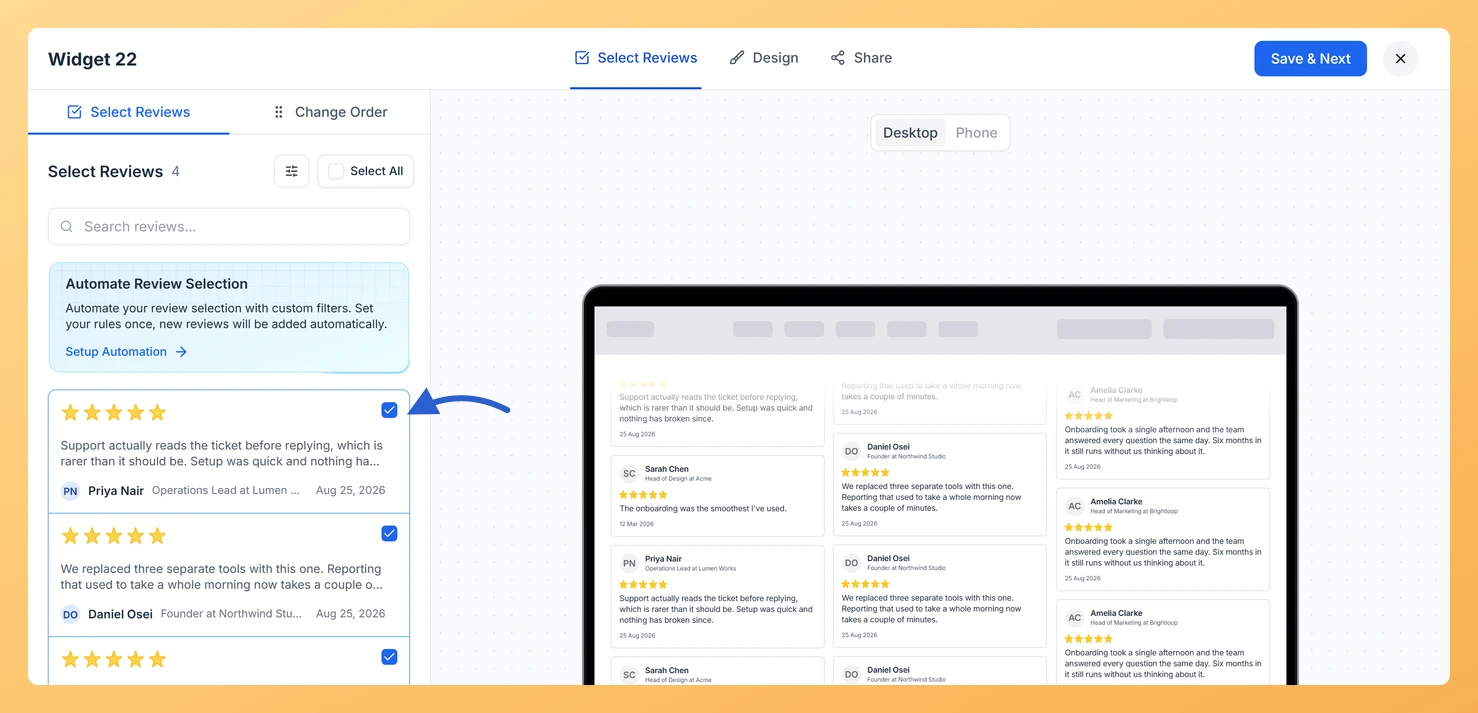
Inside the widget editor, click the Select Reviews tab. This tab shows all the reviews available to include in your Vertical Scroll widget feed.
Step 3: Tick the reviews you want
Browse the list of available reviews. Click the checkbox next to each review you want to include in the scrolling feed. Selected reviews are highlighted so you can track your choices at a glance. Repeat this for each review you want to add until you have 10 or more selected for the smoothest looping experience.
Step 4: Use Select All to add every review at once
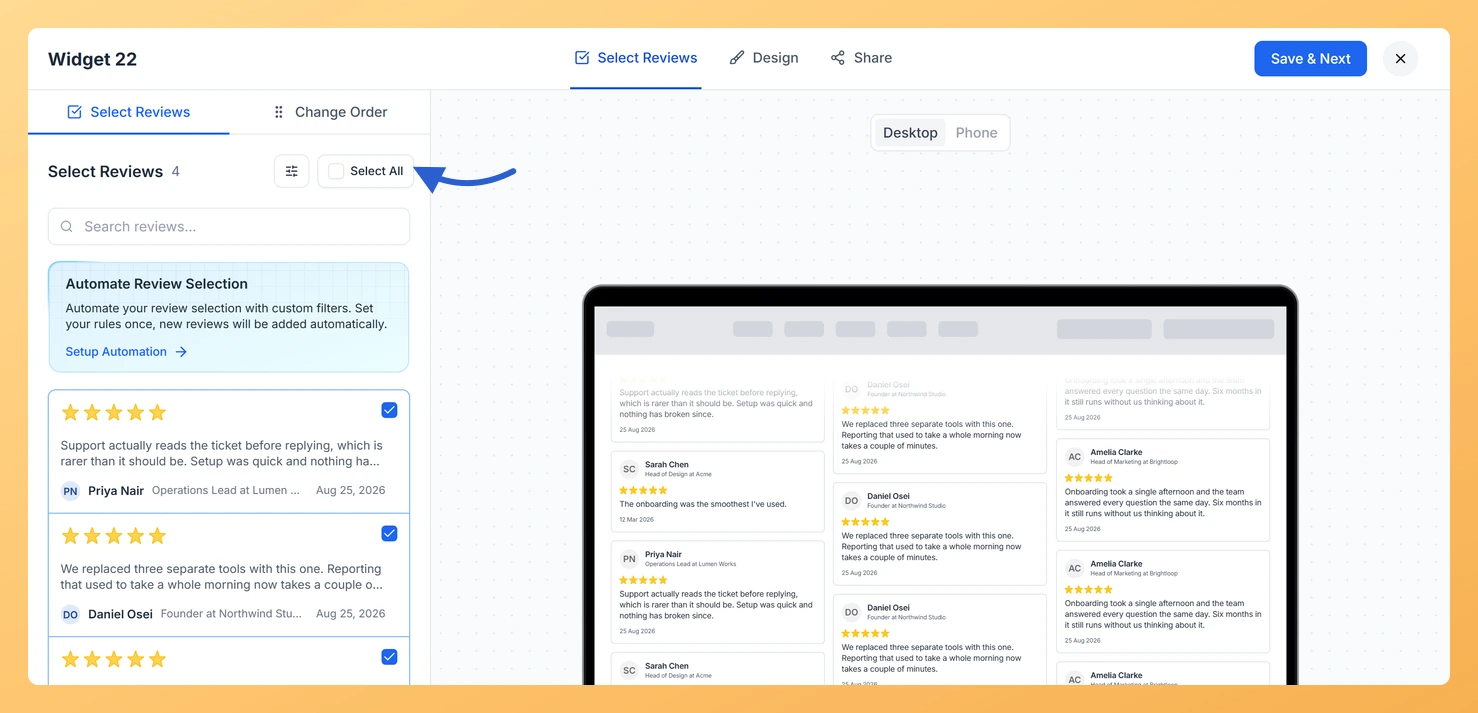
If you want to include all available reviews without clicking each one individually, click the Select All button at the top of the review list. All reviews will be checked instantly. This is the fastest way to populate your Vertical Scroll widget with a large pool of reviews, ensuring the continuous loop stays varied for the longest possible time before any review repeats.
Step 5: Save your changes
Once you are satisfied with your review selection, click Save & Next to apply the changes. Your Vertical Scroll widget will now loop through the reviews you selected in its continuous scrolling display.
What’s next
Use the search and filter tools in the Select Reviews tab to narrow down reviews by source, rating, or keyword before making your selection for the Vertical Scroll widget.
Adjust the scroll speed and display settings of your Vertical Scroll widget in the Design tab to match the pace and style of your webpage.
Embed the Vertical Scroll widget on your website by copying the embed code from the widget editor and pasting it into your page builder or HTML.
Return to the Select Reviews tab at any time to add newly collected reviews to your Vertical Scroll widget, keeping the looping feed current and relevant.
Common questions
Why do my selected reviews jump to the top of the list?
That is deliberate. Once the list refreshes, everything you have ticked floats to the top so you can see your current selection at a glance instead of hunting for it among the unselected reviews.
You might also find helpful
How to Create a Vertical Scroll Widget in Feedspace
Overview The Vertical Scroll widget in Feedspace displays reviews in a continuous upward-scrolling format. It’s ideal for pages with limited horizontal space, such as sidebars, landing pages, or testimonials sections. You can enable cross-scrolling animations, customize borders, and adjust colors to match your brand. How to Access Step 1 –...
What is a Widget in Feedspace?
Overview In Feedspace, a widget is a customizable display tool that allows you to showcase your collected reviews, testimonials, or feedback directly on your website. With widgets, you can turn customer voices into social proof, helping you build trust and credibility with visitors. Instead of just collecting reviews, widgets let...
How Do I Search and Filter Reviews for My Vertical Scroll Widget in Feedspace?
Overview The Vertical Scroll widget in Feedspace displays your reviews as a continuously scrolling, looping vertical feed. Because cards flow past the viewer one after another without stopping, the specific reviews you include matter more than in a static layout. Choosing a curated, varied mix of different review lengths, sources,...