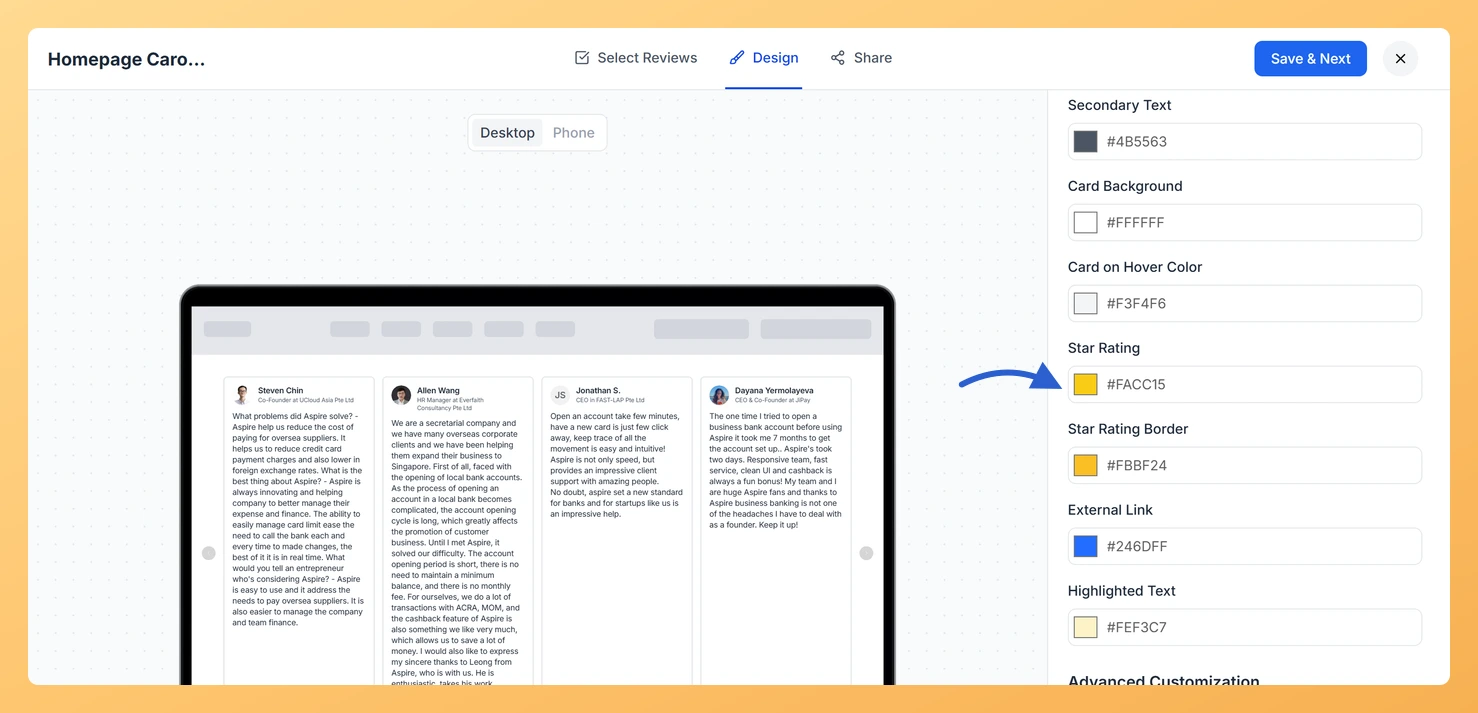
The Carousel widget displays your reviews as a horizontally sliding sequence of cards, looping continuously so visitors always see fresh testimonials. Each card prominently features a star rating, which is one of the first visual elements a visitor notices as the carousel cycles through. The Widget Color Customization section on the Design tab holds two star pickers, in the Custom Colors group: Star Rating, which controls the fill color of the star icons, and Star Rating Border, which controls the outline or border color around each star. Adjusting these two settings lets you align the star icons with your brand palette, ensure strong contrast against your card background, and give the carousel a polished, cohesive look as it scrolls.
How to change the star rating colour on your Carousel widget
Step 1: Open the Widgets section
Log in to your Feedspace account. In the left sidebar, click Widgets to open your list of saved widgets.
Step 2: Open your Carousel widget
Locate the Carousel widget you want to update. Click the Edit (pencil) icon on the widget card to open the widget editor.
Step 3: Go to the Design tab
Inside the widget editor, click the Design tab at the top of the panel. This tab contains all visual customization options for your Carousel widget.
Step 4: Find Widget Color Customization
Scroll down within the Design tab until you see the Widget Color Customization section. The star pickers sit in the Custom Colors group near the bottom of it.
Step 5: Set Star Rating and Star Rating Border
You will see two color pickers relevant to star ratings:
Star Rating: click this picker and choose the fill color for the star icons. This is the main color that fills the inside of each star displayed on the carousel cards.
Star Rating Border: click this picker and choose the outline or border color that appears around each star icon. This helps define the star shape clearly, especially when the fill color is light or when it needs to stand out against your card background.
Select your desired colors using the color picker or by entering a hex code directly. The carousel preview will update in real time so you can see exactly how the stars will appear as the cards slide.
Step 6: Save your changes
Once you are satisfied with your color choices, click Save & Next to apply the updated star colours The widget picks the change up wherever it is already embedded, so there is no need to paste the embed code again. to your Carousel widget.
What’s next
Show or hide star ratings on your Carousel widget entirely by visiting the display settings for your widget.
Customize other design elements of your Carousel widget, such as card background color, text color, and font, to create a fully branded carousel experience.
Preview your Carousel widget live on your site to confirm the star rating colors display correctly as the cards loop and slide.
Refresh the page where the widget is embedded to confirm the star colours read clearly at your own card size.
Common questions
Will this colour apply to my other widgets too?
No. Every widget keeps its own Design tab, so a colour you set here changes this Carousel only. Other widgets stay exactly as you left them.
You might also find helpful
How Do I Show or Hide Star Ratings on My Carousel Widget in Feedspace?
Overview The Carousel widget in Feedspace displays your reviews as a continuously looping horizontal slideshow, showing one or a few review cards at a time as they slide into view. Each card is compact by design, so every element on the card competes for space. The Show Review Ratings toggle,...
How to Create a Carousel Widget in Feedspace
Overview The Carousel widget in Feedspace lets you display multiple reviews in a continuously sliding format. You can enable autoplay, customize speed, and fine-tune design elements such as border, background color, and text colors. It’s a great way to keep your testimonials engaging and visually dynamic. How to Access Step...
How Do I Customize the Design of My Widget in Feedspace?
Overview Feedspace widgets come with a powerful Design tab that lets you tailor every visual aspect of your widget. From card colors and fonts to dark mode and call-to-action buttons, you can fully customize the look to match your website’s brand without writing any code. How to Customize the Widget...