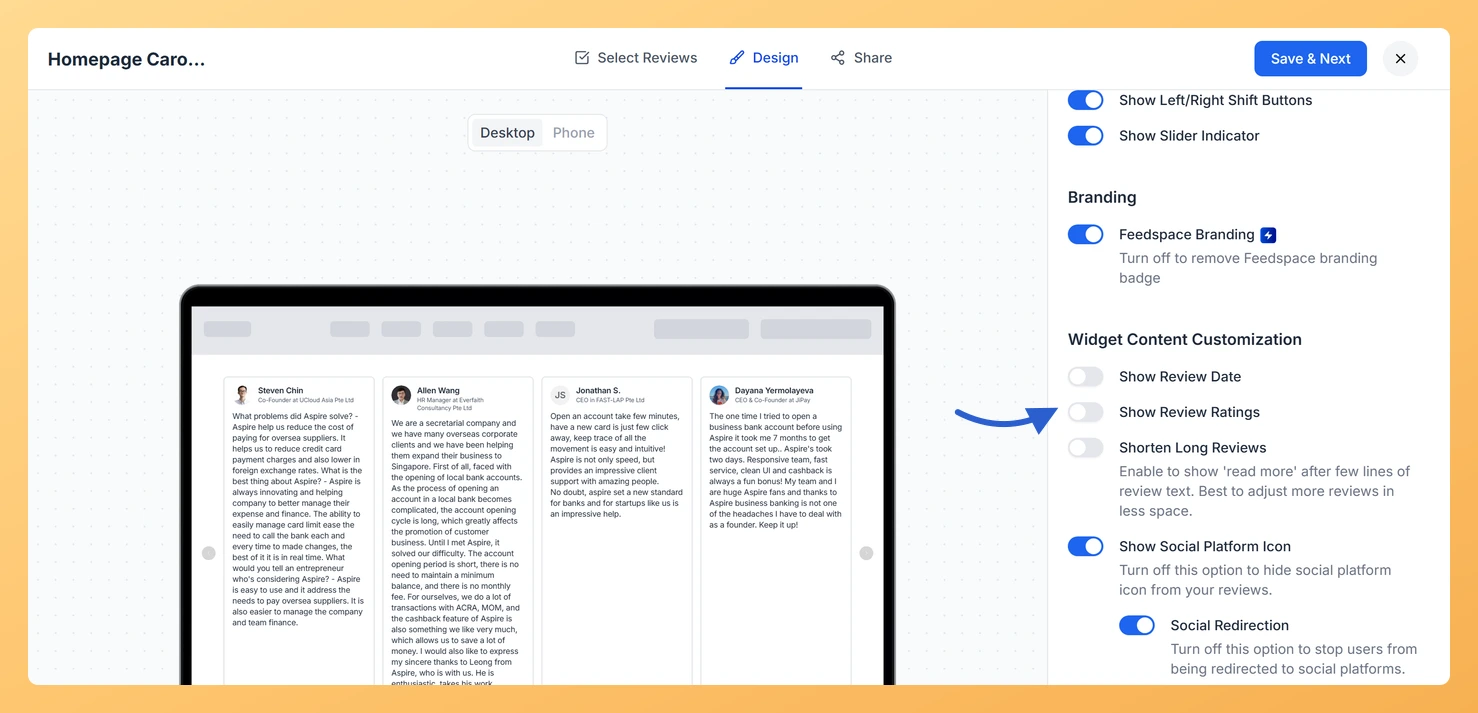
The Carousel widget in Feedspace displays your reviews as a continuously looping horizontal slideshow, showing one or a few review cards at a time as they slide into view. Each card is compact by design, so every element on the card competes for space. The Show Review Ratings toggle, found in the Widget Content Customization section of the Design tab, lets you decide whether the star rating appears on each card alongside the review text and reviewer information.
Turning this option on adds a row of stars to every card in the carousel, giving visitors an immediate visual signal of how strongly each reviewer felt. Turning it off removes the star row entirely, so each card shows only the review text and the reviewer’s name and photo. This is useful when your reviews are uniformly high-rated and you want the carousel to feel cleaner, or when your brand style calls for a text-first presentation without score indicators.
How to show or hide star ratings on your Carousel widget
Step 1: Open the Widgets section
Log in to your Feedspace account. In the left sidebar, click Widgets to open the list of all widgets you have created.
Step 2: Open your Carousel widget
Find the Carousel widget you want to update. Click the Edit (pencil) icon on the widget card to open the widget editor.
Step 3: Go to the Design tab
Inside the widget editor, click the Design tab at the top of the settings panel. This tab contains all visual customization options for the Carousel widget.
Step 4: Find Widget Content Customization
Scroll down within the Design tab until you reach the Widget Content Customization section. This section groups together the toggles that control which content elements appear on each review card in the carousel.
Step 5: Switch Show Review Ratings on or off
Find the Show Review Ratings toggle within the Widget Content Customization section. Click the toggle to turn it on or off:
Turned on, a row of star ratings appears on each review card as the carousel slides through your reviews.
Turned off, the star row is hidden, and each card shows only the review text and the reviewer’s name and profile image.
The live preview updates immediately so you can see how the carousel cards look with ratings shown or hidden before saving.
Step 6: Save your changes
Once you are satisfied with how the carousel looks in the preview, click Save & Next to apply the change. The widget picks the change up wherever it is already embedded, so there is no need to paste the embed code again.
What’s next
Change the color of the star ratings displayed on your Carousel widget cards to match your brand by visiting the star rating color settings in the Design tab.
Adjust which reviews appear in the carousel by updating the filter and content selection settings so only your highest-rated reviews are shown.
Customize other card elements such as the reviewer name, profile image, and review date using the additional toggles in the Widget Content Customization section.
Open the page where the widget is already embedded and refresh it to see the change your visitors will get.
Common questions
Why are the stars hard to see against my card background?
The star colour is set separately, under Widget Color Customization. Open the star rating colour settings and pick a fill that contrasts with your card.
You might also find helpful
How Do I Change the Star Rating Color on My Carousel Widget in Feedspace?
Overview The Carousel widget displays your reviews as a horizontally sliding sequence of cards, looping continuously so visitors always see fresh testimonials. Each card prominently features a star rating, which is one of the first visual elements a visitor notices as the carousel cycles through. The Widget Color Customization section...
How to Create a Carousel Widget in Feedspace
Overview The Carousel widget in Feedspace lets you display multiple reviews in a continuously sliding format. You can enable autoplay, customize speed, and fine-tune design elements such as border, background color, and text colors. It’s a great way to keep your testimonials engaging and visually dynamic. How to Access Step...
How Do I Customize the Design of My Widget in Feedspace?
Overview Feedspace widgets come with a powerful Design tab that lets you tailor every visual aspect of your widget. From card colors and fonts to dark mode and call-to-action buttons, you can fully customize the look to match your website’s brand without writing any code. How to Customize the Widget...