The Vertical Scroll widget moves columns of review cards up and down your page. Matching the text on those cards to your site keeps the reviews easy to read and makes the widget look like part of the page.
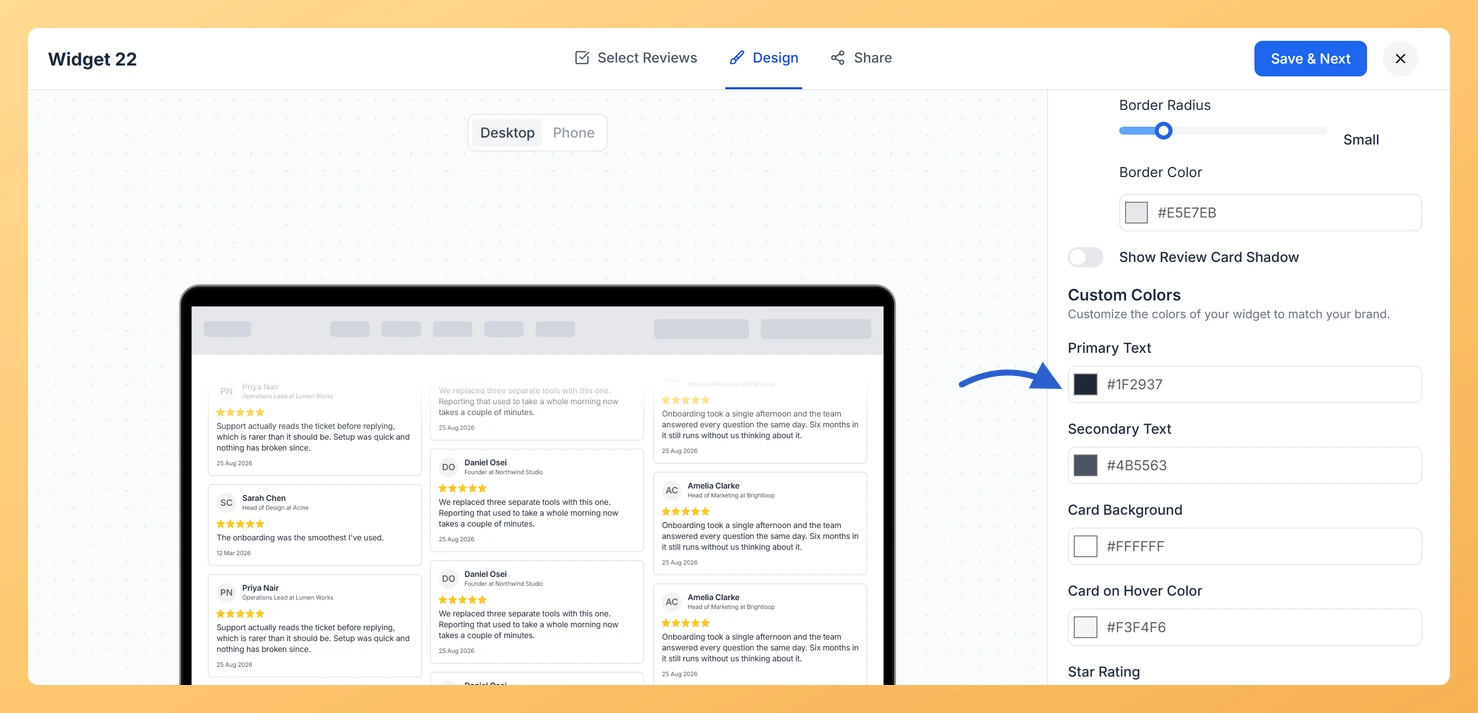
Two fields in the Custom Colors group control it: Primary Text sets the main text color, and Secondary Text sets the lighter color used for supporting details. A dark grey with a softer grey is a safe pair on light cards.
How to change the text color on your Vertical Scroll widget
Step 1: Find your widgets
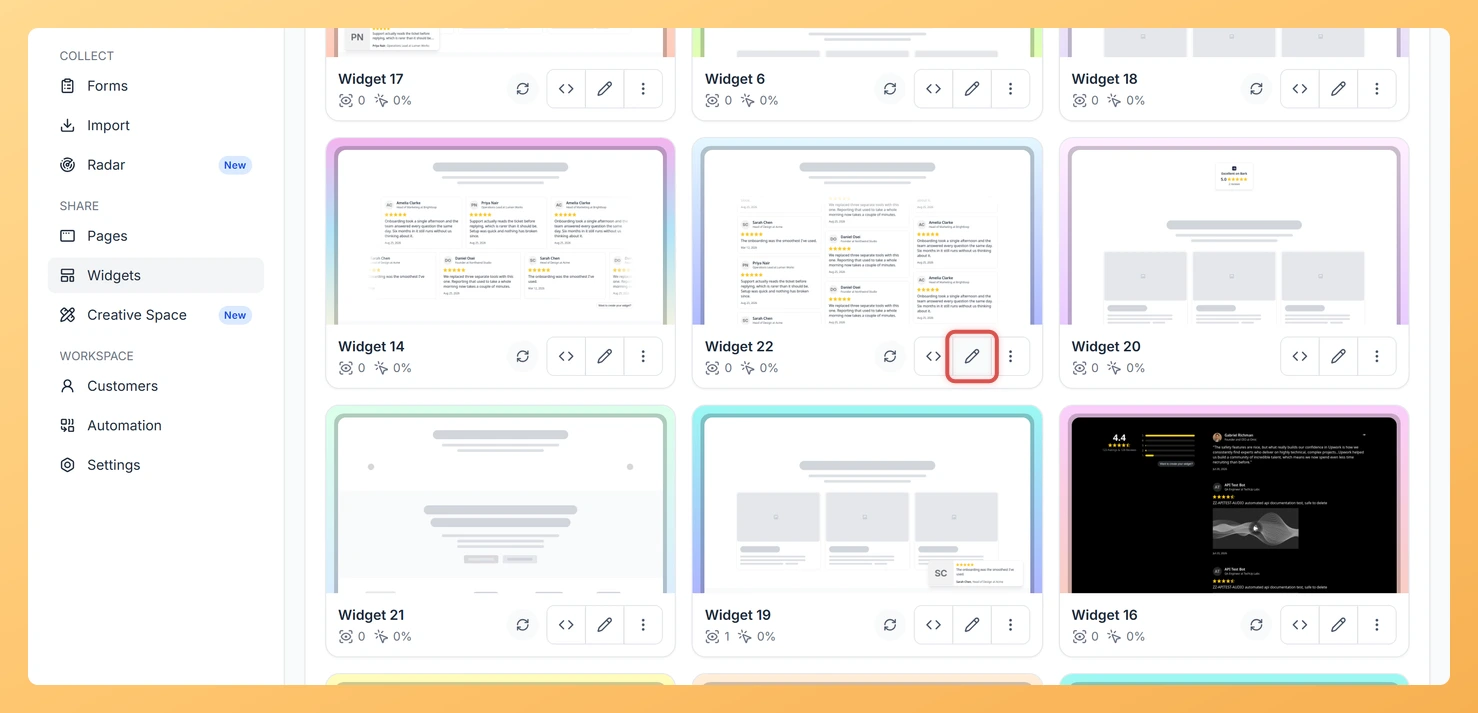
In Feedspace, choose Widgets from the left-hand sidebar.
Step 2: Open the editor
Locate the Vertical Scroll widget and use the Edit (pencil) icon on its card.
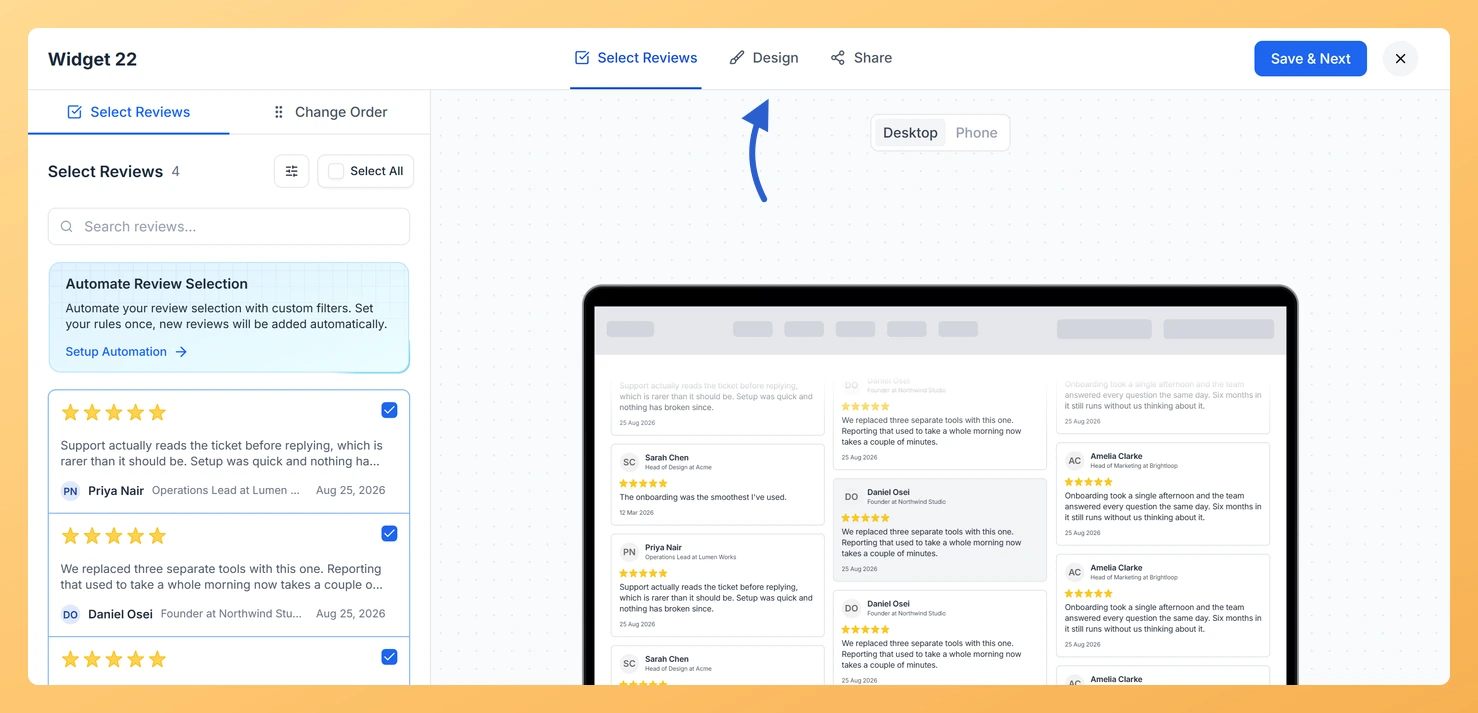
Step 3: Select Design
At the top of the editor, select Design.
Step 4: Scroll to Custom Colors
Scroll down the settings panel, past Widget Color Customization, to the Custom Colors group.
Step 5: Set Primary Text
Click the Primary Text swatch and choose a color, or type a hex code into the field. The preview updates as you pick.
Step 6: Set Secondary Text
Use Secondary Text, just below, to color the supporting text.
Step 7: Save your changes
Press Save & Next to save. Your embedded widget shows the update the next time the page loads.
Check the text in the Phone preview, where it appears smaller.
Common questions
Why can’t I find the text color fields?
The Custom Colors group is hidden while Enable Dark Mode is on, because dark mode picks readable colors for you. Turn it off to set your own.
You might also find helpful
How Do I Change the Card Background Color on My Vertical Scroll Widget in Feedspace?
Overview The Vertical Scroll widget moves columns of review cards up and down your page. A card fill that contrasts with your page background keeps the moving reviews easy to follow. Choose that fill in the Card Background field under Custom Colors. You can also set Card on Hover Color...
How to Create a Vertical Scroll Widget in Feedspace
Overview The Vertical Scroll widget in Feedspace displays reviews in a continuous upward-scrolling format. It’s ideal for pages with limited horizontal space, such as sidebars, landing pages, or testimonials sections. You can enable cross-scrolling animations, customize borders, and adjust colors to match your brand. How to Access Step 1 –...
How Do I Customize the Design of My Widget in Feedspace?
Overview Feedspace widgets come with a powerful Design tab that lets you tailor every visual aspect of your widget. From card colors and fonts to dark mode and call-to-action buttons, you can fully customize the look to match your website’s brand without writing any code. How to Customize the Widget...