
Feedspace Home Dashboard

How Do I Change the Card Background Color on My Vertical Scroll Widget in Feedspace?

Last updated on June 12, 2026

Overview

The Vertical Scroll widget displays your review cards in a continuously looping vertical feed, one card flowing into the next without interruption. Because each card is a self-contained panel that visitors scroll past in sequence, the fill color of those cards has a direct impact on how readable and visually cohesive the entire feed looks on your page.

The Card Background Color option in the Widget Color Customization section lets you choose the exact fill color applied to every review card in the Vertical Scroll feed. By setting this to a color that complements your site palette, you give the scrolling cards a polished, on-brand appearance and ensure the review text and star ratings remain easy to read as the feed loops. On some widget configurations a Card on Hover Color picker also appears, letting you define a separate fill color that activates when a visitor moves their cursor over a card.

How to Change the Card Background Color for Your Vertical Scroll Widget

Step 1: Open the Widgets Section

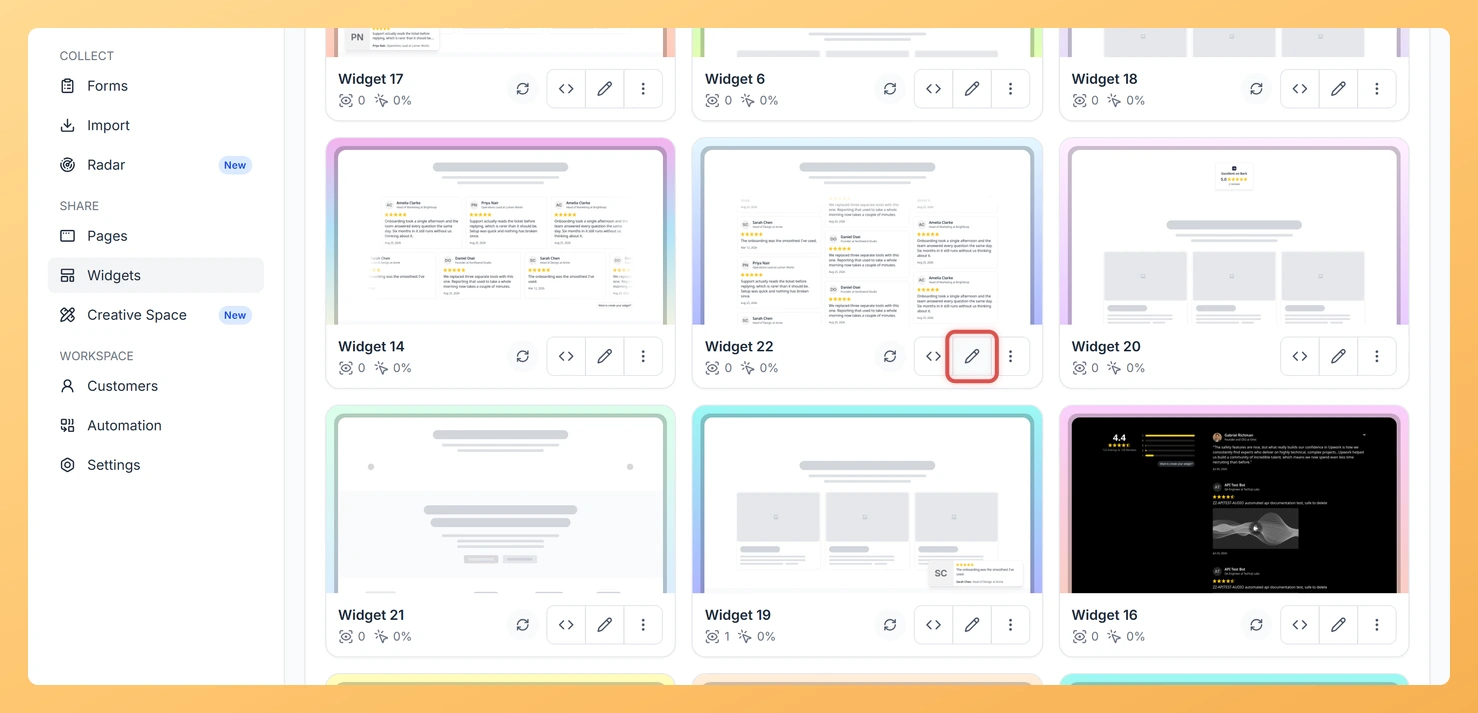
Log in to your Feedspace account. In the left navigation, click Widgets to open the list of all widgets you have created.

Step 2: Edit Your Vertical Scroll Widget

Find your Vertical Scroll widget in the list and click the Edit icon next to it. The widget editor will open, showing a live preview alongside the customization panel.

Step 3: Go to the Design Tab

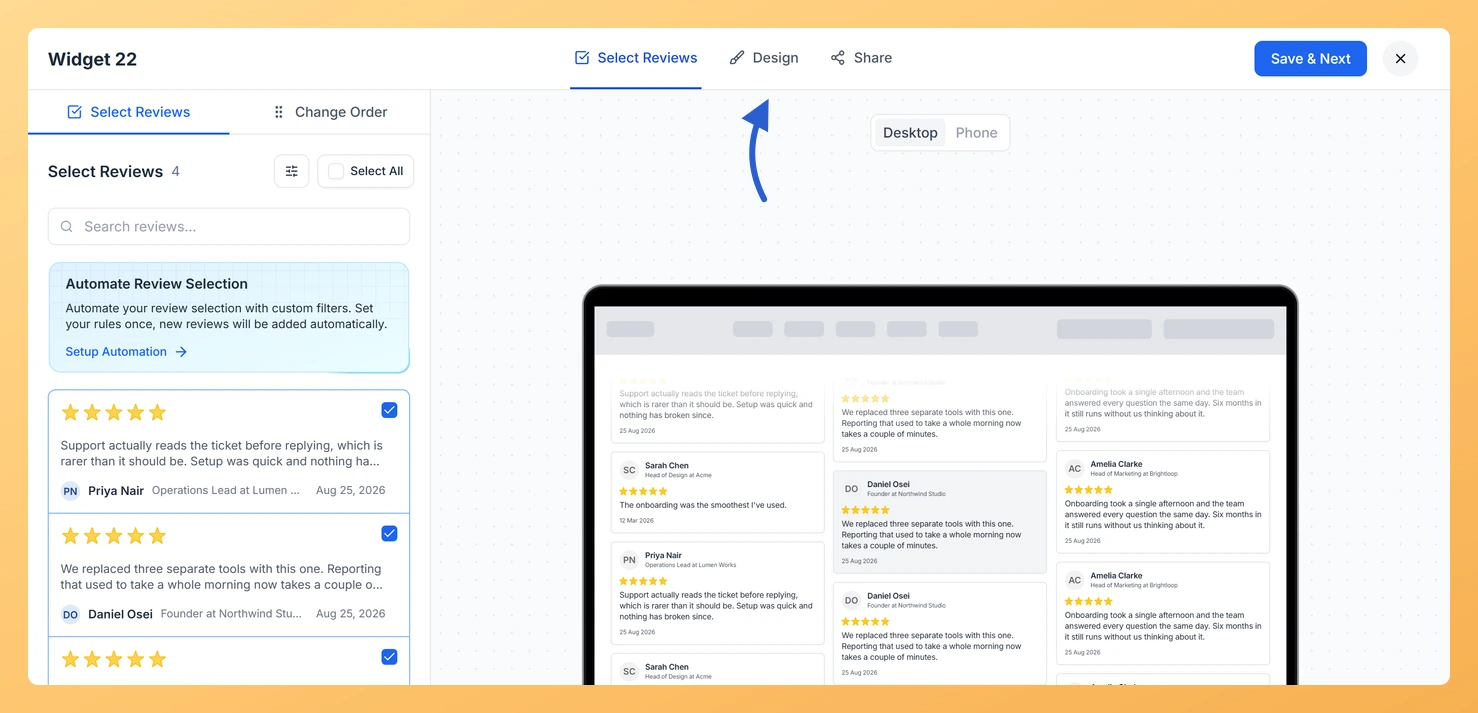
Inside the widget editor, click the Design tab at the top of the customization panel. This tab contains all visual styling options for the widget.

Step 4: Locate the Widget Color Customization Section

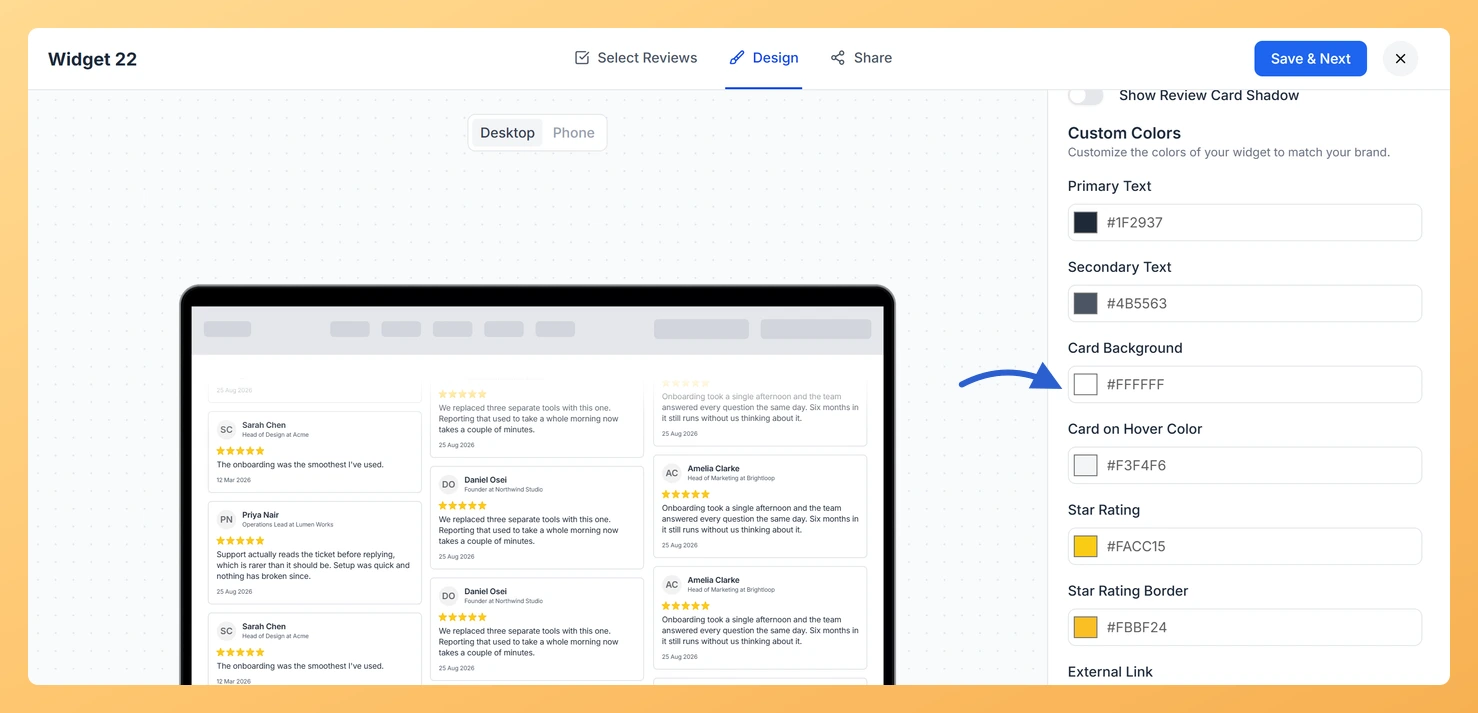
Scroll down the Design tab until you reach the Widget Color Customization section. This section groups all color controls for the widget, including card colors, text colors, and icon colors.

Step 5: Set the Card Background Color

Click the Card Background Color color picker. A color chooser will appear where you can enter a hex code, select an RGB value, or pick a color from the visual palette. Choose the fill color you want applied to every review card in the Vertical Scroll feed. The live preview updates immediately so you can see how the color looks across the looping cards before saving.

Step 6: Set the Card on Hover Color (If Available)

If your widget configuration shows a Card on Hover Color picker below the Card Background Color control, click it and choose the fill color that should appear when a visitor hovers over a card. This creates a subtle interactive effect that draws attention to individual reviews as users engage with the feed.

Step 7: Save Your Changes

Once you are satisfied with your color selection, click Save to apply the changes. The updated card background color will be reflected immediately in any embed where the Vertical Scroll widget is already published.

What You Can Do Next

  • Change the text color of the review cards to contrast with your new card background and keep the scrolling feed easy to read.
  • Adjust the widget background color to complement the card fill color and create a cohesive look for the entire Vertical Scroll embed.
  • Copy the updated widget embed code from the Embed tab and replace the existing snippet on your website so visitors see the refreshed design immediately.
  • Preview the Vertical Scroll widget on a test page to confirm the card background color and hover color look correct across different screen sizes before sharing the final embed.

You might also find helpful

How Do I Change the Text Color on My Vertical Scroll Widget in Feedspace?

Overview The Vertical Scroll widget displays your review cards in a continuously scrolling vertical feed that loops seamlessly, keeping visitors engaged without any manual interaction. Because cards slide past in a steady stream, clear and readable text is essential. If the text colors blend into the card background or clash...

How to Create a Vertical Scroll Widget in Feedspace

Overview The Vertical Scroll widget in Feedspace displays reviews in a continuous upward-scrolling format. It’s ideal for pages with limited horizontal space, such as sidebars, landing pages, or testimonials sections. You can enable cross-scrolling animations, customize borders, and adjust colors to match your brand. How to Access Step 1 –...

How Do I Customize the Design of My Widget in Feedspace?

Overview Feedspace widgets come with a powerful Design tab that lets you tailor every visual aspect of your widget. From card colors and fonts to dark mode and call-to-action buttons, you can fully customize the look to match your website’s brand without writing any code. How to Customize the Widget...