The Carousel widget displays your reviews as a horizontal sliding row of cards, showing one or a few at a time and looping back to the beginning once it reaches the end. By default, visitors must click the navigation arrows or drag the carousel manually to move between cards.
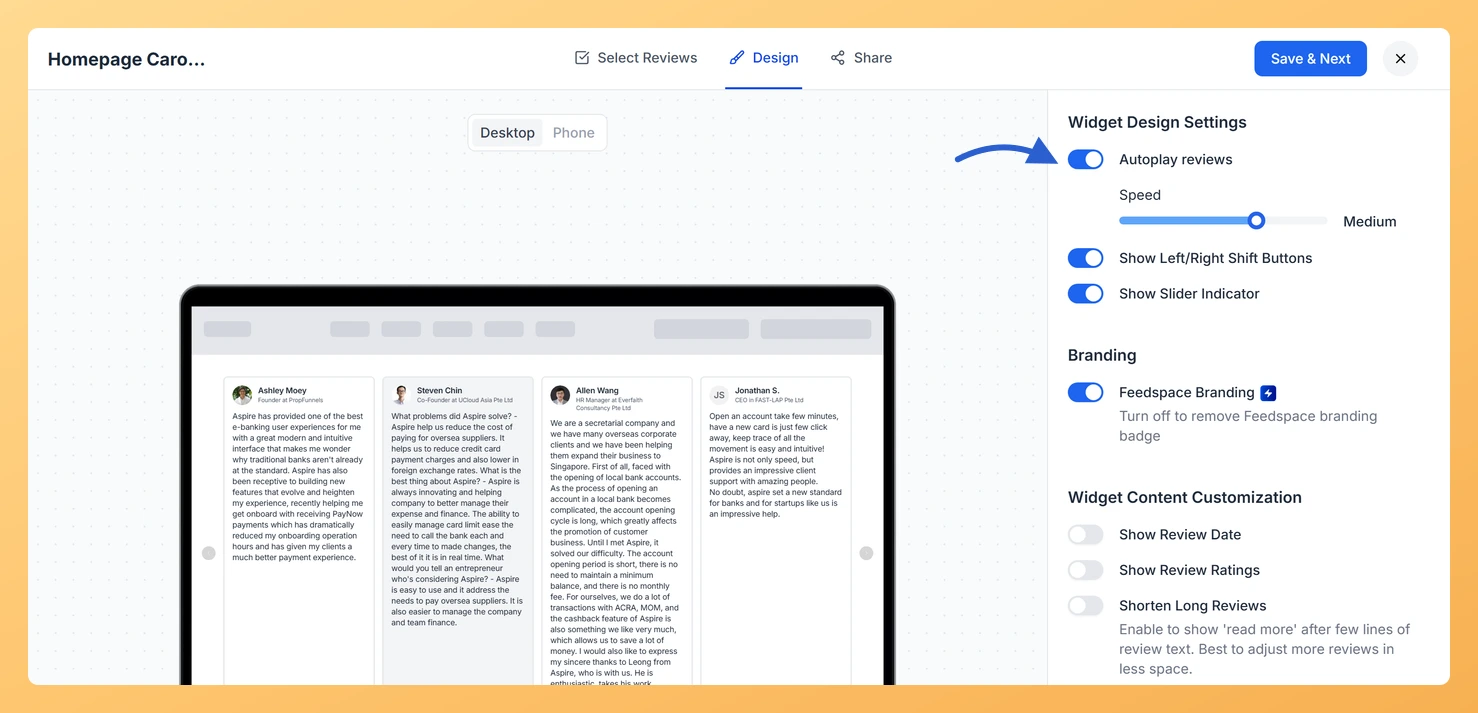
The Autoplay reviews toggle in the Widget Design Settings section removes that requirement entirely. When autoplay is on, the carousel advances to the next card on its own, on a continuous loop, without any visitor interaction. A Speed slider appears alongside the toggle, letting you choose from four settings: Delayed, Slow, Medium, and Fast. This means every visitor who lands on your page sees a rotating showcase of reviews from the very first second, which keeps the social proof visible even if they never touch the widget.
How to turn on autoplay for your Carousel widget
Step 1: Open the Widgets section
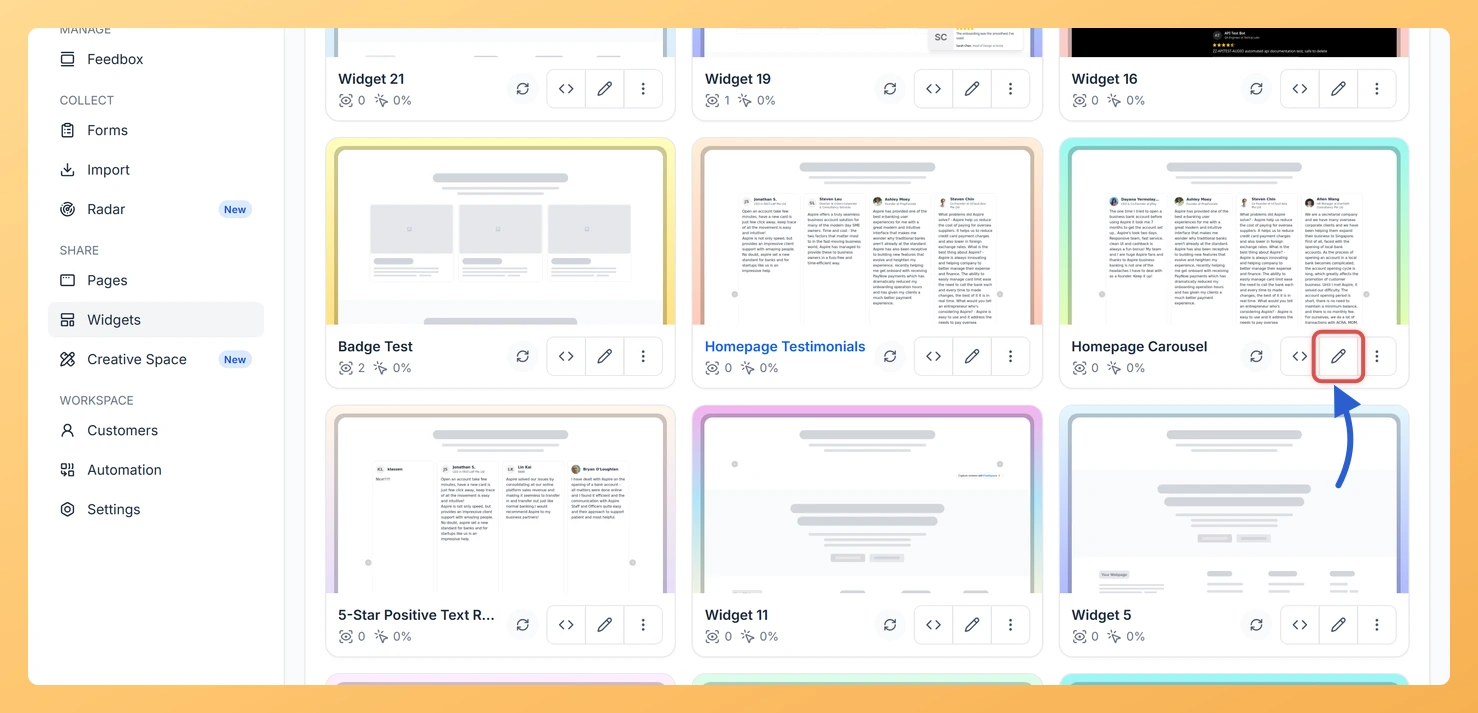
Log in to your Feedspace account. In the left sidebar, click Widgets to see the list of all widgets you have created.
Step 2: Open your Carousel widget
Find your Carousel widget in the list. Click the Edit (pencil) icon on the widget card to open the widget editor.
Step 3: Go to the Design tab
Inside the widget editor, click the Design tab. This tab contains all visual and layout settings for your Carousel widget, including card appearance, colors, fonts, and the autoplay behaviour.
Step 4: Find Widget Design Settings
Scroll down within the Design tab until you see the Widget Design Settings section. This section groups together controls that affect the overall widget behavior, including the Autoplay reviews toggle.
Step 5: Turn on Autoplay reviews
Click the Autoplay reviews toggle to turn it on. The toggle will switch to its active state, and a Speed slider will appear directly below it.
Step 6: Set the speed
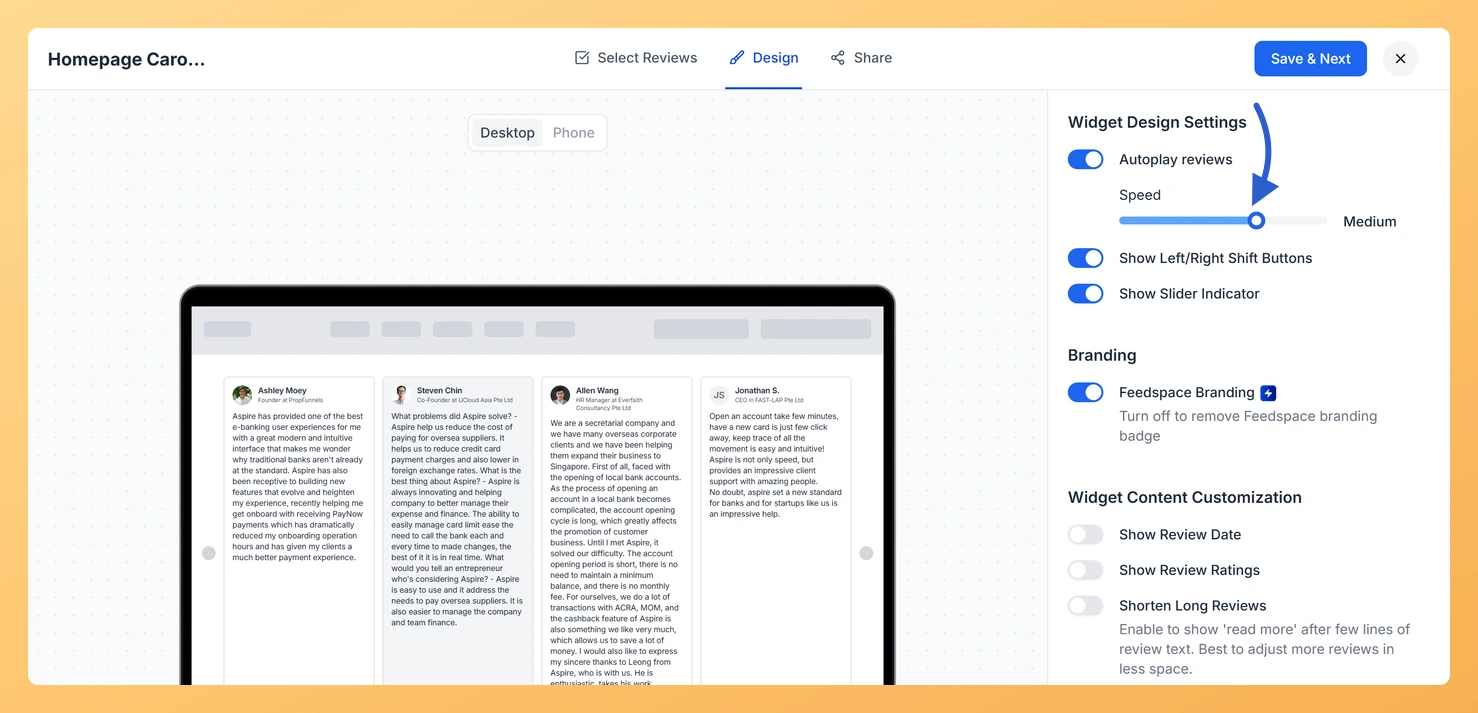
Use the Speed slider to choose how quickly the carousel moves from one review card to the next. The available positions are:
Delayed: The longest pause between cards, ideal for visitors who read longer reviews.
Slow: A relaxed pace that gives visitors comfortable reading time without feeling static.
Medium: A balanced speed suitable for most use cases and average review lengths.
Fast: The quickest rotation, best for short reviews or high-energy page layouts.
Drag the slider to your preferred position. The live preview panel will update so you can see the speed in action before saving.
Step 7: Save your changes
Click Save & Next to apply your autoplay and speed settings. The Carousel widget embedded on your site will now rotate review cards automatically at the speed you selected.
What’s next
Add navigation arrows to your Carousel widget so visitors can also scroll through reviews manually while autoplay is running. See How Do I Show Navigation Arrows on My Carousel Widget in Feedspace?
Customize the card colors, fonts, and layout of your Carousel widget to match your brand by visiting the Design tab settings covered in How Do I Customize the Design of My Widget in Feedspace?
Review which testimonials are included in your Carousel widget and reorder or filter them so the strongest reviews appear first when autoplay begins cycling through the cards.
Watch the live preview for a full loop to confirm the speed gives visitors long enough to read each card.
Common questions
Can visitors still move through the cards themselves while autoplay runs?
Yes. Autoplay reviews and Show Left/Right Shift Buttons are separate toggles, so you can have the carousel advance on its own and still give visitors arrows to take over.
You might also find helpful
How Do I Show Navigation Arrows on My Carousel Widget in Feedspace?
Overview The Carousel widget in Feedspace displays your review cards in a horizontal sliding layout, cycling through them one at a time (or a few at a time) as visitors view your page. By default, the carousel advances automatically, but visitors have no direct way to jump to a specific...
How to Create a Carousel Widget in Feedspace
Overview The Carousel widget in Feedspace lets you display multiple reviews in a continuously sliding format. You can enable autoplay, customize speed, and fine-tune design elements such as border, background color, and text colors. It’s a great way to keep your testimonials engaging and visually dynamic. How to Access Step...
How Do I Customize the Design of My Widget in Feedspace?
Overview Feedspace widgets come with a powerful Design tab that lets you tailor every visual aspect of your widget. From card colors and fonts to dark mode and call-to-action buttons, you can fully customize the look to match your website’s brand without writing any code. How to Customize the Widget...