The Carousel widget in Feedspace displays your review cards in a horizontal sliding layout, cycling through them one at a time (or a few at a time) as visitors view your page. By default, the carousel advances automatically, but visitors have no direct way to jump to a specific review on their own.
The Show Left/Right Shift Buttons option in the Widget Design Settings adds visible left and right arrow buttons to your carousel. With these arrows present, visitors can manually click to move backward or forward through your review cards at their own pace, rather than waiting for the automatic slide to advance. This gives visitors more control over browsing your reviews, which is especially useful when your carousel contains many testimonials and you want to make it easy for users to explore them freely.
How to show navigation arrows on your Carousel widget
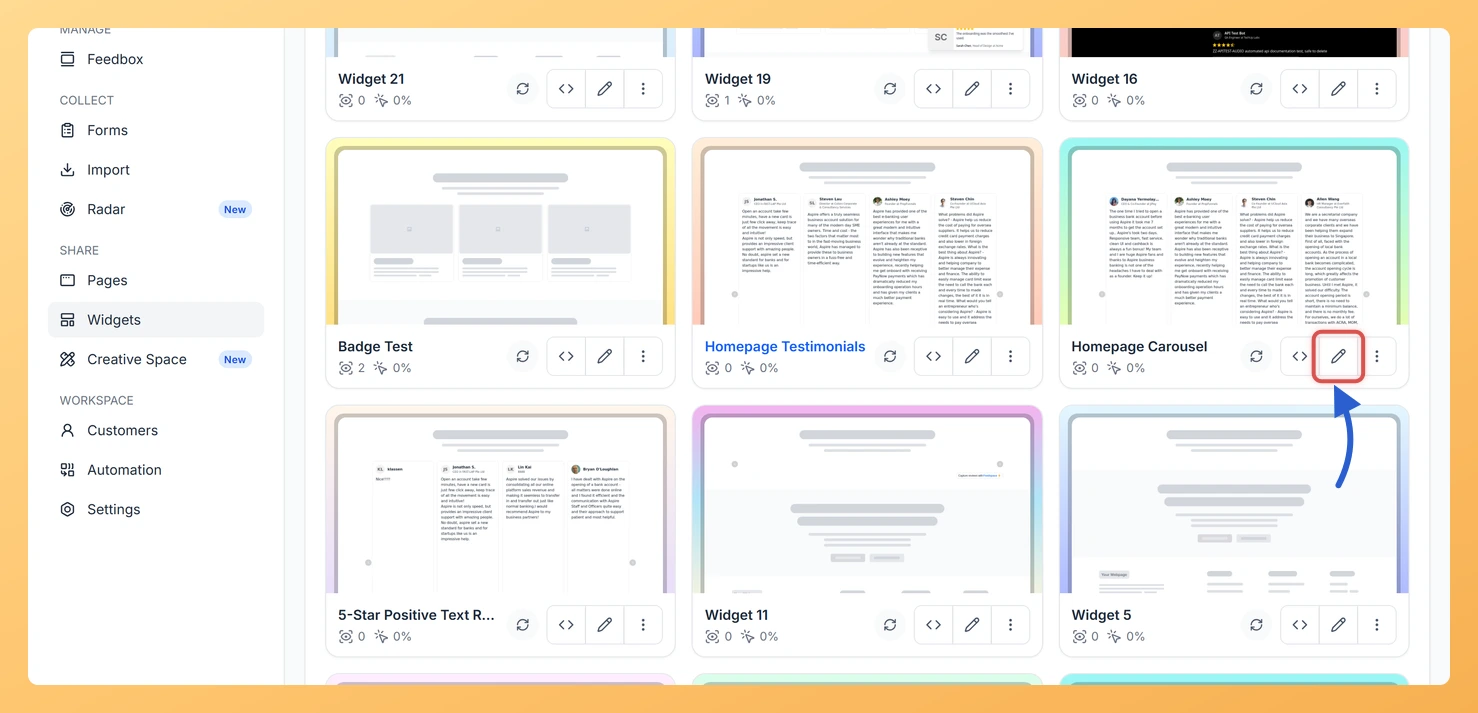
Step 1: Open the Widgets section
Log in to your Feedspace account. In the left sidebar, click Widgets to open your list of existing widgets.
Step 2: Open your Carousel widget
Find the Carousel widget you want to update in your widgets list. Click the Edit (pencil) icon on the widget card to open the widget editor.
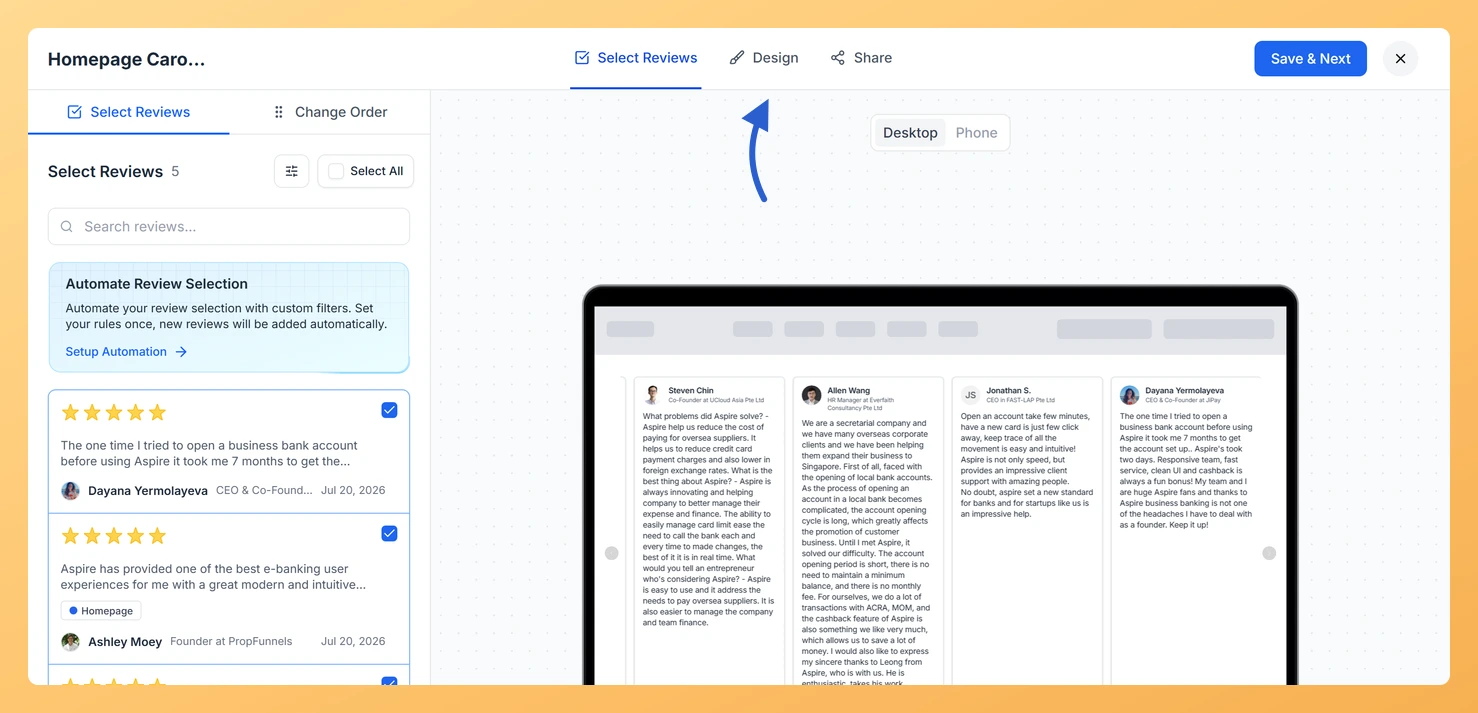
Step 3: Go to the Design tab
Inside the widget editor, click the Design tab at the top of the settings panel. This tab contains all visual and layout options for your Carousel widget.
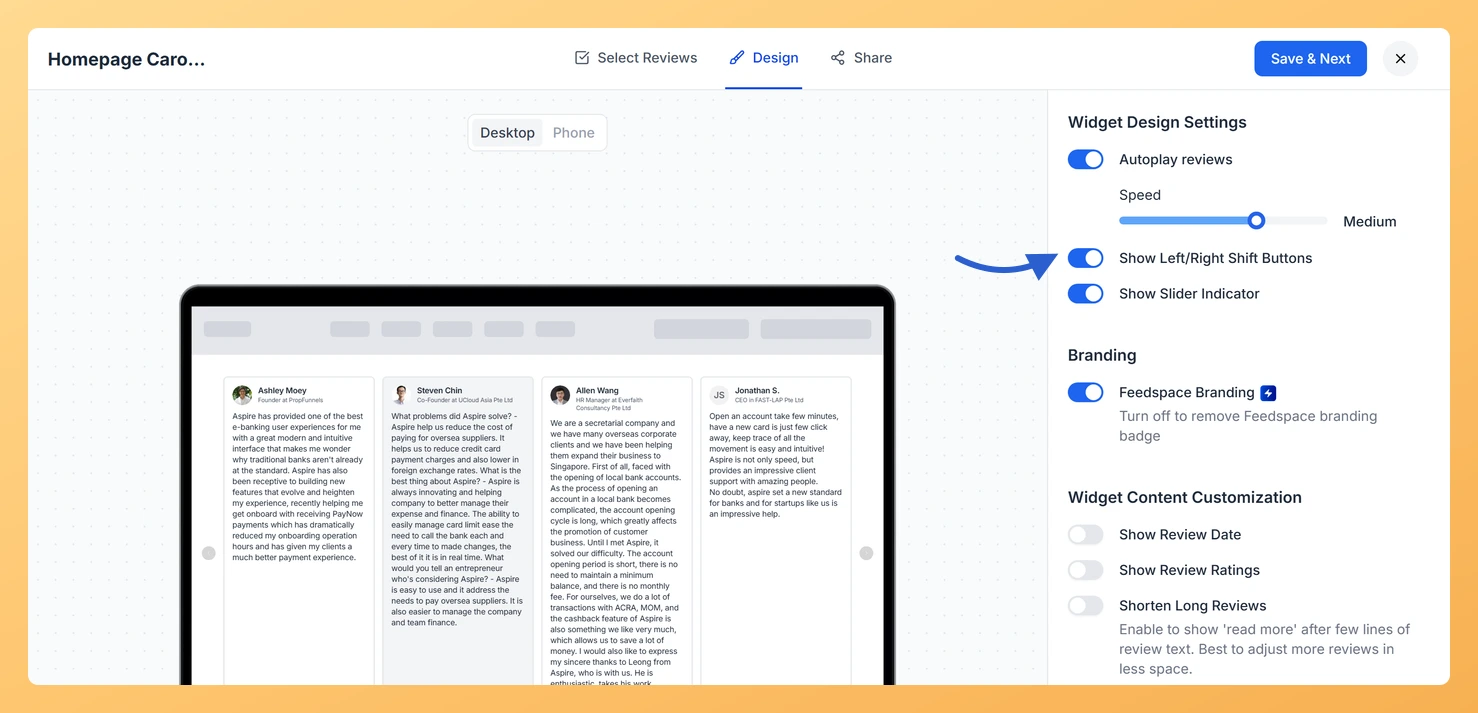
Step 4: Find Widget Design Settings
Scroll down within the Design tab until you reach the Widget Design Settings section. This section contains display toggles that control the interactive elements shown on your carousel.
Step 5: Turn on Show Left/Right Shift Buttons
Locate the Show Left/Right Shift Buttons toggle and switch it on. Once enabled, left and right arrow buttons will appear on your carousel, allowing visitors to manually navigate between review cards. Click Save & Next to apply the change.
What’s next
Enable autoplay on your Carousel widget so that review cards also advance automatically when visitors are not interacting with the arrows.
Adjust the slide speed or transition settings in the Design tab to control how quickly the carousel moves when a visitor clicks a navigation arrow.
Customize the overall design of your Carousel widget, including card colors, fonts, and spacing, to make the navigation arrows blend with your site’s visual style.
Check the arrows at phone width in the preview, where a smaller tap target matters more.
Common questions
Do the arrows replace the dot indicators?
No. Show Left/Right Shift Buttons and Show Slider Indicator are independent, so you can show arrows, dots, both, or neither.
You might also find helpful
How Do I Enable Autoplay on My Carousel Widget in Feedspace?
Overview The Carousel widget displays your reviews as a horizontal sliding row of cards, showing one or a few at a time and looping back to the beginning once it reaches the end. By default, visitors must click the navigation arrows or drag the carousel manually to move between cards....
How to Create a Carousel Widget in Feedspace
Overview The Carousel widget in Feedspace lets you display multiple reviews in a continuously sliding format. You can enable autoplay, customize speed, and fine-tune design elements such as border, background color, and text colors. It’s a great way to keep your testimonials engaging and visually dynamic. How to Access Step...
How Do I Customize the Design of My Widget in Feedspace?
Overview Every Feedspace widget has a Design tab where you decide how it looks on your site: colors, font, card borders and shadows, what each review card shows, and an optional call-to-action card. Each change appears in the live preview as you make it. A common case: you embed a...