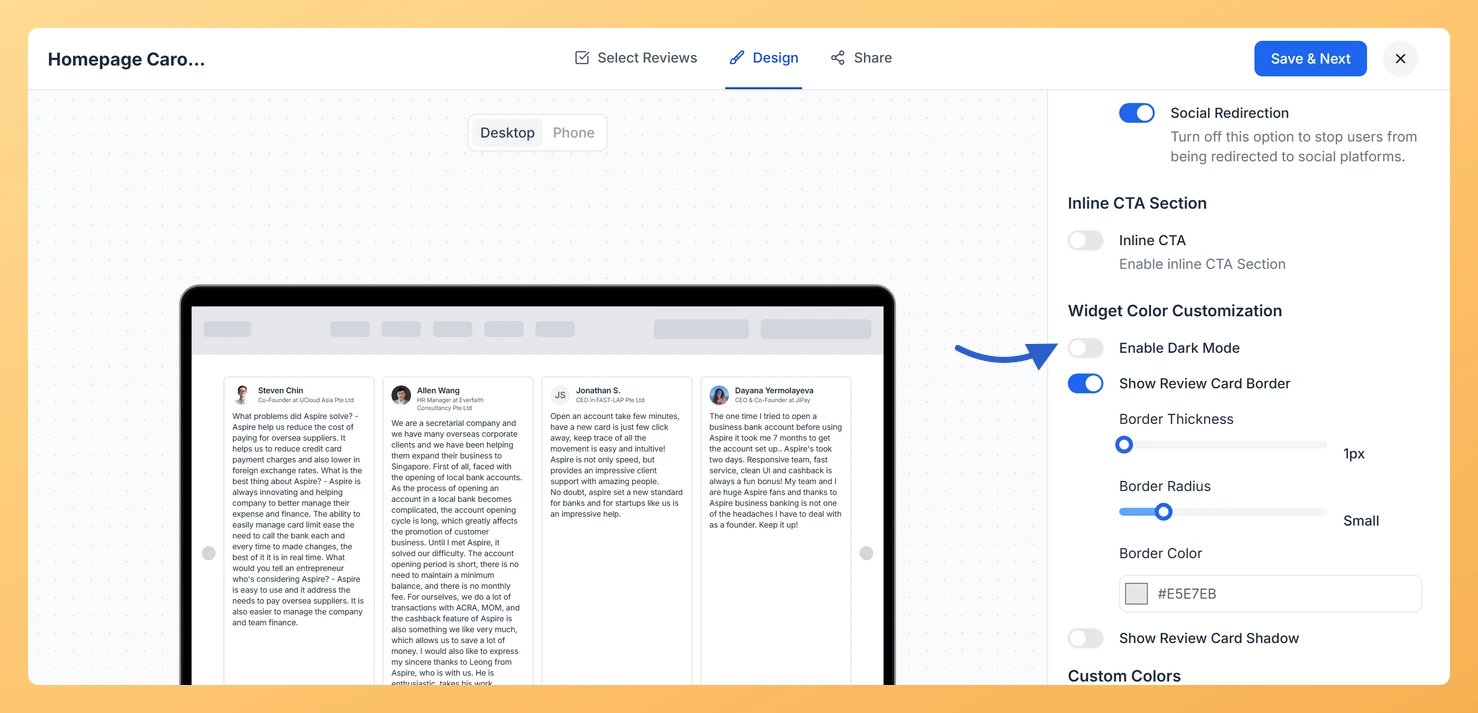
The Carousel widget in Feedspace displays your review cards in a horizontal sliding format, looping continuously so visitors can browse through testimonials one card at a time. By default, the widget uses a light background theme. Enabling Dark Mode switches the entire Carousel to a dark background, automatically adjusting the card colors, text, and supporting elements to suit a dark visual style, so the sliding cards remain readable and visually consistent without any manual color tuning.
This option is especially useful when you embed the Carousel on a website or page that already uses a dark color scheme. Rather than clashing with a light widget, the Dark Mode Carousel blends naturally into the surrounding design, keeping the continuous sliding animation and review cards looking polished and intentional.
How to turn on Dark Mode for your Carousel widget
Step 1: Open the Widgets section
Log in to your Feedspace account and navigate to the Widgets section from the left sidebar.
Step 2: Open your Carousel widget
Locate the Carousel widget you want to update and click the Edit option to open the widget editor.
Step 3: Go to the Design tab
Inside the widget editor, click the Design tab to access all visual customization settings for the Carousel widget.
Step 4: Find Widget Color Customization
Scroll down within the Design tab until you reach the Widget Color Customization section. This section contains color controls that apply across the entire Carousel widget.
Step 5: Turn on Enable Dark Mode
Turn on Enable Dark Mode. Once enabled, the Carousel widget switches to a dark background theme. The card colors and text are automatically adjusted to remain legible and visually consistent within the dark style. You can preview the changes in the live preview panel before saving.
Step 6: Save the widget
Click Save & Next to apply the setting. The widget picks the change up wherever it is already embedded, so there is no need to paste the embed code again.
What’s next
Adjust the card background color to further refine how each review card appears within the dark Carousel layout.
Customize other design options on the Design tab, such as font size and card border style, to match your dark-themed page.
Add the same widget to another dark-background page by copying its embed code from the Share tab.
Preview the Carousel widget across different screen sizes to confirm the dark mode sliding cards display correctly on both desktop and mobile.
Common questions
Where did the border, shadow and colour options go?
Turning on Enable Dark Mode hides the rest of Widget Color Customization, because dark mode sets those colours for you. Turn it back off and every control reappears with your previous choices intact.
You might also find helpful
How Do I Change the Card Background Color on My Carousel Widget in Feedspace?
Overview The Carousel widget displays your reviews as a horizontal sliding sequence, showing one or a few cards at a time as they loop continuously across the screen. Each review appears inside its own card, and the Card Background Color option lets you set the fill color of every one...
How to Create a Carousel Widget in Feedspace
Overview The Carousel widget in Feedspace lets you display multiple reviews in a continuously sliding format. You can enable autoplay, customize speed, and fine-tune design elements such as border, background color, and text colors. It’s a great way to keep your testimonials engaging and visually dynamic. How to Access Step...
How Do I Customize the Design of My Widget in Feedspace?
Overview Every Feedspace widget has a Design tab where you decide how it looks on your site: colors, font, card borders and shadows, what each review card shows, and an optional call-to-action card. Each change appears in the live preview as you make it. A common case: you embed a...