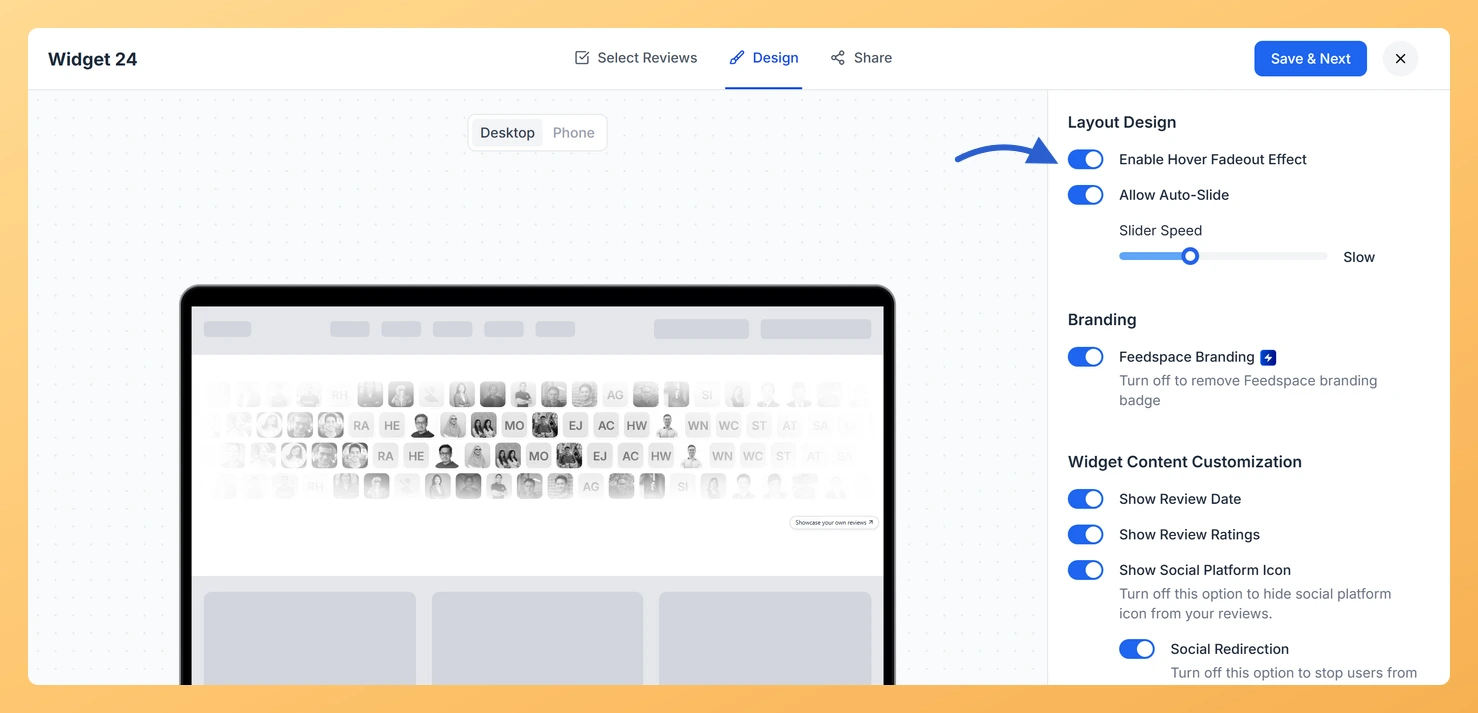
The Avatar Blocks widget displays your testimonials in a structured block grid, placing each reviewer’s avatar alongside their review text in a clean, side-by-side card layout. Because all cards are visible at once in this grid, visitors can feel visually overwhelmed when scanning multiple testimonials simultaneously.
The Hover Fadeout Effect addresses this directly. When a visitor moves their cursor over one review card, the surrounding cards fade slightly in opacity, drawing attention to the card being hovered. This creates a natural focus highlight that guides the visitor’s eye and encourages them to read each testimonial individually, rather than skimming the entire grid at once. The result is a more engaging, polished experience that makes your social proof feel interactive and intentional.
This option is available exclusively in the Avatar Blocks widget under the Layout Design section of the Design tab.
How to enable the hover fadeout effect for your Avatar Blocks widget
Step 1: Open the Widgets section
Log in to your Feedspace account. In the left-hand navigation, click Widgets to open your list of saved widgets.
Step 2: Edit your Avatar Blocks widget
On the card for the Avatar Blocks widget you want to change, click the Edit (pencil) icon. Its editor opens.
Step 3: Go to the Design tab
Inside the widget editor, click the Design tab at the top of the settings panel. This tab contains all visual and layout customisation options for your Avatar Blocks widget.
Step 4: Find the Layout Design section
Scroll down within the Design tab until you reach the Layout Design section. This section contains display options specific to how the Avatar Blocks grid is rendered on the page.
Step 5: Turn on Enable Hover Fadeout Effect
Inside the Layout Design section, locate the Enable Hover Fadeout Effect toggle. Click the toggle to switch it on. When enabled, the toggle will appear highlighted or active. Non-hovered review cards will now fade slightly whenever a visitor hovers over any card in the grid, creating a clear visual focus on the card being viewed.
Step 6: Save and preview your widget
Click Save & Next to apply your changes. Then use the preview option or visit the page where your Avatar Blocks widget is embedded to confirm the fadeout effect is working as expected when hovering over individual review cards.
What’s next
Adjust the card background color on your Avatar Blocks widget to complement the fadeout effect and strengthen the visual contrast between hovered and non-hovered cards.
Explore other Layout Design options in the Design tab to further refine how your Avatar Blocks grid is arranged and spaced on the page.
Embed or update your Avatar Blocks widget on your website and test the hover interaction on a live page to see how real visitors experience the focus effect.
Review other widget design customisation options in Feedspace to ensure your Avatar Blocks widget matches your brand’s color scheme and typography across the full card layout.
Common questions
Can the fadeout and the auto-slide run at the same time?
Yes. Enable Hover Fadeout Effect and Allow Auto-Slide are two independent switches sitting together in Layout Design, so the grid can rotate on its own and still respond when someone hovers over it.
You might also find helpful
How Do I Change the Card Background Color on My Avatar Blocks Widget in Feedspace?
Overview The Avatar Blocks widget displays your testimonials in a structured block grid, placing each reviewer’s avatar alongside their review text in a clean, side-by-side layout. Each testimonial sits inside its own individual card, and the card background color defines the fill of that card container, framing the avatar and...
How to Create an Avatar Blocks Widget in Feedspace
Overview Feedspace’s Avatar Blocks widget displays your reviews in bold, grid-based cards where the reviewer’s profile picture takes centre stage. It’s a strong, visually balanced layout that works well on testimonial pages, pricing pages, and anywhere you want reviews to feel authentic and human. Step 1: Log in to Feedspace...
How Do I Customize the Design of My Widget in Feedspace?
Overview Every Feedspace widget has a Design tab where you decide how it looks on your site: colors, font, card borders and shadows, what each review card shows, and an optional call-to-action card. Each change appears in the live preview as you make it. A common case: you embed a...