
Feedspace Home Dashboard

How Do I Preview My Avatar Group Widget on Desktop and Mobile in Feedspace?

Last updated on June 12, 2026

Overview

The Avatar Group widget in Feedspace displays a compact cluster of reviewer profile pictures to create an immediate visual impression of your customer community. Because the widget relies entirely on avatar images to convey social proof, how those avatars render at different screen sizes matters more here than in text-heavy widget types. If the avatars are too small or clipped on a phone screen, the visual impact is lost before a visitor even reads a word.

The widget editor provides two preview toggles, Desktop and Phone, so you can switch between screen-size simulations without leaving the editor. Checking both views before you embed ensures the avatar cluster looks confident and recognisable on every device your visitors use.

How to Preview Your Avatar Group Widget on Desktop and Mobile

Step 1: Open Your Avatar Group Widget in the Editor

Log in to your Feedspace account and click Widgets in the left sidebar under Share Reviews. Locate your Avatar Group widget and click the pencil (edit) icon on its card to open the widget editor.

Step 2: Navigate to the Customize Tab

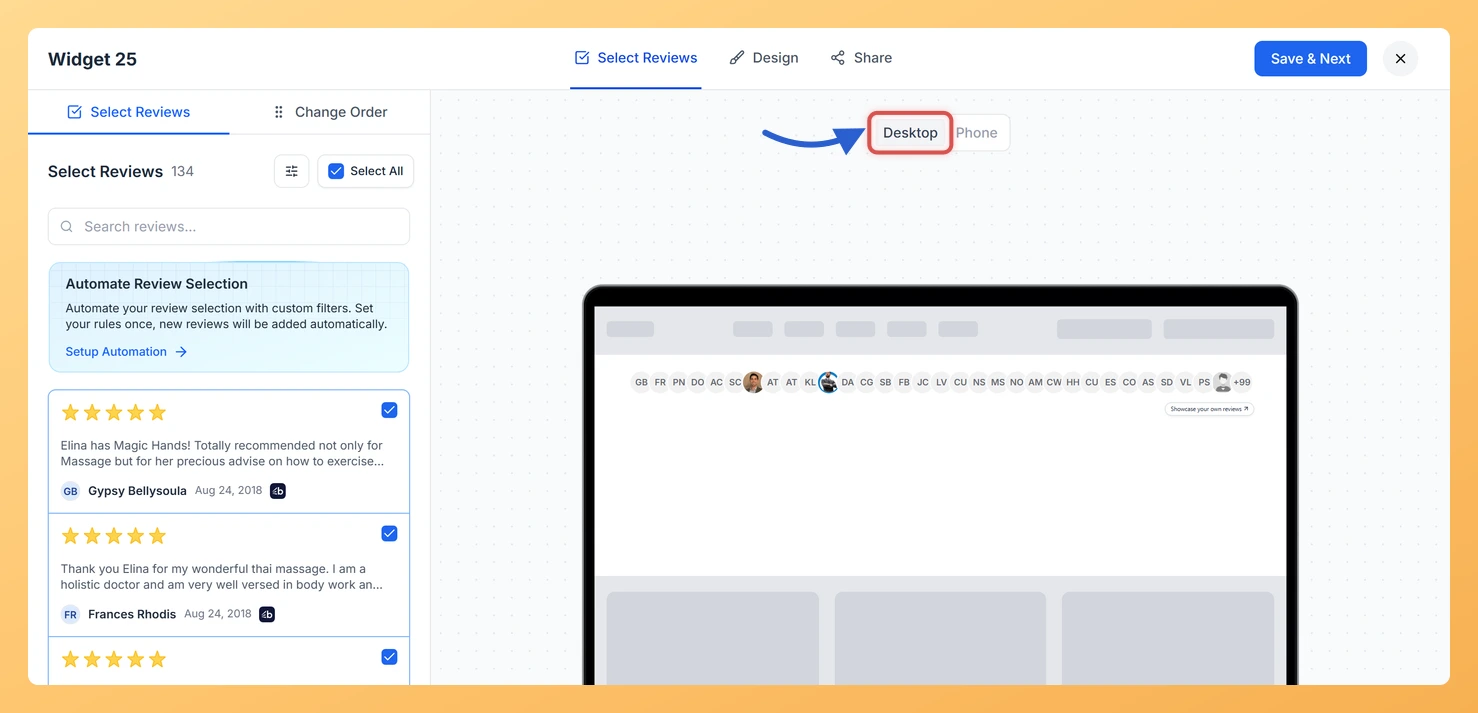
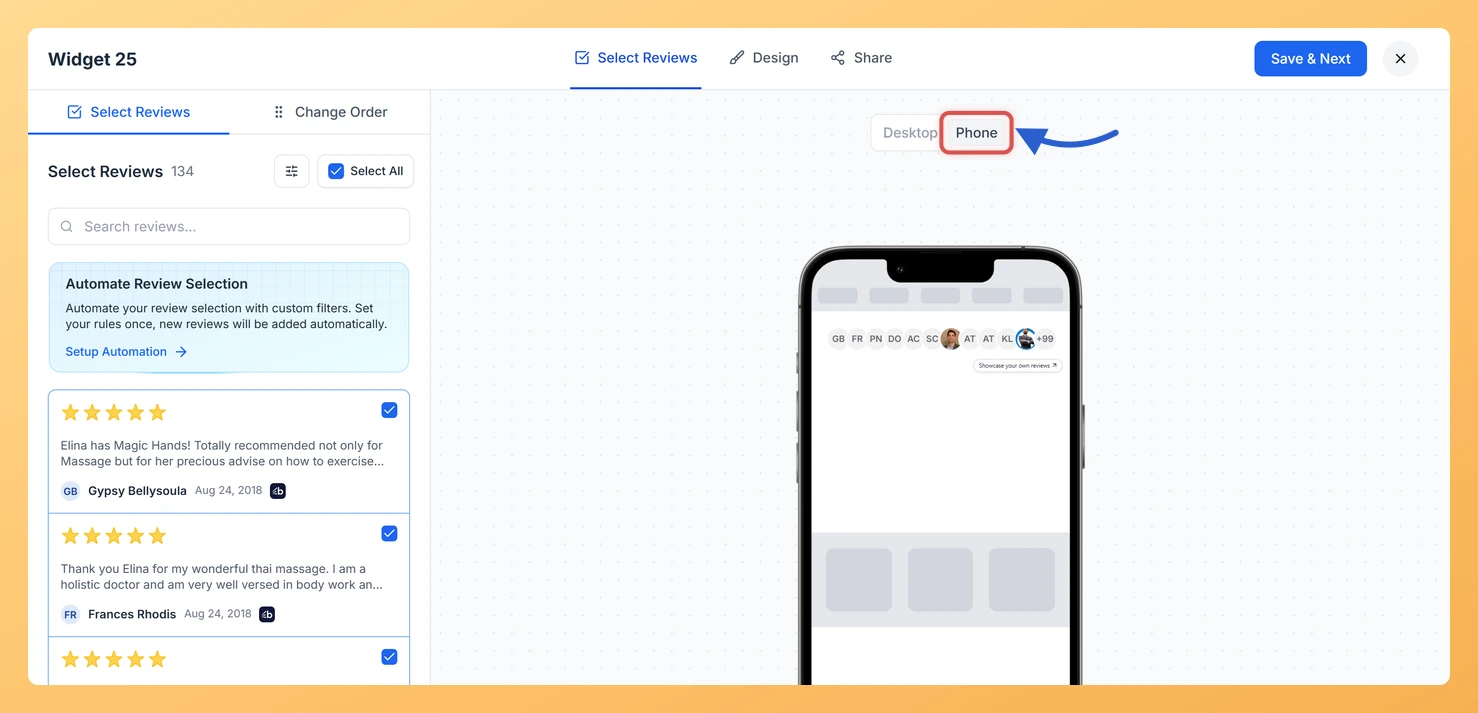
Inside the widget editor, click the Customize tab. This opens the design settings panel alongside the live widget preview area. The preview panel is where the Desktop and Phone toggle controls appear.

Step 3: Select the Desktop Preview

At the top of the preview panel, click the Desktop toggle. The preview renders the Avatar Group widget at a full desktop viewport width. Confirm that the full cluster of reviewer avatars is visible, that spacing and overlap between avatars looks intentional, and that any supporting text such as review count or star ratings is readable at this size.

Step 4: Switch to the Phone Preview

Click the Phone toggle to switch to the mobile preview. Use this view to confirm that reviewer avatars are clearly visible and not too small to make an impact on smaller screens. Avatar clusters can appear cramped or indistinct when the widget is squeezed into a narrow mobile column, so pay particular attention to avatar size, overlap spacing, and whether the overall cluster still reads as a group of real people rather than a row of tiny blurred circles.

Step 5: Adjust Design Settings and Re-check

If either preview reveals a layout issue, use the design settings on the left panel to make corrections. Common adjustments for the Avatar Group widget include modifying avatar border thickness, border color, or the number of avatars displayed. After each change, toggle between Desktop and Phone again to confirm the fix works across both views before moving on.

Step 6: Save and Proceed to Embed

Once both the Desktop and Phone previews look correct, click Save & Next to proceed to the embed step. Copy the generated embed code and paste it into your website to publish the widget.

What You Can Do Next

  • Adjust avatar count for mobile: If the Phone preview shows too many overlapping avatars, reduce the number of displayed reviewers in the design settings so the remaining avatars are large enough to register visually on small screens.
  • Customise avatar borders and colors: Use the border color and thickness controls in the Customize tab to make each avatar stand out in the cluster, especially important on the Phone preview where individual avatars are smaller.
  • Embed the widget on your site: After confirming the preview on both screen sizes, copy the embed code from the Share tab and add the Avatar Group widget to your homepage hero, pricing page, or testimonials section.
  • Duplicate and test layout variations: Use the duplicate widget option to create a copy of your Avatar Group widget, then experiment with different design settings and compare previews side by side before deciding which version to publish.

You might also find helpful

How to Create an Avatar Group Widget in Feedspace

Overview The Avatar Group widget in Feedspace displays the profile pictures (avatars) of your reviewers in a sleek and minimal circular layout. It’s ideal for showing social proof in a subtle, space-saving format on your homepage, footer, or testimonial sections. How to Access Step 1 – Log in to Feedspace...

How Do I Preview a Widget in Feedspace?

Overview Before embedding a widget on your website, it is a good idea to preview how it looks to visitors. Feedspace lets you open a live public preview of any widget directly from the widget editor, so you can verify the design, review layout, and overall appearance before going live....

How Do I Customize the Design of My Widget in Feedspace?

Overview Feedspace widgets come with a powerful Design tab that lets you tailor every visual aspect of your widget. From card colors and fonts to dark mode and call-to-action buttons, you can fully customize the look to match your website’s brand without writing any code. How to Customize the Widget...