An Avatar Group widget in Feedspace can show stars in two places, each with its own toggle:
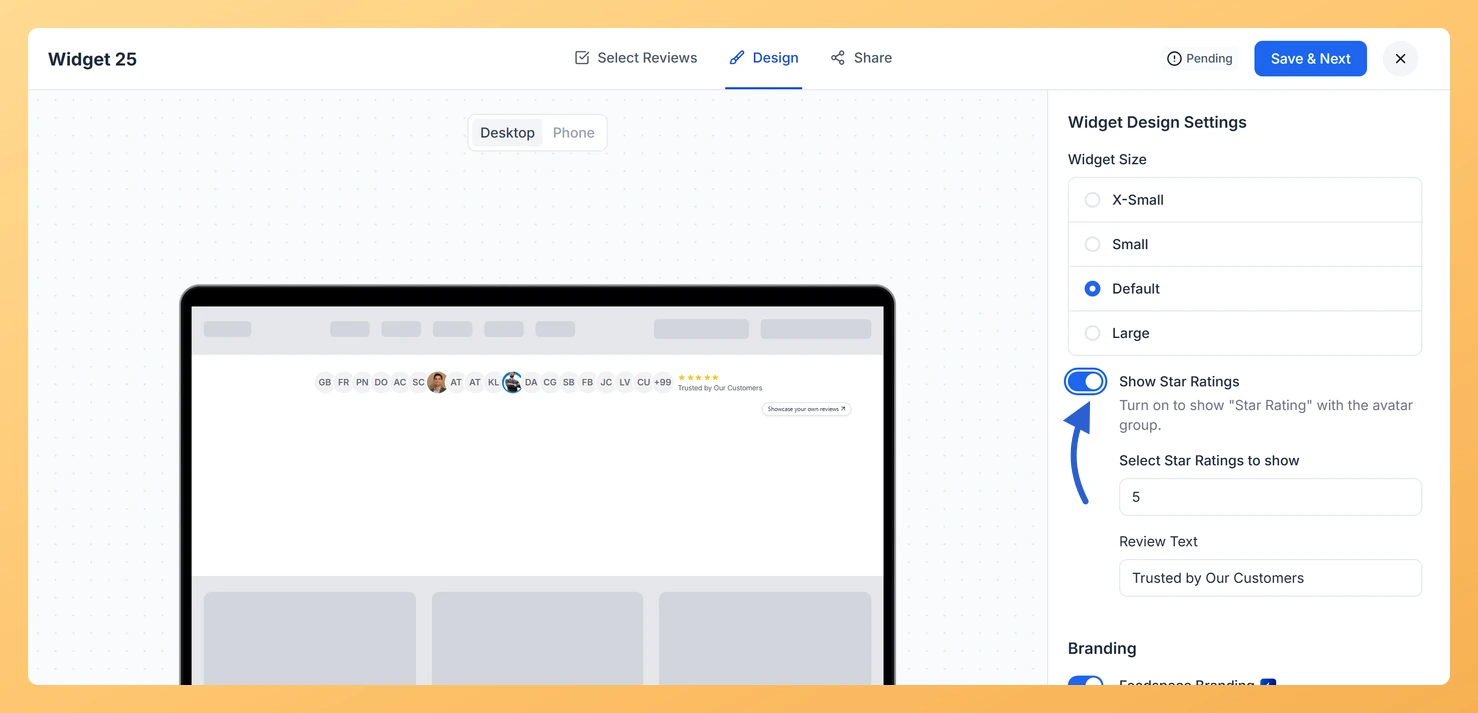
Show Star Ratings puts a star rating and a short line of text, such as “Trusted by Our Customers”, right beside the avatars.
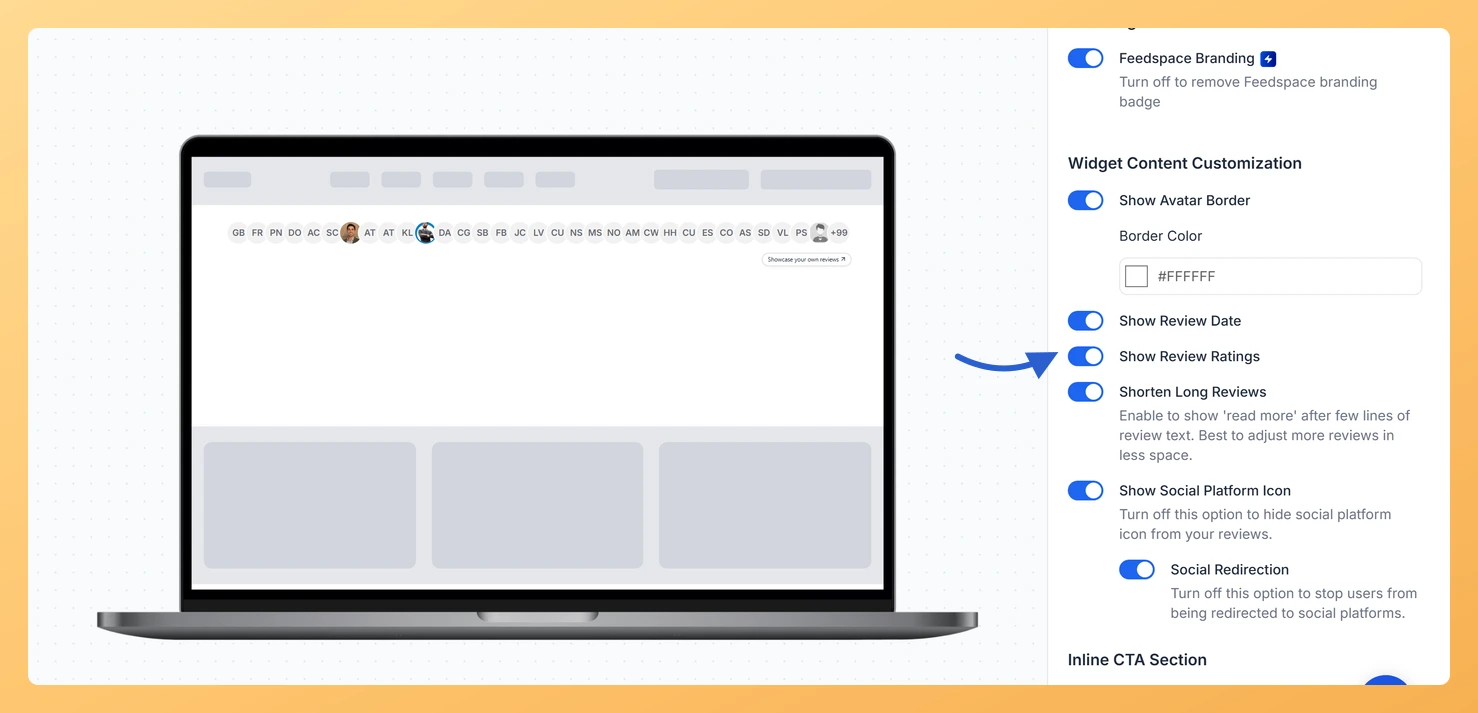
Show Review Ratings shows each reviewer’s own stars on the review card that opens when an avatar is clicked.
The first is the one most people want: “five stars, trusted by our customers” next to a row of faces is a complete trust badge on its own, perfect under a hero headline.
Steps to show or hide star ratings
Step 1: Open the Design tab
Go to Widgets, click the Edit (pencil) icon on your Avatar Group, and choose Design.
Step 2: Turn on Show Star Ratings for stars beside the avatars
In Widget Design Settings, switch on Show Star Ratings. Two fields appear: Select Star Ratings to show, the number of stars displayed, and Review Text, the line shown beside them. Turn the toggle off to hide the stars again.
Step 3: Use Show Review Ratings for stars on the card
In Widget Content Customization, turn Show Review Ratings on or off to show or hide each reviewer’s stars on the pop-up review card.
Yes. With Show Star Ratings on, type your own line into the Review Text field, for example “Loved by 2,000 teams”.
You might also find helpful
How Do I Change the Star Rating Color on My Avatar Group Widget in Feedspace?
Overview An Avatar Group widget in Feedspace can show star ratings, for example on the review card that opens from an avatar. Two pickers control how the stars look: Star Rating for their fill and Star Rating Border for their outline. Stars in your brand color, with a slightly darker...
How to Create an Avatar Group Widget in Feedspace
Overview The Avatar Group widget in Feedspace displays the profile pictures (avatars) of your reviewers in a sleek and minimal circular layout. It’s ideal for showing social proof in a subtle, space-saving format on your homepage, footer, or testimonial sections. How to Access Step 1 – Log in to Feedspace...
How Do I Customize the Design of My Widget in Feedspace?
Overview Feedspace widgets come with a powerful Design tab that lets you tailor every visual aspect of your widget. From card colors and fonts to dark mode and call-to-action buttons, you can fully customize the look to match your website’s brand without writing any code. How to Customize the Widget...