
Overview
The Avatar Slider widget in Feedspace places strong visual emphasis on the reviewer’s avatar and identity alongside their testimonial. Because the avatar image, reviewer name, and slide navigation all need to be clearly readable at every screen size, it is important to check the widget in both Desktop and Phone views before embedding it. The widget editor includes built-in Desktop and Phone preview toggles that let you see exactly how the slider will render on each device, so you can catch layout or readability issues before your widget goes live.
How to Preview Your Avatar Slider Widget on Desktop and Mobile
Step 1: Open the Avatar Slider Widget Editor
Log in to your Feedspace account and click Widgets in the left sidebar. Find your Avatar Slider widget in the list and click the pencil (edit) icon on its card to open the widget editor.
Step 2: Navigate to the Customize Tab
Inside the widget editor, click the Customize tab. This opens the Widget Design Settings panel where all layout and styling controls are available, including the preview toggles at the top of the live preview area.
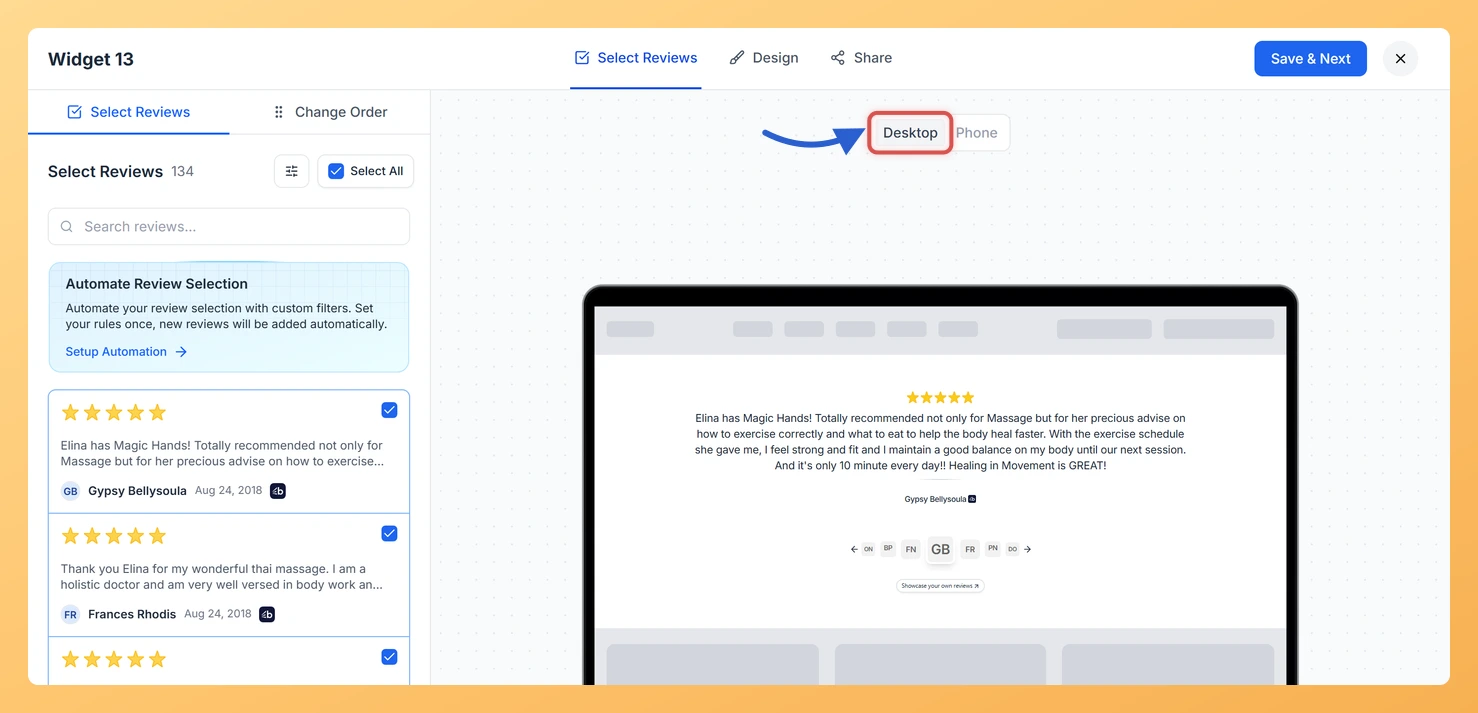
Step 3: Switch to Desktop Preview
At the top of the live preview pane, click the Desktop toggle. The preview will display your Avatar Slider at full width, showing how the reviewer avatar, name, title, and testimonial text will appear on a desktop or laptop screen. Confirm that the avatar is prominently displayed, the reviewer identity is legible, and the slide transitions look correct at this size.
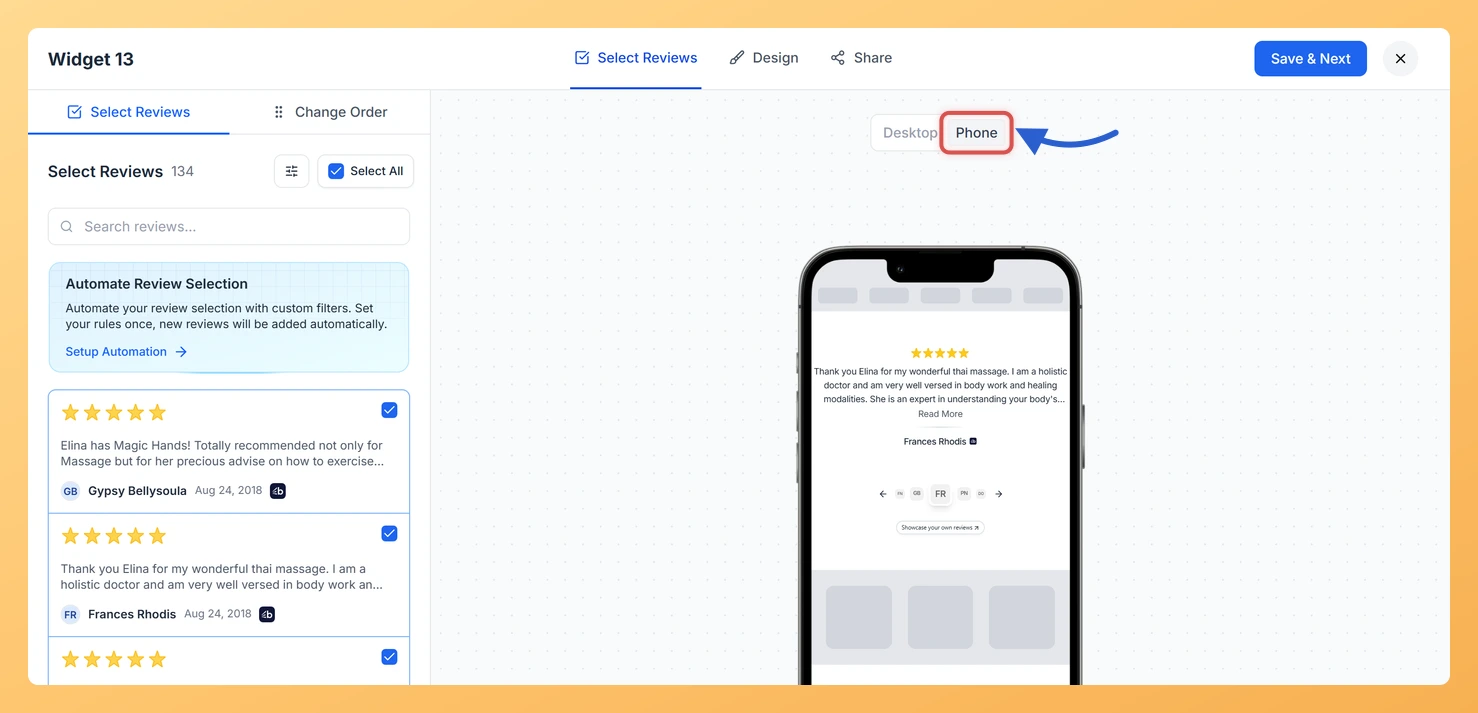
Step 4: Switch to Phone Preview
Click the Phone toggle next to the Desktop toggle. The preview area will narrow to simulate a mobile screen. Check that reviewer names and avatars display at a readable size and that the slide transition works smoothly on mobile. Because the Avatar Slider stacks content vertically on smaller screens, this view helps you confirm that the avatar image does not get cropped and that the reviewer’s name and role remain clearly visible without crowding the testimonial text.
Step 5: Adjust Design Settings If Needed
If either preview reveals an issue, such as an avatar appearing too small or reviewer details being too close together on mobile, use the design settings panel on the left to make adjustments. Common settings to review include avatar size, font sizes, spacing, and color contrast. After each change the preview updates immediately, so you can verify the result without leaving the editor.
Step 6: Save Your Widget
Once both the Desktop and Phone previews look correct, click Save & Next to save your settings and proceed to the embed step. Your Avatar Slider widget is now ready to be embedded on your website with confidence that it will render well on all screen sizes.
What You Can Do Next
- Embed the Avatar Slider: Copy the embed code from the Share step and paste it into your website to display the slider with reviewer avatars and testimonials live on your page.
- Adjust avatar and typography settings: Return to the Customize tab to fine-tune avatar size, reviewer name font, and color settings so the identity section of each slide stands out clearly on all devices.
- Enable autoplay for the slider: Turn on Autoplay Reviews in the design settings and set a transition speed so the Avatar Slider cycles through testimonials automatically, keeping the avatar focus smooth and engaging.
- Duplicate the widget for a different layout: Use the duplicate option on the widget card to create a copy of your Avatar Slider and experiment with a different set of reviews or a dark mode style without affecting the original.
You might also find helpful
How to Create an Avatar Slider Widget in Feedspace
Overview The Avatar Slider widget in Feedspace displays one review at a time with a reviewer’s avatar, name, and feedback. It includes smooth sliding transitions and navigation arrows for switching between reviews. This layout is ideal for minimal testimonial sections that highlight one review prominently. How to Access Step 1...
How Do I Preview a Widget in Feedspace?
Overview Before embedding a widget on your website, it is a good idea to preview how it looks to visitors. Feedspace lets you open a live public preview of any widget directly from the widget editor, so you can verify the design, review layout, and overall appearance before going live....
How Do I Customize the Design of My Widget in Feedspace?
Overview Feedspace widgets come with a powerful Design tab that lets you tailor every visual aspect of your widget. From card colors and fonts to dark mode and call-to-action buttons, you can fully customize the look to match your website’s brand without writing any code. How to Customize the Widget...