
Feedspace Home Dashboard

How Do I Shorten Long Reviews on My Avatar Slider Widget in Feedspace?

Last updated on June 12, 2026

Overview

The Avatar Slider widget places each reviewer’s avatar front and centre, pairing it directly with their testimonial text as visitors slide through your reviews. When a reviewer leaves a long, detailed testimonial, that text can stretch the slide significantly, pushing the avatar lower on the screen and making the overall slider feel uneven and hard to scan.

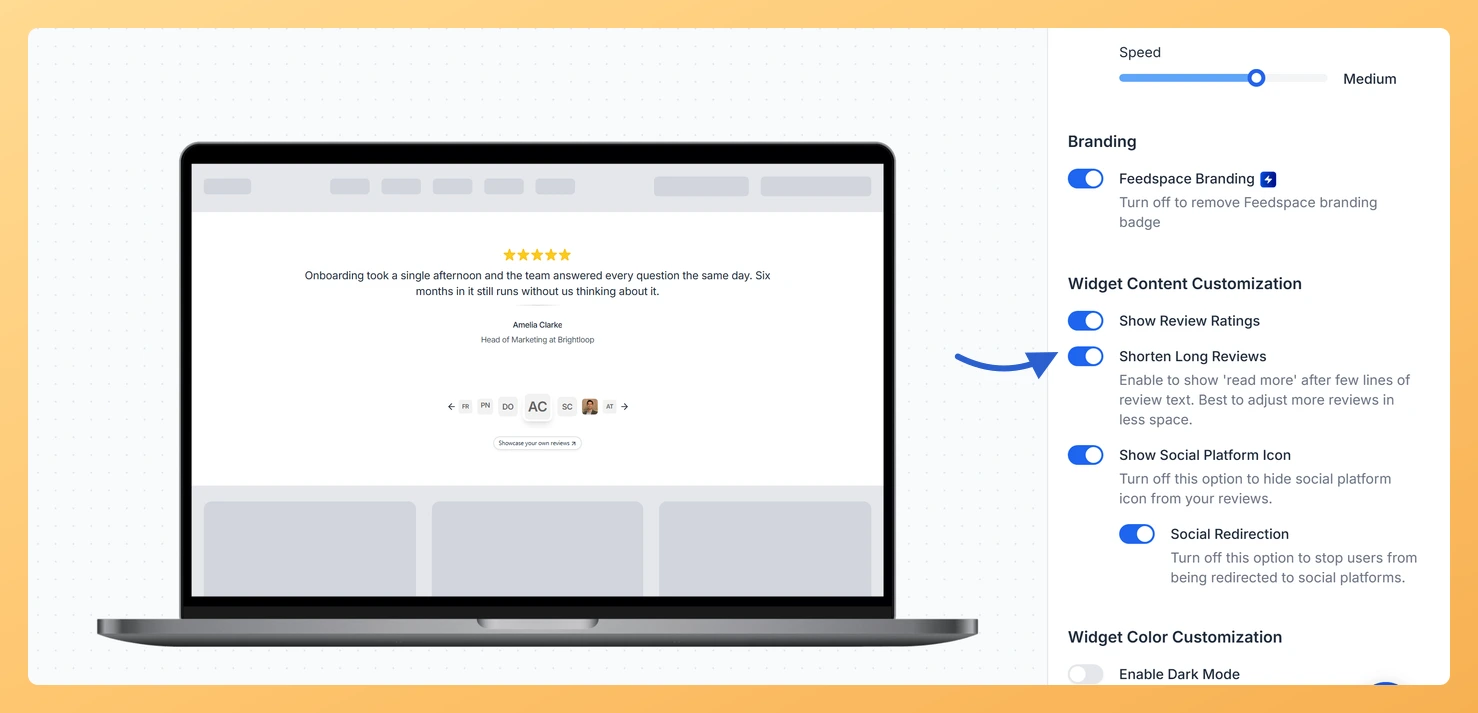
The Shorten Long Reviews toggle, found in the Widget Content Customization section of the Design tab, solves this by truncating lengthy review text after a few lines and displaying a read more link. Visitors who want the full story can click to expand the text inline, while others continue browsing without being slowed by walls of text. This keeps every slide in your Avatar Slider balanced and visually consistent, so the reviewer’s avatar always remains the focal point of each card.

How to Shorten Long Reviews for Your Avatar Slider Widget

Step 1: Open the Widgets Section

Log in to your Feedspace account. In the left navigation, click Widgets to open the list of all widgets you have created.

Step 2: Edit Your Avatar Slider Widget

Find your Avatar Slider widget in the list. Click the Edit option for that widget to open its settings.

Step 3: Go to the Design Tab

Inside the widget editor, click the Design tab at the top of the settings panel. This tab contains all layout and display options for the widget, including the content customization controls.

Step 4: Find the Widget Content Customization Section

Scroll down within the Design tab until you reach the Widget Content Customization section. This section groups together the toggles that control what review content is shown and how it is displayed within each slide.

Step 5: Enable the Shorten Long Reviews Toggle

Locate the Shorten Long Reviews toggle and switch it on. Once enabled, any review text that exceeds the display threshold will be automatically truncated, and a read more link will appear below the shortened text. Visitors can click read more to expand and read the full testimonial without leaving the page.

Step 6: Save and Preview Your Widget

Click Save to apply the change. Then use the widget preview or visit the page where your Avatar Slider is embedded to confirm that long reviews are now truncated, with a read more link visible beneath them. Each slide should now display a consistent, avatar-focused layout regardless of review length.

What You Can Do Next

  • Show or hide star ratings on your Avatar Slider to control how much review metadata appears alongside each truncated testimonial.
  • Adjust other Widget Content Customization toggles, such as reviewer name and date visibility, to further refine what each slide displays.
  • Customize the overall design of your Avatar Slider, including colours and fonts, to ensure the truncated text and read more link match your site’s branding.
  • Embed the updated Avatar Slider on your website or landing page to start showing a cleaner, more consistent slider layout to your visitors.

You might also find helpful

How Do I Show or Hide Star Ratings on My Avatar Slider Widget in Feedspace?

Overview The Avatar Slider widget displays your testimonials in a sliding format that places each reviewer’s avatar prominently at the center of the card, with their review text and details arranged around it. Because the avatar and reviewer identity are the visual anchors of each slide, the star rating sits...

How to Create an Avatar Slider Widget in Feedspace

Overview The Avatar Slider widget in Feedspace displays one review at a time with a reviewer’s avatar, name, and feedback. It includes smooth sliding transitions and navigation arrows for switching between reviews. This layout is ideal for minimal testimonial sections that highlight one review prominently. How to Access Step 1...

How Do I Customize the Design of My Widget in Feedspace?

Overview Feedspace widgets come with a powerful Design tab that lets you tailor every visual aspect of your widget. From card colors and fonts to dark mode and call-to-action buttons, you can fully customize the look to match your website’s brand without writing any code. How to Customize the Widget...