The Cross Slider widget runs short review snippets along a slanted strip that slides across your page. What looks balanced on a wide screen can end up cramped on a phone, so it is worth checking both before you embed it.
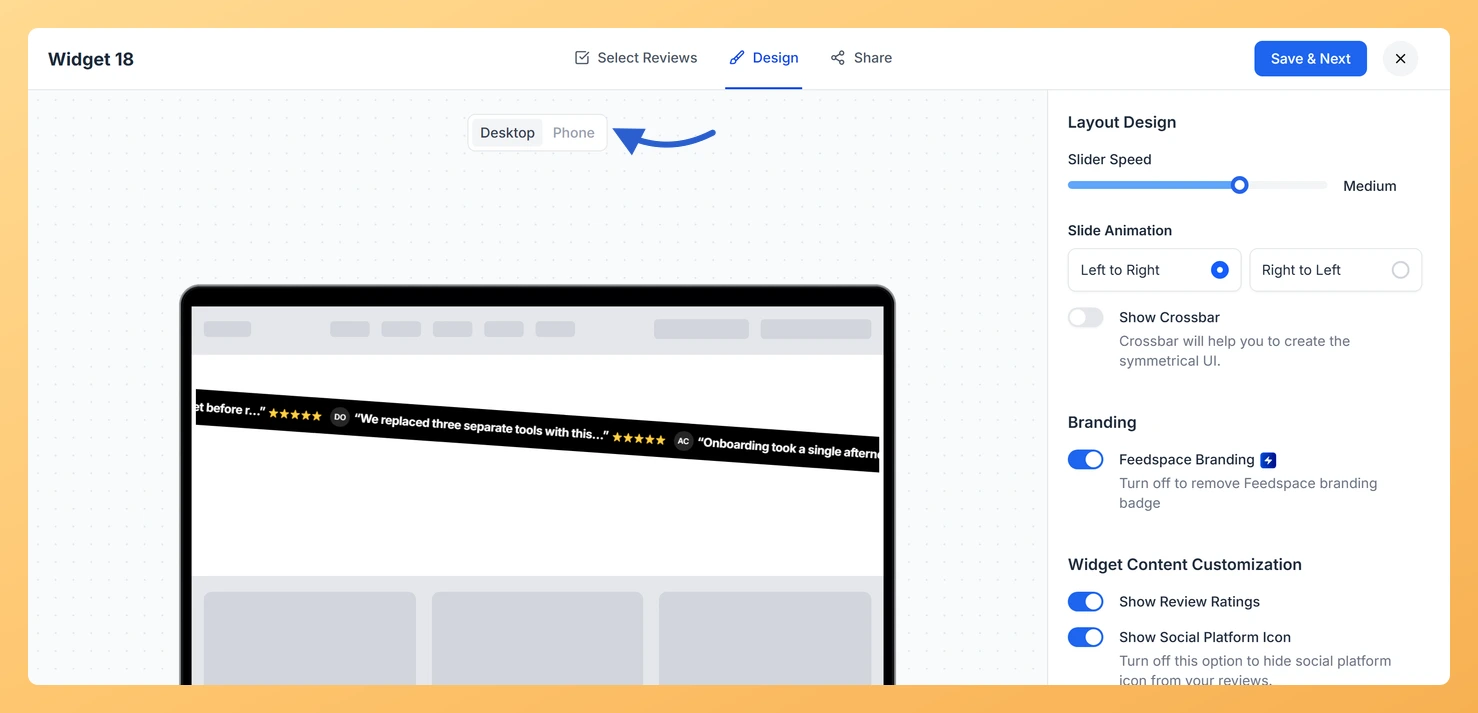
The editor has a live preview beside the settings, with a Desktop and Phone switch above it. Every change you make in the panel shows up there straight away, in whichever view you have open.
How to preview your Cross Slider widget on desktop and mobile
Step 1: Open your widget list
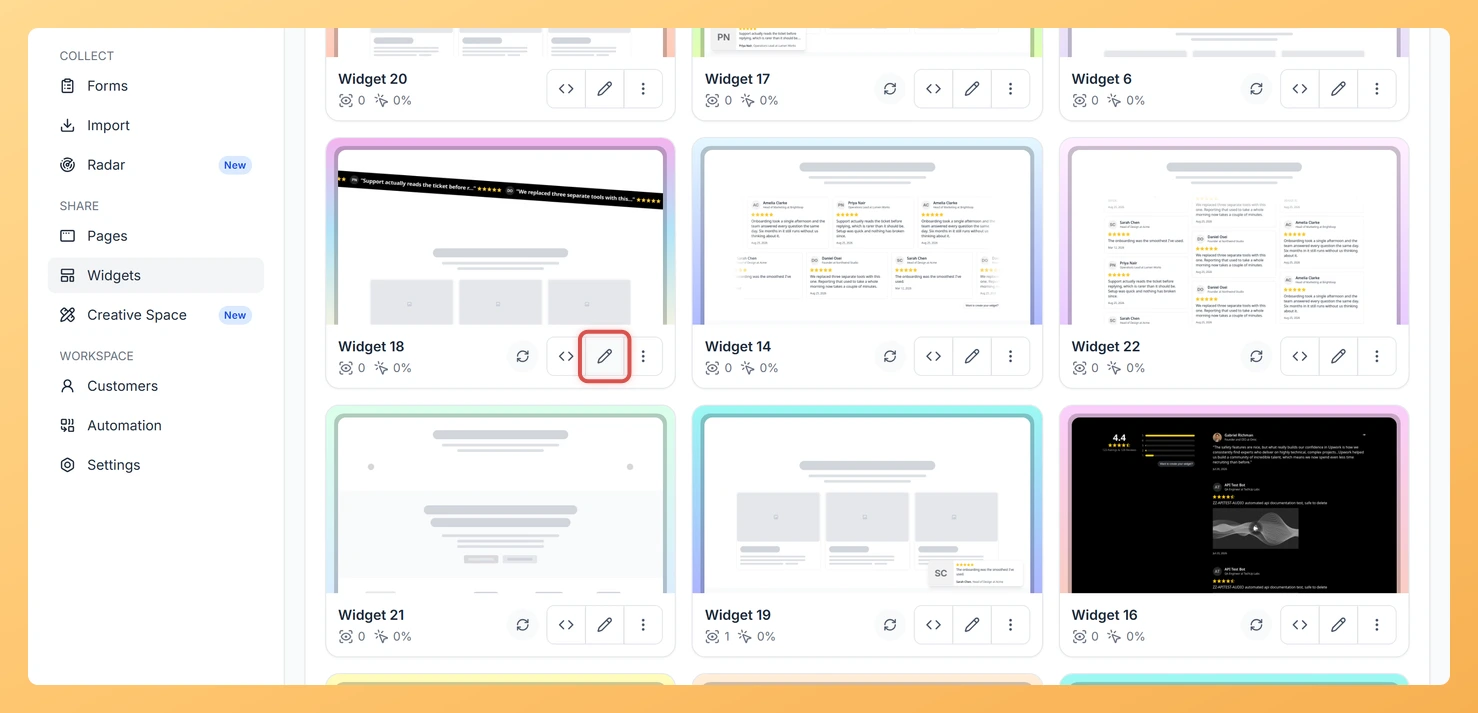
From your Feedspace dashboard, select Widgets in the sidebar on the left.
Step 2: Edit the Cross Slider widget
On the Cross Slider widget card, click the Edit (pencil) icon to load the editor.
Step 3: Open the Design tab
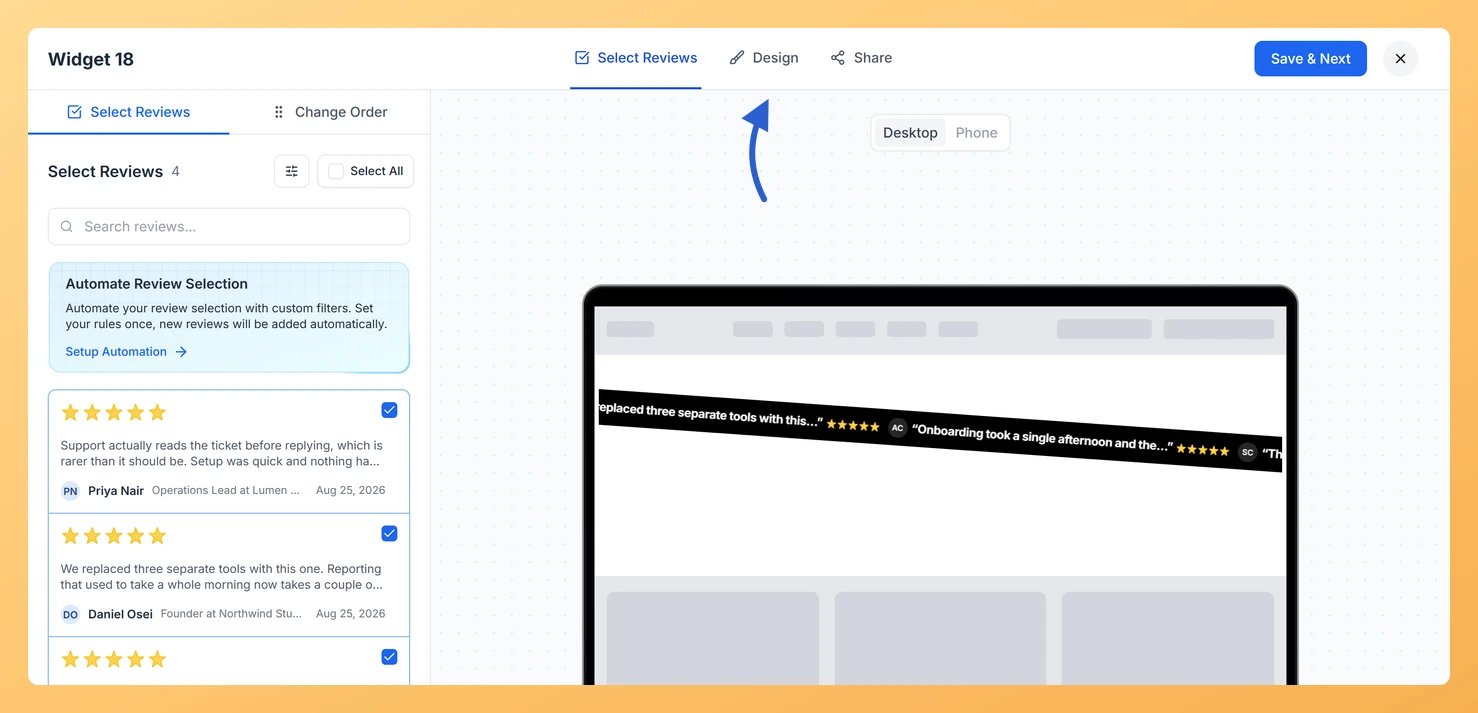
In the row of tabs along the top, choose Design.
Step 4: Watch the live preview
The preview fills the left side of the editor and updates as you change settings. It opens on Desktop.
Step 5: Switch to Phone
Click Phone above the preview to see the widget at phone width. Click Desktop to go back.
It shows the widget at phone width, so the layout matches, but your own page styling and spacing around it are not part of the preview.
You might also find helpful
How Do I Preview a Widget in Feedspace?
Overview Before embedding a widget on your website, it is a good idea to preview how it looks to visitors. Feedspace lets you open a live public preview of any widget directly from the widget editor, so you can verify the design, review layout, and overall appearance before going live....
How to Create a Cross Slider Widget in Feedspace
Overview Feedspace’s Cross Slider widget displays your reviews in a dynamic cross-scrolling layout: with rows of cards moving in opposite directions simultaneously. This creates a visually striking testimonial section that immediately draws the eye. Step 1: Log in to Feedspace Go to your Feedspace Dashboard and log in using your...
How Do I Customize the Design of My Widget in Feedspace?
Overview Feedspace widgets come with a powerful Design tab that lets you tailor every visual aspect of your widget. From card colors and fonts to dark mode and call-to-action buttons, you can fully customize the look to match your website’s brand without writing any code. How to Customize the Widget...