
Overview
The Floating Cards widget displays your reviews as animated cards that gently float and drift across the screen, creating a dynamic and eye-catching effect. Because the cards move freely across the available space, the layout behaves very differently depending on the screen size: cards that look well-spaced on a large desktop monitor can overlap, clip, or crowd together on a smaller phone screen.
Feedspace gives you a built-in Desktop and Phone preview toggle directly inside the Floating Cards widget editor. Switching between these two previews lets you see exactly how the floating animation and card spacing will appear to your visitors before you copy the embed code, so you can catch any layout issues early and adjust your widget settings with confidence.
How to Preview Your Floating Cards Widget on Desktop and Mobile
Step 1: Open Your Floating Cards Widget in the Editor
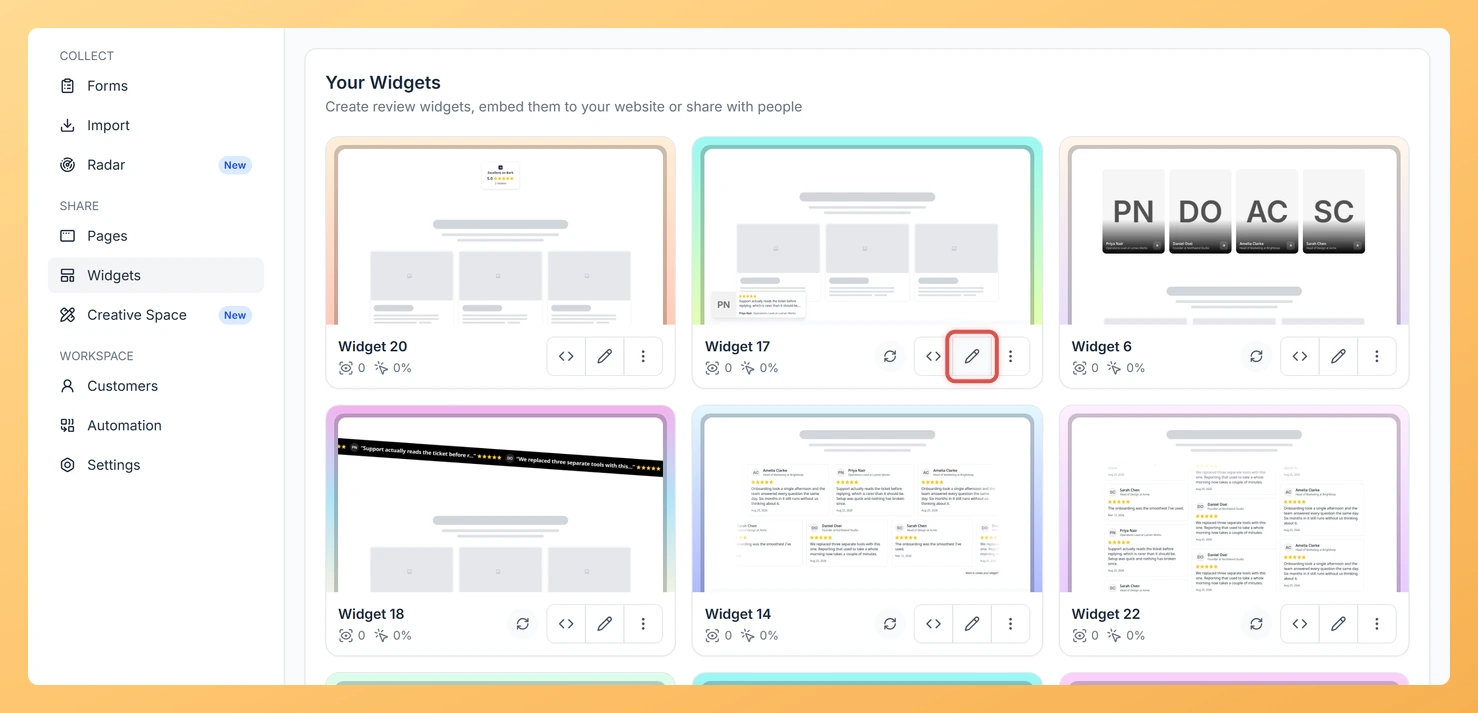
Log in to Feedspace and navigate to the Share Reviews section from the left sidebar. Locate your Floating Cards widget in the list and click its name or the edit icon to open it in the widget editor.
Step 2: Locate the Preview Toggle in the Editor
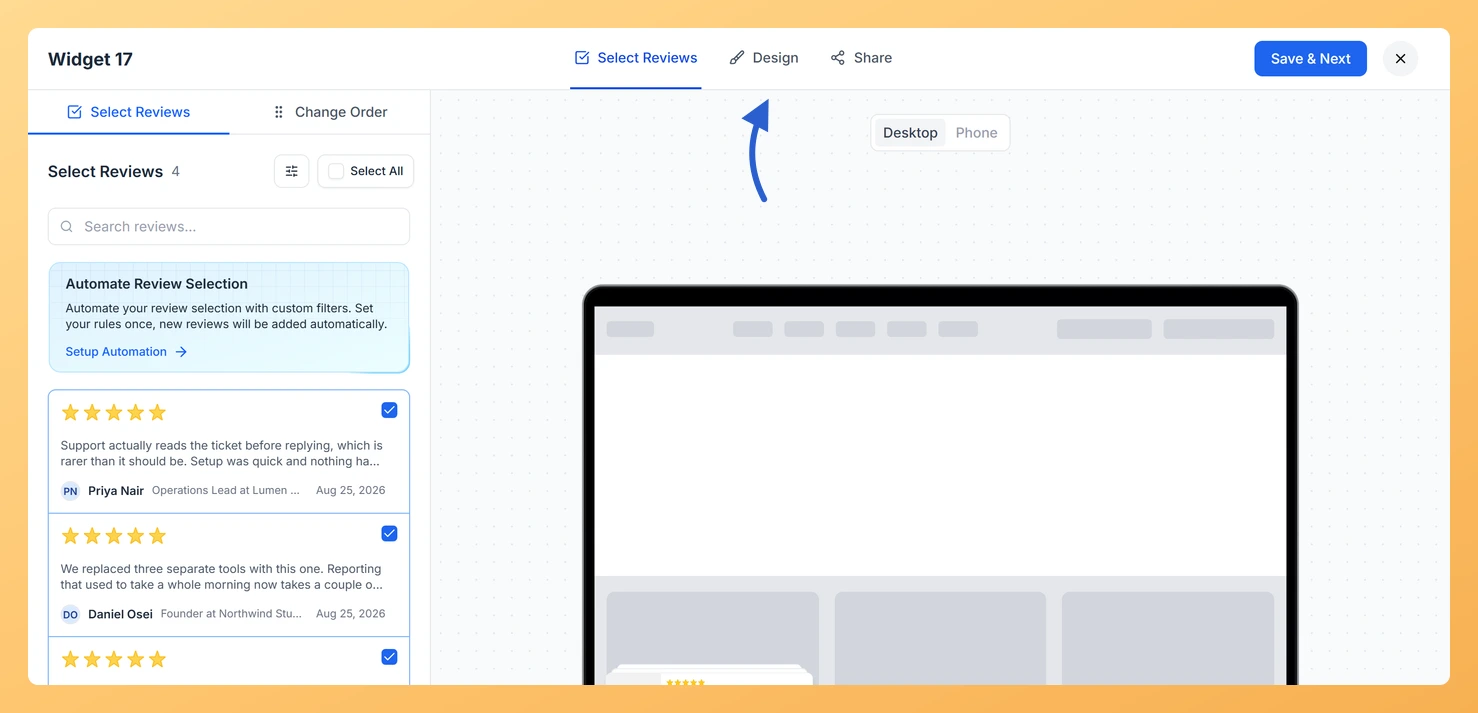
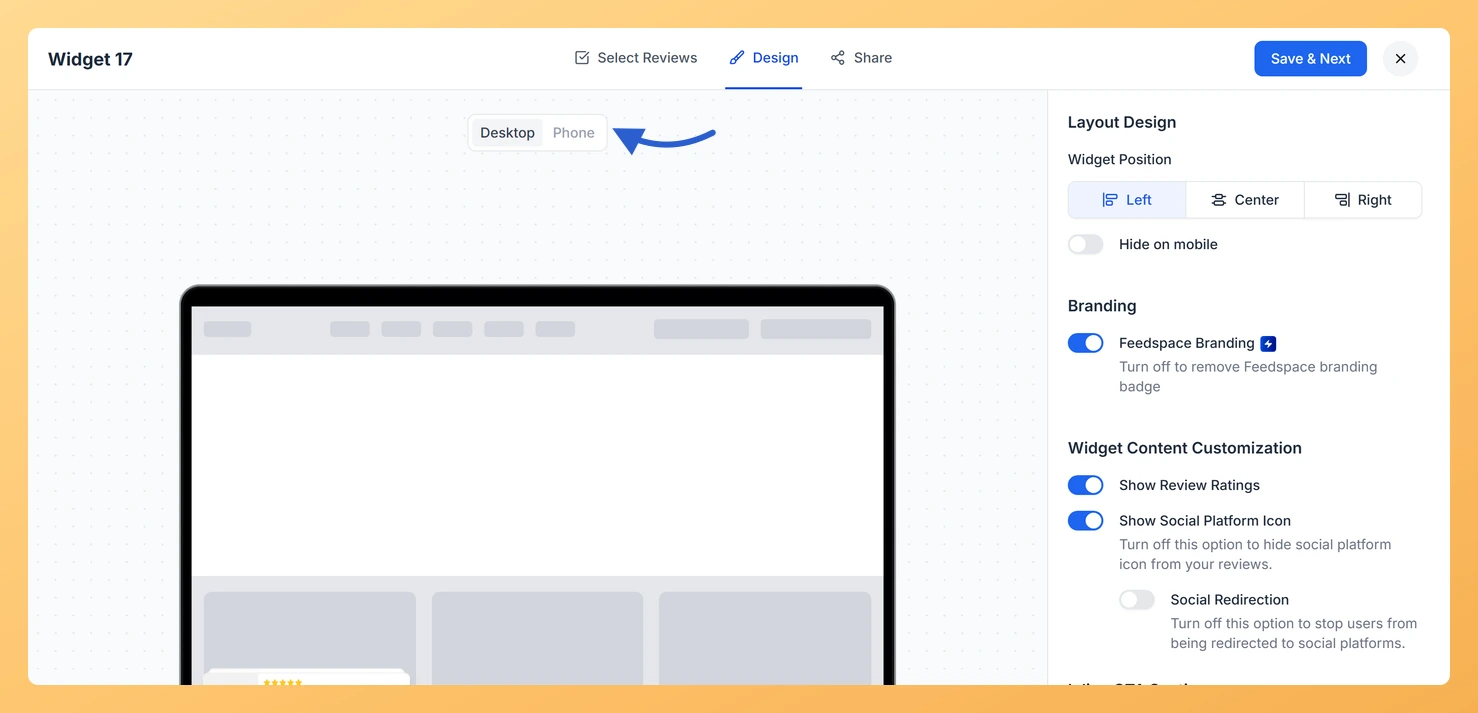
Inside the editor, look for the preview area on the right side of the screen. At the top of the preview panel you will find two toggle buttons: Desktop and Phone. These controls let you switch the preview between a wide desktop viewport and a narrow phone viewport without leaving the editor.
Step 3: Check the Desktop Preview
Click the Desktop toggle to see how your Floating Cards widget will appear on a full-width screen. Watch the floating animation to confirm that cards drift smoothly across the available space, that no two cards overlap in a distracting way, and that the text and images inside each card are clearly readable.
Step 4: Switch to the Phone Preview
Click the Phone toggle to switch the preview to a narrow phone-sized viewport. Pay close attention to the following:
- Cards should not clip against the edges of the screen.
- The floating animation should remain smooth and not cause cards to overlap in a way that obscures the review text.
- Card content such as the reviewer name, star rating, and testimonial text should remain legible at the smaller size.
Step 5: Adjust Widget Settings if Needed and Confirm
If you notice any layout issues in either preview, use the settings panel on the left side of the editor to adjust the number of visible cards, card size, animation speed, or spacing. Switch back and forth between the Desktop and Phone previews after each change until the floating animation looks smooth and the cards display correctly on both screen sizes. Once you are satisfied with both views, copy the embed code and add it to your website.
What You Can Do Next
- Customize the card design, animation speed, and number of floating cards to create the visual effect that best fits your website.
- Embed the Floating Cards widget on your homepage or landing page to display social proof to visitors as soon as they arrive.
- Select which reviews appear in your Floating Cards widget by filtering testimonials by rating, source, or tag in the widget settings.
- Create additional widget types such as a Wall of Love or Testimonial Slider to display the same reviews in different layouts across your site.
You might also find helpful
How to Create a Floating Cards Widget in Feedspace
Overview The Floating Cards widget in Feedspace displays your reviews in stack-like cards that float over your website layout. You can position them on the left, center, or right side of the screen. This widget is perfect for showing continuous feedback without interrupting the visitorโs browsing experience. How to Access...
How Do I Preview a Widget in Feedspace?
Overview Before embedding a widget on your website, it is a good idea to preview how it looks to visitors. Feedspace lets you open a live public preview of any widget directly from the widget editor, so you can verify the design, review layout, and overall appearance before going live....
How Do I Customize the Design of My Widget in Feedspace?
Overview Feedspace widgets come with a powerful Design tab that lets you tailor every visual aspect of your widget. From card colors and fonts to dark mode and call-to-action buttons, you can fully customize the look to match your website’s brand without writing any code. How to Customize the Widget...