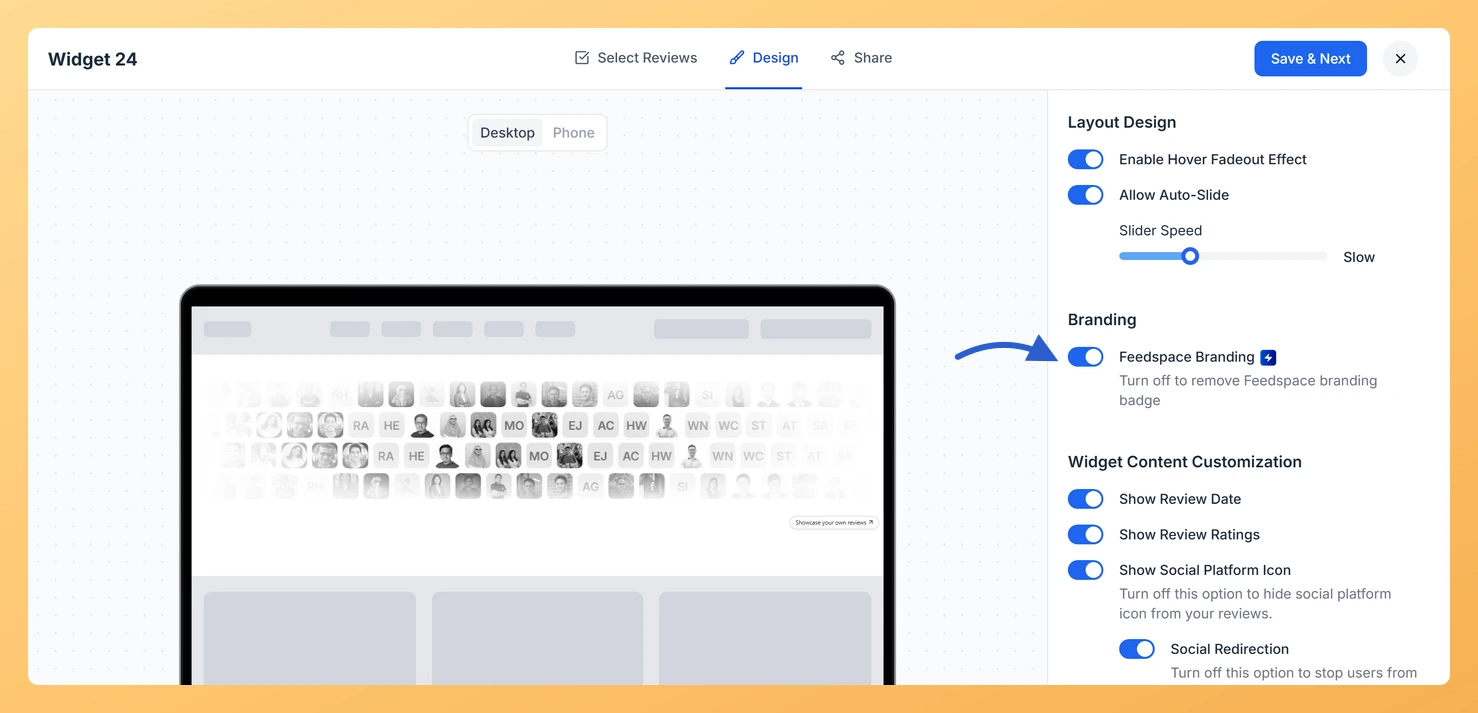
The Avatar Blocks widget displays reviewer testimonials in a structured block grid, pairing each reviewer’s avatar with their review text side by side in a clean, visual layout. By default, this widget includes a small Feedspace badge, which appears as part of the widget’s footer branding.
The Feedspace Branding toggle lets you remove that badge entirely, so your Avatar Blocks grid presents a white-label experience. With no badge visible, the structured block layout draws full attention to your reviewers’ avatars and testimonial text, making the widget feel like a native part of your website’s design. This option is a premium feature, indicated by the lightning bolt icon, and requires an eligible paid plan in Feedspace.
How to remove Feedspace Branding from your Avatar Blocks widget
Step 1: Open the Widgets section
Log in to your Feedspace account. From the main navigation, click Widgets to open the list of all your created widgets.
Step 2: Edit your Avatar Blocks widget
Locate your Avatar Blocks widget in the list and click the Edit (pencil) icon on its card to open the editor.
Step 3: Go to the Design tab
Inside the widget editor, click the Design tab at the top of the settings panel. This tab contains all visual customization options for your Avatar Blocks widget, including layout, colors, typography, and branding settings.
Step 4: Find the Branding section
Scroll down within the Design tab until you reach the Branding section. You will see the Feedspace Branding toggle here, marked with a lightning bolt icon to indicate it is a premium feature.
Step 5: Turn off the Feedspace Branding toggle
Click the Feedspace Branding toggle to turn it off. Once disabled, the Feedspace badge will no longer appear on your Avatar Blocks widget. If your current plan does not include this feature, Feedspace will prompt you to upgrade to an eligible paid plan before the change takes effect.
Step 6: Save and preview your widget
Click Save & Next to apply your changes. Use the preview panel to confirm that the Feedspace badge no longer appears in your Avatar Blocks grid. Your embedded widget on your website will automatically reflect the updated, badge-free design.
What’s next
Customize the colors and typography of your Avatar Blocks widget in the Design tab to align it with your brand identity.
There is no snippet to swap out. The widget pulls its design from Feedspace every time your page loads, so what you just saved is what visitors see.
Filter which testimonials appear in your Avatar Blocks widget by adjusting the content settings to highlight your best reviews.
Explore other design options in the Design tab, such as adjusting block spacing or avatar size, to further refine the structured grid layout of your Avatar Blocks widget.
Common questions
The switch is already blue. Am I turning it on or off?
Off. Feedspace Branding arrives switched on, and on is what shows the badge. Its own hint spells it out: “Turn off to remove Feedspace branding badge”.
You might also find helpful
How Do I Customize the Design of My Widget in Feedspace?
Overview Feedspace widgets come with a powerful Design tab that lets you tailor every visual aspect of your widget. From card colors and fonts to dark mode and call-to-action buttons, you can fully customize the look to match your website’s brand without writing any code. How to Customize the Widget...
How to Create an Avatar Blocks Widget in Feedspace
Overview Feedspace’s Avatar Blocks widget displays your reviews in bold, grid-based cards where the reviewer’s profile picture takes centre stage. It’s a strong, visually balanced layout that works well on testimonial pages, pricing pages, and anywhere you want reviews to feel authentic and human. Step 1: Log in to Feedspace...
How Do I Customize the Design of My Widget in Feedspace?
Overview Feedspace widgets come with a powerful Design tab that lets you tailor every visual aspect of your widget. From card colors and fonts to dark mode and call-to-action buttons, you can fully customize the look to match your website’s brand without writing any code. How to Customize the Widget...