By default the Carousel widget carries a small Feedspace branding badge, controlled by a toggle called Feedspace Branding that is switched on. While the Carousel keeps visitors focused on one review at a time as they slide through your testimonials, the branding badge is visible on the widget. Removing it gives the widget a cleaner appearance that keeps your own brand at the centre of the experience rather than drawing attention to the tool used to create it.
Removing Feedspace branding is a premium feature, indicated by a lightning bolt icon next to the toggle. It requires an eligible paid plan. Once removed, the Carousel integrates invisibly into your site design, which is especially valuable when the widget is placed prominently on a homepage or landing page.
How to remove Feedspace branding from your Carousel widget
Step 1: Open your Carousel widget
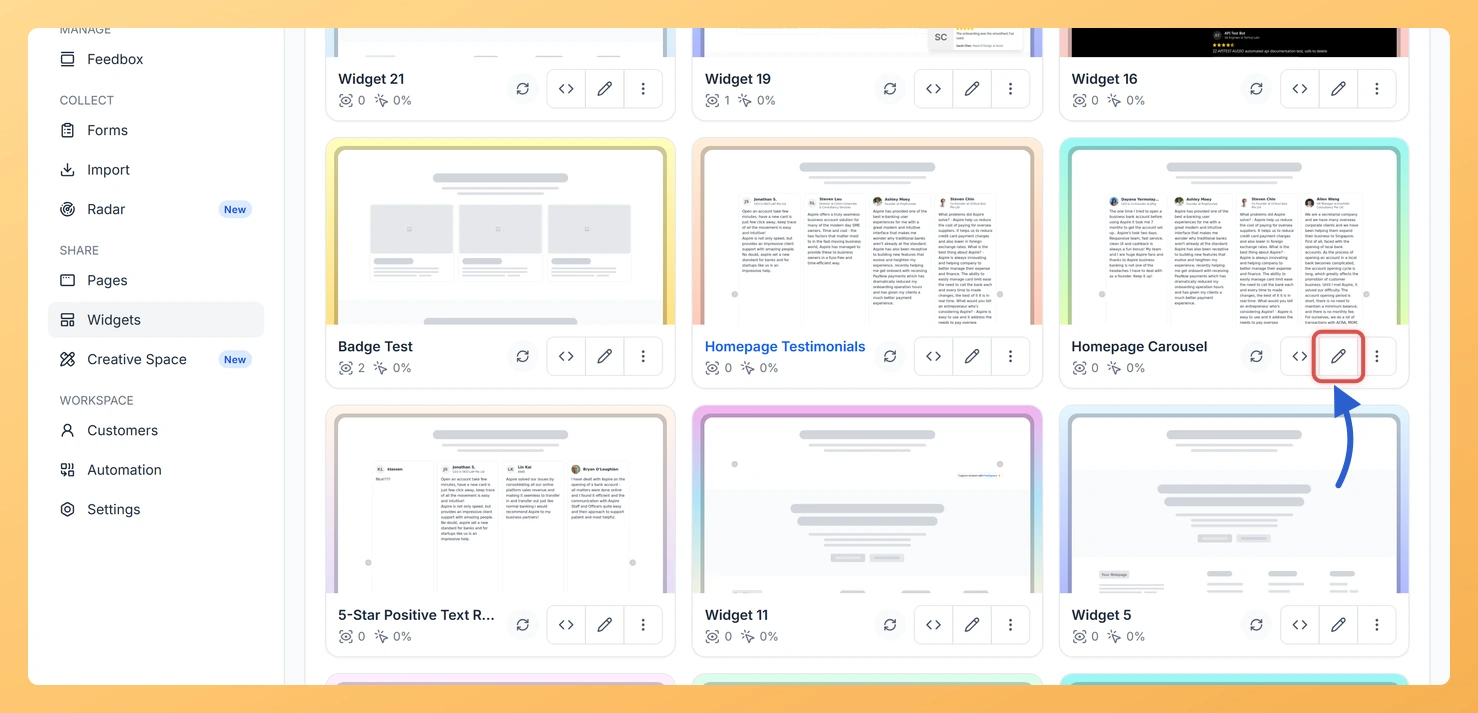
Log in to your Feedspace account and click Widgets in the left sidebar. Locate your Carousel widget in the list and click the Edit (pencil) icon on the widget card to open the widget editor.
Step 2: Go to the Design tab
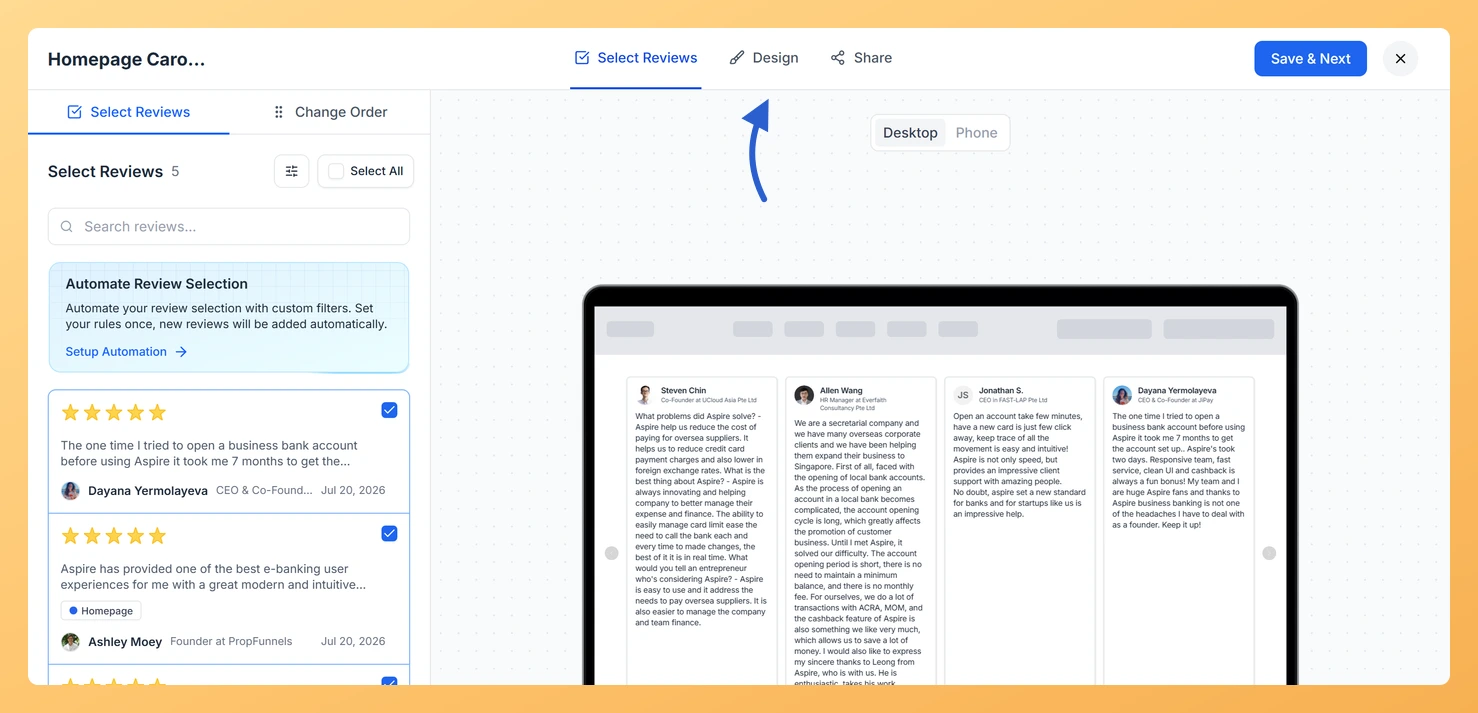
Inside the widget editor, click the Design tab at the top of the settings panel to access all visual configuration options for your Carousel widget.
Step 3: Find the Branding section
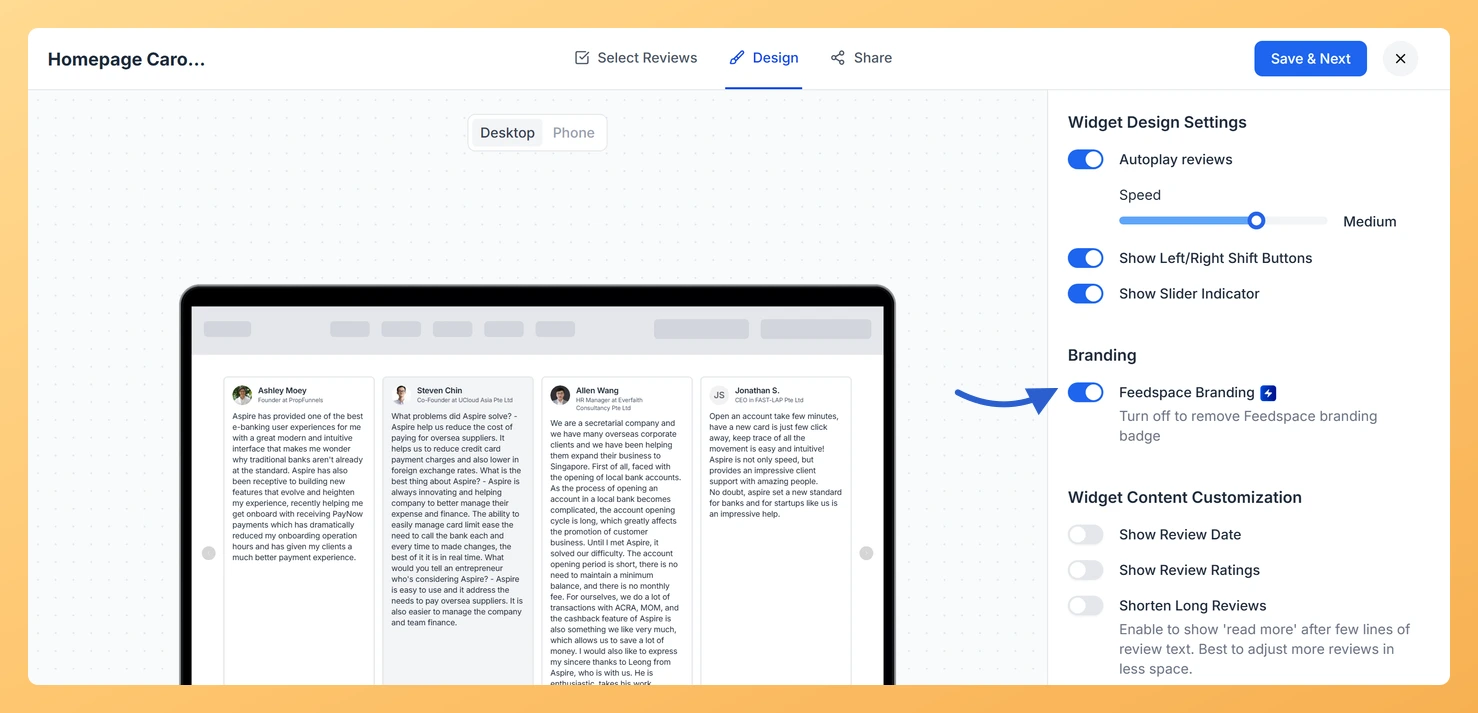
Scroll down within the Design tab to the Branding section. You will see the Feedspace Branding toggle, switched on, with the hint Turn off to remove Feedspace branding badge underneath it. A lightning bolt icon next to the label marks this as a premium feature available on eligible paid plans.
Step 4: Turn off Feedspace Branding
Click the Feedspace Branding toggle to switch it off. The badge disappears from the Carousel preview straight away. On a plan that does not include this feature, an upgrade prompt appears before the change takes effect.
Step 5: Save your changes
Click Save & Next to apply the update. Your Carousel widget will now display without the Feedspace branding badge on all pages where it is embedded.
What’s next
Customise the card background color and font in the Design tab to ensure your Carousel widget matches your website’s brand identity now that the Feedspace badge is gone.
Add an Inline CTA to the Carousel widget to replace the removed badge space with a branded call-to-action that drives visitors toward a signup or purchase.
Use custom CSS to fine-tune the widget’s appearance further, such as adjusting padding, font size, or card shape, for a truly on-brand look.
Embed the updated Carousel widget on your homepage or pricing page where a clean, unbranded testimonial display makes the strongest impression on potential customers.
Common questions
Do I need to update the widgets I have already embedded?
No. The badge disappears from every page the widget is already on as soon as you save, because the widget is loaded from Feedspace each time the page opens.
You might also find helpful
How Do I Customize the Design of My Widget in Feedspace?
Overview Feedspace widgets come with a powerful Design tab that lets you tailor every visual aspect of your widget. From card colors and fonts to dark mode and call-to-action buttons, you can fully customize the look to match your website’s brand without writing any code. How to Customize the Widget...
How to Create a Carousel Widget in Feedspace
Overview The Carousel widget in Feedspace lets you display multiple reviews in a continuously sliding format. You can enable autoplay, customize speed, and fine-tune design elements such as border, background color, and text colors. It’s a great way to keep your testimonials engaging and visually dynamic. How to Access Step...
How Do I Change the Font on My Carousel Widget in Feedspace?
Overview The Carousel widget in Feedspace displays your reviews as a continuously looping horizontal slide show, showing one or a few review cards at a time as visitors scroll through. Because the Carousel draws the eye with motion and keeps review text front and center, the font you choose has...