The Masonry widget in Feedspace arranges reviews in a Pinterest-style staggered grid, filling columns with cards of varying heights so visitors can take in many testimonials at once. Because the visual appeal of a Masonry grid depends on a mix of short and longer reviews creating that characteristic organic stagger, the reviews you choose matter as much as how many you choose.
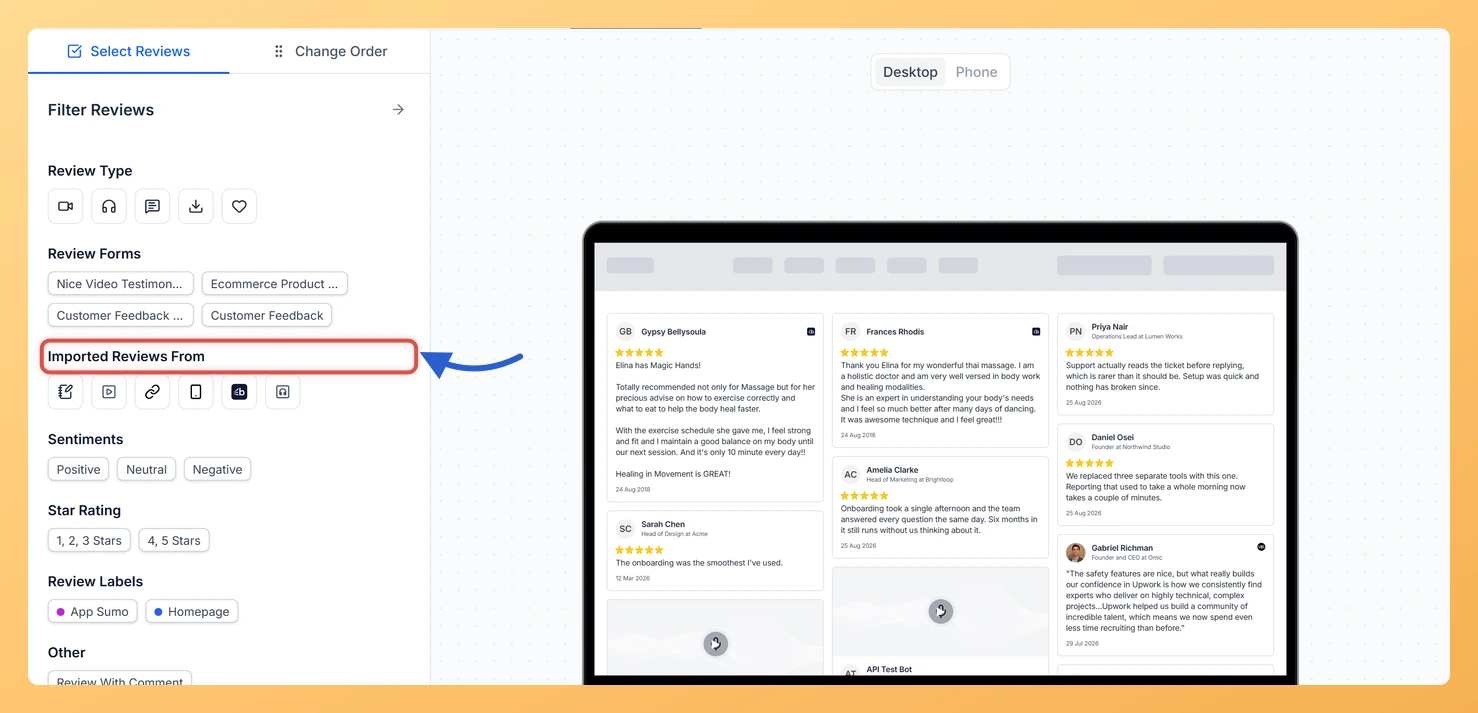
The Select Reviews tab in the Masonry widget editor includes a search input and a filter panel that let you cut through your full review library and surface exactly the testimonials that will make your grid look its best. You can search by keyword and filter by review type, source platform, star rating, sentiment, and label, combining criteria to zero in on the right mix of reviews before you make your selection.
How to search and filter reviews for your Masonry widget
Step 1: Open your Masonry widget editor
Log in to your Feedspace account and navigate to the Widgets section from the left-hand sidebar. Find the Masonry widget you want to update and click the Edit (pencil) icon on its card. The editor opens on the Select Reviews tab.
Step 2: Go to the Select Reviews tab
Inside the widget editor, click the Select Reviews tab. This tab displays your full review library alongside the search input and the Filter button at the top of the list.
Step 3: Search for reviews by keyword
Type any word or phrase into the search bar to instantly narrow the review list. You can search by text from the review body, the reviewer’s name, or their company name. The list updates in real time as you type, so you can quickly locate testimonials that mention a specific feature, product, or outcome you want to highlight in your Masonry grid.
Step 4: Open the filter panel
Click the Filter button next to the search bar to open the filter panel. The panel appears as an overlay or sidebar, presenting all available filter categories at once. You can apply one filter or combine several to build a precise shortlist of reviews.
Step 5: Apply your filters
Use the following filter options to narrow the review list to the testimonials that will work best in your Masonry grid:
Review Type: Filter by video, audio, text, image, highlighted text, or favourites. For a Masonry grid, mixing text reviews of different lengths with the occasional video or image card creates the most visually dynamic stagger.
Source Platform: Show only reviews imported from a specific platform, such as Google, Trustpilot, or Capterra. Use this to build a grid that draws from a particular channel or to cross-check how reviews from different sources compare.
Star Rating: Filter by star rating range to surface your strongest reviews or to target a specific score. Selecting 4 and 5 star reviews ensures the Masonry grid leads with your best social proof.
Sentiment: Choose positive, neutral, or negative sentiment. For a public-facing Masonry widget, filtering for positive sentiment keeps the grid focused on testimonials that reinforce buyer confidence.
Labels: Filter by any label you have assigned to reviews in your Reviews section. Labels let you segment reviews by product line, use case, audience, or campaign, so you can build a Masonry grid targeted at a specific page or customer type.
Step 6: Select Reviews from the filtered results
With your filters applied, the review list shows only the testimonials that match your criteria. Tick the checkbox on each review you want to add to your Masonry grid, or click Select All to include every review currently visible in the filtered results. For the best Masonry layout, aim to select at least 9 reviews, choosing a mix of short and longer testimonials so the columns fill with cards of varying heights and create that distinctive staggered look.
Step 7: Clear filters and save
To browse the full review library again, click the Clear button or remove individual filter tags to reset the list. Once you are satisfied with your selection, click Save & Next to apply your chosen reviews to the Masonry widget. The widget preview updates immediately to reflect the new selection in the staggered grid layout.
What’s next
Customise the number of columns and card spacing in the Masonry widget design settings so the staggered grid fits your page layout and looks balanced across different screen widths.
Use label filters to build multiple Masonry widgets targeting different audiences or product lines, each showing a curated grid of the most relevant testimonials for that page.
Enable automation in the Masonry widget editor to have reviews added to the grid automatically as new testimonials come in, keeping the staggered layout fresh without manual updates.
Copy the embed code for your Masonry widget and paste it into your website to publish the filtered, staggered grid of reviews live to your visitors.
Common questions
Do the filters change what my visitors see?
No. Searching and filtering only narrow the list you are picking from inside the editor. The widget shows the reviews you actually tick, so clearing a filter afterwards never removes a review you already selected.
You might also find helpful
How Do I Select Reviews for My Masonry Widget in Feedspace?
Overview The Masonry widget in Feedspace displays your reviews in a Pinterest-style staggered grid, arranging cards in columns of varying heights so many reviews are visible at once. Because the Masonry layout is designed to fill the screen with social proof, the reviews you select directly shape how impressive and...
How Do I Use Automation to Auto-Select Reviews on My Masonry Widget in Feedspace?
Overview The Masonry widget in Feedspace displays your reviews in a Pinterest-style staggered grid, where columns of varying heights let many reviews be visible at the same time. Because the Masonry layout is designed to show a large, diverse collection of reviews at once, keeping those reviews fresh and high...
What is a Widget in Feedspace?
Overview In Feedspace, a widget is a customizable display tool that allows you to showcase your collected reviews, testimonials, or feedback directly on your website. With widgets, you can turn customer voices into social proof, helping you build trust and credibility with visitors. Instead of just collecting reviews, widgets let...