The Carousel widget in Feedspace displays your reviews as a smooth, horizontally sliding loop, cycling through one or a few cards at a time. Because the Carousel presents each review as a standalone card in full view, the quality of what you include matters more here than in a grid or masonry layout where many reviews share the screen at once. Visitors read each card in isolation, so every review you add needs to tell a clear, complete story on its own.
The search input and filter panel inside the Select Reviews tab give you precise control over which reviews you see before making your selection. Instead of scrolling through your entire review collection to find the right ones, you can narrow the list instantly by keyword, review type, source platform, star rating, sentiment, or label. This makes it straightforward to build a tightly curated set of compelling, self-contained reviews that keep your Carousel loop engaging from start to finish.
How to search and filter reviews for your Carousel widget
Step 1: Open your Carousel widget
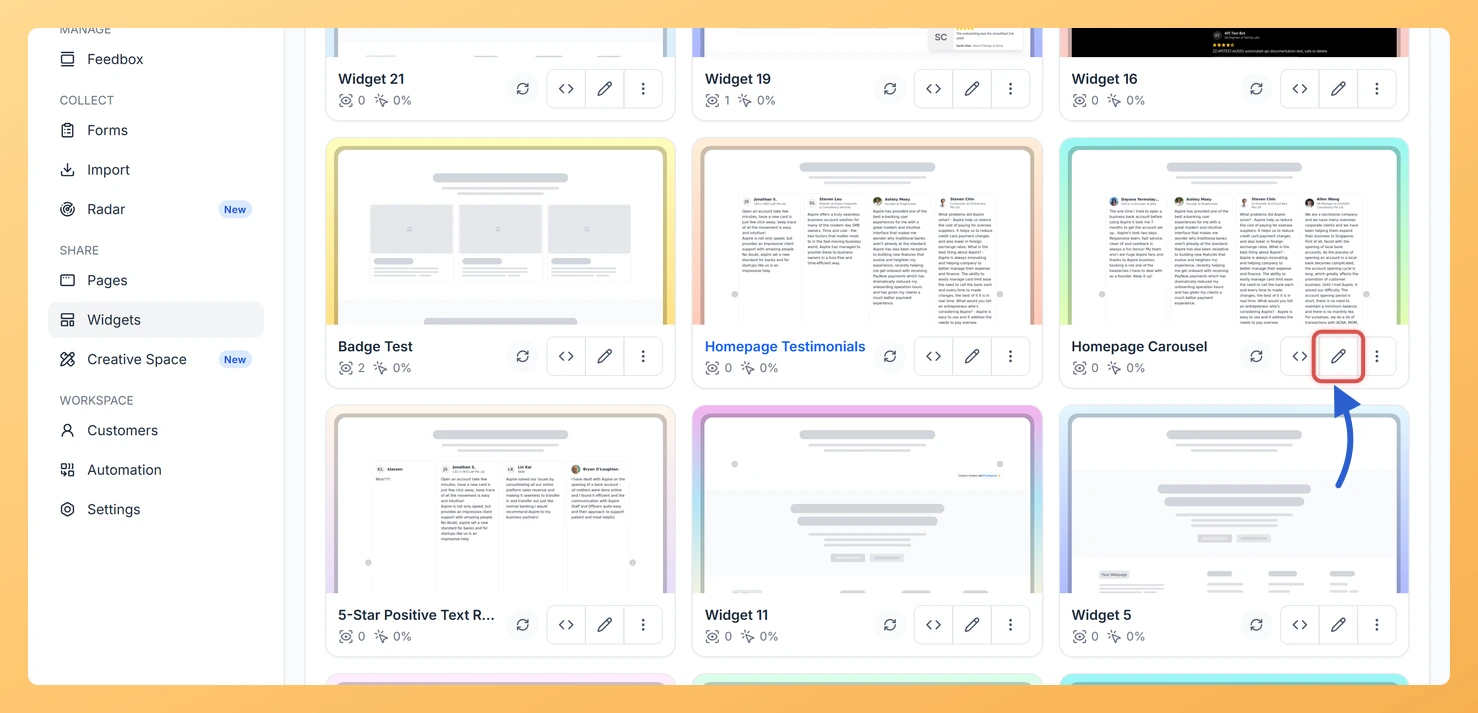
Log in to your Feedspace account and go to the Widgets section from the main sidebar. Find the Carousel widget you want to update and click the Edit (pencil) icon on the widget card to open the widget editor.
Step 2: Go to the Select Reviews tab
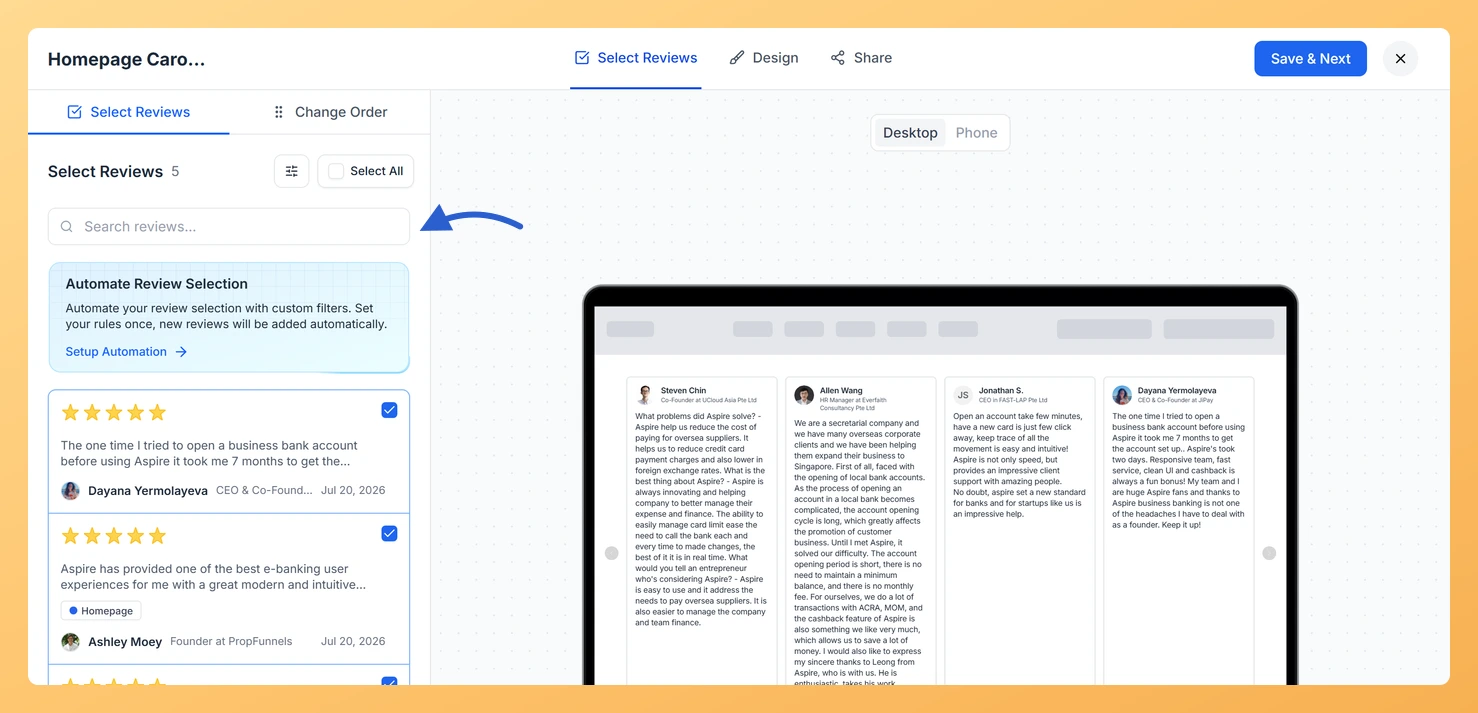
Inside the widget editor, click the Select Reviews tab. This is where all available reviews in your connected space are listed, each with a checkbox you can tick to include it in the Carousel loop. The search input and filter panel are located at the top of this tab.
Step 3: Search reviews by keyword
Type a word or phrase into the search input at the top of the Select Reviews tab. The review list updates in real time to show only reviews whose text contains your search term. Use this to find reviews that mention a specific product, feature, outcome, or name so you can confirm whether the content stands well on its own before selecting it for the Carousel.
Step 4: Open the filter panel and filter by Review Type
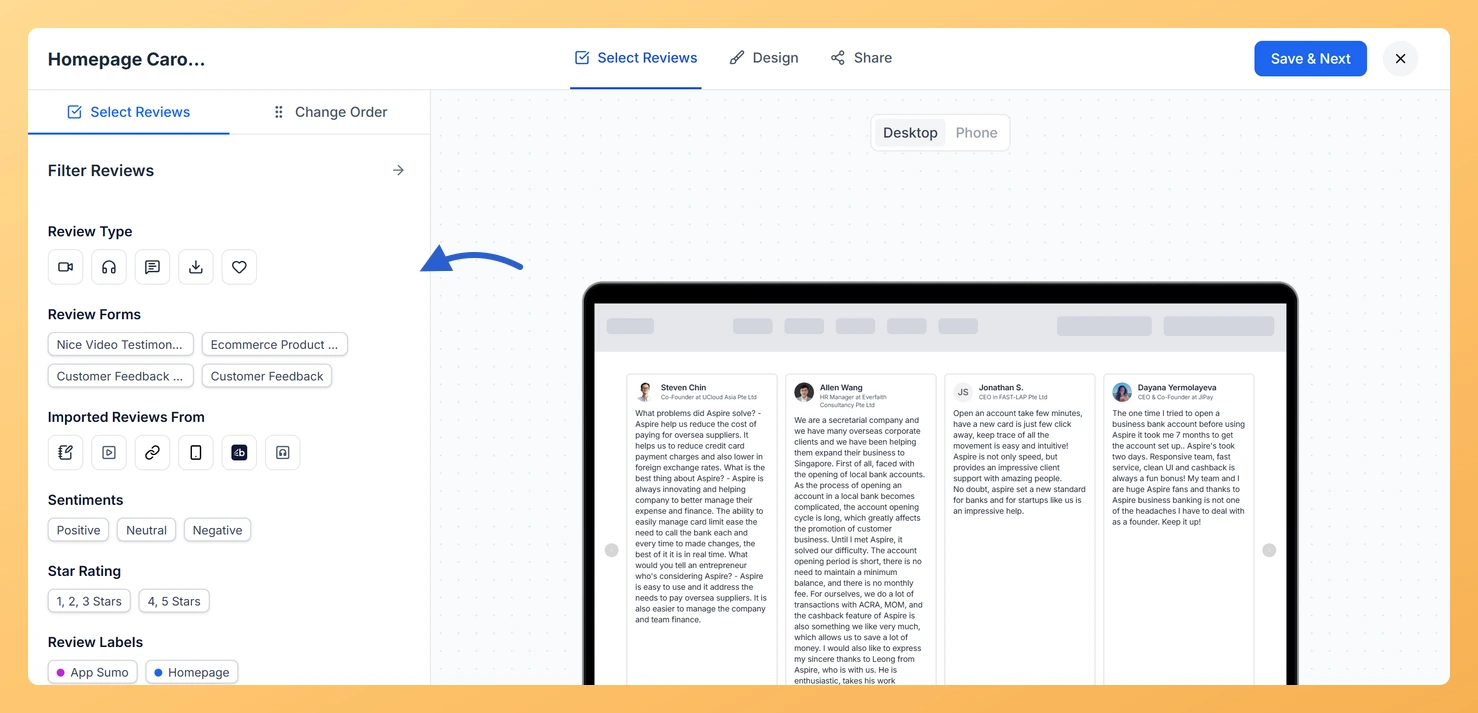
Open the filter panel and select a review type to narrow the list to a specific format. Options include text reviews, video reviews, and other supported types. For the Carousel, text reviews and video reviews each have different visual weights, so filtering by type helps you plan a consistent, visually balanced loop before you start ticking checkboxes.
Step 5: Filter by Imported Reviews From
Use the source platform filter to show only reviews imported from a specific platform, such as Google, Trustpilot, Capterra, or reviews collected directly through Feedspace. Filtering by source is useful when you want your Carousel to highlight a single trusted platform, or when you want to mix sources intentionally and need to see each group separately before making your final selection.
Step 6: Filter by Star Rating
Select a star rating in the filter panel to show only reviews that meet a specific rating threshold. Since the Carousel presents reviews one at a time, filtering to 4-star and 5-star reviews is a straightforward way to ensure every card in the loop reflects a strong customer experience. Reviews at the top end of the rating scale also tend to include the clearest, most persuasive content, which works well in a format where each card gets a visitor’s full attention.
Step 7: Filter by Sentiments
Use the sentiment filter to show reviews categorised as positive, neutral, or negative. For a Carousel loop, filtering to positive sentiment gives you a focused pool of reviews that carry an upbeat, confident tone. Each card in the Carousel has to work independently, and a consistently positive sentiment across your selected reviews ensures the loop leaves a strong impression at every step.
Step 8: Filter by Review Labels
If you have applied labels to your reviews in Feedspace, use the label filter to display only reviews tagged with a particular label. Labels let you organise reviews by theme, campaign, product, or any custom grouping you have set up. Filtering by label is especially useful when you want a Carousel that stays focused on a single topic, such as reviews about a specific use case or customer segment, so every card in the loop reinforces the same message.
Step 9: Select reviews from the filtered results
Once you have narrowed the list using search or filters, tick the checkbox next to each review you want to include in the Carousel. You can also click Select All to select every review currently visible in the filtered view, then deselect any that do not meet your standards on closer reading. When you are satisfied with your selection, click Save & Next to apply your choices to the Carousel loop.
What’s next
Return to the Select Reviews tab at any time to refine your filters and swap in newer reviews as your collection grows, keeping the Carousel loop current and relevant.
Adjust the autoplay speed in the Carousel widget settings to match the average length of the reviews you selected, giving visitors enough time to read each card as it slides into view.
Enable the automation rule on your Carousel widget to have high-quality reviews added to the loop automatically based on rating or sentiment, so your selection stays fresh without manual updates.
Copy the embed code from the widget editor and paste it into your website to publish the curated Carousel on any landing page or homepage section.
Common questions
Do the filters stay applied to the published widget?
No. Search and the filter panel only narrow the list you are picking from. The Carousel shows the reviews you ticked, and it keeps showing them after you clear the filters. To have new reviews added by rule instead, use Setup Automation.
You might also find helpful
How Do I Select Reviews for My Carousel Widget in Feedspace?
Overview The Carousel widget in Feedspace displays your reviews as a smooth, horizontally sliding loop, showing one or a few cards at a time and cycling through them continuously. Because the Carousel plays through reviews in sequence, the specific reviews you include have a direct impact on how engaging and...
How Do I Use Automation to Auto-Select Reviews on My Carousel Widget in Feedspace?
Overview The Carousel widget in Feedspace slides through your reviews in a continuous loop, showing one or a few cards at a time. Because visitors see each card for only a few seconds as it scrolls past, it matters more than ever that every review in the rotation is high...
What is a Widget in Feedspace?
Overview In Feedspace, a widget is a customizable display tool that allows you to showcase your collected reviews, testimonials, or feedback directly on your website. With widgets, you can turn customer voices into social proof, helping you build trust and credibility with visitors. Instead of just collecting reviews, widgets let...