The Vertical Scroll widget in Feedspace displays your reviews as a continuously scrolling, looping vertical feed. Because cards flow past the viewer one after another without stopping, the specific reviews you include matter more than in a static layout. Choosing a curated, varied mix of different review lengths, sources, and sentiments keeps the feed visually interesting and avoids repetition.
The Select Reviews tab inside the Vertical Scroll widget editor gives you two tools to find exactly the right reviews: a search input and a filter panel. Together they let you narrow down your full review library by keyword, review type, source platform, star rating, sentiment, and labels. This article walks you through using both tools so you can hand-pick the reviews that flow through your widget.
How to search and filter reviews for your Vertical Scroll widget
Step 1: Open your Vertical Scroll widget
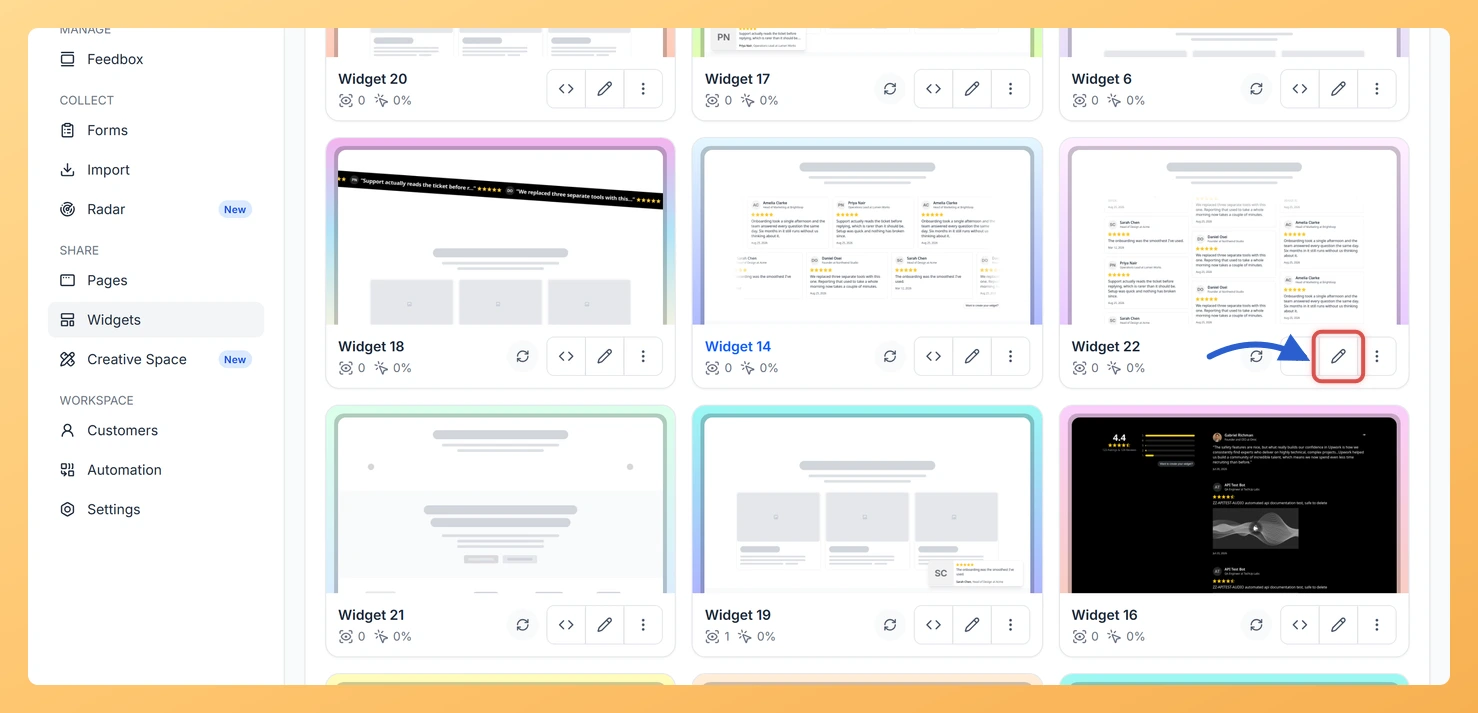
Log in to Feedspace and navigate to the Widgets section from your dashboard. Locate the Vertical Scroll widget you want to edit, then click the Edit (pencil) icon on the widget card to open the widget editor.
Step 2: Go to the Select Reviews tab
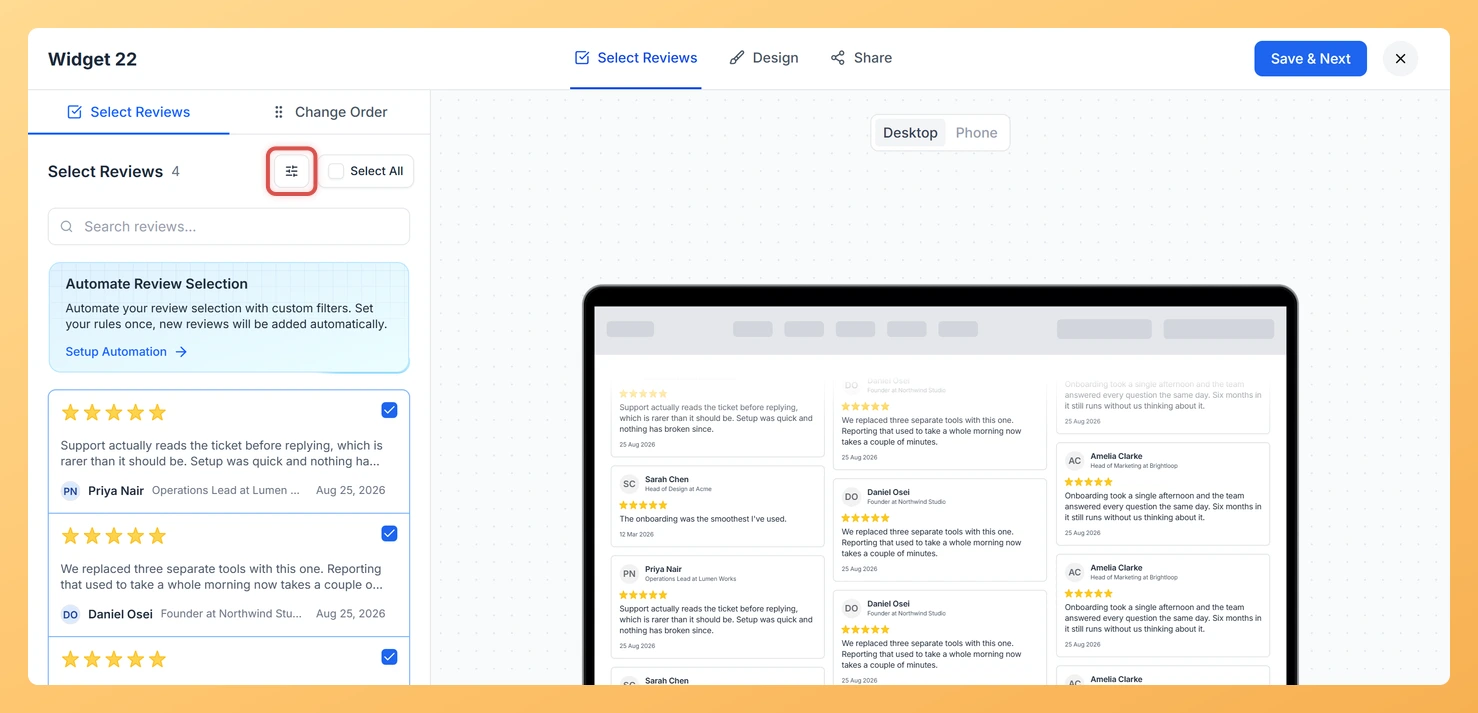
Inside the widget editor, click the Select Reviews tab. This tab shows your full review library alongside the search input and filter panel you will use to narrow it down.
Step 3: Search reviews by keyword
At the top of the Select Reviews tab you will find a search input field. Type a keyword, phrase, or reviewer name into the field. The review list updates instantly to show only reviews whose content or metadata matches your search term. This is useful when you want to surface reviews that mention a specific product feature, use case, or topic you want to highlight in the widget feed.
Step 4: Open the filter panel
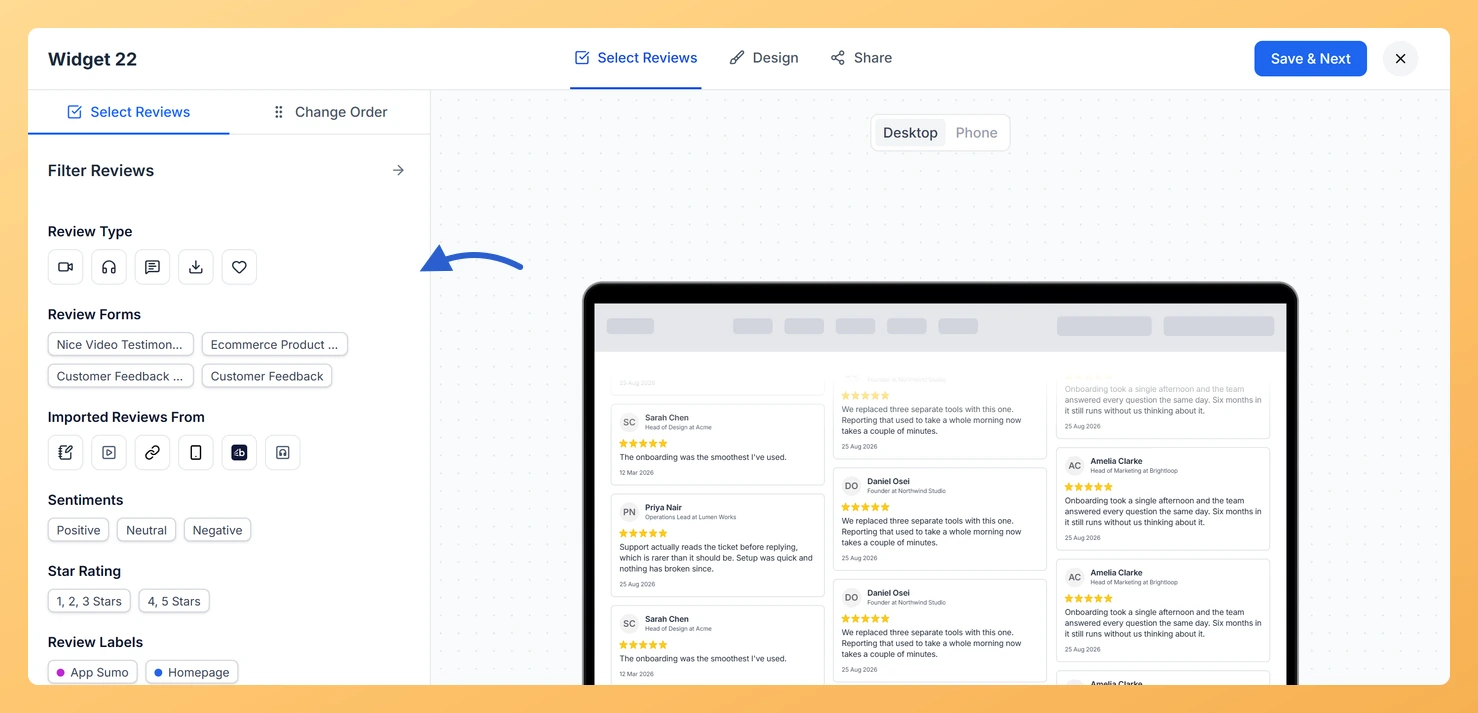
Click the Filter button or icon next to the search input to expand the filter panel. The panel reveals all available filter options. You can use filters on their own or combine them with a keyword search to narrow results further.
Step 5: Filter by Review Type
In the filter panel, select a Review Type to show only reviews of that format. For example, you can filter to display only video testimonials, only text reviews, or only audio reviews. For a Vertical Scroll widget, mixing review types adds visual variety as cards of different formats flow through the feed.
Step 6: Filter by Imported Reviews From
Use the Source Platform filter to limit results to reviews imported from a specific platform, such as Google, Trustpilot, G2, or reviews collected directly through Feedspace. If you want your Vertical Scroll feed to represent a particular source prominently, this filter makes it easy to find those reviews quickly.
Step 7: Filter by Star Rating
Select a Star Rating value in the filter panel to show only reviews at or above a certain rating threshold. Most teams filter for four-star and five-star reviews to ensure the Vertical Scroll widget displays only positive, trust-building testimonials to visitors.
Step 8: Filter by Sentiments
Use the Sentiment filter to surface reviews that have been analysed as positive, neutral, or negative. Selecting the positive sentiment filter is a fast way to find reviews with enthusiastic, encouraging language, which tends to perform well in a continuously scrolling display where each card has only a brief moment of viewer attention.
Step 9: Filter by Review Labels
If you have organised your reviews using labels in Feedspace, the Labels filter lets you show only reviews tagged with a specific label. Labels are useful for grouping reviews by product line, campaign, or customer segment. Filtering by label gives you a focused set of reviews to include in the widget without scrolling through your entire library.
Step 10: Select reviews and save
With your search and filters applied, browse the narrowed results and check the reviews you want to include in the Vertical Scroll widget. Aim for a mix of review lengths. Varying card heights add visual interest as testimonials flow past in the widget. Once you are satisfied with your selection, save your changes in the editor.
What’s next
Adjust the scroll speed and direction settings in the widget editor to control how fast reviews flow through the Vertical Scroll feed.
Set up automation rules in the Select Reviews tab to have new matching reviews added to your Vertical Scroll widget automatically as they come in.
Customise the card design and colour scheme in the widget editor so the Vertical Scroll feed matches your brand on your page.
Copy the embed code from the widget editor and add the Vertical Scroll widget to your website, landing page, or help centre to start displaying your curated reviews.
Common questions
The review list disappeared when I opened the filters. Where is it?
The filter panel opens in place of the list rather than beside it. Use the arrow button at the top right of the panel to go back to your reviews once you have set the filters you want.
You might also find helpful
How Do I Select Reviews for My Vertical Scroll Widget in Feedspace?
Overview The Vertical Scroll widget in Feedspace displays your reviews in a continuously and smoothly scrolling vertical feed that loops without interruption. Because the widget never pauses, the reviews you include directly shape how engaging and varied the display feels to visitors. Selecting the right reviews is especially important for...
How Do I Use Automation to Auto-Select Reviews on My Vertical Scroll Widget in Feedspace?
Overview The Vertical Scroll widget in Feedspace displays your reviews as a continuously and smoothly scrolling vertical feed that loops without pause. Because the widget is always in motion, the review pool it draws from needs to stay current, varied, and consistently high quality. Manually revisiting the Select Reviews tab...
What is a Widget in Feedspace?
Overview In Feedspace, a widget is a customizable display tool that allows you to showcase your collected reviews, testimonials, or feedback directly on your website. With widgets, you can turn customer voices into social proof, helping you build trust and credibility with visitors. Instead of just collecting reviews, widgets let...