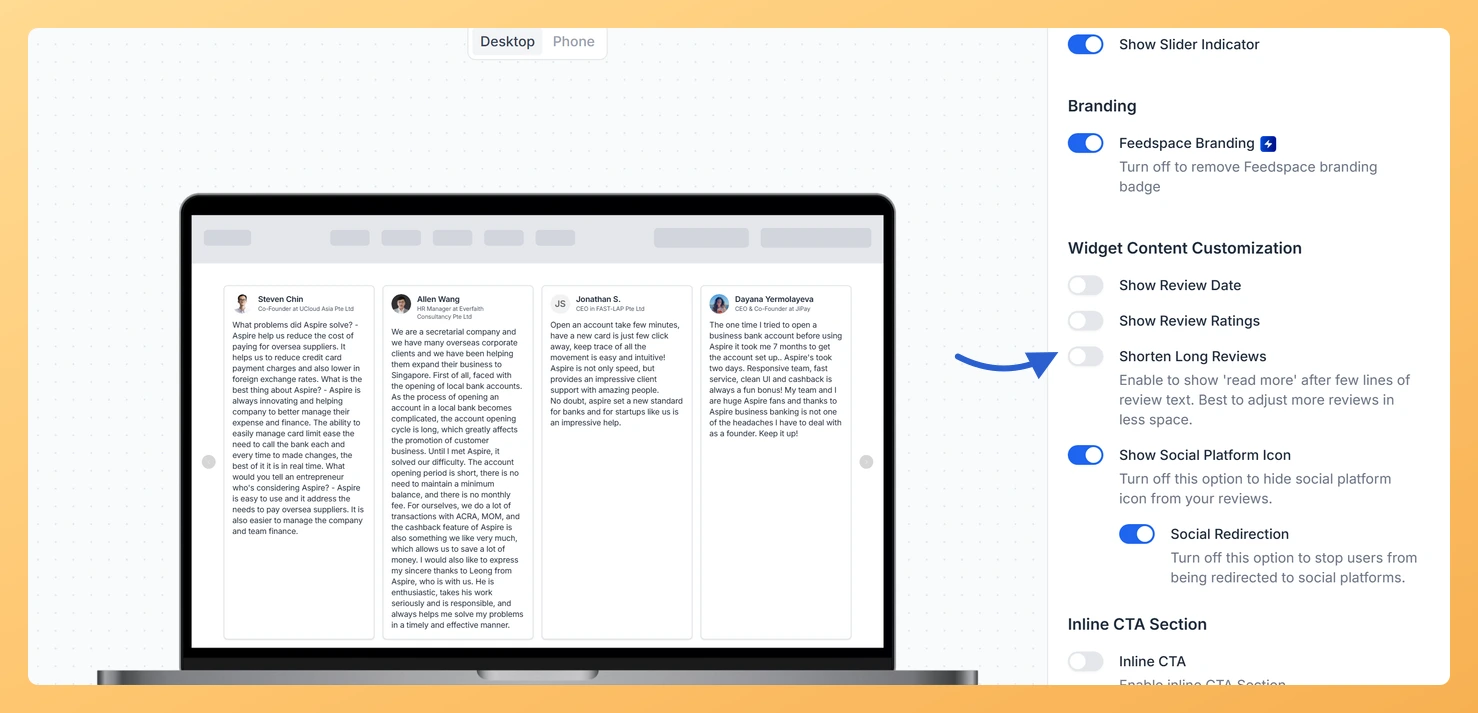
The Carousel widget displays your reviews as individual cards that slide horizontally, showing one or a few cards at a time before looping back to the beginning. Because the widget cycles through cards in a fixed viewport, a review with several long paragraphs of text can stretch a card vertically, break the visual rhythm of the carousel, and push star ratings and reviewer details far down the card where visitors may not notice them.
The Shorten Long Reviews toggle, found in the Widget Content Customization section of the Design tab, solves this by truncating lengthy review text after a few lines and appending a read more link. Every card in the carousel stays a consistent, readable height, the sliding animation feels polished and uniform, and visitors who want the whole thing can open it with a single click. Enabling this option is especially useful when your Carousel contains reviews imported from multiple sources that vary widely in length.
How to shorten long reviews on your Carousel widget
Step 1: Open the Widgets section
Log in to your Feedspace account. In the left sidebar, click Widgets to open the Widgets listing page, where all your saved widgets are displayed.
Step 2: Open your Carousel widget
Find the Carousel widget you want to update. Click the Edit button (or the pencil icon) next to that widget to open the widget editor.
Step 3: Go to the Design tab
Inside the widget editor, locate the tab bar at the top of the settings panel. Click the Design tab to switch from the Content settings to the Design settings for your Carousel widget.
Step 4: Find Widget Content Customization
Scroll down within the Design tab until you reach the Widget Content Customization section. This section groups together all the toggles that control which content elements appear on each review card in the carousel.
Step 5: Turn on Shorten Long Reviews
Inside the Widget Content Customization section, locate the Shorten Long Reviews toggle. Click the toggle to turn it on. When enabled, review text that exceeds a set number of lines will be truncated in the carousel card, and a Read More link appears on the card so visitors can open the full review. Click Save & Next to apply the change. The widget picks the change up wherever it is already embedded, so there is no need to paste the embed code again.
What’s next
Adjust other content toggles in the Widget Content Customization section, such as showing or hiding star ratings, to further refine how each carousel card looks.
Preview your Carousel widget after saving to confirm that all cards display at a consistent height and the read more link appears on longer reviews.
Refresh the page where the widget is embedded to confirm the read more link behaves the way you expect on your own site.
Explore the Design tab for additional carousel customization options, such as card background color, font style, and the number of cards visible at one time.
Common questions
Does this cut down the review itself?
No. It changes only how much text a card shows before the read more link. The full review is untouched in Feedbox, and visitors can open the rest on the card.
You might also find helpful
How Do I Show or Hide Star Ratings on My Carousel Widget in Feedspace?
Overview The Carousel widget in Feedspace displays your reviews as a continuously looping horizontal slideshow, showing one or a few review cards at a time as they slide into view. Each card is compact by design, so every element on the card competes for space. The Show Review Ratings toggle,...
How to Create a Carousel Widget in Feedspace
Overview The Carousel widget in Feedspace lets you display multiple reviews in a continuously sliding format. You can enable autoplay, customize speed, and fine-tune design elements such as border, background color, and text colors. It’s a great way to keep your testimonials engaging and visually dynamic. How to Access Step...
How Do I Customize the Design of My Widget in Feedspace?
Overview Feedspace widgets come with a powerful Design tab that lets you tailor every visual aspect of your widget. From card colors and fonts to dark mode and call-to-action buttons, you can fully customize the look to match your website’s brand without writing any code. How to Customize the Widget...