Feedspace Home Dashboard

How Do I Show or Hide Star Ratings on My Avatar Slider Widget in Feedspace?

Last updated on June 12, 2026

Overview

The Avatar Slider widget displays your testimonials in a sliding format that places each reviewer’s avatar prominently at the center of the card, with their review text and details arranged around it. Because the avatar and reviewer identity are the visual anchors of each slide, the star rating sits as a secondary trust signal beneath the review text.

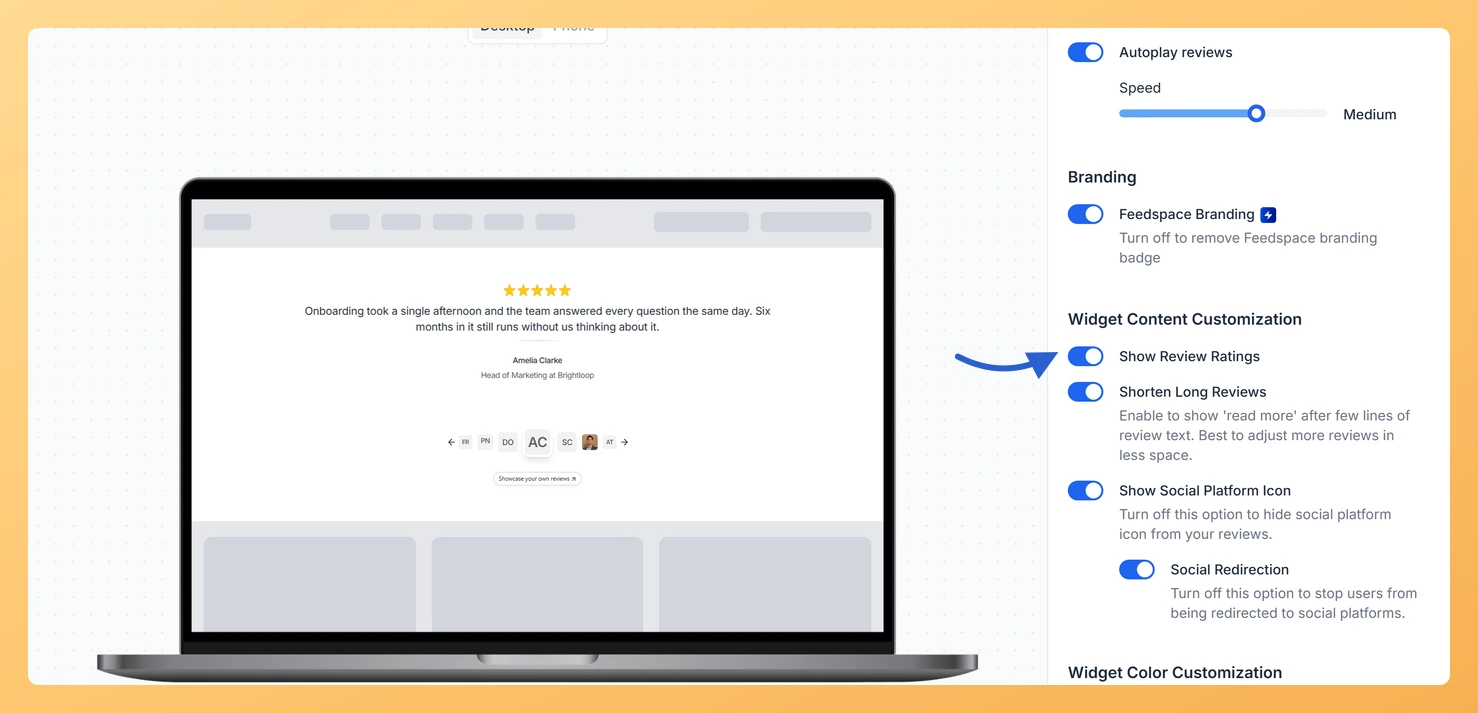
The Show Review Ratings toggle, found in the Widget Content Customization section of the Design tab, gives you direct control over whether those star ratings are visible on each card. When the toggle is on, a star rating row appears on every slide alongside the reviewer’s name and testimonial. When the toggle is off, each card shows only the review text and reviewer information, keeping the layout clean and uncluttered. This is useful when you want the Avatar Slider to emphasise the human voice behind each review rather than a numerical score, or when some of your collected testimonials do not include a rating and you want a consistent appearance across all slides.

How to Show or Hide Star Ratings for Your Avatar Slider Widget

Step 1: Open the Widgets Section

Log in to your Feedspace account. In the left-hand navigation, click Widgets to open your list of existing widgets.

Step 2: Edit Your Avatar Slider Widget

Find the Avatar Slider widget you want to update. Click the Edit icon or the widget name to open the widget editor.

Step 3: Go to the Design Tab

Inside the widget editor, click the Design tab at the top of the settings panel. This tab contains all visual and layout options for your Avatar Slider widget.

Step 4: Find the Widget Content Customization Section

Scroll down within the Design tab until you reach the Widget Content Customization section. This section groups the toggles that control which content elements appear on each slide of the Avatar Slider.

Step 5: Toggle the Show Review Ratings Option

Locate the Show Review Ratings toggle within the Widget Content Customization section. Click the toggle to turn it on or off:

  • Toggle on: A star rating row will appear on each slide of the Avatar Slider, displayed alongside the reviewer’s name and testimonial text.
  • Toggle off: Star ratings are hidden from all slides, and each card shows only the review text and reviewer information.

Step 6: Save and Preview Your Widget

After setting the toggle to your preferred state, click Save to apply the changes. Use the widget preview to confirm that star ratings appear or are hidden on each slide as expected before publishing the widget on your site.

What You Can Do Next

  • Change the color of the star ratings displayed on your Avatar Slider slides to match your brand palette using the star rating color option in the Design tab.
  • Adjust other content elements in the Widget Content Customization section, such as reviewer name or company, to further refine what each Avatar Slider card shows.
  • Embed the updated Avatar Slider widget on your website or landing page to start displaying your refined testimonial layout to visitors.
  • Create additional Avatar Slider widgets with different content settings to test which combination of review text, avatar, and star ratings drives the most engagement on your pages.

You might also find helpful

How Do I Change the Star Rating Color on My Avatar Slider Widget in Feedspace?

Overview The Avatar Slider widget displays each testimonial one at a time in a sliding format, placing the reviewer’s avatar image prominently at the center of the card alongside their name, role, and review text. Because the avatar and star rating appear together as the visual focal point of each...

How to Create an Avatar Slider Widget in Feedspace

Overview The Avatar Slider widget in Feedspace displays one review at a time with a reviewer’s avatar, name, and feedback. It includes smooth sliding transitions and navigation arrows for switching between reviews. This layout is ideal for minimal testimonial sections that highlight one review prominently. How to Access Step 1...

How Do I Customize the Design of My Widget in Feedspace?

Overview Feedspace widgets come with a powerful Design tab that lets you tailor every visual aspect of your widget. From card colors and fonts to dark mode and call-to-action buttons, you can fully customize the look to match your website’s brand without writing any code. How to Customize the Widget...