Feedspace Home Dashboard

How Do I Show the Social Platform Icon on My Avatar Slider Widget in Feedspace?

Last updated on June 12, 2026

Overview

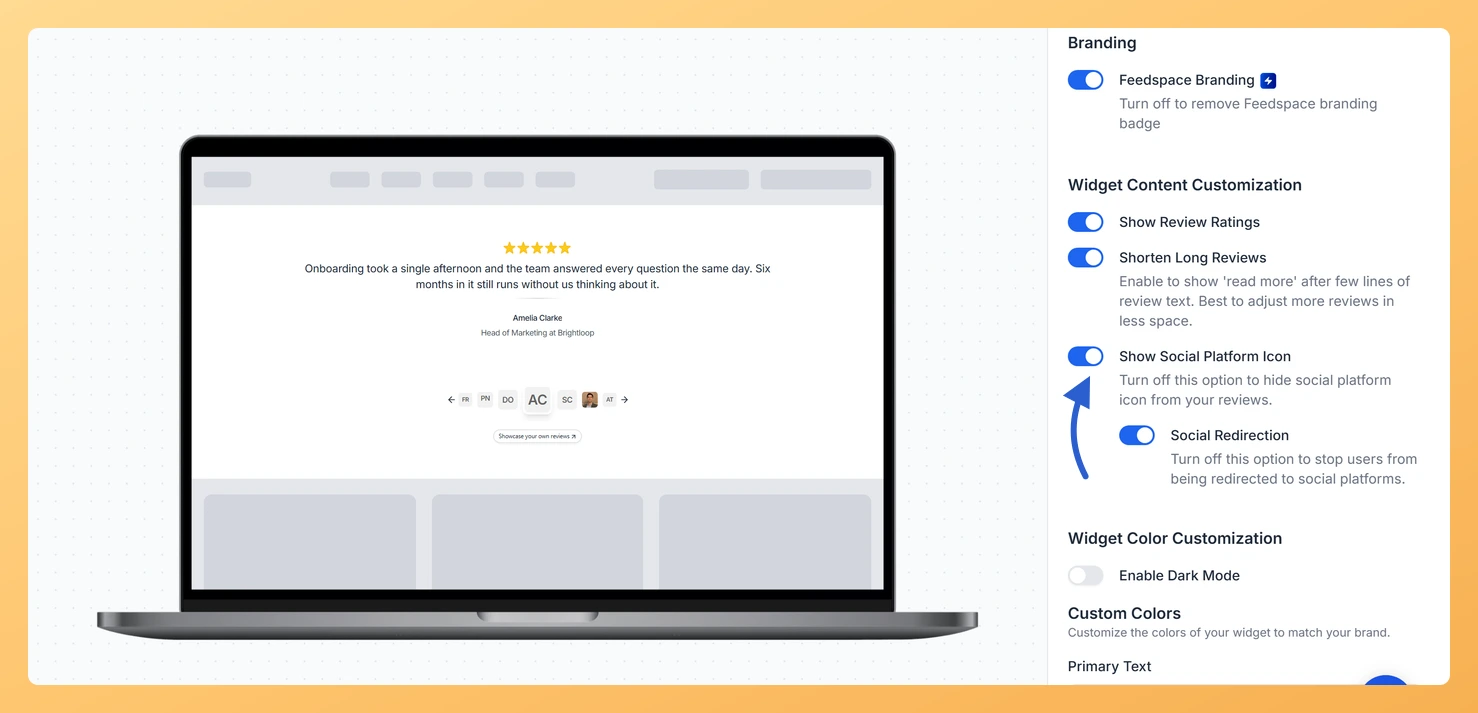
The Avatar Slider widget presents each testimonial as a focused slide, placing the reviewer’s avatar prominently at the centre and their review text directly beneath it. Because the avatar and the text together fill most of the visible card, visitors immediately connect the words with the person who wrote them. The Show Social Platform Icon toggle, found in the Widget Content Customization section of the Design tab, adds the logo of the originating platform, for example Google, Trustpilot, or Facebook, to each slide. This gives every testimonial an instant credibility signal by showing where the review came from, without cluttering the avatar-centred layout.

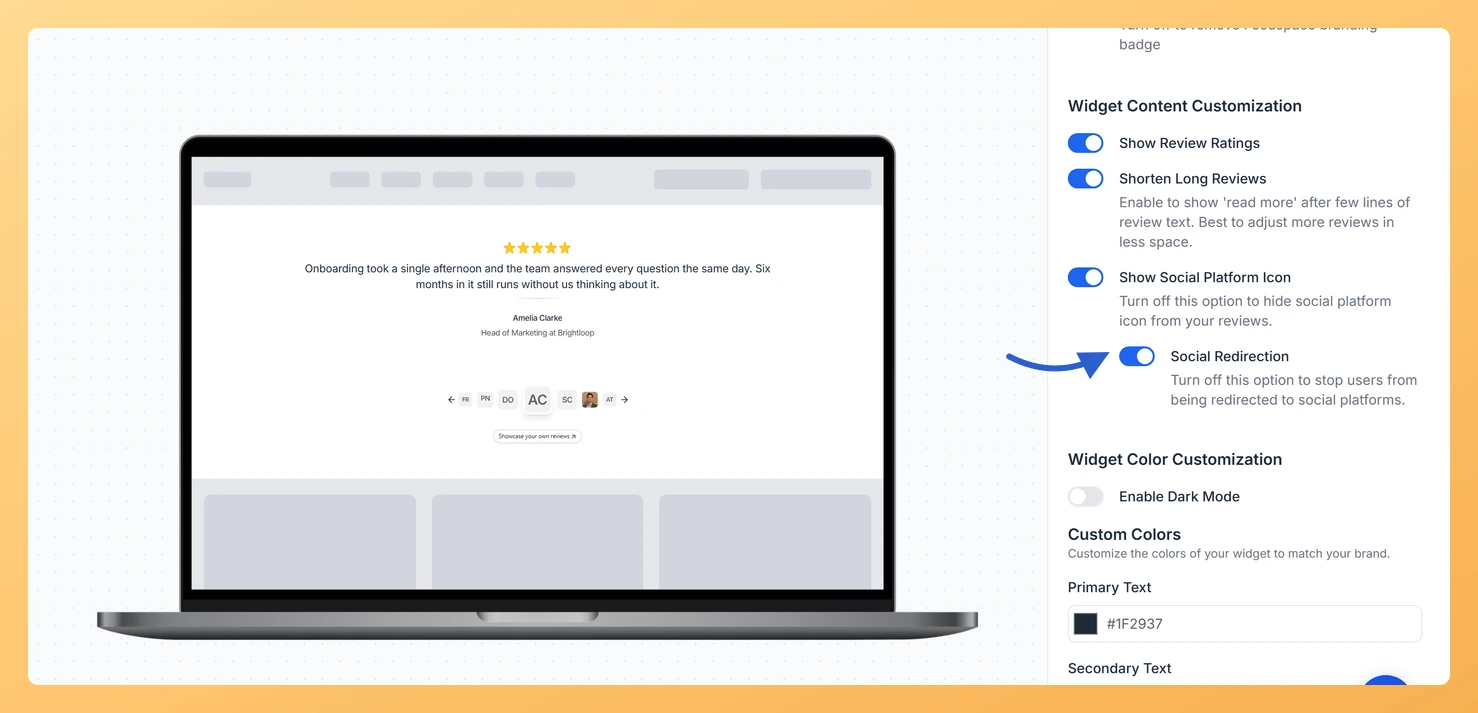
When you enable Show Social Platform Icon, a nested Social Redirection toggle becomes available. Turning on Social Redirection makes the platform icon a clickable link that takes visitors directly to the original review on the source platform. This combination lets you display authentic, source-verified testimonials in the Avatar Slider while giving curious visitors a path to confirm the review themselves.

How to Show the Social Platform Icon for Your Avatar Slider Widget

Step 1: Open the Widgets Section

Log in to your Feedspace account. In the left-hand navigation, click Widgets to open the list of all widgets you have created.

Step 2: Edit Your Avatar Slider Widget

Find your Avatar Slider widget in the list and click the Edit button next to it. The widget editor will open, showing all configuration options for that widget.

Step 3: Go to the Design Tab

Inside the widget editor, click the Design tab at the top of the panel. This tab contains all visual and layout options for the widget, including the Widget Content Customization section.

Step 4: Find the Widget Content Customization Section

Scroll down within the Design tab until you reach the Widget Content Customization section. This section groups the toggles that control which elements appear on each slide of the Avatar Slider, including star ratings, reviewer details, and platform icons.

Step 5: Enable the Show Social Platform Icon Toggle

Locate the Show Social Platform Icon toggle and switch it on. Once enabled, the logo of the platform each review came from will appear on its corresponding slide in the Avatar Slider. The icon is placed to complement the avatar-centred layout without obscuring the reviewer’s photo or testimonial text.

Step 6: Optionally Enable Social Redirection

After turning on Show Social Platform Icon, a nested Social Redirection toggle will appear beneath it. If you want visitors to be able to click the platform icon and be taken to the original review on that platform, switch Social Redirection on as well. If you prefer to display the icon as a visual indicator only, leave Social Redirection off.

Step 7: Save and Preview Your Widget

Click Save to apply your changes. Use the preview option to check how the platform icon looks on each slide of your Avatar Slider. Confirm that the icon appears correctly alongside the avatar and testimonial text, and if Social Redirection is on, verify that clicking the icon opens the correct source URL.

What You Can Do Next

  • Enable the star ratings display on your Avatar Slider so each slide shows both the platform icon and the reviewer’s rating together for maximum social proof.
  • Copy the updated embed code from the widget editor and paste it into your website to publish the Avatar Slider with platform icons live for visitors.
  • Review which platforms your imported testimonials come from and add more reviews from high-trust sources like Google or Trustpilot to strengthen the icon display.
  • Explore the other design options in the Widget Content Customization section to further tailor what appears on each Avatar Slider slide, such as reviewer name, date, or custom badge.

You might also find helpful

How Do I Show or Hide Star Ratings on My Avatar Slider Widget in Feedspace?

Overview The Avatar Slider widget displays your testimonials in a sliding format that places each reviewer’s avatar prominently at the center of the card, with their review text and details arranged around it. Because the avatar and reviewer identity are the visual anchors of each slide, the star rating sits...

How to Create an Avatar Slider Widget in Feedspace

Overview The Avatar Slider widget in Feedspace displays one review at a time with a reviewer’s avatar, name, and feedback. It includes smooth sliding transitions and navigation arrows for switching between reviews. This layout is ideal for minimal testimonial sections that highlight one review prominently. How to Access Step 1...

How Do I Customize the Design of My Widget in Feedspace?

Overview Feedspace widgets come with a powerful Design tab that lets you tailor every visual aspect of your widget. From card colors and fonts to dark mode and call-to-action buttons, you can fully customize the look to match your website’s brand without writing any code. How to Customize the Widget...