
Feedspace Home Dashboard

How Do I Show or Hide Star Ratings on My Strip Slider Widget in Feedspace?

Last updated on June 12, 2026

Overview

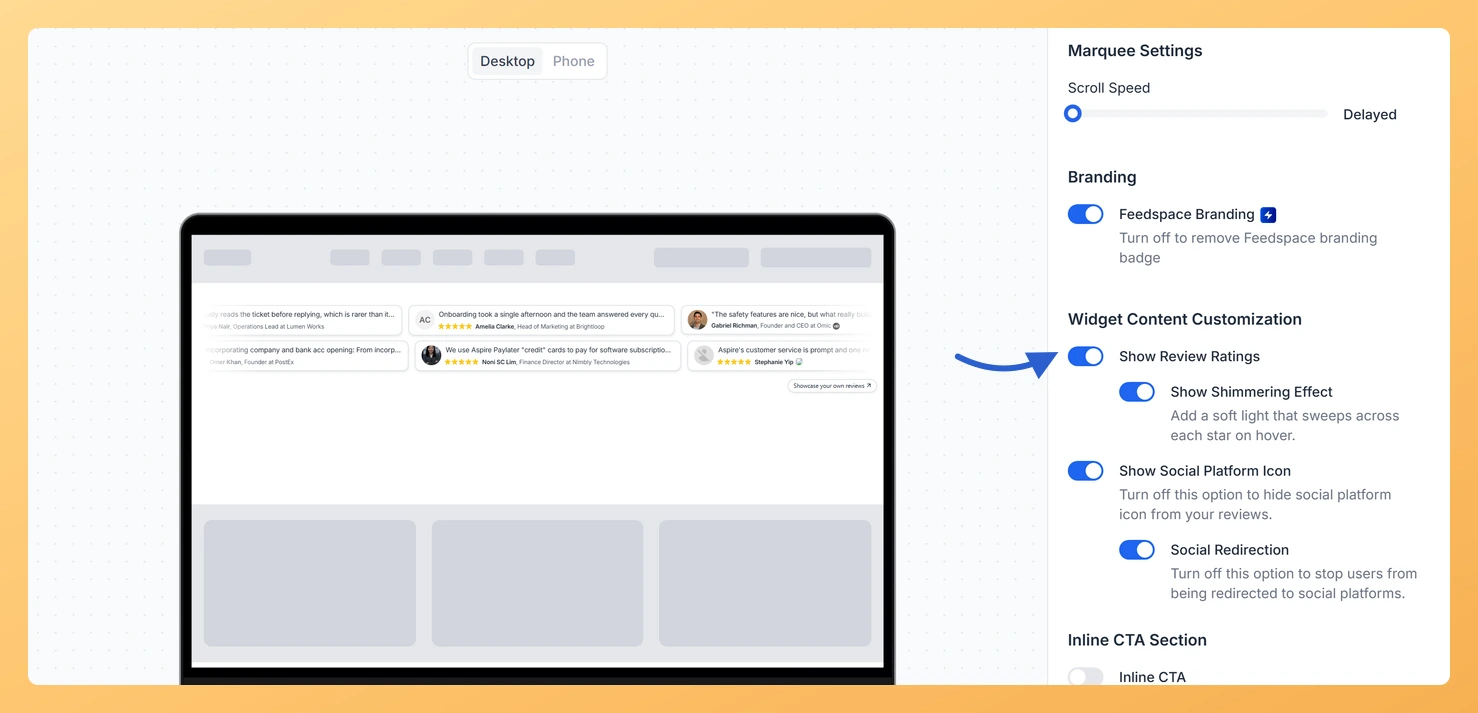
The Strip Slider widget displays your reviews as compact horizontal cards that scroll continuously across the page, giving visitors a live, glanceable stream of social proof. Because each card is small and moves at a steady pace, every element you include competes for limited space and attention. The Show Review Ratings toggle, found in the Widget Content Customization section of the Design tab, lets you decide whether star ratings appear on each scrolling card. When the toggle is on, a star rating is shown beneath or alongside the review text and reviewer name on every card. When it is off, only the review text and reviewer information are displayed, giving each card a cleaner, more text-focused look. Choosing the right setting lets you match the widget to your page design and decide whether the visual weight of star icons adds credibility or simply adds clutter to your scrolling strip.

How to Show or Hide Star Ratings for Your Strip Slider Widget

Step 1: Open the Widgets Section

Log in to your Feedspace account and navigate to the Widgets section from the main sidebar menu. You will see a list of all the widgets you have created for your workspace.

Step 2: Edit Your Strip Slider Widget

Locate the Strip Slider widget you want to update and click the Edit button or its name to open the widget editor. If you have not created a Strip Slider widget yet, create one first and then return to these steps.

Step 3: Go to the Design Tab

Inside the widget editor, click the Design tab at the top of the editor panel. This tab contains all visual and layout customization options for your Strip Slider widget.

Step 4: Find the Widget Content Customization Section

Scroll down within the Design tab until you reach the Widget Content Customization section. This section groups all the toggles that control which pieces of review content appear on each scrolling card in your strip.

Step 5: Configure the Show Review Ratings Toggle

Locate the Show Review Ratings toggle within the Widget Content Customization section. Click the toggle to turn it on or off based on your preference:

  • Toggle on: Star ratings are displayed on each review card as it scrolls across the strip, helping visitors quickly see the rating level alongside the review text.
  • Toggle off: Star ratings are hidden from each card, showing only the review text and reviewer information for a cleaner, more minimal strip appearance.

After adjusting the toggle, your live preview will update immediately so you can see exactly how your Strip Slider cards will look with or without star ratings before saving.

Step 6: Save Your Changes

Once you are satisfied with how your Strip Slider looks in the preview, click the Save button to apply your changes. Your embedded Strip Slider widget will update automatically on any page where it is already published.

What You Can Do Next

  • Change the star rating color on your Strip Slider to match your brand palette using the rating color option in the Design tab.
  • Adjust the scroll speed and direction of your Strip Slider to control how quickly review cards move across the page for visitors.
  • Toggle other content options in the Widget Content Customization section, such as reviewer name or profile photo, to refine what each scrolling card displays.
  • Copy the embed code for your updated Strip Slider widget and paste it into your website or landing page to publish the new design live.

You might also find helpful

How Do I Change the Star Rating Color on My Strip Slider Widget in Feedspace?

Overview The Strip Slider widget displays your reviews as a compact horizontal row of cards that scrolls continuously across the page. Because star ratings appear prominently inside each scrolling card, their color has a direct impact on how the widget looks as it moves across your site. Two color pickers...

How to Create a Strip Slider Widget in Feedspace

Overview The Strip Slider widget in Feedspace allows you to showcase your reviews in a single, horizontally scrolling line: perfect for website headers, footers, or testimonial sections that need a minimalist design. You can adjust autoplay speed, borders, and colors to match your brand style. How to Access Step 1...

How Do I Customize the Design of My Widget in Feedspace?

Overview Feedspace widgets come with a powerful Design tab that lets you tailor every visual aspect of your widget. From card colors and fonts to dark mode and call-to-action buttons, you can fully customize the look to match your website’s brand without writing any code. How to Customize the Widget...