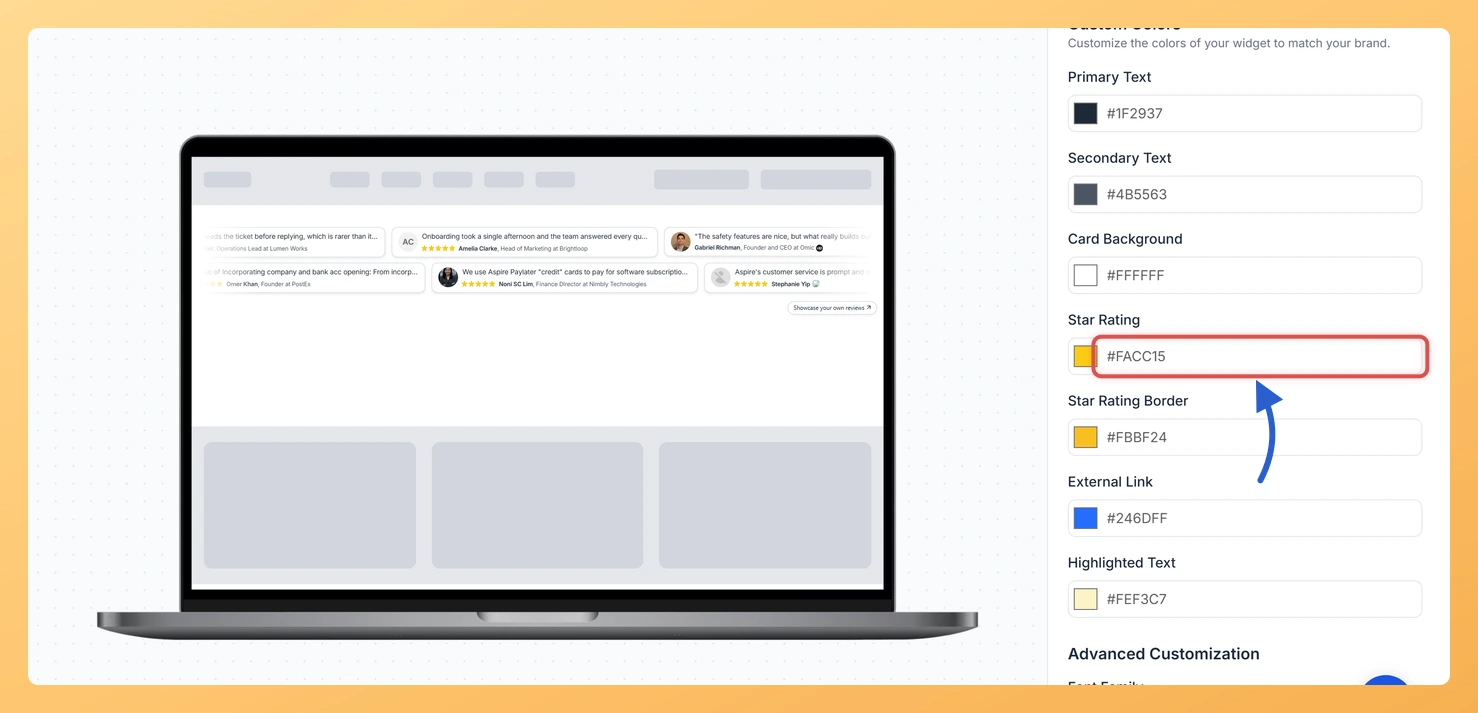
Each review card on a Strip Slider widget in Feedspace shows the reviewer’s star rating. Two color pickers control how those stars look: Star Rating sets the fill color of the stars, and Star Rating Border sets the color of their outline.
Gold stars are what most people expect. If your brand leans on a single strong color, say a teal or a deep blue, switching the stars to that color makes the strip feel designed for your site, while a gold outline around brand-colored stars keeps them recognisable as ratings.
Steps to change the star rating color
Step 1: Go to Widgets
Pick Widgets in the dashboard sidebar to bring up your widget cards.
Step 2: Click Edit on the Strip Slider
Select the Edit (pencil) icon on the card of the Strip Slider whose stars you want to recolor.
Step 3: Find Custom Colors on the Design tab
Click the Design tab and scroll the settings panel to Custom Colors under Widget Color Customization.
Step 4: Set the star colors
Star Rating: click the swatch, or type a hex code into the box beside it, to change the fill color of the stars.
Star Rating Border: set the outline color the same way. Use the same color as the fill for solid-looking stars, or a darker shade to give them an edge.
The stars in the preview change as you pick each color.
I changed the star color but no stars show in the preview. Why?
The stars themselves are switched off. Scroll up to Widget Content Customization and turn on Show Review Ratings; your colors will then apply.
Where did the star color pickers go?
They are hidden while Enable Dark Mode is on, since dark mode uses its own palette. Turn dark mode off to set the star colors yourself.
You might also find helpful
How Do I Show or Hide Star Ratings on My Strip Slider Widget in Feedspace?
Overview The Show Review Ratings toggle on a Strip Slider widget in Feedspace decides whether each review card shows its star rating. With it on, the stars sit beside the reviewer’s name; with it off, each card shows just the review and the reviewer. A row of five-star cards is...
How to Create a Strip Slider Widget in Feedspace
Overview The Strip Slider widget in Feedspace allows you to showcase your reviews in a single, horizontally scrolling line: perfect for website headers, footers, or testimonial sections that need a minimalist design. You can adjust autoplay speed, borders, and colors to match your brand style. How to Access Step 1...
How Do I Customize the Design of My Widget in Feedspace?
Overview Feedspace widgets come with a powerful Design tab that lets you tailor every visual aspect of your widget. From card colors and fonts to dark mode and call-to-action buttons, you can fully customize the look to match your website’s brand without writing any code. How to Customize the Widget...