
Feedspace Home Dashboard

How Do I Show or Hide Star Ratings on My Vertical Scroll Widget in Feedspace?

Last updated on June 12, 2026

Overview

The Vertical Scroll widget displays your review cards in a continuously looping vertical feed, cycling through each review one after another in a seamless, animated stream. Because each card moves through the feed in sequence, the visual weight of every element on the card directly affects how clean and readable the overall flow appears to visitors.

The Show Review Ratings toggle, found in the Widget Content Customization section of the Design tab, controls whether star ratings are shown on each review card as it scrolls through the feed. When the toggle is on, a star rating appears on every card alongside the review text and reviewer information. When the toggle is off, the star rating is hidden, leaving only the review text and reviewer details, which gives the feed a more text-focused, minimal appearance.

Enabling star ratings adds immediate social proof to each card as it passes through the feed, helping visitors assess review quality at a glance without needing to read the full text. Hiding them keeps the feed compact and consistent, which works well when all your reviews already carry high ratings and the ratings themselves add less new information than the review text.

How to Show or Hide Star Ratings on Your Vertical Scroll Widget

Step 1: Open the Widgets Section

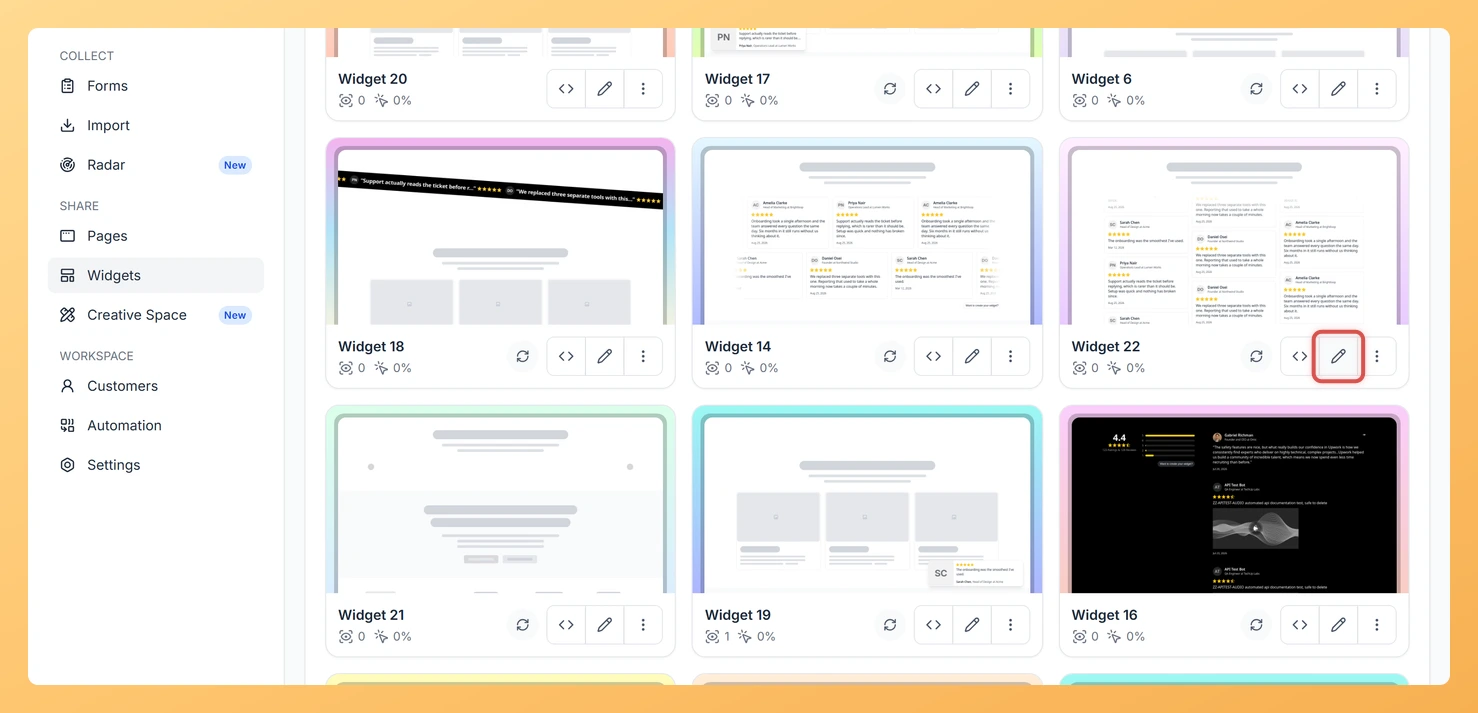
Log in to your Feedspace account. From the left-hand navigation, click Widgets to open your list of saved widgets.

Step 2: Edit Your Vertical Scroll Widget

Locate the Vertical Scroll widget you want to update. Click the Edit button (or the pencil icon) next to that widget to open the widget editor.

Step 3: Go to the Design Tab

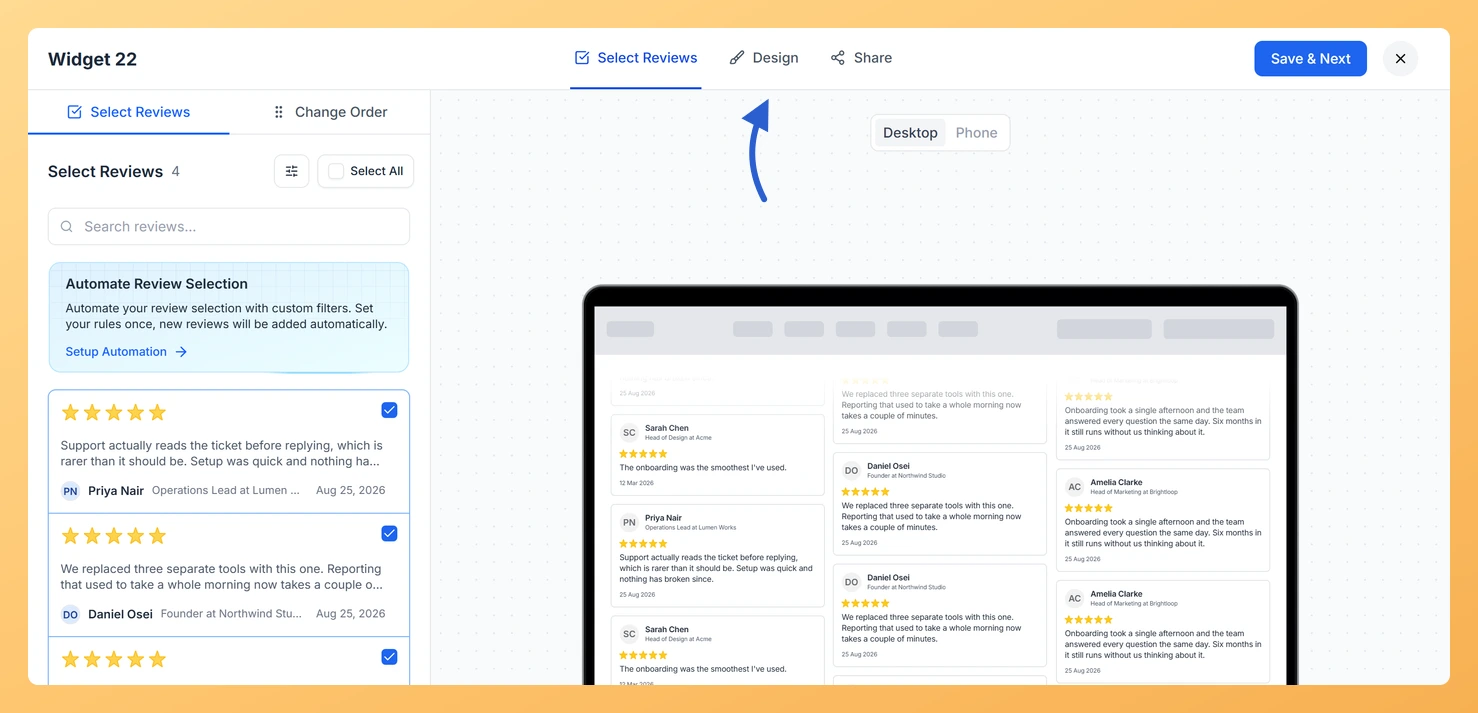
Inside the widget editor, click the Design tab. This tab contains all visual customization options for your Vertical Scroll widget, including layout, colors, and content display settings.

Step 4: Find the Widget Content Customization Section

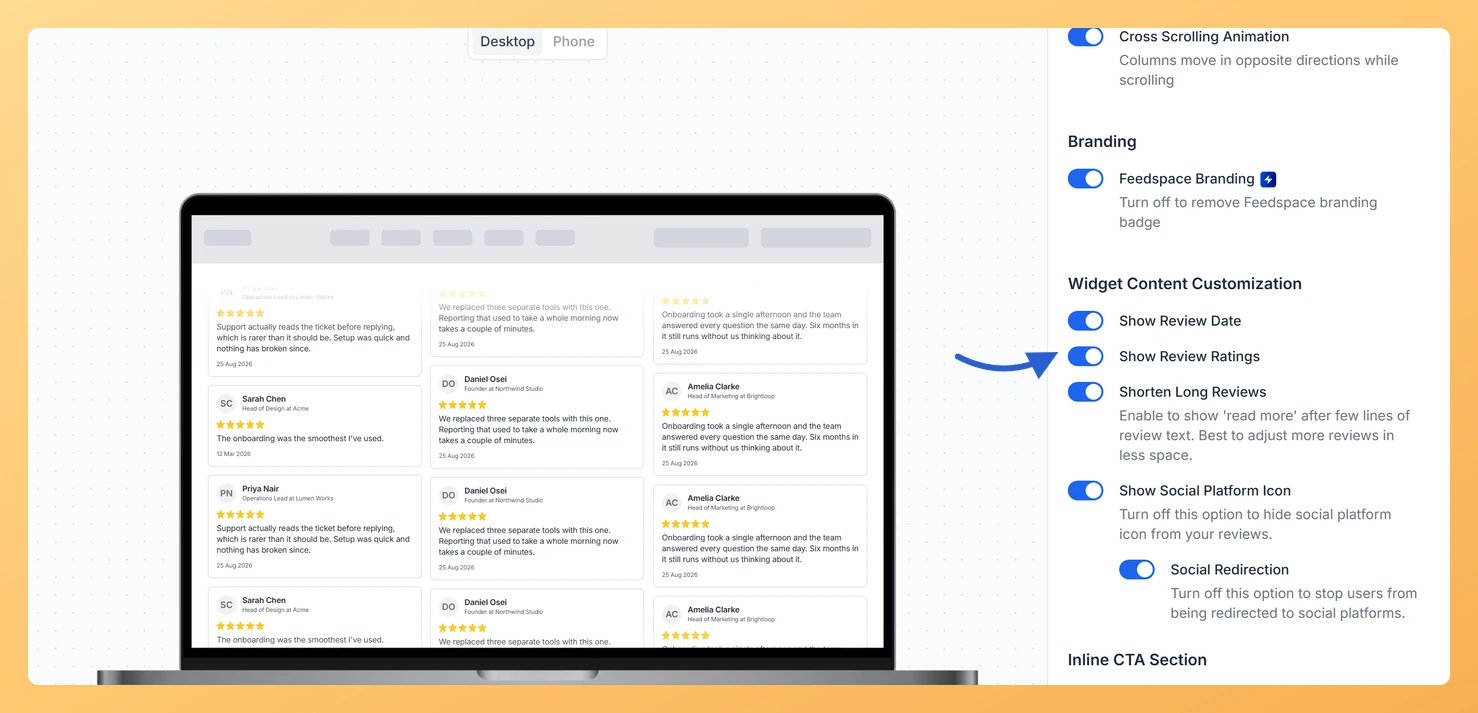
Scroll down within the Design tab until you reach the Widget Content Customization section. This section groups all options that control which pieces of information appear on each review card in the feed.

Step 5: Toggle Show Review Ratings On or Off

Find the Show Review Ratings toggle within the Widget Content Customization section. Click the toggle to switch it on if you want star ratings to appear on each card as it scrolls through the feed, or switch it off to hide the star ratings and show only the review text and reviewer information. Your widget preview updates immediately so you can see the effect before saving.

Step 6: Save Your Changes

Once you are satisfied with the result in the preview, click Save to apply the change. The updated setting will be reflected immediately on any page or embed where your Vertical Scroll widget is already published.

What You Can Do Next

  • Change the star rating color on your Vertical Scroll widget to match your brand palette so the ratings stand out clearly against the scrolling cards.
  • Adjust the scroll speed and card spacing in the Design tab to find the right pacing for your feed now that ratings are visible or hidden.
  • Filter which reviews appear in the feed by rating threshold so that only your highest-rated reviews scroll through, making the star display even more impactful.
  • Embed the updated Vertical Scroll widget on a landing page or product page to start collecting social proof with the new card layout live for visitors.

You might also find helpful

How Do I Change the Star Rating Color on My Vertical Scroll Widget in Feedspace?

Overview The Vertical Scroll widget displays your review cards in a continuously looping vertical feed, keeping testimonials visible and in motion on your page. Because the widget stacks cards in a tight column and scrolls them past the viewer one after another, the star rating icons appear prominently on every...

How to Create a Vertical Scroll Widget in Feedspace

Overview The Vertical Scroll widget in Feedspace displays reviews in a continuous upward-scrolling format. It’s ideal for pages with limited horizontal space, such as sidebars, landing pages, or testimonials sections. You can enable cross-scrolling animations, customize borders, and adjust colors to match your brand. How to Access Step 1 –...

How Do I Customize the Design of My Widget in Feedspace?

Overview Feedspace widgets come with a powerful Design tab that lets you tailor every visual aspect of your widget. From card colors and fonts to dark mode and call-to-action buttons, you can fully customize the look to match your website’s brand without writing any code. How to Customize the Widget...