The Vertical Scroll widget moves columns of review cards up and down your page. When your reviews are imported from other platforms, the small platform icon on each card tells visitors where that review came from, which adds weight to it.
Show Social Platform Icon in the Widget Content Customization section turns that icon on or off. With it on, a second toggle, Social Redirection, decides whether clicking a review sends the visitor to the original post.
How to show the social platform icon on your Vertical Scroll widget
Step 1: Find your widgets
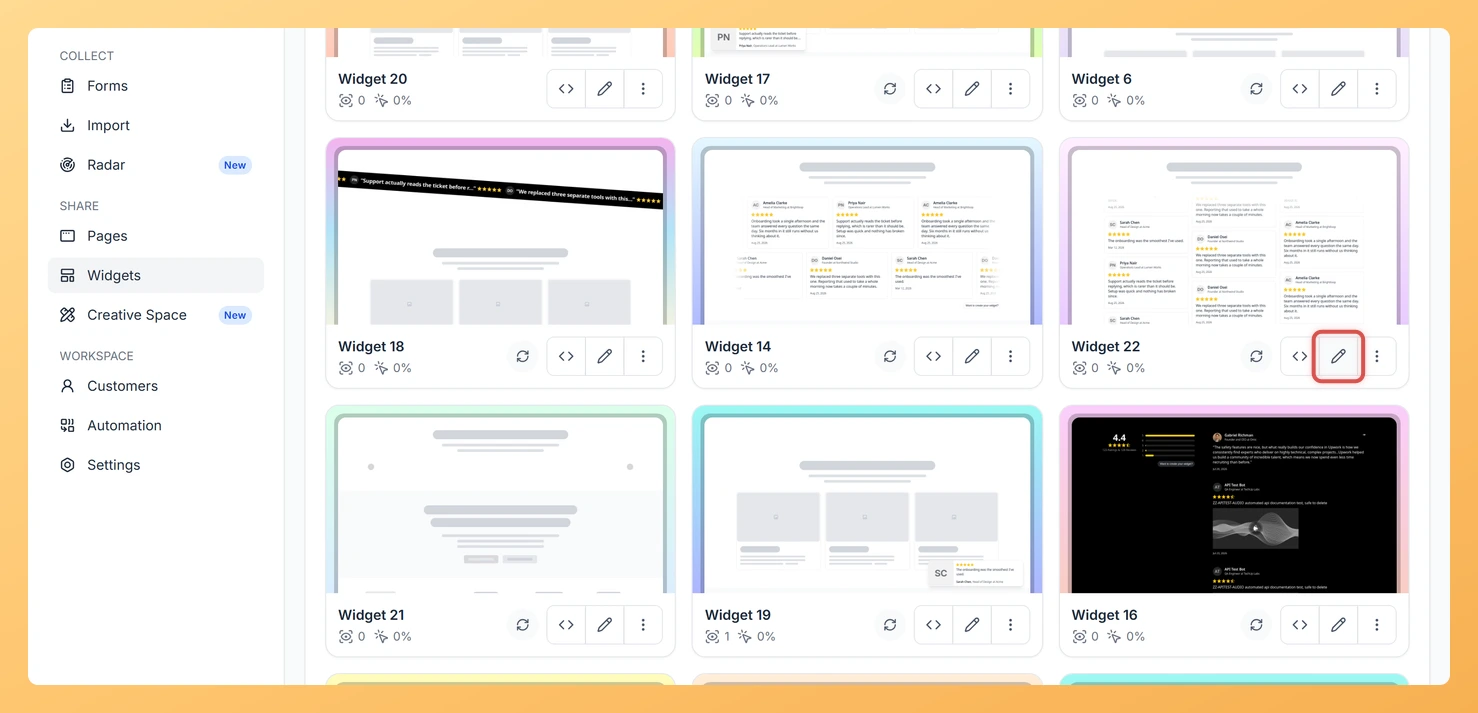
In Feedspace, choose Widgets from the left-hand sidebar.
Step 2: Open the editor
Locate the Vertical Scroll widget and use the Edit (pencil) icon on its card.
Step 3: Select Design
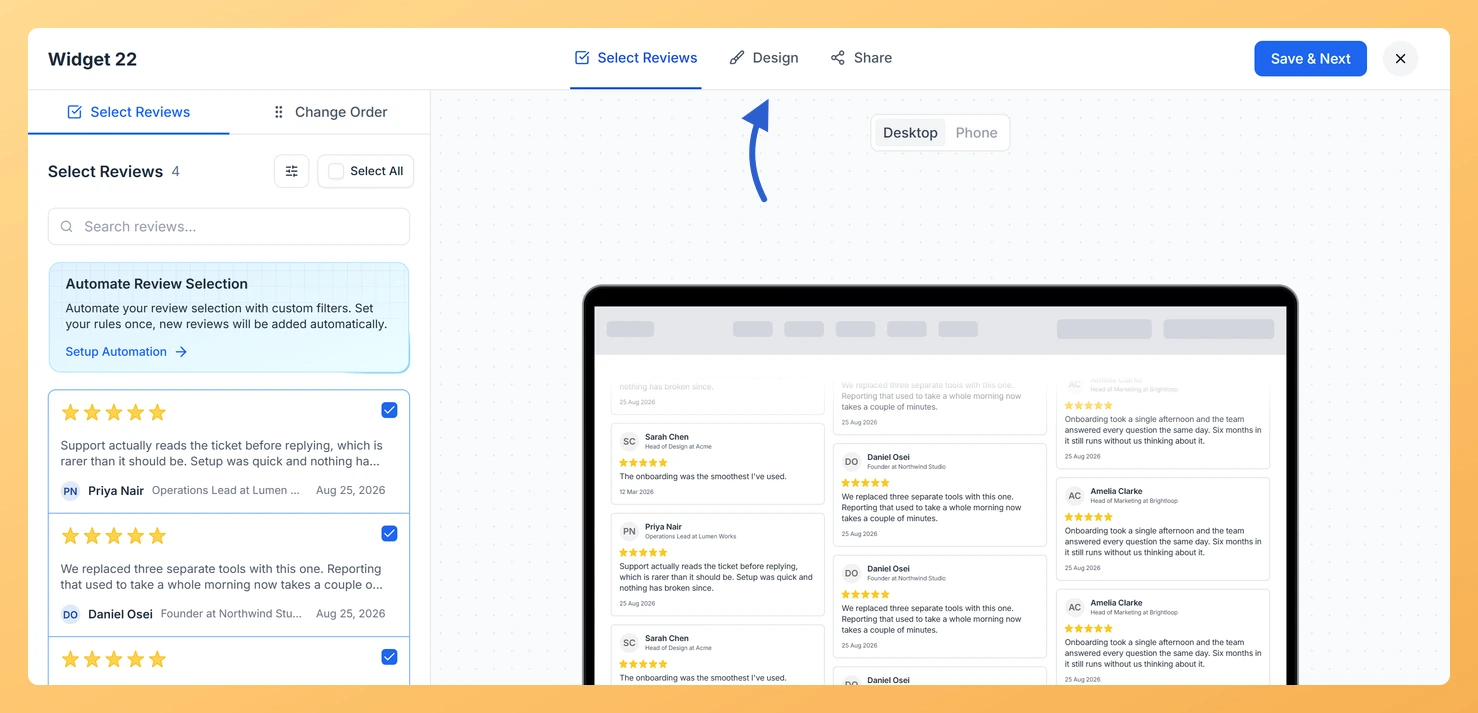
At the top of the editor, select Design.
Step 4: Open Widget Content Customization
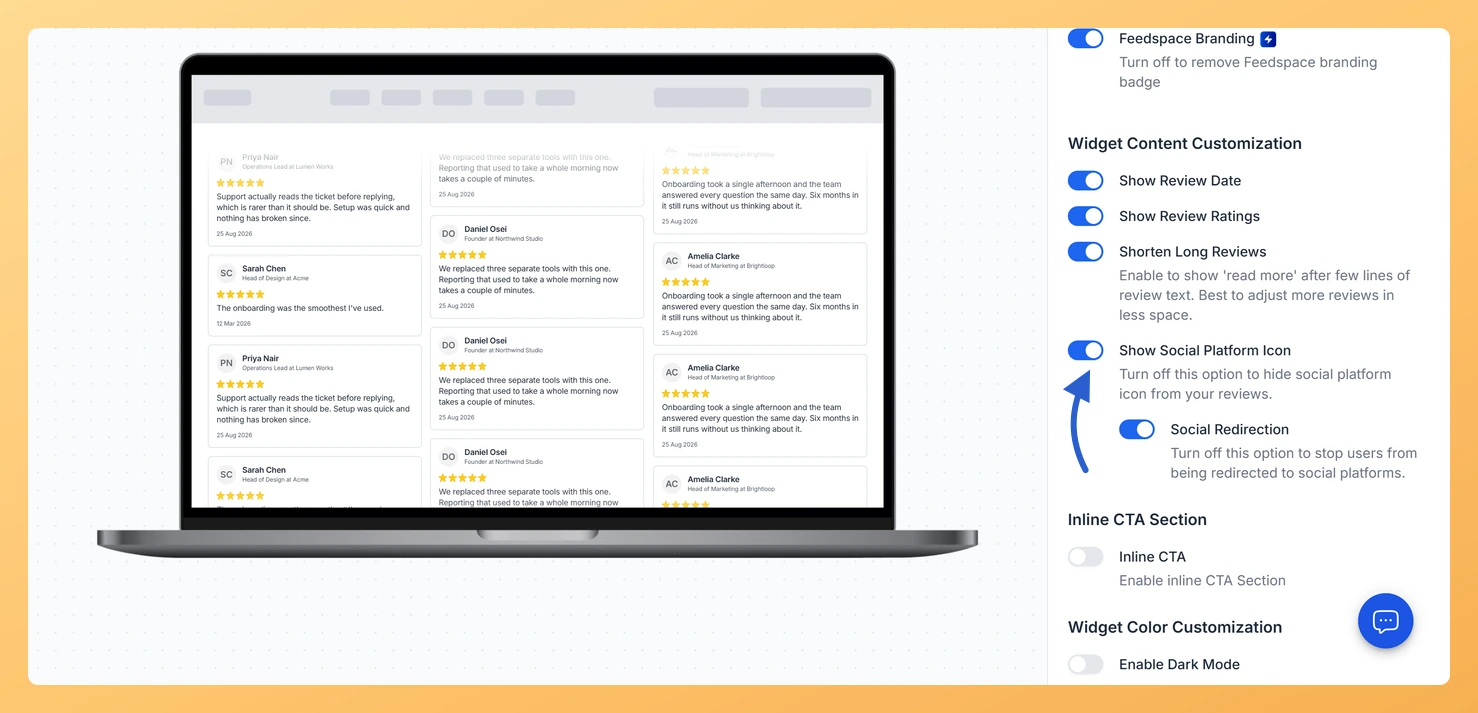
Scroll down the panel on the right to the Widget Content Customization section.
Step 5: Turn on Show Social Platform Icon
Switch on Show Social Platform Icon. Its description reads “Turn off this option to hide social platform icon from your reviews.”
Step 6: Choose whether clicks open the source
With the icon on, Social Redirection appears below it. Leave it on to send visitors to the original post, or turn it off to keep them on your page.
Step 7: Save the widget
Press Save & Next to save. Your embedded widget shows the update the next time the page loads.
Switch the preview between Desktop and Phone to see the icon at both sizes.
Common questions
Which icon shows on a review collected through a Feedspace form?
The icon marks the platform a review was imported from, so reviews you collected with your own form have no platform to show.
You might also find helpful
How Do I Show or Hide Star Ratings on My Vertical Scroll Widget in Feedspace?
Overview The Vertical Scroll widget moves columns of review cards up and down your page. Star ratings give visitors a quick read on each review, though on a page that already carries a rating summary they can start to feel repeated. The Show Review Ratings toggle in the Widget Content...
How to Create a Vertical Scroll Widget in Feedspace
Overview The Vertical Scroll widget in Feedspace displays reviews in a continuous upward-scrolling format. It’s ideal for pages with limited horizontal space, such as sidebars, landing pages, or testimonials sections. You can enable cross-scrolling animations, customize borders, and adjust colors to match your brand. How to Access Step 1 –...
How Do I Customize the Design of My Widget in Feedspace?
Overview Every Feedspace widget has a Design tab where you decide how it looks on your site: colors, font, card borders and shadows, what each review card shows, and an optional call-to-action card. Each change appears in the live preview as you make it. A common case: you embed a...