The Carousel widget displays your reviews as a horizontal sliding sequence, showing one or a few cards at a time and looping continuously. Because the Carousel hides most reviews off-screen at any given moment, visitors have no way of knowing how many reviews exist or where they are in the sequence unless you give them a visual reference.
The Show Slider Indicator toggle in the Widget Design Settings solves this by rendering a row of dot indicators below the carousel. Each dot represents one review in your collection. The dot that corresponds to the currently visible card is highlighted, so visitors always know their position. Clicking any dot jumps directly to that review, turning passive browsing into active navigation. Enabling this option increases transparency, encourages visitors to explore more reviews, and gives your carousel a polished, professional feel.
How to show slide indicators on your Carousel widget
Step 1: Open the Widgets section
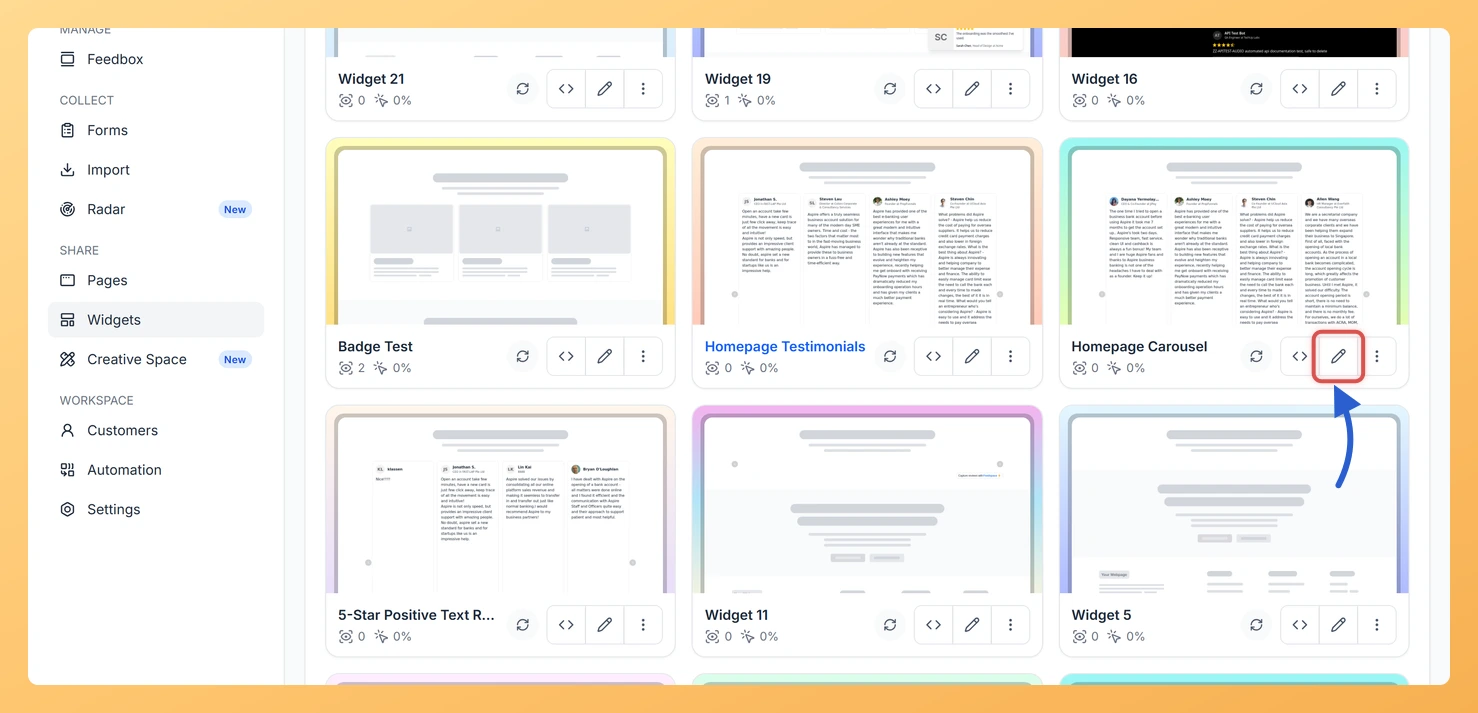
Log in to your Feedspace account. In the left-hand navigation, click Widgets to open the list of all widgets you have created.
Step 2: Open your Carousel widget
Find your Carousel widget in the list. Click the Edit (pencil) icon on the widget card to open the widget editor.
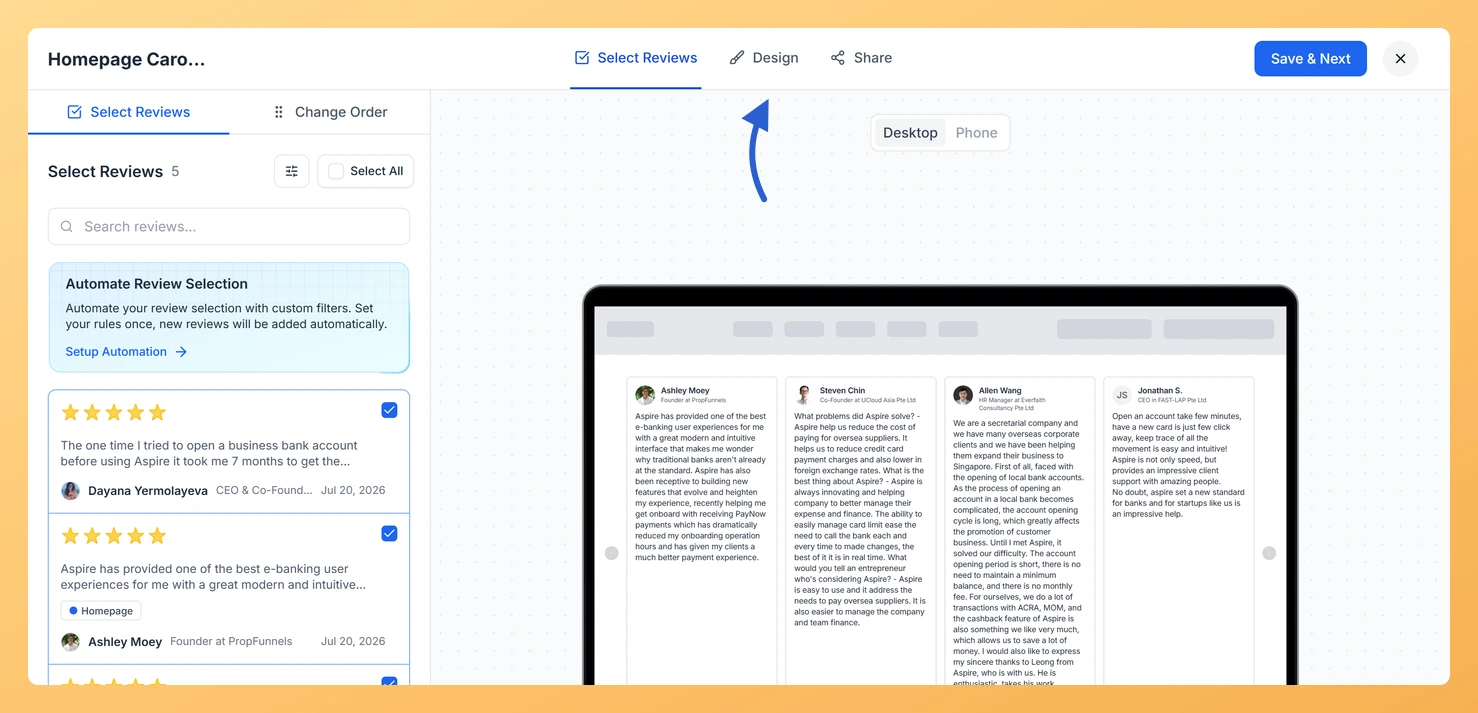
Step 3: Go to the Design tab
Inside the widget editor, click the Design tab. This tab contains all visual and layout settings for your Carousel widget, including spacing, colors, card appearance, and slider controls.
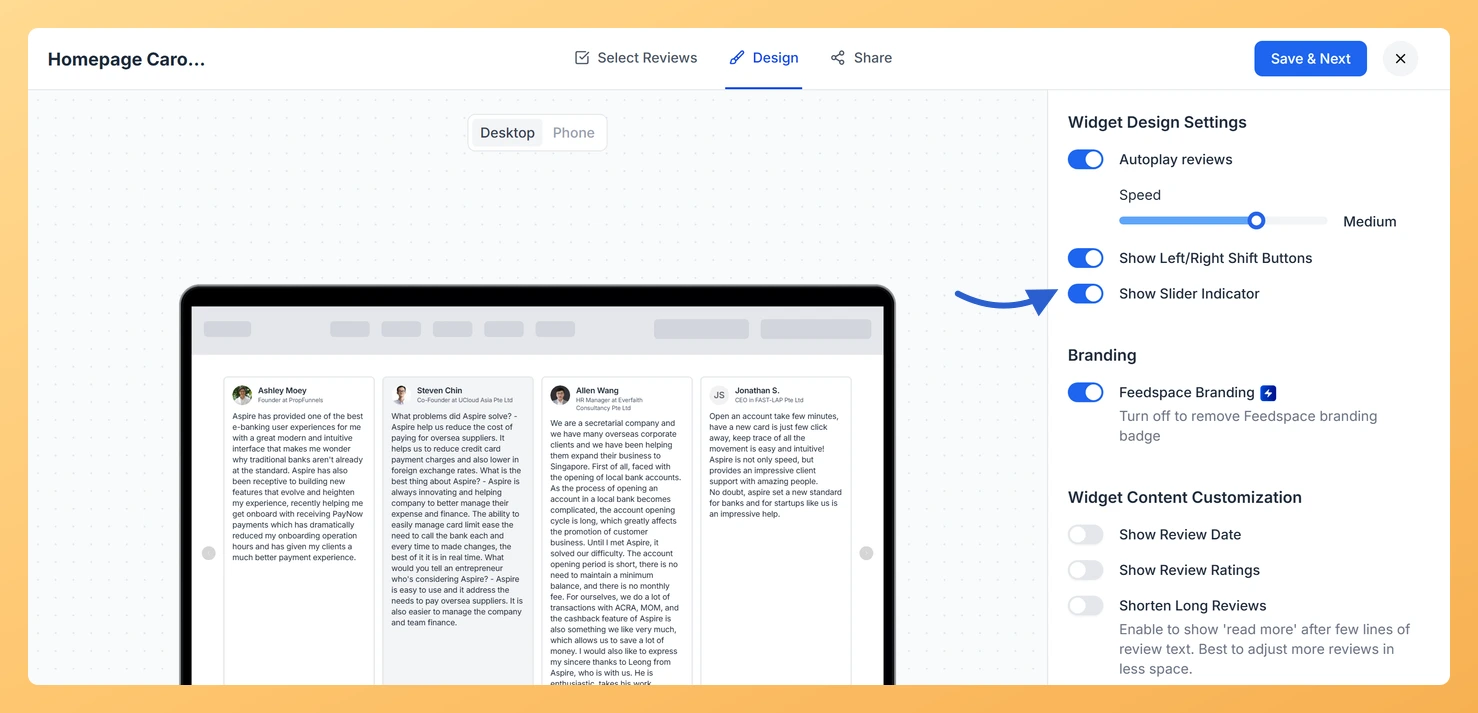
Step 4: Find Widget Design Settings
Scroll through the Design tab to locate the slider controls section. You will see the Show Slider Indicator toggle. This is typically grouped near other carousel navigation options such as navigation arrows.
Step 5: Turn on Show Slider Indicator
Click the Show Slider Indicator toggle to turn it on. When enabled, dot indicators will appear below the carousel on your published widget. Each dot represents one review, and the active dot highlights the card currently in view. Visitors can click any dot to jump directly to that review.
Step 6: Save your changes
Once you are satisfied with the setting, click Save & Next to apply your changes. If your widget is already embedded on a page, the dot indicators will appear immediately on the live carousel for all visitors.
What’s next
Enable navigation arrows alongside the dot indicators so visitors have two ways to move through your Carousel reviews.
Adjust the autoplay speed of your Carousel so the dot indicator position updates at a pace that feels natural for your page layout.
Customize the card design in the Design tab to match your brand colors, ensuring the dot indicators complement the overall look of your widget.
Embed the updated Carousel widget on your landing page or product page to let visitors explore all your reviews using the dot indicators.
Common questions
Can I show dots and arrows at the same time?
Yes. Show Slider Indicator and Show Left/Right Shift Buttons sit next to each other in Widget Design Settings and work independently.
You might also find helpful
How Do I Show Navigation Arrows on My Carousel Widget in Feedspace?
Overview The Carousel widget in Feedspace displays your review cards in a horizontal sliding layout, cycling through them one at a time (or a few at a time) as visitors view your page. By default, the carousel advances automatically, but visitors have no direct way to jump to a specific...
How to Create a Carousel Widget in Feedspace
Overview The Carousel widget in Feedspace lets you display multiple reviews in a continuously sliding format. You can enable autoplay, customize speed, and fine-tune design elements such as border, background color, and text colors. It’s a great way to keep your testimonials engaging and visually dynamic. How to Access Step...
How Do I Customize the Design of My Widget in Feedspace?
Overview Feedspace widgets come with a powerful Design tab that lets you tailor every visual aspect of your widget. From card colors and fonts to dark mode and call-to-action buttons, you can fully customize the look to match your website’s brand without writing any code. How to Customize the Widget...