
Feedspace Home Dashboard

How to Embed Wall Of Love in Framer

Last updated on October 1, 2025

Overview

You can embed the Feedspace Wall of Love directly on any Framer site. This simple process allows you to showcase customer trust and testimonials inside your Framer project.

Step 1 – Sign In to Framer

Go to Framer and log in with your account credentials.

Step 2 – Open the Project to Edit

From your dashboard, choose the project where you want to add the Wall of Love or create a new one.

Step 3 – Add an Embed Element

  • In the Framer editor, click the “Insert (+)” button.
  • Scroll down and select the “Embed” option.
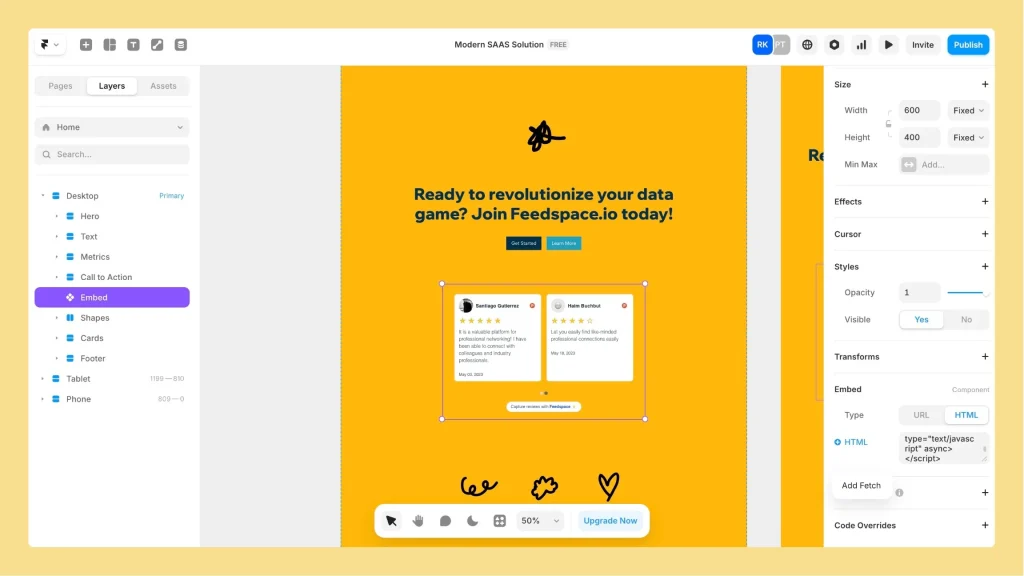
Framer editor with Insert menu and Embed element highlighted

Step 4 – Paste the Wall of Love Embed Code

  • Click on the Embed element.
  • Paste your Feedspace Wall of Love embed code into the provided editor.
  • Save to confirm.
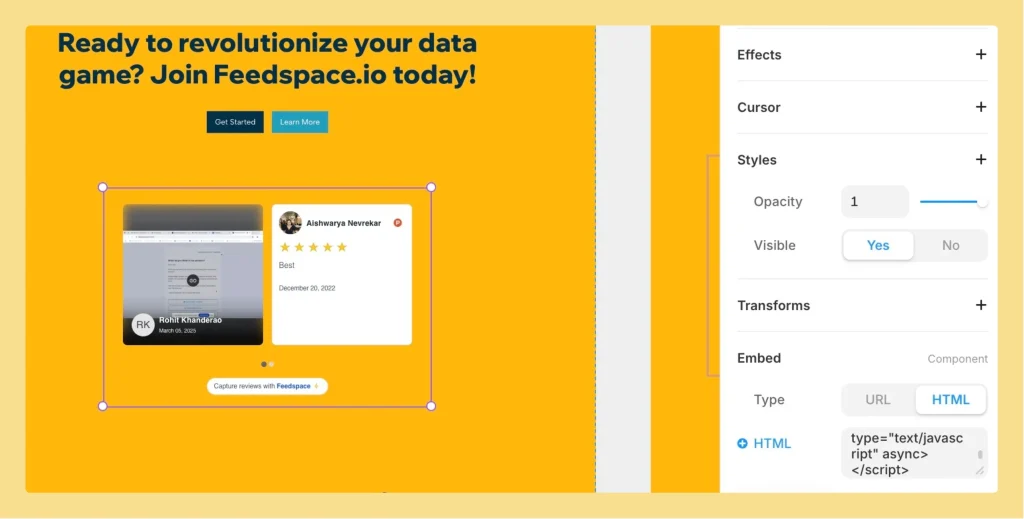
Embed element editor in Framer with code input box

Step 5 – Resize and Position the Embed

  • Use the resize handles to adjust the block dimensions.
  • Drag the embed element to the correct location on the page layout.

Step 6 – Publish the Page

Click the “Publish” button at the top-right to make your Framer site live with the Wall of Love.

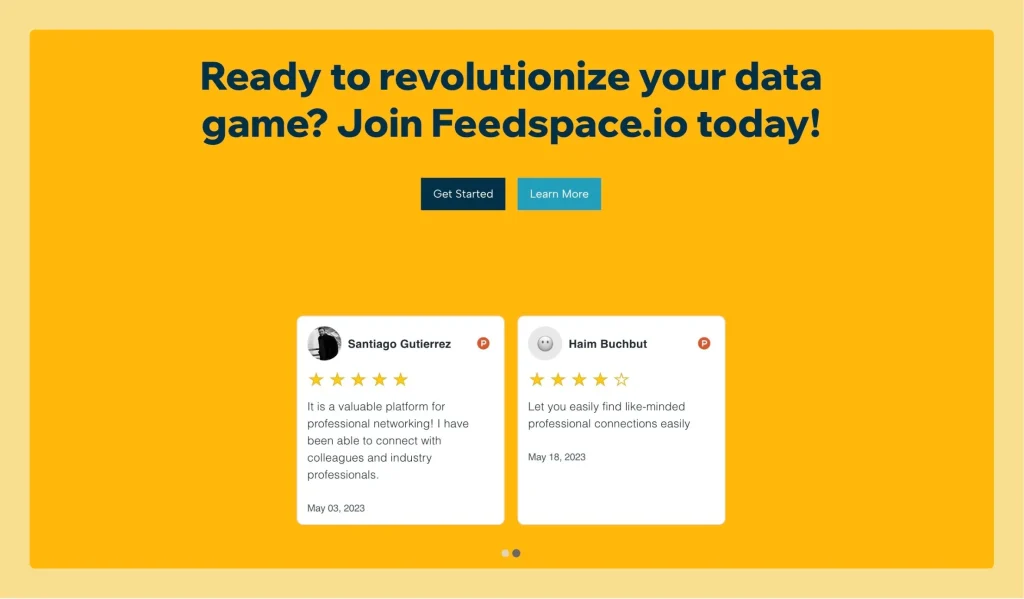
Framer editor with Publish button highlighted at top right

You might also find helpful

How to Embed Widget in Framer

Overview Feedspace widgets can be quickly added to Framer projects. This allows you to highlight customer reviews or feedback directly on your Framer website. Step 1 – Log In to Your Framer Account Head to Framer and sign in with your account details. Step 2 – Choose the Page for...

How to Embed Wall Of Love in Webflow

Overview Feedspace Wall of Love embed code can be easily added to any Webflow page. This simple process helps you showcase customer trust directly on your Webflow site. By following the steps below, you can embed the code in minutes. Step 1 – Log in to Your Webflow Account Go...

How to Embed Widget in Webflow

Overview You can easily embed Feedspace widgets in any Webflow project. This lets you highlight customer testimonials and social proof on your Webflow site. Step 1 – Sign In to Webflow Go to Webflow and log in to your account. Step 2 – Open Your Project Select the project you...