Adding Feedspace code snippet to your WordPress website is a great way to extend functionality. WordPress gives you simple ways to embed code directly into your site.
Step 1: Copy the Wall of Love embed code from Feedspace
Log in to your Feedspace dashboard and click Pages in the left sidebar. On the Wall of Love you want to embed, click the Embed icon on the page card to open the editor on the Share tab. In the Add Page to Website section, open the HTML tab and click Copy Code.
Step 2: Log in to WordPress admin
Go to your WordPress Admin portal and sign in with your credentials.
Step 3: Go to widgets
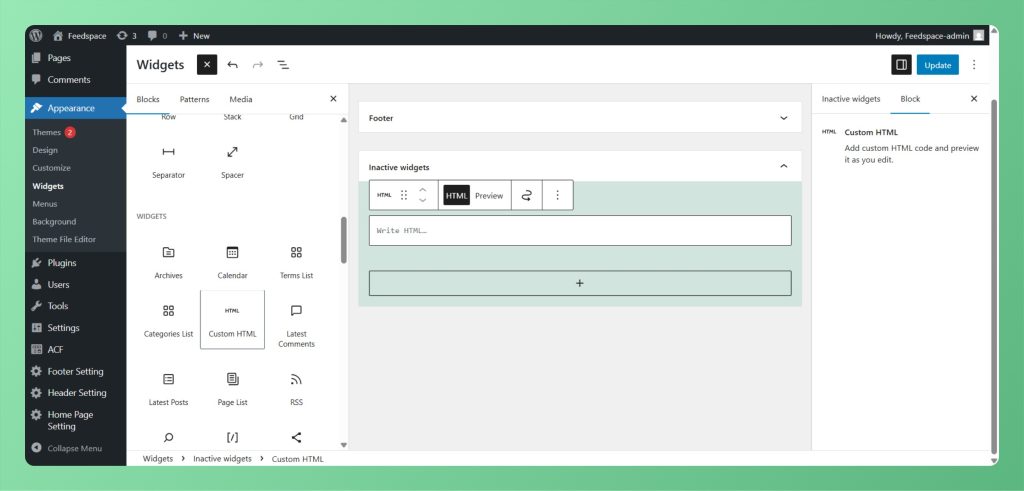
From the left-hand menu, click Appearance, then Widgets. This opens the widget management screen.
Step 4: Add a Custom HTML widget
Find Custom HTML in the list of available widgets and drag it into your desired widget area.
Step 5: Paste your code
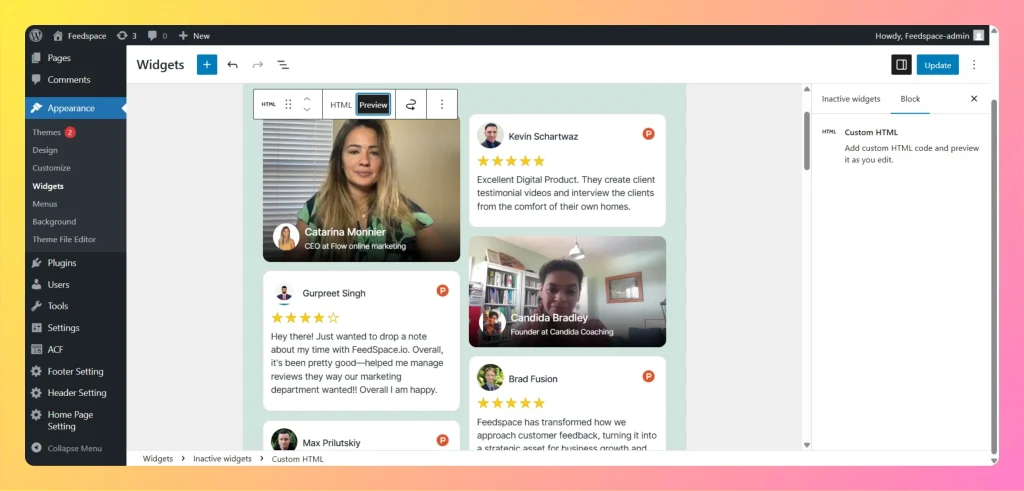
Paste the embed code you copied from the Share tab into the Custom HTML widget, exactly where you want the Wall of Love to appear. The embedded Wall of Love takes the width of the container it sits in, so place it in a full-width section or column if you want its multi-column layout to show.
Step 6: Save the widget
Click the Save button to store your changes.
Step 7: Preview your site
Visit your website’s front end and check the chosen area to confirm that your embedded Wall of Love is displaying correctly.
My Wall of Love shows in a narrow single column. How do I make it wider?
The embed fills the width of whatever container holds it. If your theme or page builder places the Custom HTML block inside a narrow column or sidebar, the Wall of Love shrinks to match. Move the embed into a full-width section or row so it has room to show its multi-column layout.
You might also find helpful
How to Embed Widget in WordPress
Overview Adding Feedspace code snippet to your WordPress website is a great way to extend functionality. WordPress gives you simple ways to embed code directly into your site. Step 1: Log in to WordPress Admin Go to WordPress admin portal and sign in with your username and password. Step 2:...
How to Use WordPress Feedspace Plugin
Overview Feedspace is a simple and powerful WordPress plugin that helps you showcase customer testimonials and reviews directly on your WordPress website. With an easy-to-use interface, you can embed any Feedspace widget using just your Widget ID, making it quick and easy to display social proof. Key features How it...
How to Import Reviews from WordPress Plugins into Feedspace
Overview WordPress is one of the most popular platforms for building websites, and many plugins have their own customer review systems. Importing reviews from WordPress plugins into Feedspace allows you to display authentic customer feedback directly on your website. Whether you are showcasing plugin reviews for your own WordPress products...