
Feedspace Home Dashboard

How to Use Creative Space to Create Marketing Images

Last updated on May 26, 2026

Overview

Feedspace’s Creative Space lets you turn your customer reviews into polished marketing visuals. Pick a review, choose a design template, and generate share-ready images for social media, emails, and more — in seconds.

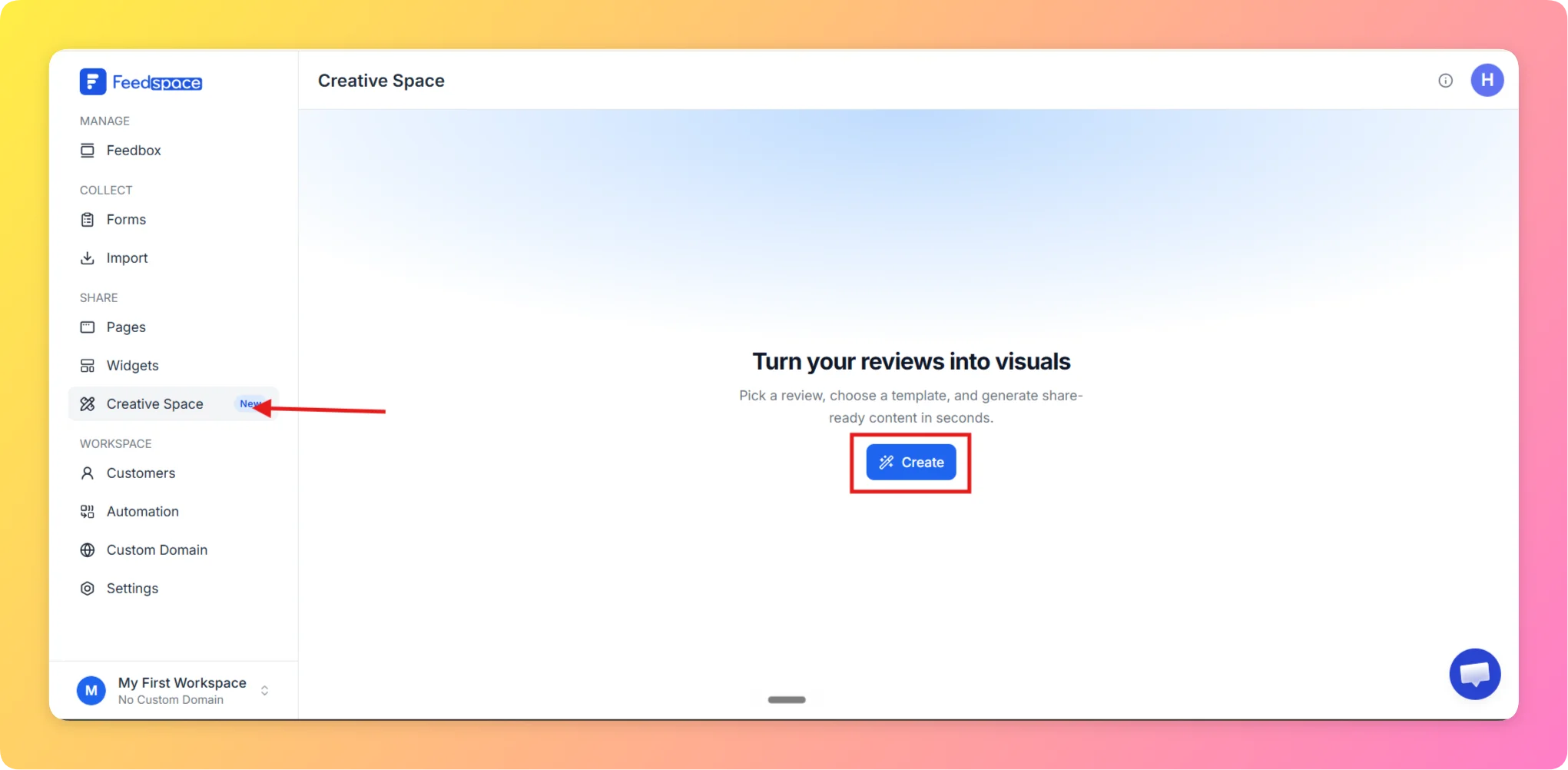
Step 1 – Navigate to Creative Space

  • Log in to your Feedspace account.
  • In the left sidebar, under the Share section, click Creative Space.

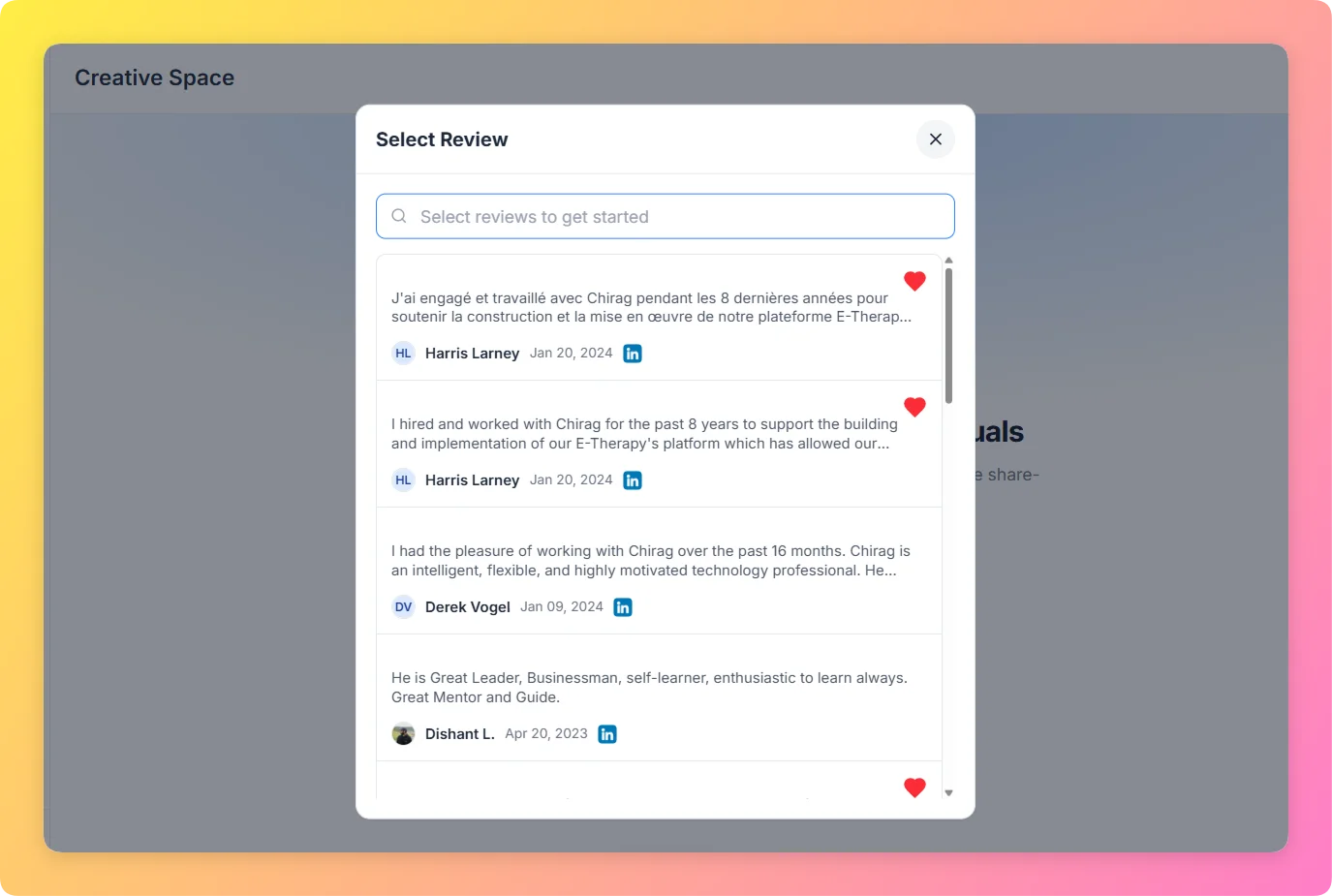
Step 2 – Select a Review

  • Use the search bar to find a customer review you want to turn into a visual.
  • Click Add to select it. The review will appear as a chip in the composer.

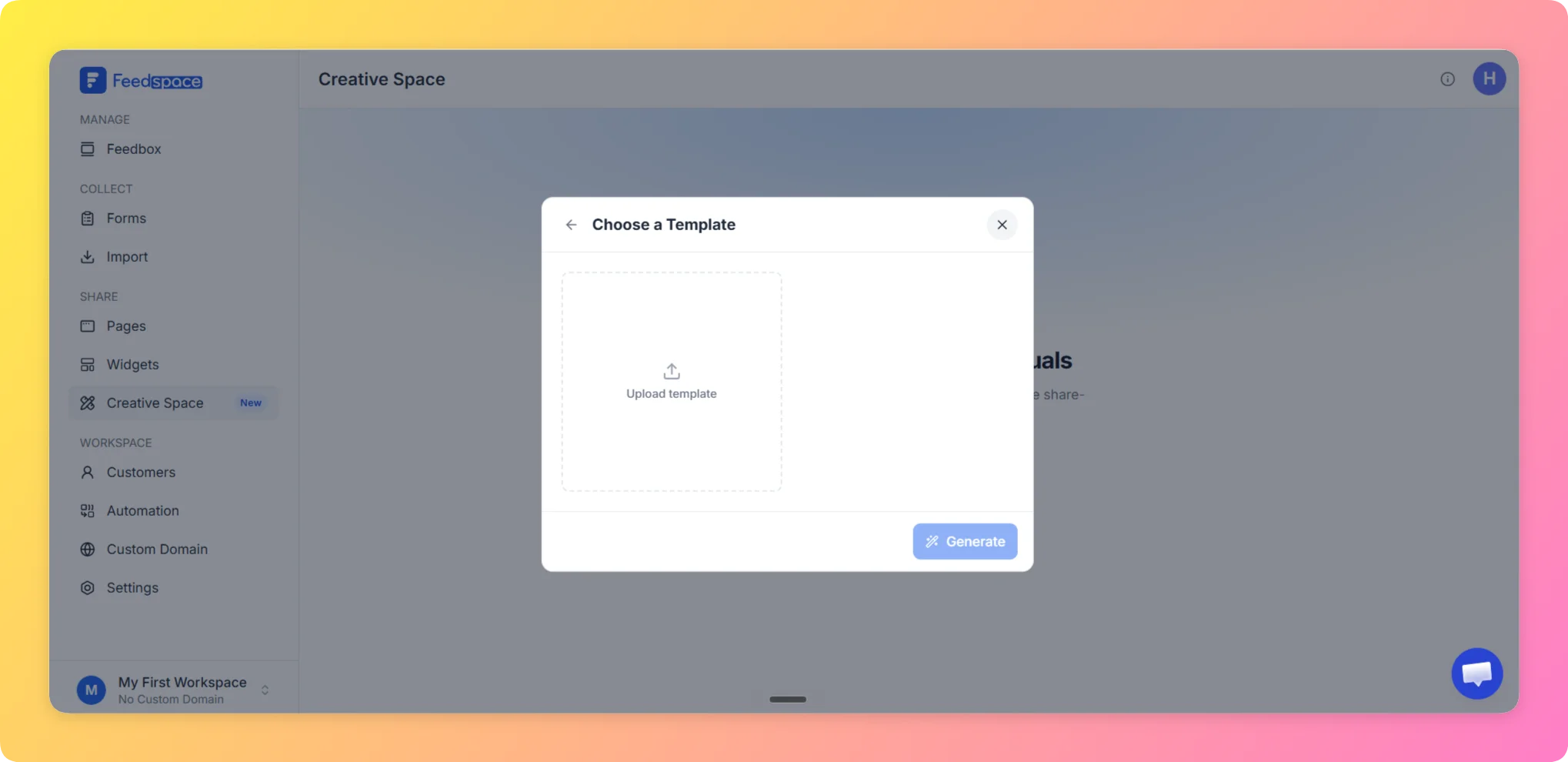
Step 3 – Choose a Template

  • Pick from built-in design templates such as Modern Card, Glassmorphism, Bold Vibrant, Elegant Serif, and more.
  • You can also upload your own image as a custom reference template by clicking Upload Template.

Step 4 – Generate the Image

  • Click Generate.
  • The AI will create a design based on the review and template you selected.
  • Generation takes a few seconds. A progress indicator will appear while the image is being created.

Step 5 – Preview the Result

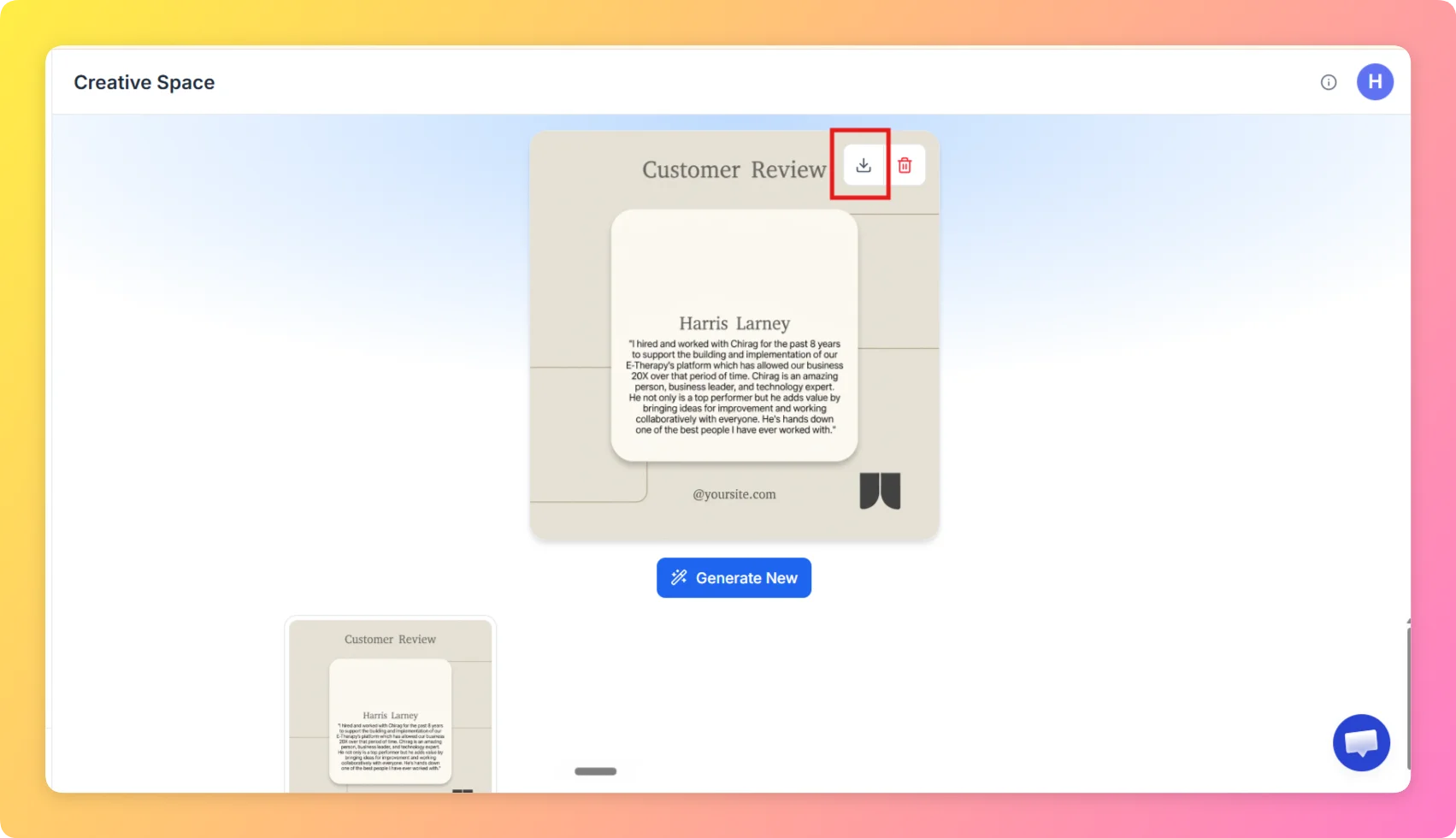
  • Once ready, the generated image appears in your gallery.
  • Click the image to open a full preview in the lightbox.

Step 6 – Download or Share

  • Click the download icon to save the image to your device.
  • Use the image on social media, email campaigns, or anywhere you want to showcase customer feedback.

Step 7 – Generate Again (Optional)

  • Not satisfied with the result? Click Generate New to create a fresh variation using the same review and template.
  • All generated images are saved in your Creative Space gallery for future use.

Why Use Creative Space?

  • Save Time: Turn any review into a professional visual in seconds — no design skills needed.
  • Boost Social Proof: Eye-catching review images get more engagement on social media than plain text.
  • Stay On-Brand: Upload your own template to match your brand’s look and feel.

That’s it! Your marketing image is ready to share from Feedspace Creative Space.

You might also find helpful

How to share testimonials on social media?

Overview Sharing testimonials on social media is easy with Feedspace. Simply select impactful testimonials and reviews and share it on social media. Steps to share testimonials on social media Step 1 – Log into Feedspace Access your Feedspace account and log in using your credentials. Step 2 – Navigate to Feedbox Page...

How to Create a Wall of Love Page in Feedspace

Steps to Create a Page Log into Feedspace Sign in with your account credentials. Go to Pages From the left sidebar, click Pages. Create Page Click Create Page. This opens the creation screen with some reviews auto-selected in the space. Select Reviews Go to the Select Review page and choose...

How to Create a Widget in Feedspace

Overview Widgets in Feedspace allow you to showcase your collected reviews directly on your website. They are easy to set up, customizable, and come in different layouts to match your site’s design. This guide walks you through the steps to create your first widget and explains all the available widget...