Feedspace connects to ChatGPT using the Model Context Protocol (MCP). Once connected, you can ask ChatGPT to fetch your Feedspace reviews, pull specific testimonials, and list your review forms, all directly from the ChatGPT chat interface.
Before you begin
You must have a ChatGPT account with Developer Mode available in Settings.
You must be logged in to your Feedspace account to access the Connectors tab.
How to connect Feedspace to ChatGPT
Step 1: Find the ChatGPT Connector in Feedspace
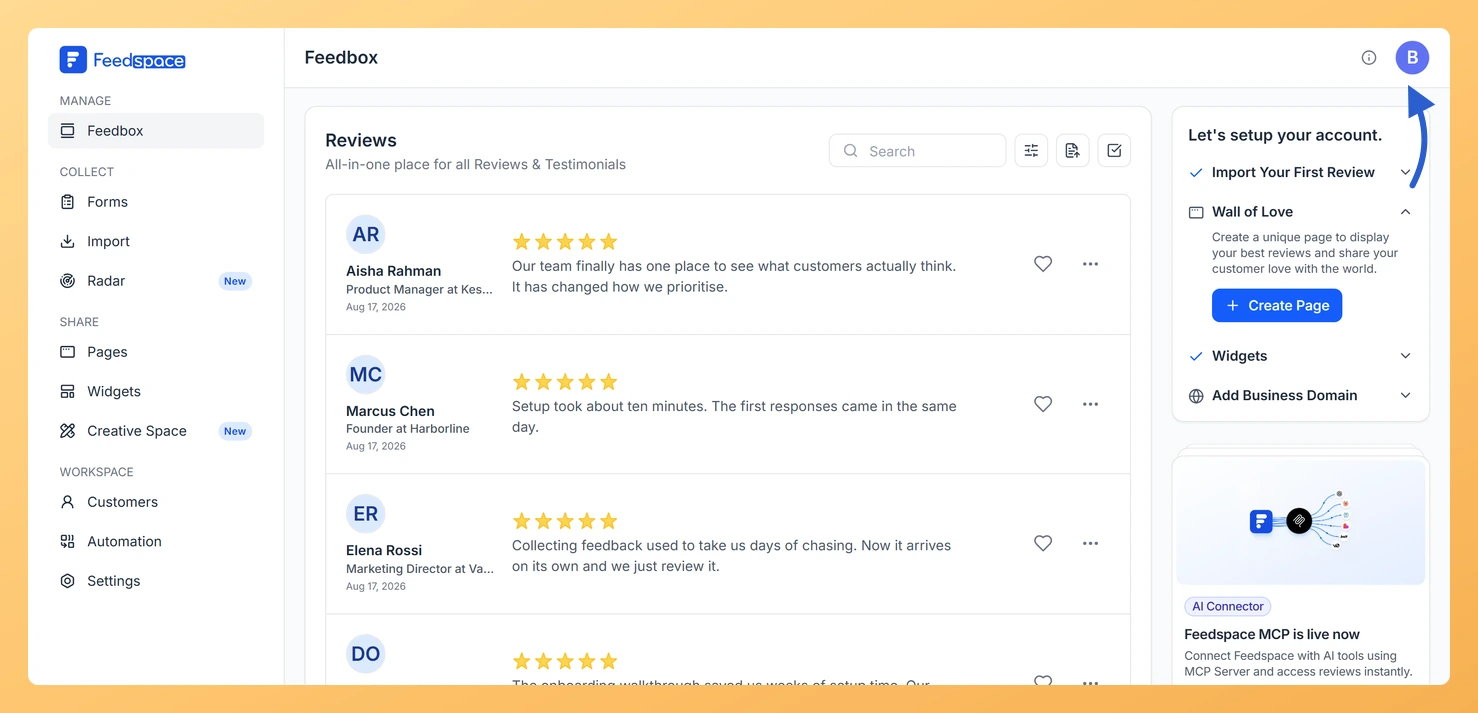
Log in to Feedspace and click the avatar button at the top-right of the header.
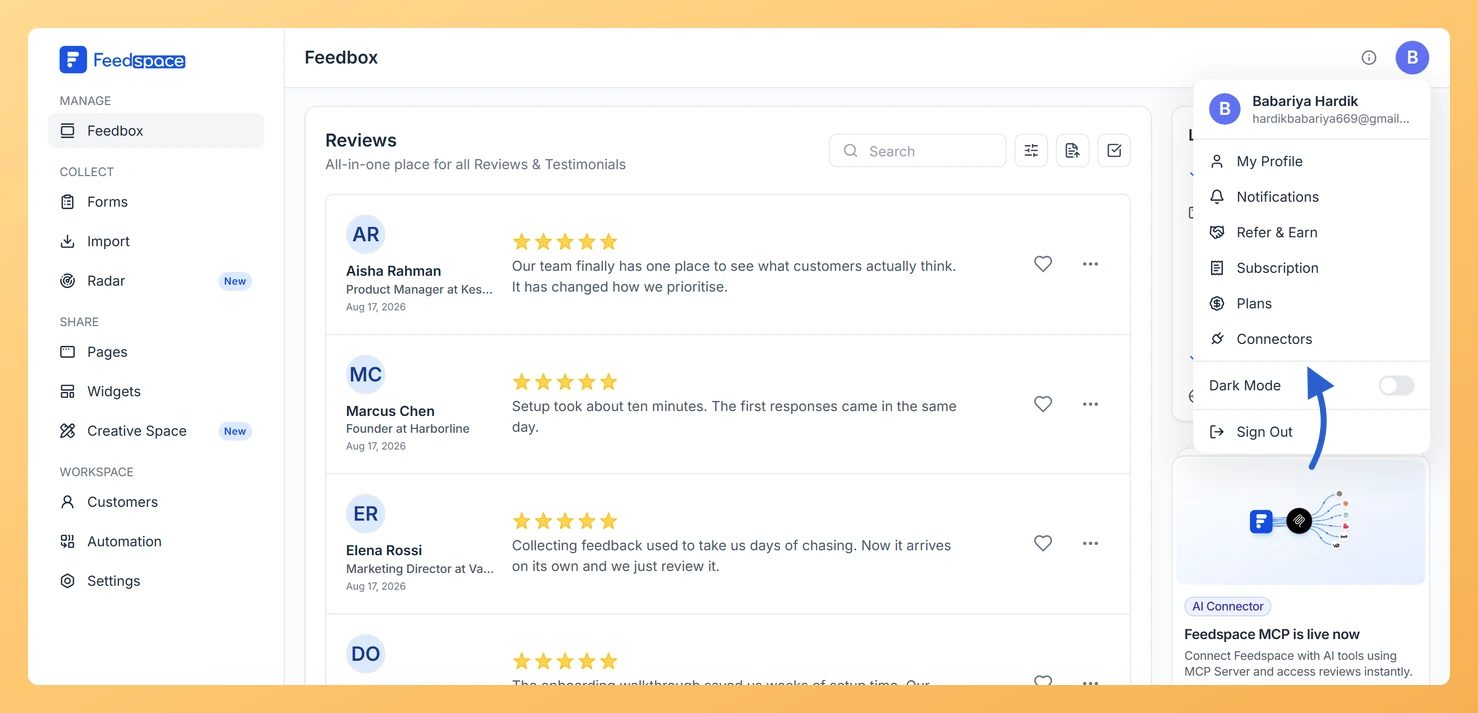
Click Connectors. The My Account panel opens on the Connectors tab.
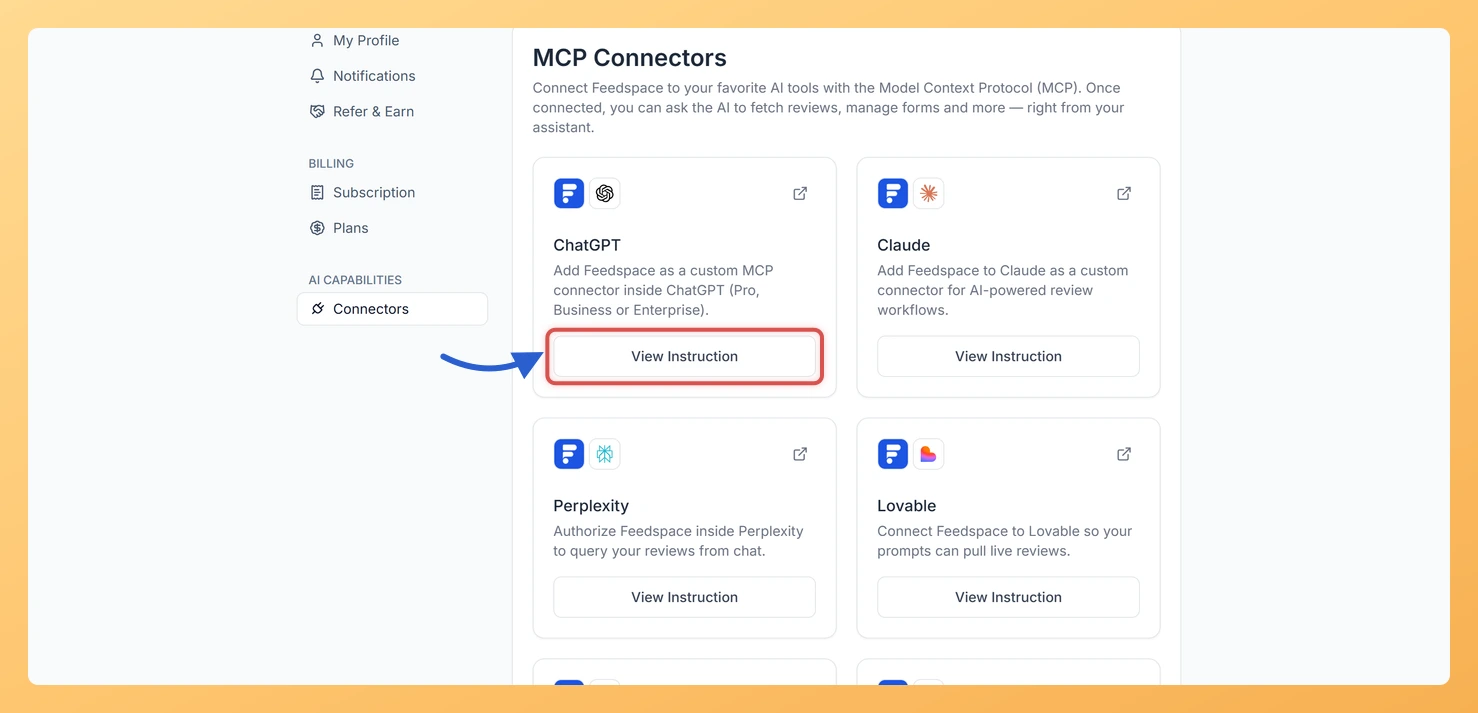
Locate the ChatGPT card on the Connectors page.
Step 2: Copy the MCP URL
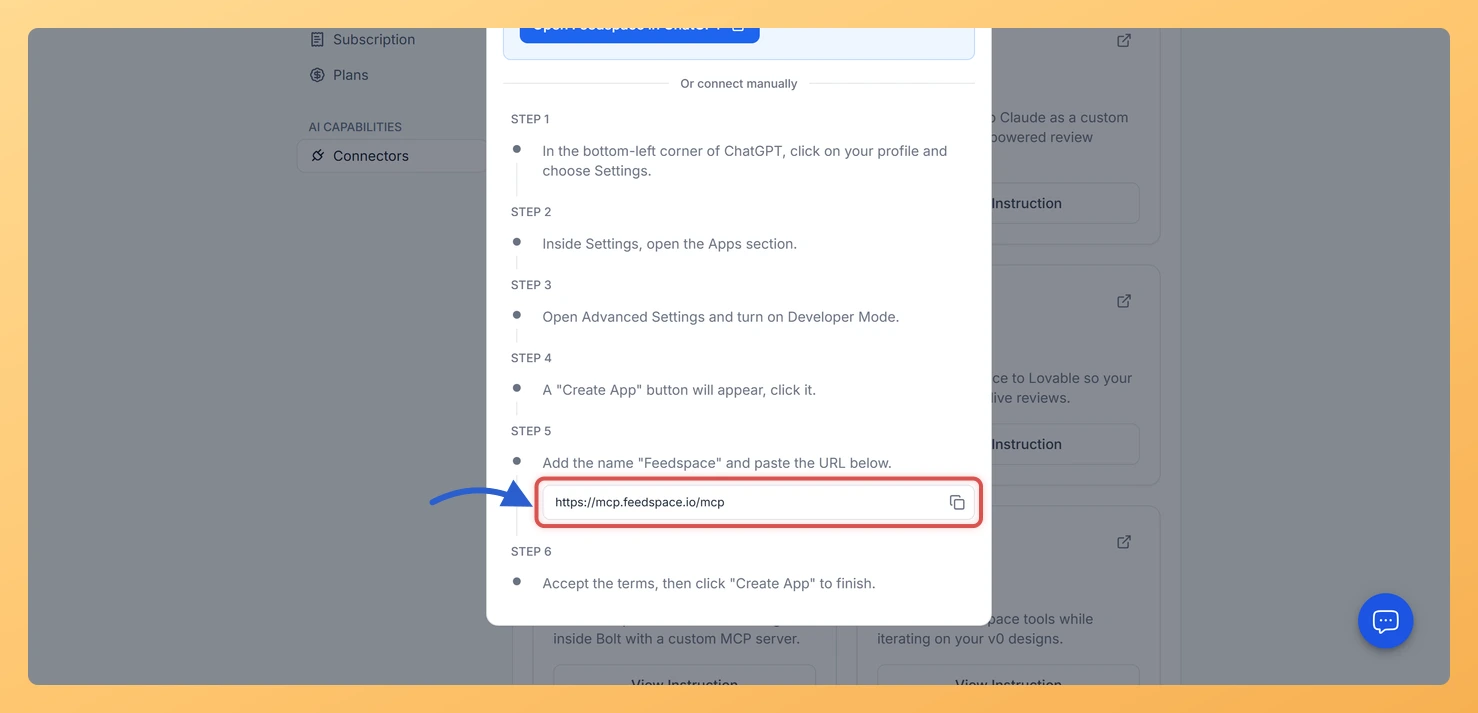
Find the ChatGPT card and click View Instruction. In the dialog that opens, click the copy icon next to the MCP URL to copy it. The URL is https://mcp.feedspace.io/mcp. Keep this dialog open as a reference for the next steps.
In the bottom-left corner, click your profile icon and choose Settings.
Inside Settings, open the Apps section.
Open Advanced Settings and turn on Developer Mode.
A Create App button appears. Click it.
Add the name Feedspace and paste the MCP URL (https://mcp.feedspace.io/mcp).
Accept the terms, then click Create App to finish.
Step 4: Use Feedspace in ChatGPT
Return to a ChatGPT chat session.
Ask ChatGPT to access your Feedspace data. For example, you can ask it to summarise your latest reviews, pull a specific testimonial, or list your review forms.
What you can do after connecting
Once Feedspace is connected to ChatGPT, you can interact with your review data without leaving the chat interface. Examples of things you can ask ChatGPT:
Summarise the most recent reviews collected in Feedspace.
Pull a specific testimonial by keyword or customer name.
List all review forms in your Feedspace workspace.
Identify common themes or feedback patterns across your reviews.
Common questions
Do I need to generate a Feedspace API key to connect?
No. The MCP connection does not use an API key. You copy the MCP URL from the Feedspace Connectors tab and paste it when creating the app in ChatGPT’s Developer Mode, then accept the terms and click Create App.
Is the MCP URL the same for all AI platforms?
Yes. The MCP URL is https://mcp.feedspace.io/mcp for all supported AI tools, including ChatGPT, Claude, Perplexity, Lovable, Bolt, and v0. Only the location where you paste the URL differs between platforms.
I cannot find the Connectors section in ChatGPT Settings
The section may be labelled Apps, Connectors, or Integrations depending on your ChatGPT account, and it sits behind Developer Mode in Advanced Settings. Click View Instruction on the ChatGPT card in Feedspace for the current walkthrough.
You might also find helpful
How Do I Connect Feedspace to AI Tools?
Overview The Connectors tab in Feedspace lets you link your account to popular AI tools using the Model Context Protocol (MCP). Once connected, you can ask AI tools to access and use your Feedspace review data directly inside those platforms. Feedspace supports six AI tools: Claude, ChatGPT, Perplexity, Lovable, Bolt,...
What Is the Feedspace MCP Connector?
What Is MCP? MCP stands for Model Context Protocol. It is an open standard that lets AI tools securely access data from external services. When you connect Feedspace to an AI tool via MCP, the AI tool can read your review data, testimonials, and workspace information to help you generate...
How Do I Connect Feedspace to Claude?
Overview Connecting Feedspace to Claude (by Anthropic) uses the Model Context Protocol (MCP). Once connected, Claude can access your Feedspace review data directly inside a conversation, letting you query testimonials, generate summaries, and identify themes across customer feedback without leaving Claude. Before you start Step 1: Copy the MCP URL...