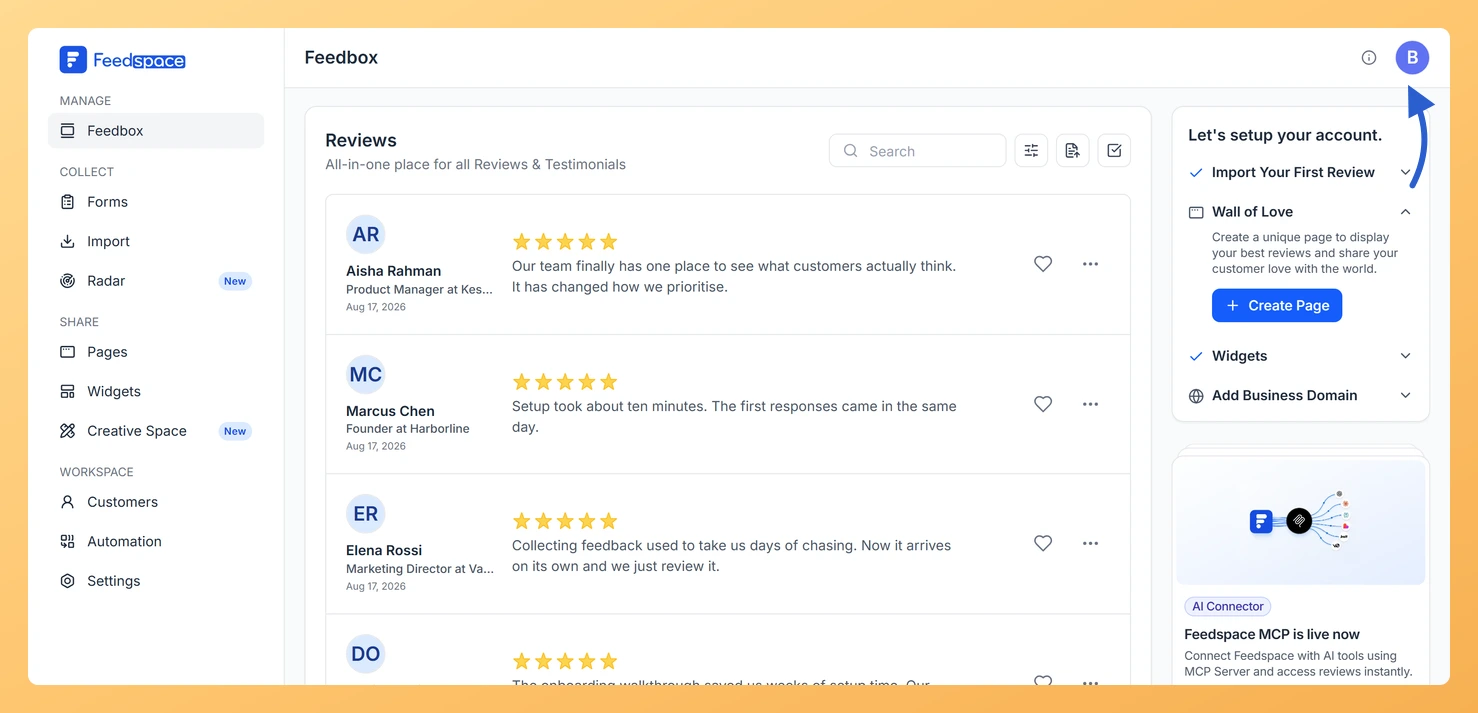
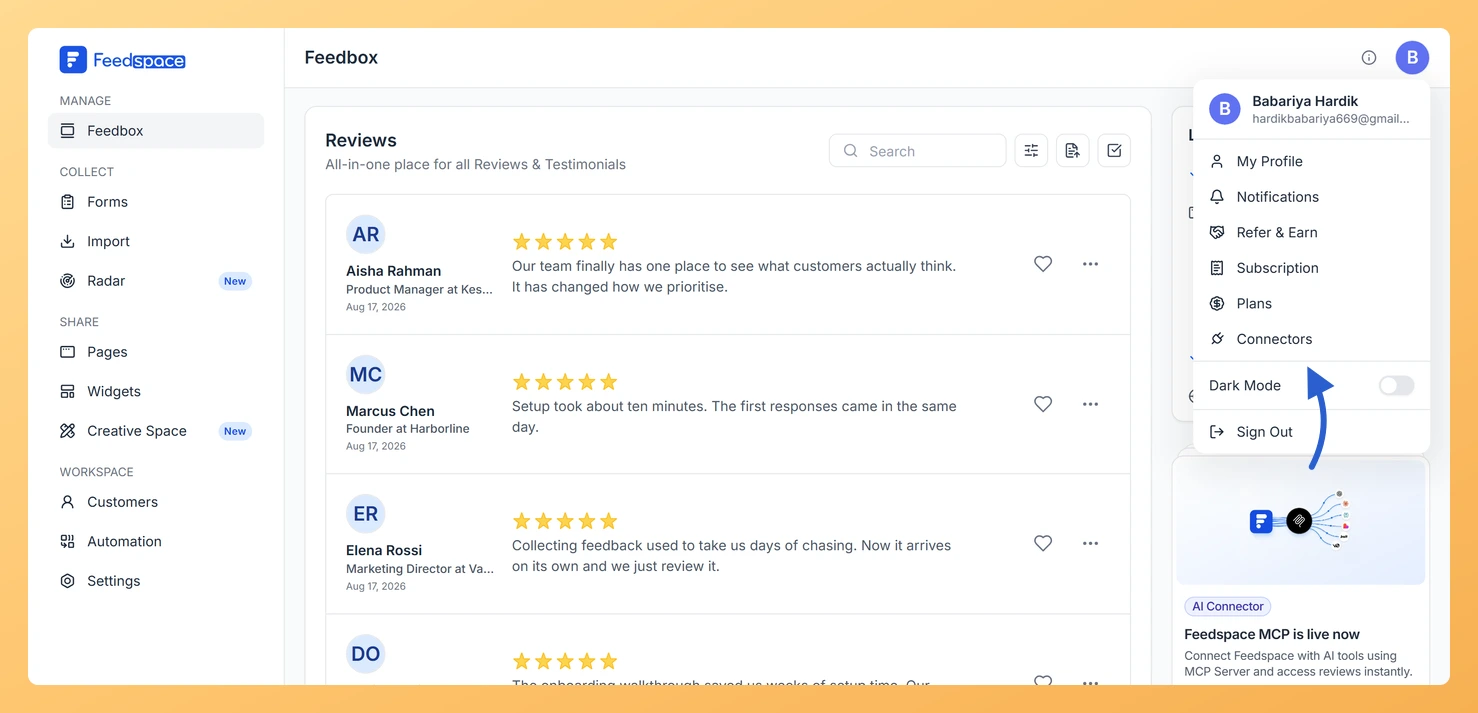
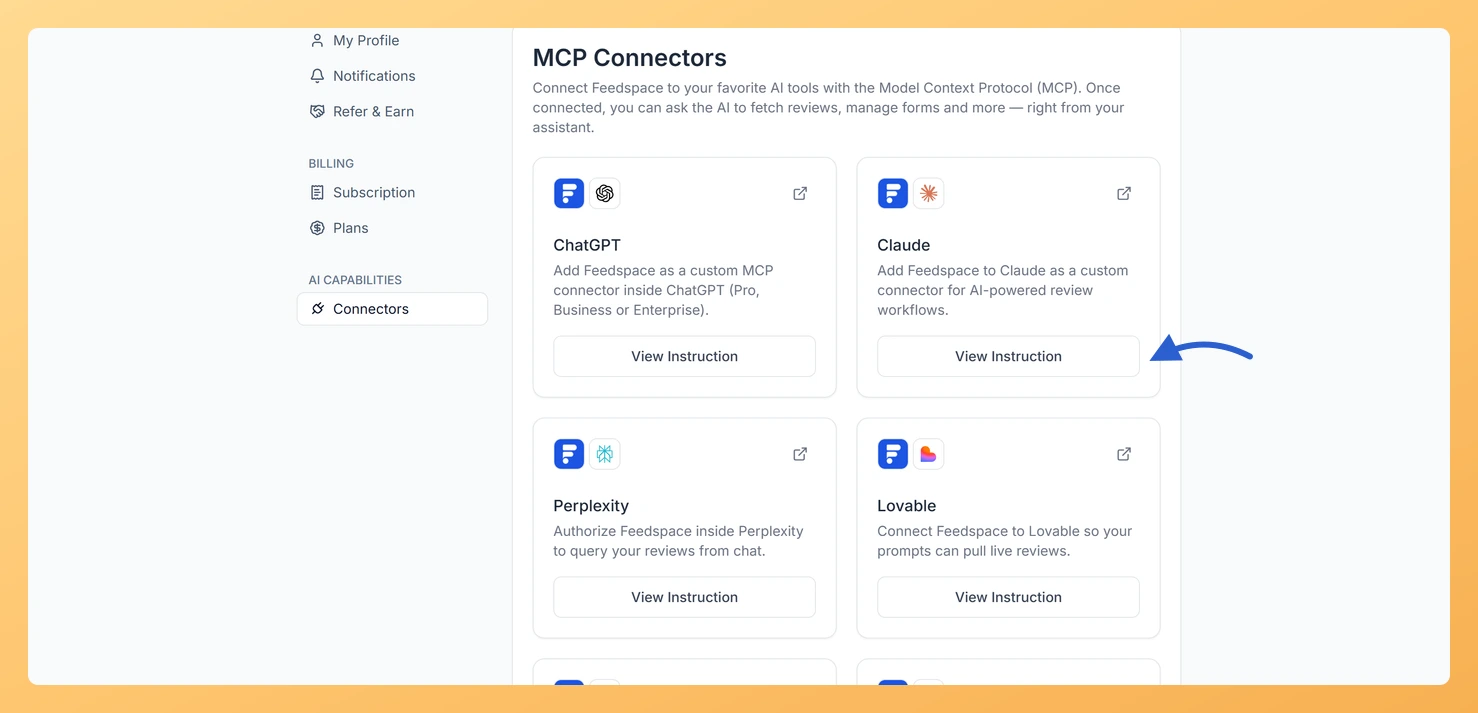
Connecting Feedspace to Claude (by Anthropic) uses the Model Context Protocol (MCP). Once connected, Claude can access your Feedspace review data directly inside a conversation, letting you query testimonials, generate summaries, and identify themes across customer feedback without leaving Claude.
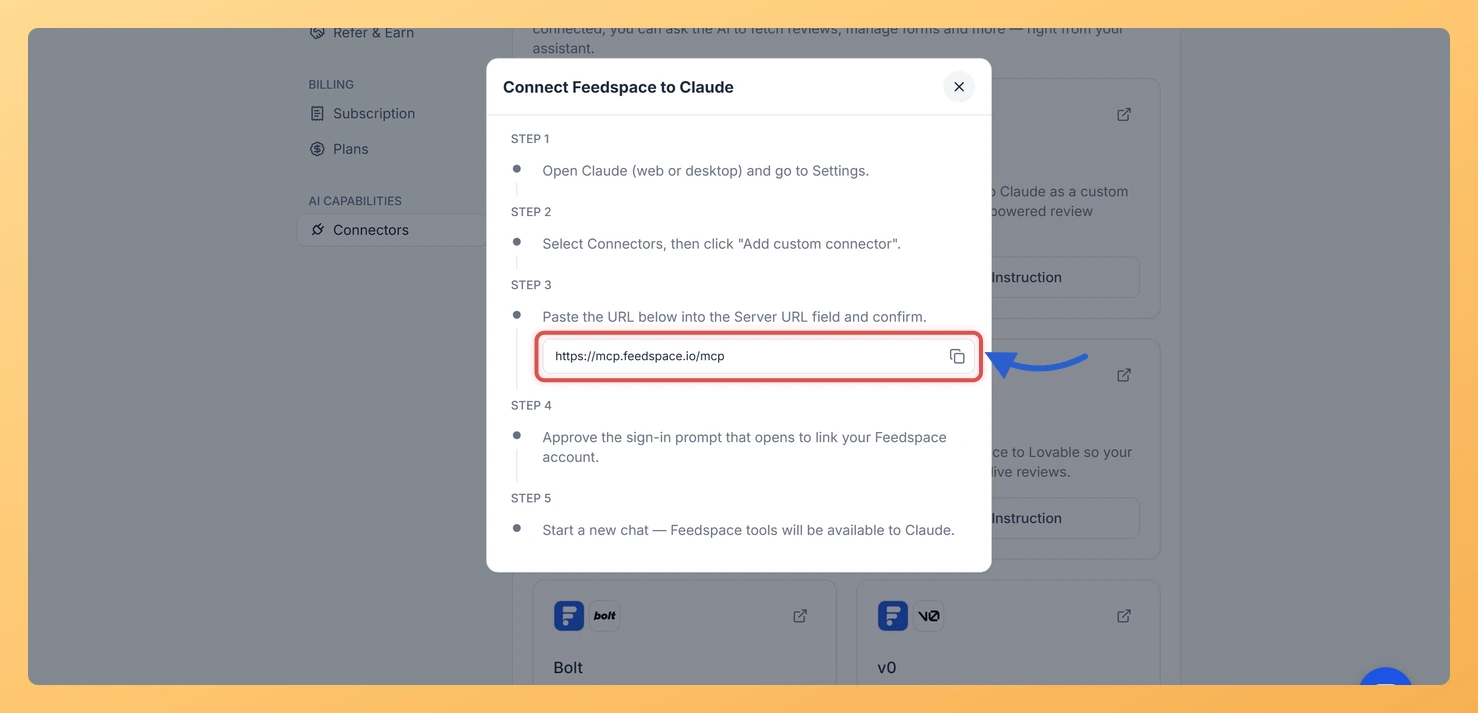
Select Connectors, then click Add custom connector.
Paste the Feedspace MCP URL (https://mcp.feedspace.io/mcp) into the Server URL field and confirm.
Approve the sign-in prompt that opens to link your Feedspace account.
Start a new chat. Feedspace tools will be available to Claude.
Step 3: Use Feedspace data in a Claude conversation
Return to a Claude conversation. Claude will now have access to your Feedspace review data through the MCP connection.
Ask Claude to work with your reviews. Some example prompts are listed in the next section.
What you can ask Claude
Once the connection is active, Claude can query your Feedspace reviews in real time. Here are some things you can ask:
Find my best 5-star reviews and format them for a landing page.
Generate a short testimonial summary I can use in a newsletter.
Identify the most common themes across my customer feedback.
List all reviews that mention a specific feature or product name.
Draft a reply to a recent negative review based on the feedback given.
Common questions
Why does Claude ask me to sign in to Feedspace?
Adding the connector opens a Feedspace sign-in prompt so Claude can be linked to your account. Approve it once and Claude reads your review data through the connection from then on. If you skip that prompt the connector is added but returns no data.
The copy icon in the View Instruction dialog shows an error
If the copy icon fails, manually select and copy the URL shown in the View Instruction dialog: https://mcp.feedspace.io/mcp. Paste it directly into Claude’s connector settings.
I do not see an Integrations or MCP Connectors section in Claude
Open Settings in Claude and look under Connectors. The section name and its position have changed as Claude has evolved, so if it is not where you expect, check Claude’s own help pages for the current location. The Feedspace side does not change: the MCP URL stays the same wherever you paste it.
You might also find helpful
How Do I Connect Feedspace to AI Tools?
Overview The Connectors tab in Feedspace lets you link your account to popular AI tools using the Model Context Protocol (MCP). Once connected, you can ask AI tools to access and use your Feedspace review data directly inside those platforms. Feedspace supports six AI tools: Claude, ChatGPT, Perplexity, Lovable, Bolt,...
What Is the Feedspace MCP Connector?
What Is MCP? MCP stands for Model Context Protocol. It is an open standard that lets AI tools securely access data from external services. When you connect Feedspace to an AI tool via MCP, the AI tool can read your review data, testimonials, and workspace information to help you generate...
How Do I Connect Feedspace to ChatGPT?
Overview Feedspace connects to ChatGPT using the Model Context Protocol (MCP). Once connected, you can ask ChatGPT to fetch your Feedspace reviews, pull specific testimonials, and list your review forms, all directly from the ChatGPT chat interface. Before you begin How to connect Feedspace to ChatGPT Step 1: Find the...