Feedspace handles payments through Stripe. To update the card on your subscription, you open the Stripe billing portal from inside your Feedspace account. The change applies immediately to your next billing cycle.
This applies to monthly and yearly paid plans. AppSumo lifetime deal users don’t have a stored card in Feedspace, so see the note at the end of the steps below.
Steps to update your payment card
Step 1: Open the Subscription tab
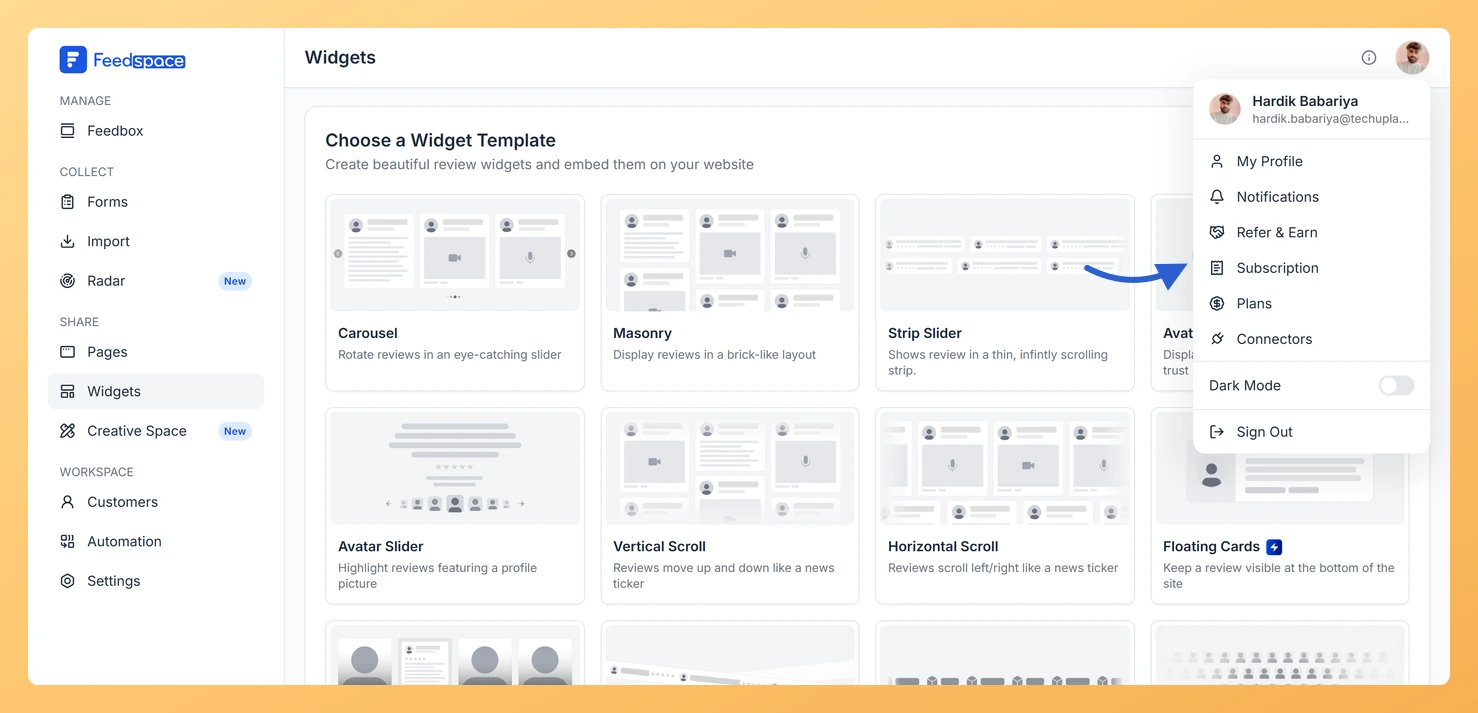
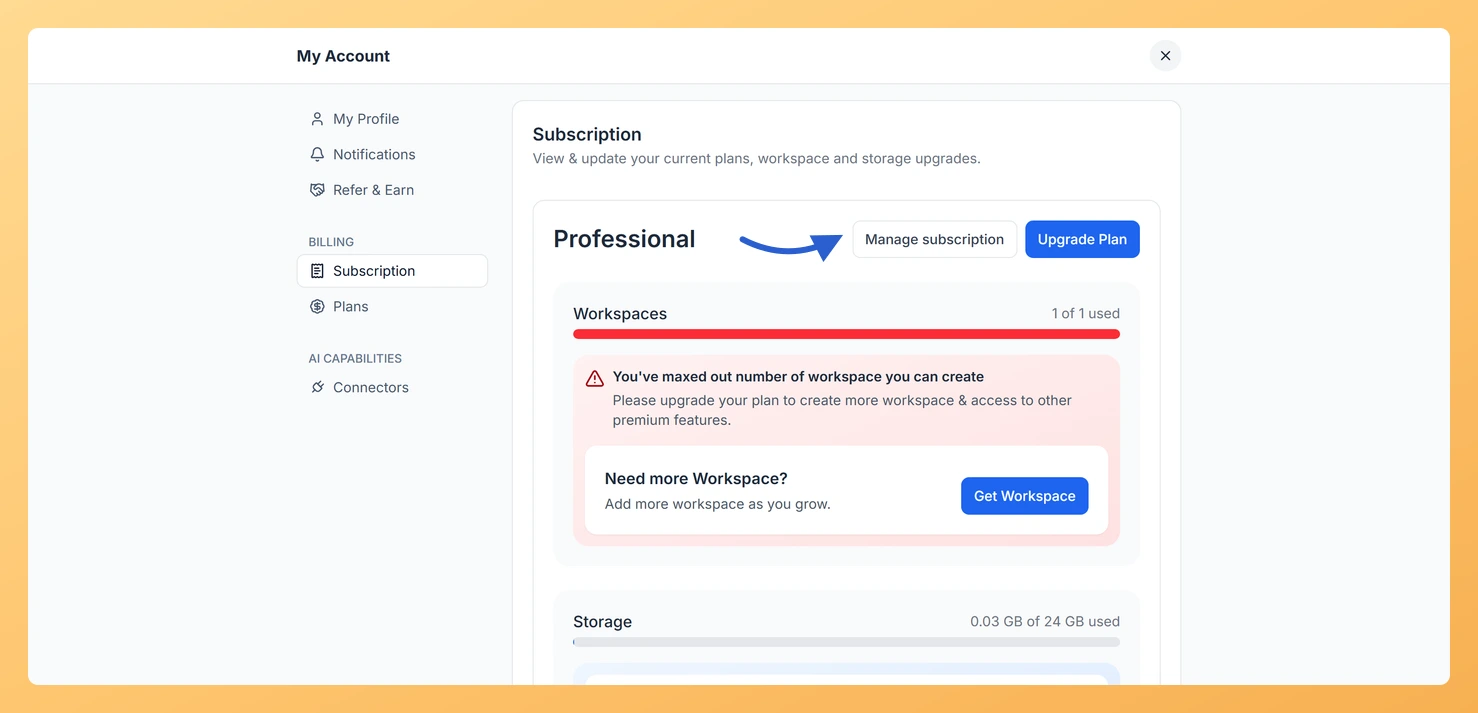
Click the circular avatar button at the top-right of the header. A profile dropdown opens. Click Subscription. The My Account window opens on the Subscription tab, showing your current plan along with your workspace and storage usage.
Step 2: Click Manage subscription
Click the Manage subscription button. It opens the Stripe billing portal in a new browser tab. If you don’t see this button, your account may be on a free plan or an AppSumo lifetime deal.
Step 3: Update your payment method in the Stripe portal
In the Stripe portal, find the Payment Method section and click Add payment method or the option to replace your existing card. Enter your new card details and save. The new card becomes your default immediately.
Once updated, close the Stripe portal tab and return to Feedspace. The change is already active.
AppSumo lifetime deal users
If you purchased Feedspace through AppSumo as a lifetime deal, your payment was made directly on AppSumo and Feedspace doesn’t store a card for your account. The Manage subscription button won’t appear. If you need to purchase an add-on such as an extra custom domain, that is handled inside the Subscription tab where a Buy Now button appears in the custom domain usage section. Contact support@feedspace.io if you need help.
Paid Feedspace plans are billed by card through the secure Stripe billing portal, so you’ll need a credit or debit card. Some local payment methods such as UPI aren’t supported, and a payment attempted with one of these will fail. Add a card in the Stripe portal to complete the payment.
My payment is failing even though I have funds on my card
Some international cards or cards issued by certain banks block recurring subscription charges unless you notify the bank first. Contact your card issuer and let them know you’re authorizing a charge from Feedspace via Stripe. Then retry the payment from the Stripe portal or contact support@feedspace.io to have the payment retried.
I see “Unable to authenticate your payment method”
This error means Stripe couldn’t complete the 3D Secure or bank authentication step for your card. Try adding the card again in the Stripe portal and complete any authentication prompt your bank sends. If the error persists, try a different card or contact your bank.
You might also find helpful
How Do I View My Subscription in Feedspace?
Overview The Subscription tab in your Feedspace account shows your current plan, billing amount, usage across your workspaces and storage, and your full invoice history. You can also manage your subscription or upgrade from this tab. How to open the Subscription tab Step 1: Open the account menu Click the...
How Do I Upgrade or Change My Plan in Feedspace?
Overview The Plans tab in Feedspace shows all available pricing tiers and lets you upgrade, downgrade, or switch your billing period. Your current plan is always highlighted so you can easily see what is included and what the next tier offers. How to open the Plans tab Step 1: Open...
How Do I Download My Invoice in Feedspace?
Overview Feedspace provides PDF invoices for every payment made on a paid monthly or yearly plan. You can download them from the Billing History section inside the Subscription tab at any time. How to Download an Invoice Common questions I do not see a Billing History section Billing History is...