Feedspace always opens in whichever workspace was last selected for your account. If you keep landing in one workspace when you expected a different one, the most common reason is that the other workspace was never selected in the workspace switcher, or that you have not yet accepted an invite to it.
This happens often when you manage more than one workspace, for example one per client or project, and you open a fresh browser session expecting your second workspace but Feedspace loads the one you used most recently. Selecting the workspace you want from the switcher fixes this in a couple of clicks.
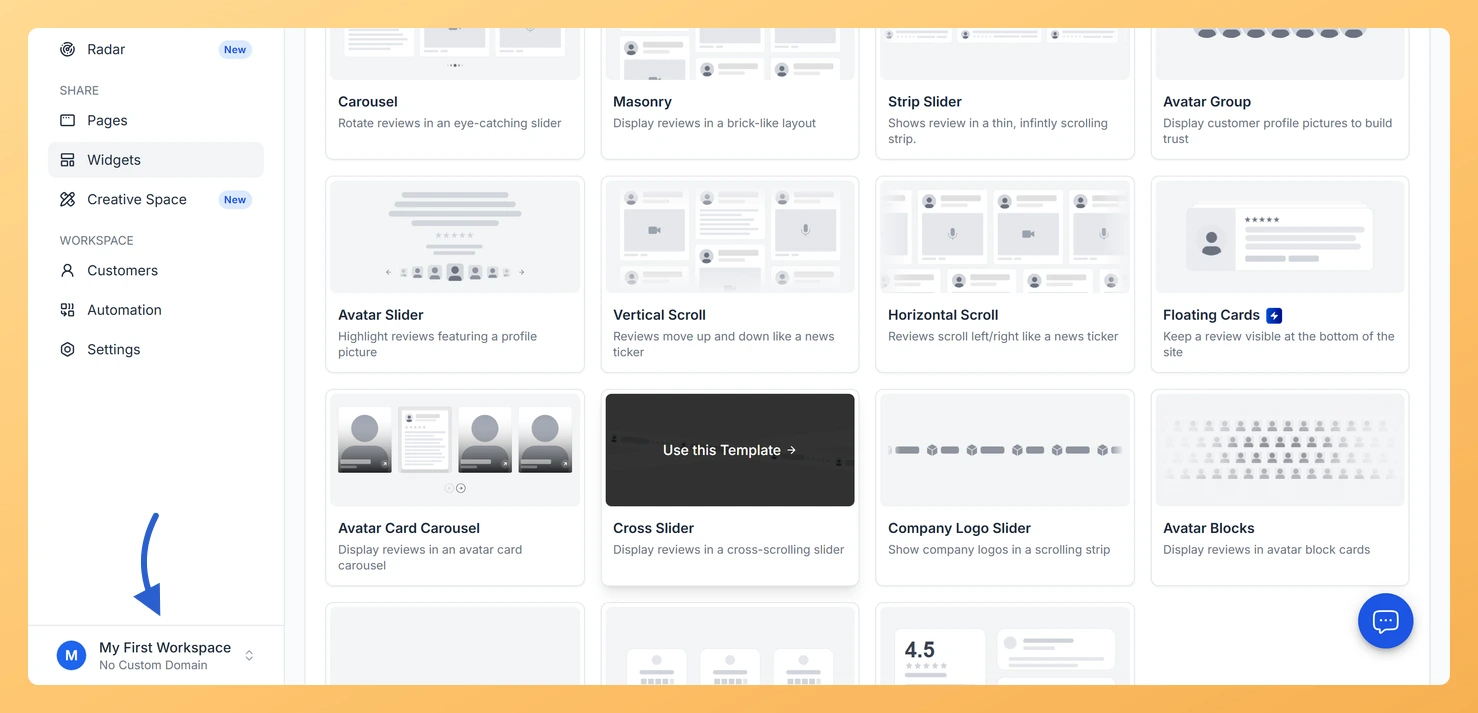
Look at the bottom of the left sidebar. The workspace switcher shows the name of the workspace you are currently in.
Step 3: Open the dropdown
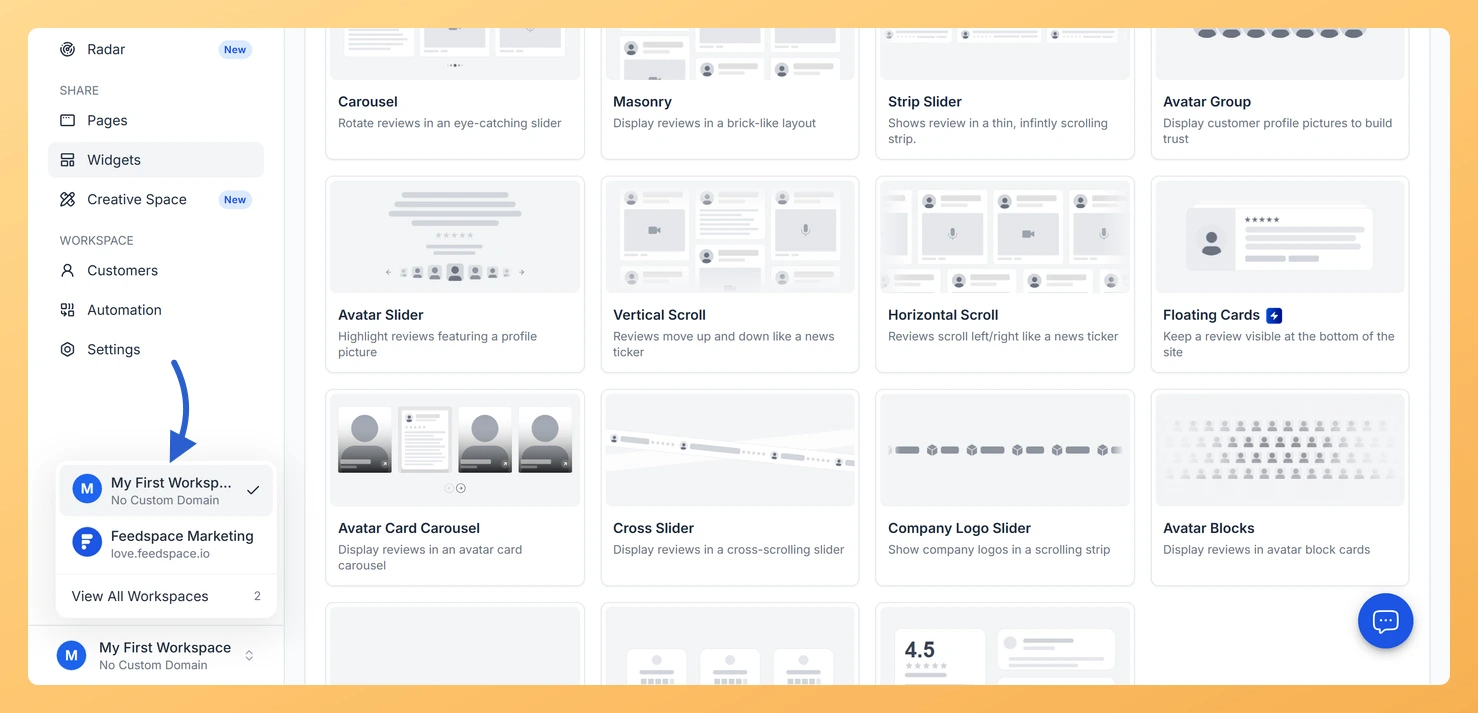
Click the workspace switcher to open the dropdown. The active workspace has a checkmark next to it.
Step 4: Pick a workspace
Click the workspace you want to use. A toast appears confirming You are in [Workspace Name], and Feedspace loads that workspace.
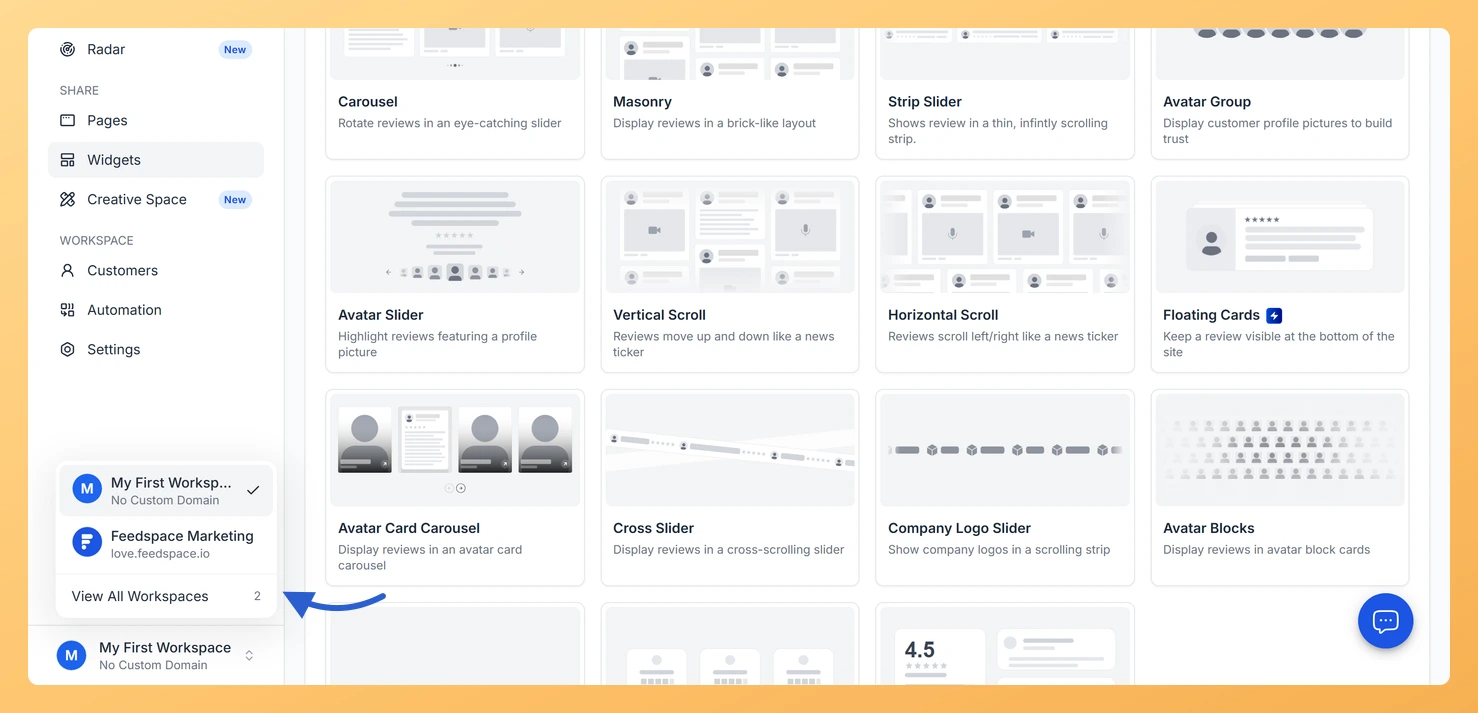
Step 5: Open the full list if it is missing
If the workspace you want is not in the dropdown, click View All Workspaces at the bottom to open the full list, then click the workspace name or the Launch Workspace button to switch to it.
Why does Feedspace open in a workspace I did not pick?
Feedspace opens in the workspace that was last selected on your account. Open the workspace switcher at the bottom of the left sidebar and select the one you want. It then stays active for your session.
Why is the workspace I want missing from the switcher?
The switcher lists only workspaces you own or have joined as an accepted team member. If you were invited to one, accept the invite first. To see every workspace you have access to, click View All Workspaces at the bottom of the dropdown.
Does each workspace keep its own forms and reviews?
Yes. Each workspace is separate, with its own forms, reviews, customers, branding, and settings. Switching workspaces changes which set of data you see, so landing in the wrong one shows that workspace’s content rather than missing data.
You might also find helpful
How Do I Switch Between Workspaces in Feedspace?
Overview If you have more than one workspace in Feedspace, you can switch between them at any time using the workspace switcher in the left sidebar. Each workspace is completely independent, with its own review forms, customers, team members, branding, and settings. How to switch workspaces The page reloads into...
What is Workspace in Feedspace?
Overview In Feedspace, a Workspace is a dedicated environment where all your review-related data and tools are organized. Think of it as a container that holds everything you need for managing testimonials and reviews in one place. A workspace typically includes: This structure helps you keep things organized and segregated,...
How Do I View All My Workspaces in Feedspace?
Overview The workspace switcher in the Feedspace sidebar shows your most recently used workspaces. If you have been invited to many workspaces or own several, the switcher shows only a few at a time. You can open the full workspace list to see all of them at once. How to...