Great news: you do not need to permanently delete a review just to stop it from appearing in your public displays. Feedspace gives you a flexible way to keep reviews safely stored in your Feedbox while controlling exactly which ones show up on your widgets and Wall of Love pages. This article walks you through the recommended approach so your review library stays intact.
Keeping a review without showing it
Feedspace does not have a dedicated single-click “hide” toggle, but you can achieve the same result using the Labels feature. Labels let you tag any review with a custom name, and because you choose which reviews to include when building a widget or Wall of Love page, any labeled review you choose to skip will simply not appear publicly.
The review remains safely in your Feedbox at all times. You can revisit it, share it internally, or choose to display it later whenever you are ready.
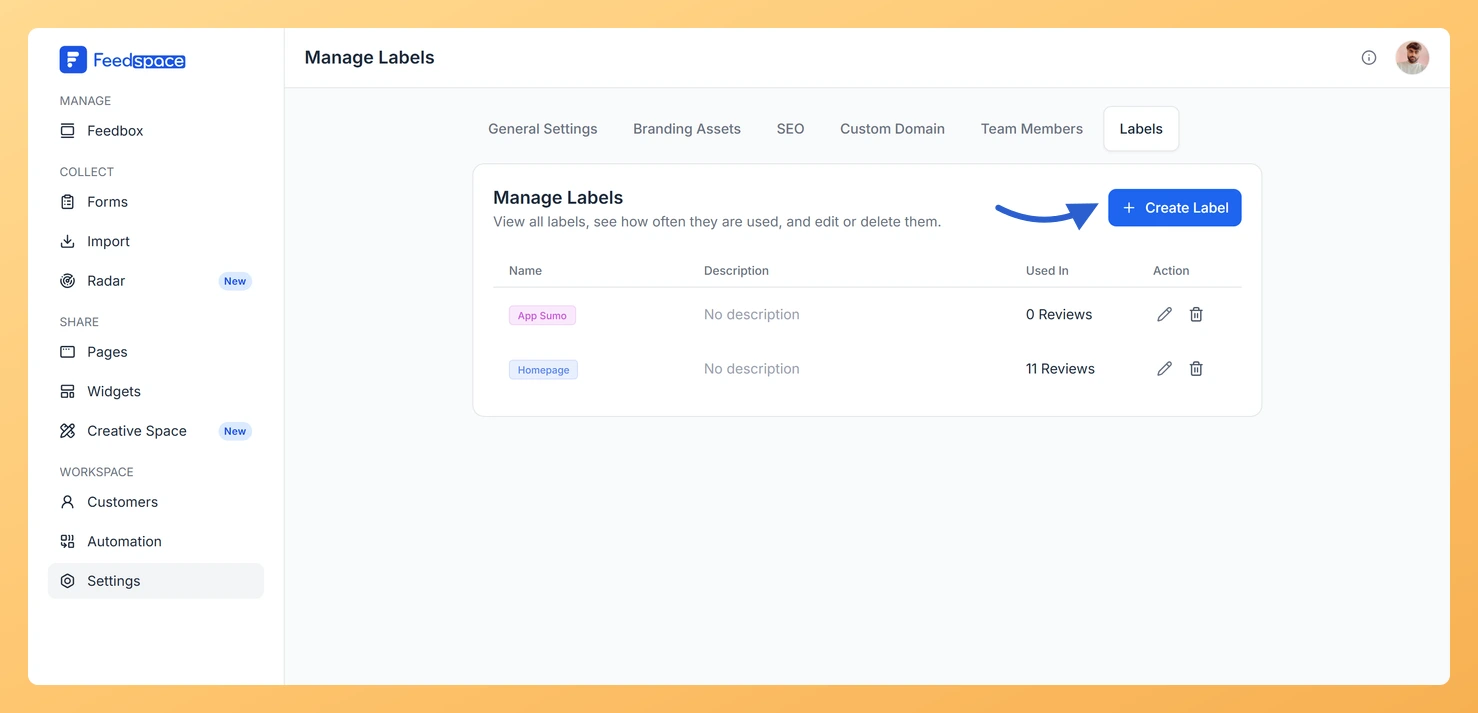
Step 1: Create a label for the reviews you want set aside
Go to your Feedbox and open the Labels section. Create a new label with a name that makes sense for your workflow, such as “Hidden”, “Not for Display”, or “Internal Only”. This label will act as your personal marker for reviews you want to exclude from public widgets.
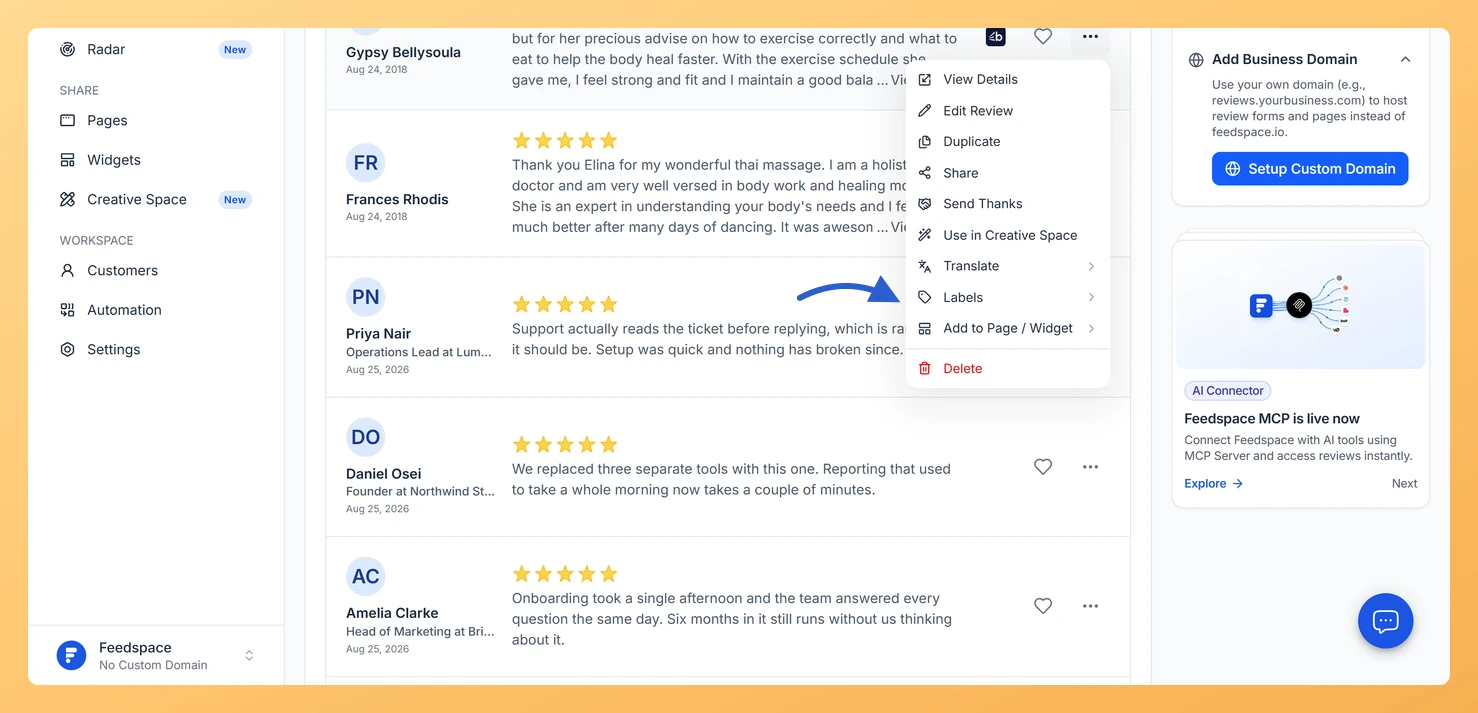
Step 2: Apply the label
Select the review (or reviews) you want to keep out of your public displays and apply your new label to them. You can do this one at a time or use bulk operations to label several reviews at once. The reviews stay right where they are in your Feedbox, unchanged.
Step 3: Leave those reviews out when you build
When you set up or update a widget or Wall of Love page, Feedspace lets you filter and choose which reviews to include. Simply do not select the reviews carrying your “Hidden” label. Only the reviews you actively choose will appear in your public display, so your labeled reviews stay private without any risk of accidental deletion.
Why labels work better than deleting
This method is especially useful for low-rating reviews that contain valuable internal feedback. Rather than losing that insight forever, you can keep the review for your team to learn from while ensuring it never appears on a public-facing display. Your Feedbox becomes a complete record of all feedback, and your widgets show only the reviews you have curated.
You can also reverse the decision at any time. Remove the label from a review whenever you are ready to consider it for display again. Nothing is lost, and full control stays with you.
What’s next
Create a dedicated label such as “Not for Display” in your Feedbox and apply it to any reviews you want to keep private.
Use bulk operations to label multiple reviews at once, saving time when you want to set aside several reviews in a single step.
Review your widget and Wall of Love settings to confirm only your chosen, unlabeled reviews are selected for public display.
Revisit your labeled reviews periodically to decide whether any of them are now ready to be included in your public displays.
Common questions
Does labelling a review remove it from a page it is already on?
No. A label only marks the review. If it is already showing on a page or widget, open that editor and take it off the selection there.
Can I reuse one label across several pages and widgets?
Yes. Labels belong to the workspace, not to a page, so the same label can mark reviews you want left out everywhere.
You might also find helpful
How to Delete a Review in Feedspace
Overview If you need to remove a review that is no longer relevant, inaccurate, or was added by mistake, the Delete option in Feedbox permanently removes it from your account. Steps Tips Common questions Can I delete more than one review at a time? Yes. Click the checkbox on a...
How to Add and Remove Labels for Reviews in Feedspace
Overview Labels allow you to better organize and categorize your reviews in Feedspace. By adding labels to your reviews, you can quickly filter and search for specific reviews, streamlining your management process. You can add multiple labels to a review and remove them at any time. Step 1 Log in...
How to Perform Bulk Operations in Feedspace
Overview Managing multiple reviews one by one can be time-consuming. Feedspace makes it easy to take actions on several reviews at once with the Bulk Operation feature. Step 1 Go to Feedbox Step 2 Select Reviews Step 3 Choose Bulk Action Once reviews are selected, a batch action panel appears...