
Feedspace Home Dashboard

Can I Add Social Media Profiles to a Reviewer in Feedspace?

Last updated on June 5, 2026

Overview

Yes. Feedspace lets you attach social media profile links to any reviewer from inside the Review Details panel. Once added, these links appear alongside the review so your team and visitors can see where the reviewer is active online.

Supported Platforms

  • X (Twitter)
  • LinkedIn
  • Instagram
  • Facebook
  • YouTube

Steps

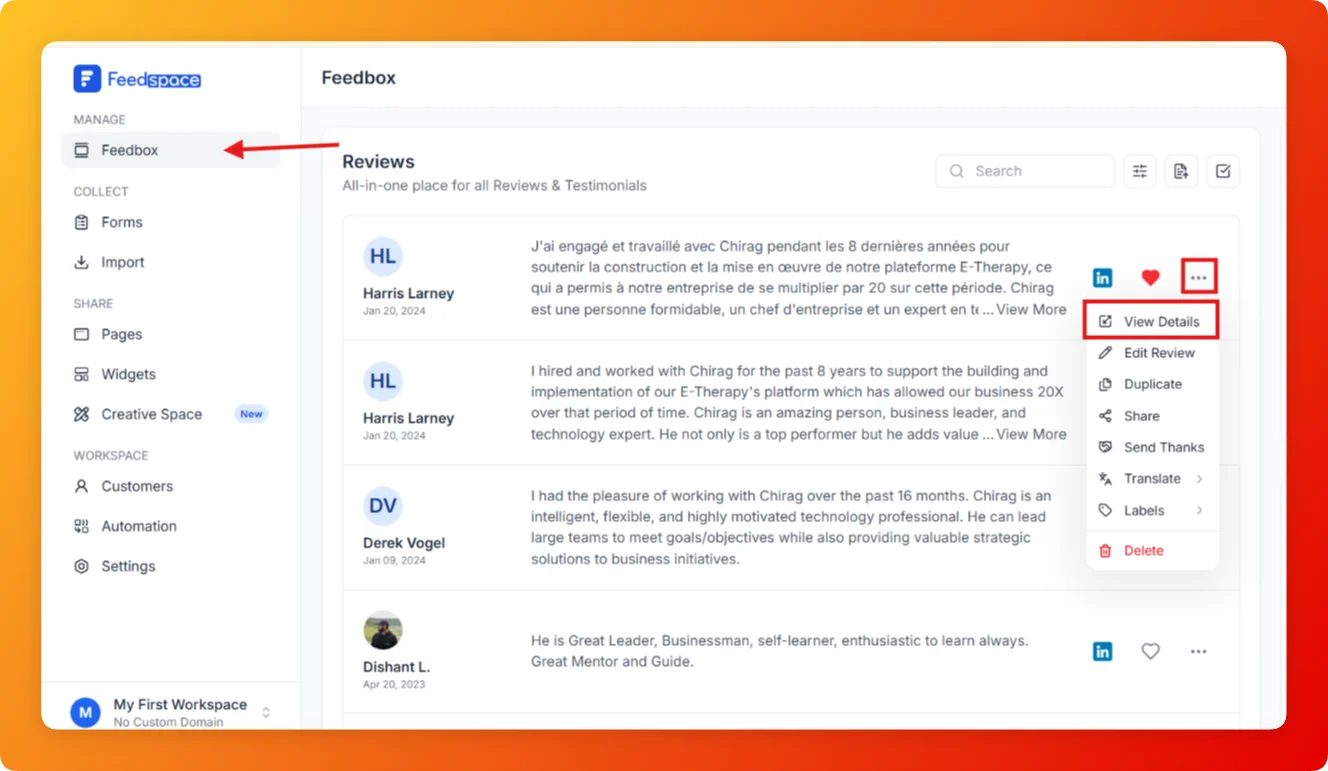
  1. Open Feedbox from the sidebar under Manage.
  2. Find the review whose reviewer you want to update.
  3. Click the three-dot menu on the review card and select View Details.
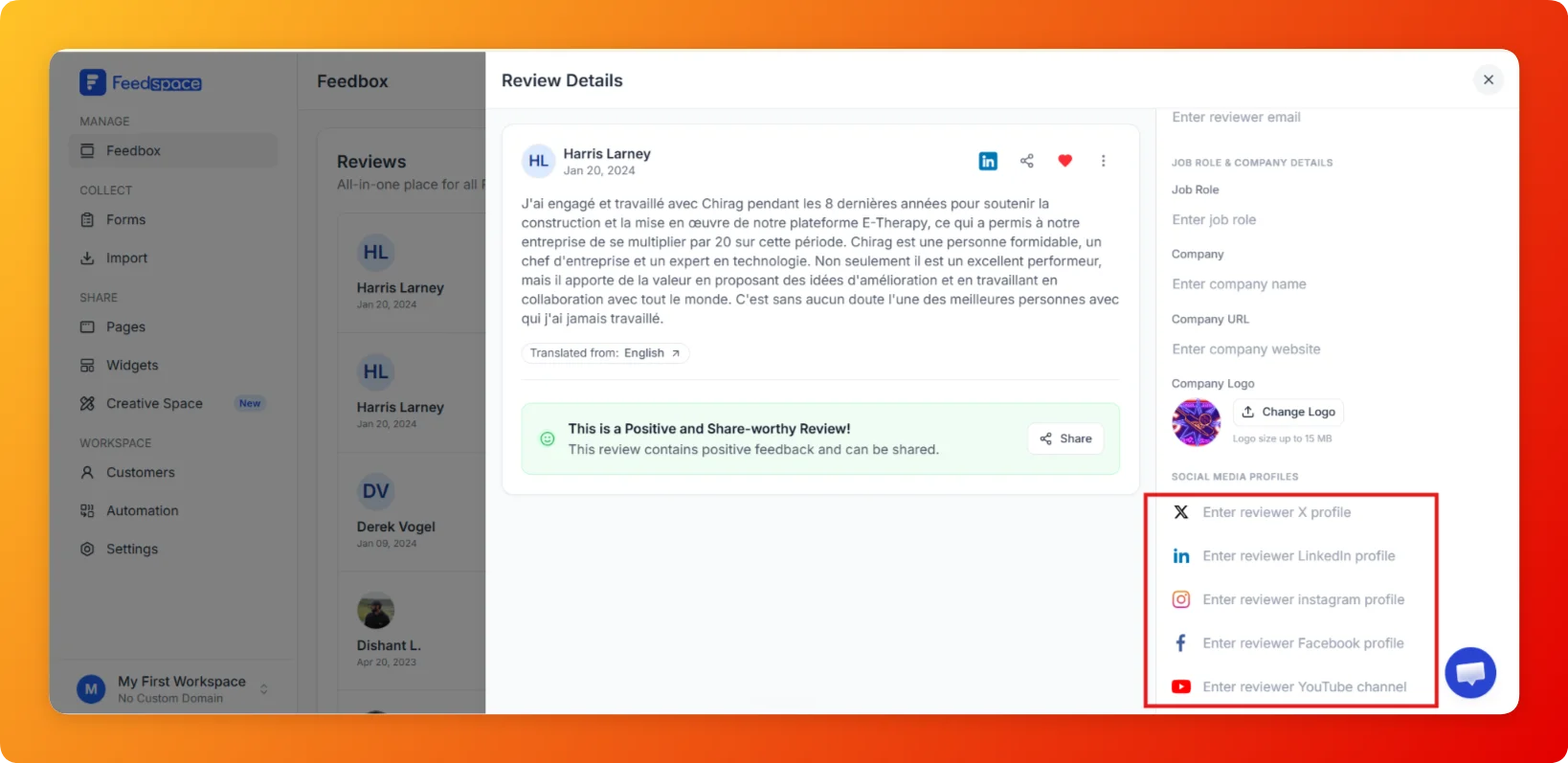
  1. In the right panel, scroll down to the Social Media Profiles section.
  2. Click the field for the platform you want to add (X, LinkedIn, Instagram, Facebook, or YouTube).
  1. Paste the reviewer profile URL or handle.
  2. Save the changes.

Tips

  • You can fill in one platform or all five none are required.
  • Adding a LinkedIn profile is especially useful for B2B reviews so visitors can verify the reviewer.
  • Social profile links make testimonials more credible when displayed on Wall of Love pages or widgets.

You might also find helpful

How to View Full Details of a Review in Feedspace

Overview Each review card in Feedbox shows a short preview of the review text. If you want to see the full review along with all reviewer details, platform information, and metadata, the View Details option opens the complete review in one place. Steps Tips

How to Edit a Review in Feedspace

Overview Feedspace allows you to easily edit the details of imported or collected reviews. This is helpful if you want to update user info, correct details, or add missing fields like company name, designation, or email. Step 1 Go to Feedbox Navigate to your Feedbox from the left sidebar. Here,...