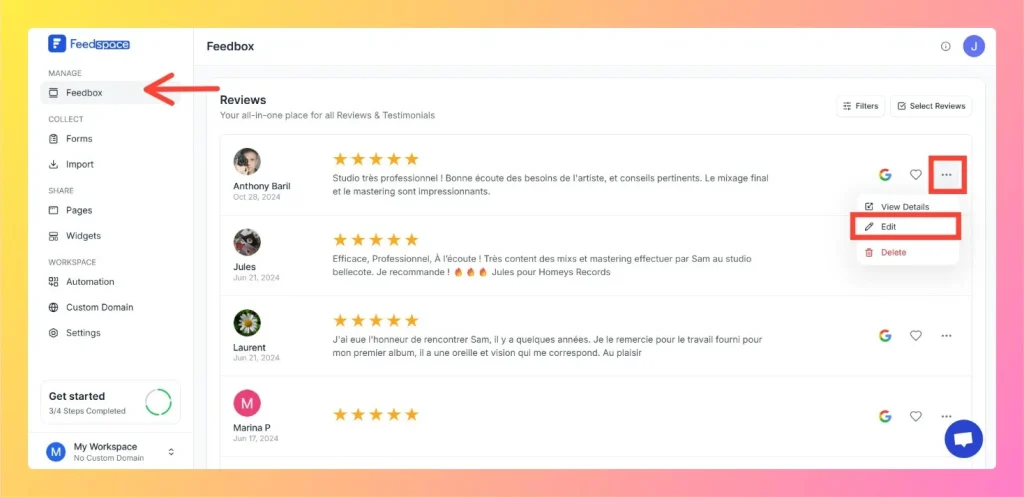
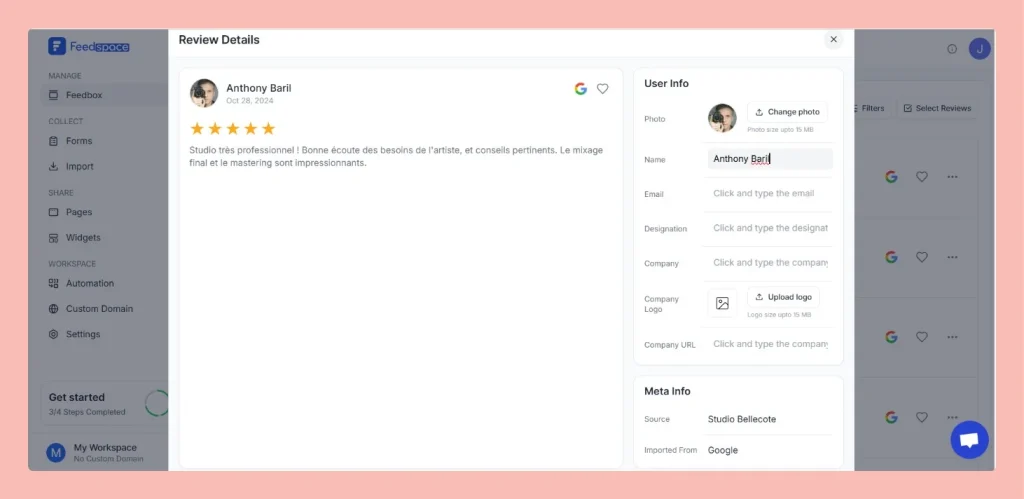
Feedspace lets you edit the details of imported or collected reviews. This is helpful when you want to update reviewer info, correct details, or add missing fields like company name, designation, or email before you showcase the review.
For reviews that carry a rating, the edit sheet shows a star rating field. Click a star to set the rating, or click a different star to change it. This works for imported reviews too, so you can add a rating to a review that came in without one.
Step 5: Save changes
Click Save Changes at the bottom of the sheet. The sheet closes and your edits appear on the review in Feedbox.
Why edit reviews?
Maintain accuracy: correct typos or missing details.
Add branding: include company logos and designations for a professional display.
Organise better: keep formatting consistent across all reviews.
Common questions
Can I add a star rating to an imported review that came in without one?
Yes. Open the review in the edit sheet and use the star rating field to set a rating. Click a star to choose the value, then click Save Changes.
Do my edits appear automatically on widgets and pages?
Yes. Once you save your changes in Feedbox, the updated review is reflected anywhere it is displayed, including widgets and Wall of Love pages.
You might also find helpful
How to Use Filters in Feedspace
Overview Feedspace provides advanced filtering options so you can quickly find and manage the reviews that matter most. Step 1: Go to Feedbox Step 2 Apply Filters You can filter reviews using the following categories: Filters Review Based On Type Of Content
How to Perform Bulk Operations in Feedspace
Overview Managing multiple reviews one by one can be time-consuming. Feedspace makes it easy to take actions on several reviews at once with the Bulk Operation feature. Step 1 Go to Feedbox Step 2 Select Reviews Step 3 Choose Bulk Action Once reviews are selected, a batch action panel appears...
Easily Find Your Favorite Testimonials in Feedspace
Feedspace allows you to mark testimonials as favorites so you can quickly find and highlight the ones that matter most. How to Mark a Testimonial as Favorite: How to Find Your Favorite Testimonials: This makes it simple to keep track of the most impactful feedback for quick sharing and showcasing.