Every review in your Feedspace Feedbox carries a date. Feedspace sets this date automatically, the day the review was collected for form reviews, or the original date carried over from the source for imported reviews. What you control is whether that date appears on your public display, using the Show Review Date toggle in your widget or Wall of Love.
This is handy when you want a clean wall of testimonials without dates pulling focus from the words, or when older imported reviews would look dated next to fresh ones. The toggle is set per widget and per Wall of Love, so you can show the date in one place and hide it in another.
Steps to hide or show the date on the public display
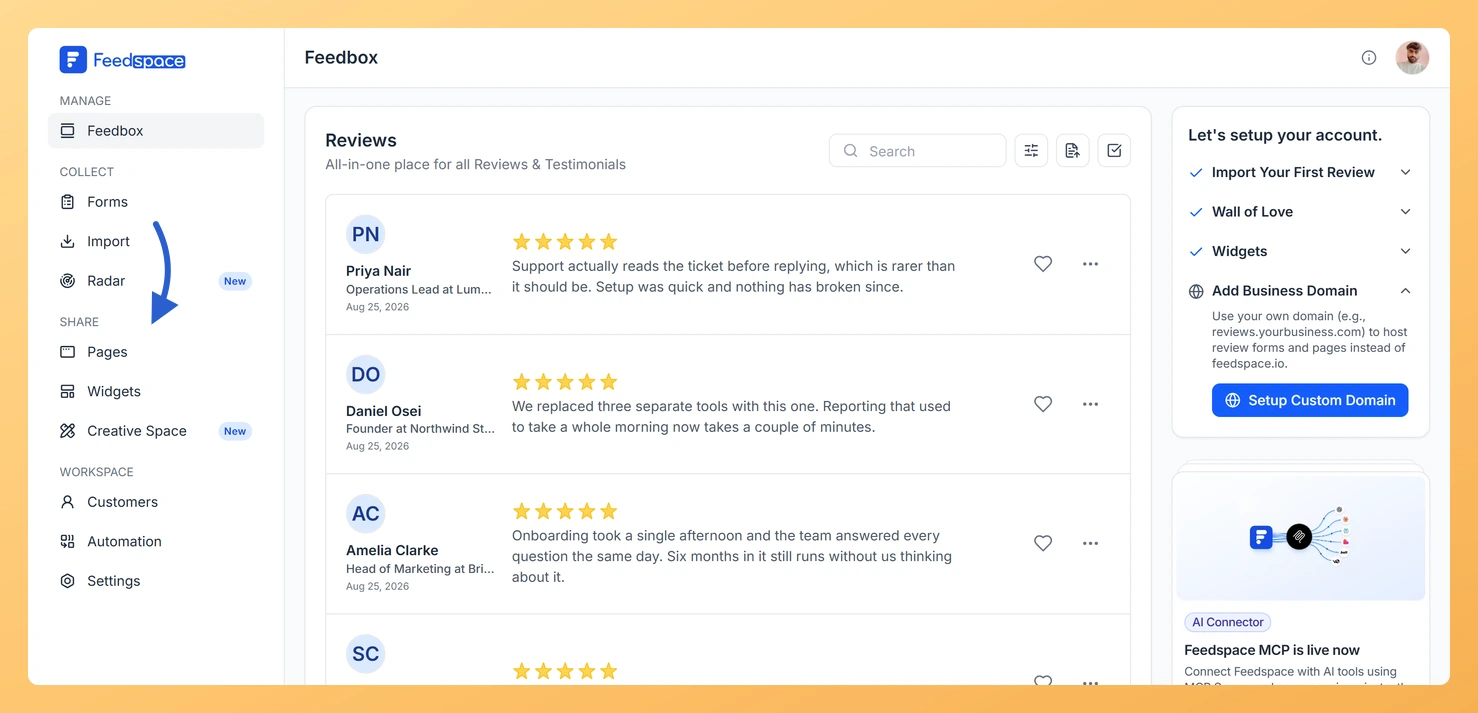
Step 1: Open Widgets or Pages
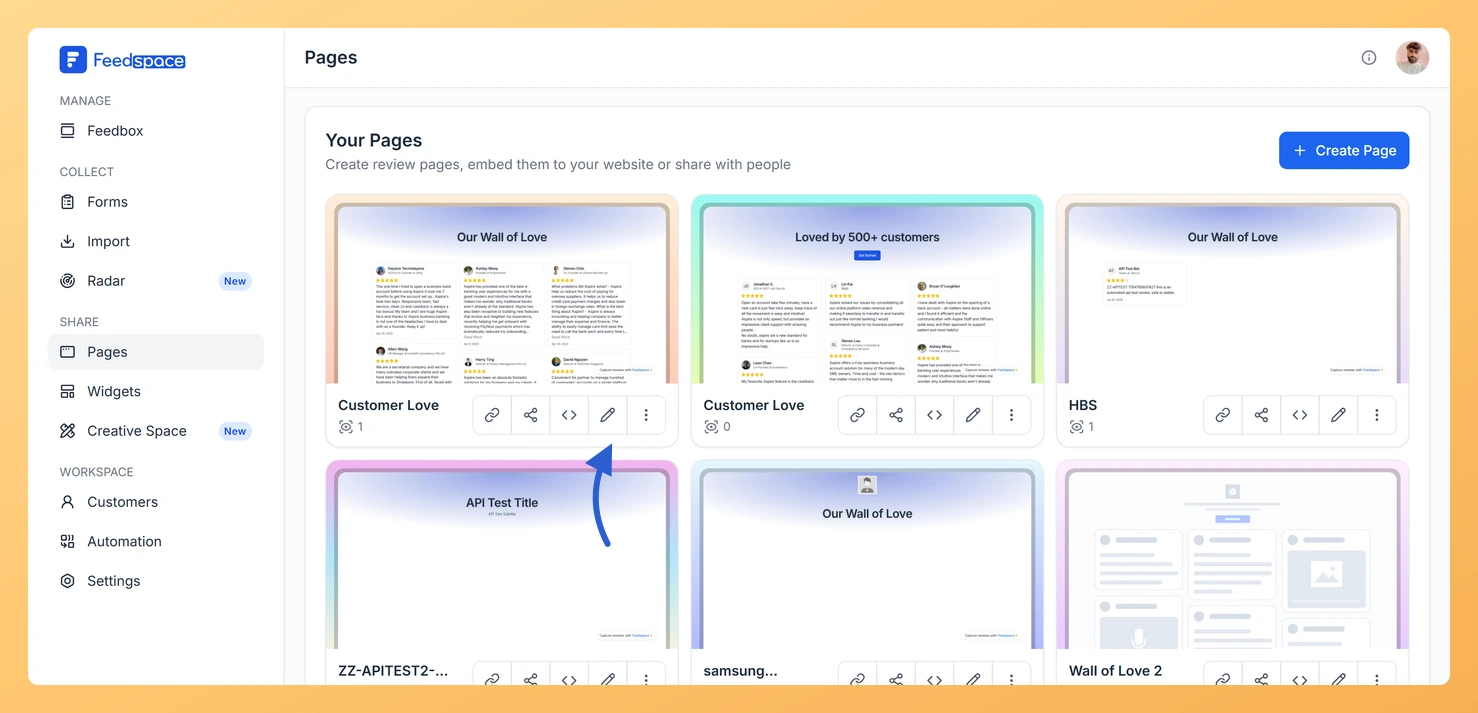
For a widget, click Widgets in the left sidebar. For a Wall of Love, click Pages.
Step 2: Open the editor
Find the widget or page you want to change and click the Edit (pencil) icon in the row of icons on its card. The editor opens.
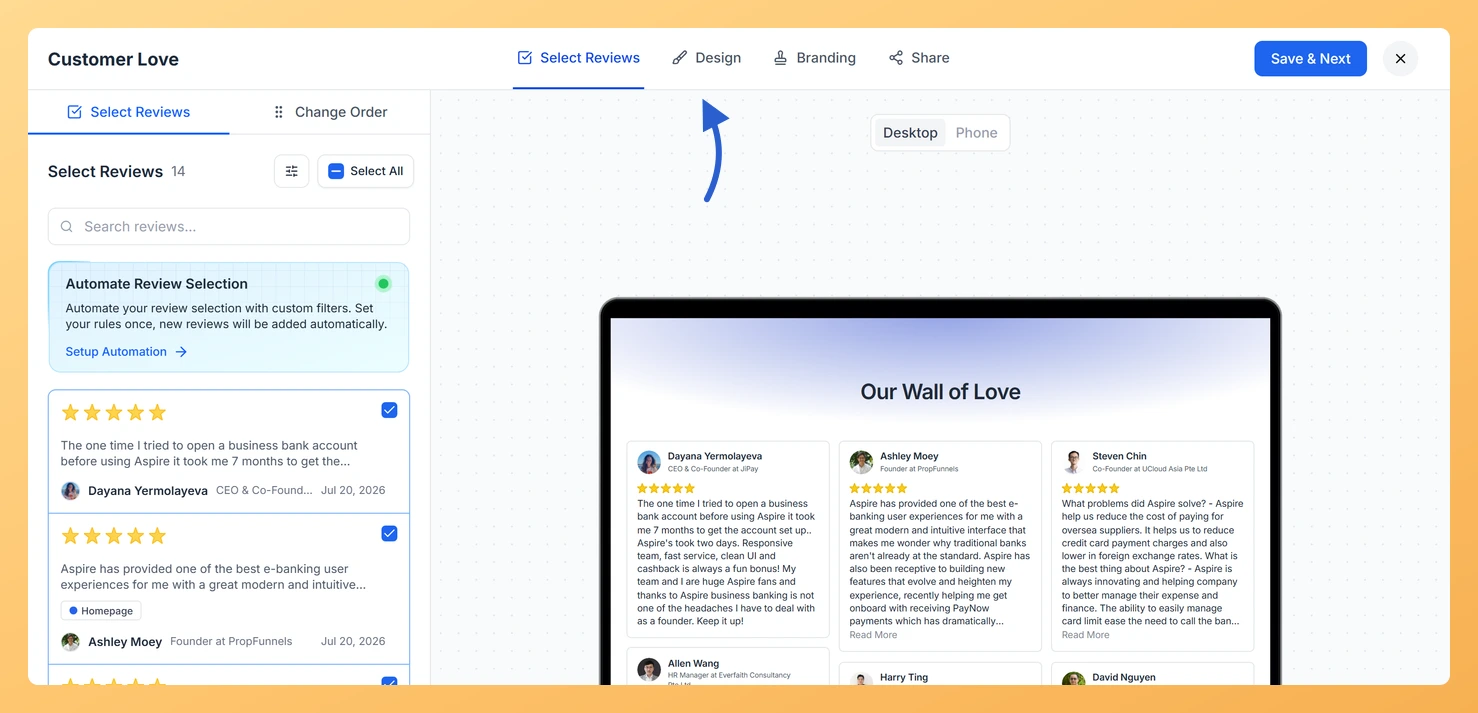
Step 3: Go to the Design tab
In the editor header, click the Design tab, which sits between Select Reviews and Branding.
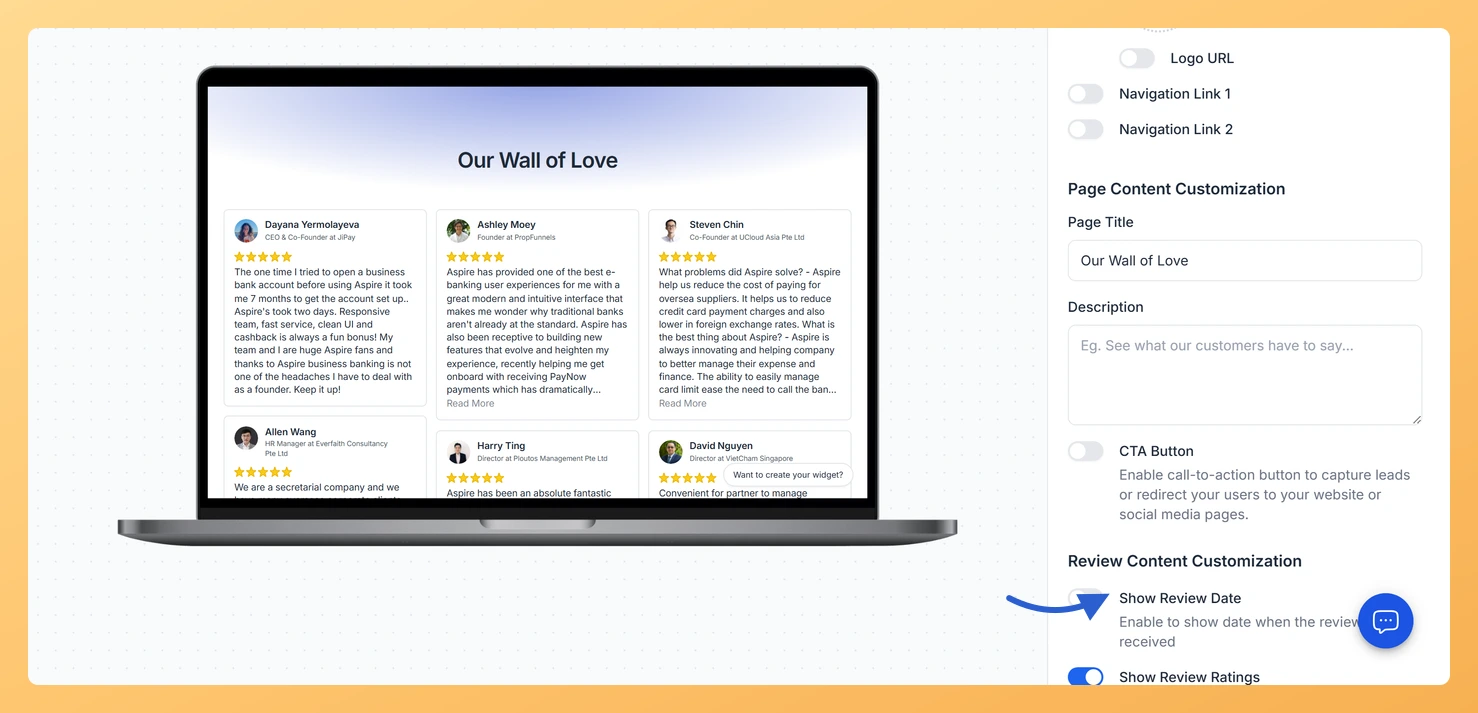
Step 4: Switch Show Review Date off or on
Scroll the settings column on the right to Review Content Customization and turn Show Review Date off to hide the date, or on to show it. The preview beside it updates as you switch. Click Save & Next in the editor header to keep the change.
Feedspace assigns the review date automatically when the review is collected or imported, so it always reflects the real timing. To control how the date appears to your audience, use the Show Review Date toggle described above.
You might also find helpful
How to Edit a Review in Feedspace
Overview Feedspace lets you edit the details of imported or collected reviews. This is helpful when you want to update reviewer info, correct details, or add missing fields like company name, designation, or email before you showcase the review. Step 1: Go to Feedbox Step 2: Open review options Step...
How to View Full Details of a Review in Feedspace
Overview Each review card in Feedbox shows a short preview of the review text. If you want to see the full review along with all reviewer details, platform information, and metadata, click the review card to open the complete review in one place. Steps Tips
How to Customize Widgets to Match Your Website Theme
Overview Feedspace allows you to fully customize your widgets to match your brand’s look and feel. Whether you want to change fonts, colors, or layout: you can easily do so from the widget editor. For advanced users, you can even add custom CSS for complete design flexibility. Steps to Customize...